Best Controller Settings for Action Games – Optimize Your Setup for Maximum Performance and Precision

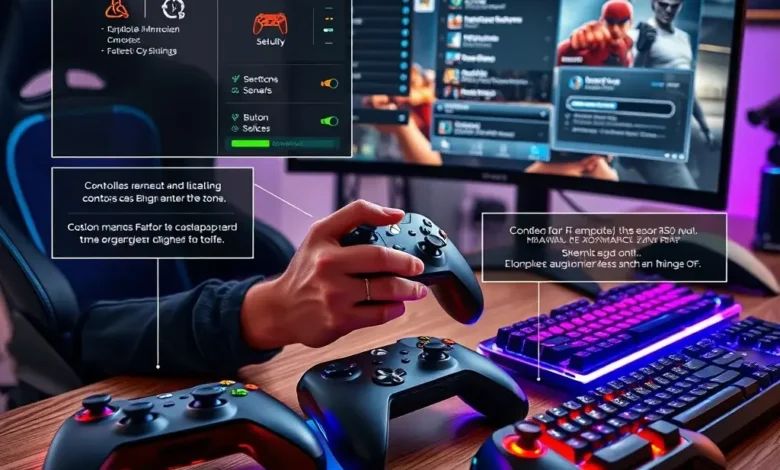
The world of action games is as diverse as it is intense, demanding lightning-fast reflexes, pinpoint accuracy, and seamless control. Whether you’re a seasoned veteran or a newcomer to the genre, fine-tuning your controller settings can make the difference between victory and defeat. This comprehensive guide explores the best controller settings for action games, helping you maximize your performance, reduce fatigue, and enhance your overall gaming experience. We’ll dive into platform-specific optimizations, button mapping strategies, dead zone adjustments, and advanced techniques to give you the competitive edge you need.
🎮 Why Controller Settings Matter in Action Games
Action games, by their very nature, require precision and responsiveness. Unlike turn-based or strategy titles, action games thrive on split-second decision-making, fluid movement, and precise aiming. A poorly configured controller can lead to frustration, missed shots, accidental clicks, and even physical discomfort during long sessions. The right settings not only improve your gameplay but also reduce strain on your hands and wrists, allowing you to play longer without fatigue.
For PC gamers, the difference between a generic controller setup and a finely tuned one can be the gap between fragging every opponent or struggling to land basic shots. On consoles like PlayStation or Xbox, leveraging the built-in customization options can significantly enhance your aim, movement speed, and ability to chain combos. Even in single-player experiences, optimized controls make exploration and combat more immersive and satisfying.
This guide covers everything from dead zones and sensitivity to button remapping and vibration settings. We’ll also address common issues like input lag, stick drift, and unintended movements, ensuring you get the most out of your controller in every action game.
🔥 Key Factors to Consider
- Sensitivity Settings: Control how quickly your character aims or moves based on stick input.
- Dead Zones: Adjust the threshold where minor stick movements are ignored to prevent drift-related errors.
- Button Mapping: Customize controls to suit your preferred layout and improve ergonomics.
- Vibration Feedback: Enhance immersion and receive tactile cues for in-game events.
- Trigger and Stick Settings: Adjust resistance and responsiveness for better aiming and movement.
- Advanced Features: Utilize features like aim assist, auto-rotation, or adaptive triggers if available.
🖥️ Controller Settings for Action Games on PC
🎯 Optimizing Your Controller for PC Action Games
Playing action games on PC with a controller offers a console-like experience with the flexibility of PC gaming. However, PC controllers often require additional software tweaks to achieve optimal performance. Whether you’re using an Xbox controller, PlayStation DualSense, or a third-party alternative, the settings below will help you get the most out of your setup.
Step 1: Choosing the Right Controller
Not all controllers are created equal, especially when it comes to PC gaming. The Xbox Elite Series 2 and PlayStation DualSense are among the most popular choices for action games due to their high-quality build, customizable buttons, and advanced features.
- Xbox Elite Series 2: Offers programmable paddles, adjustable tension thumbsticks, and a customizable button layout. Ideal for competitive players who need quick access to abilities or dodges.
- DualSense (PlayStation): Features adaptive triggers and haptic feedback, which can provide immersive tactile feedback in games. Great for single-player experiences where immersion is key.
- Third-Party Controllers: Brands like 8BitDo and Razer offer budget-friendly alternatives with customizable options. However, they may lack the build quality and software support of first-party controllers.
Step 2: Configuring Controller Software
Most modern controllers come with dedicated software for customizing settings. For Xbox controllers, this is the Xbox Accessories App, while PlayStation controllers use PS Remote Play or third-party tools like DS4Windows for advanced tweaking.
- Xbox Accessories App:
- Allows remapping buttons, adjusting stick sensitivity, and configuring vibration intensity.
- Supports creating multiple profiles for different games.
- Enables firmware updates to ensure optimal performance.
- DS4Windows:
- Essential for PlayStation controllers on PC, as Windows natively supports Xbox controllers but not DualSense.
- Offers advanced dead zone adjustments, button remapping, and input lag reduction.
- Supports macros and scripting for automating complex inputs.
- Steam Input:
- If you’re playing on Steam, enable Steam Input to customize controls globally or per game.
- Supports community-created configurations for popular action games.
- Allows adjusting dead zones, sensitivity, and button layouts directly from Steam.
Step 3: Adjusting Dead Zones and Sensitivity
Dead zones and sensitivity are two of the most critical settings for action games. A dead zone is the small area around the center of a stick where minor movements are ignored. This prevents stick drift from affecting your aim. Sensitivity, on the other hand, determines how quickly your character responds to stick movements.
- Dead Zones:
- Set a dead zone of 5-15% for both left and right sticks. This is enough to eliminate drift while maintaining responsiveness.
- Adjust dynamically based on your stick’s condition. If your stick drifts significantly, increase the dead zone slightly.
- Sensitivity:
- Start with a moderate sensitivity (e.g., 50-70%) and adjust based on your comfort level.
- For FPS games like Call of Duty or Overwatch, a sensitivity of 5-10% for aiming is common among competitive players.
- For action-adventure games like Devil May Cry or Bayonetta, higher sensitivity (e.g., 60-80%) is often preferred for fluid combos and movement.
Step 4: Remapping Buttons for Efficiency
Button remapping is one of the most powerful ways to optimize your controller for action games. Many action games have default layouts that aren’t ergonomic, leading to awkward finger stretches or accidental inputs. Here’s how to remap buttons effectively:
- Prioritize Comfort: Place frequently used buttons (e.g., jump, attack, dodge) within easy reach of your fingers.
- Use Paddles (if available): On controllers like the Xbox Elite Series 2, assign secondary actions (e.g., melee attacks, ability swaps) to paddles for faster execution.
- Avoid Clashing Buttons: Ensure that buttons mapped to conflicting actions (e.g., jump and crouch) are not adjacent to avoid accidental inputs.
Example Layout for a Melee Action Game:
| Button | Default Function | Recommended Remap | Reason |
|---|---|---|---|
| A (Xbox) / X (PlayStation) | Jump | Light Attack | More intuitive for combos |
| B (Xbox) / Circle (PlayStation) | Dodge/Block | Heavy Attack | Better weight distribution |
| X (Xbox) / Square (PlayStation) | Light Attack | Jump | Easier access |
| Y (Xbox) / Triangle (PlayStation) | Special Ability | Dodge/Block | Quick defensive option |
| Right Bumper | Heavy Attack | Grab/Throw | Contextual actions benefit from secondary buttons |
Remapping buttons can take time to get used to, but the payoff in terms of comfort and efficiency is well worth it. Spend a few hours in practice mode to adjust before jumping into competitive matches.
Step 5: Fine-Tuning Trigger and Stick Settings
Triggers and sticks are the heart of your controller’s performance in action games. Adjusting their settings can improve responsiveness, reduce fatigue, and enhance precision.

- Trigger Sensitivity:
- For shooters like Doom Eternal or Halo, set trigger sensitivity to 50-70% for consistent weapon switching and firing.
- Enable trigger stops on the Xbox Elite Series 2 to reduce accidental inputs when pressing triggers fully.
- For games with sprint mechanics, assign sprint to a paddle or remap it to a less frequently used button to avoid accidental activation.
- Stick Tension:
- Adjust stick tension (available on the Xbox Elite Series 2) to match your playstyle. Higher tension provides better control but may require more effort.
- For competitive play, a slightly higher tension (50-70%) can help prevent accidental stick movements.
- Invert Sticks (if preferred):
- Some players prefer inverted vertical stick movement for aiming. Toggle this setting in the game’s control options or controller software.
Step 6: Optimizing Vibration Feedback
Vibration feedback can enhance immersion and provide subtle cues for in-game events. However, excessive vibration can be distracting. Here’s how to optimize it:
- Adjust Intensity: Reduce vibration intensity to 30-50% to avoid overwhelming feedback.
- Disable Unnecessary Vibrations: Turn off vibrations for minor events like footsteps or reloads to reduce distractions.
- Use Adaptive Triggers (DualSense Only): Enable adaptive triggers to feel resistance when drawing a bow, driving a car, or firing a weapon. This adds a layer of immersion that standard vibration cannot match.
📱 Controller Settings for Action Games on Mobile
Mobile action games like Call of Duty Mobile, PUBG Mobile, and Genshin Impact require a different approach to controller settings. Unlike PC or console setups, mobile controllers must balance performance with battery life and portability. Here’s how to optimize your setup for mobile action games.
Step 1: Choosing the Right Mobile Controller
Not all mobile controllers are suitable for action games. Look for controllers with the following features:
- Bluetooth Connectivity: Ensures low latency and stable connection.
- Programmable Buttons: Allows customization for better ergonomics.
- Dedicated Gaming Mode: Reduces input lag and improves responsiveness.
- Ergonomic Design: Comfortable grip for long gaming sessions.
Popular options include the Razer Kishi, 8BitDo Pro 2, and Xbox Mobile Gaming Controller. These controllers offer a console-like experience with full button layouts and customizable settings.
Step 2: Configuring Mobile Controller Settings
Most mobile controllers come with companion apps for customizing settings. For example, the Razer Kishi uses the Razer Mobile App, while the 8BitDo Pro 2 can be configured via the 8BitDo Central App.
- Sensitivity Adjustments: Mobile action games often have built-in sensitivity sliders. Use these alongside your controller’s dead zone settings for optimal aim.
- Button Remapping: Assign secondary actions to less frequently used buttons to avoid accidental inputs.
- Trigger Settings: Adjust trigger sensitivity to prevent accidental firing or ability activations.
Step 3: Managing Battery Life and Performance
Mobile controllers rely on rechargeable batteries, which can drain quickly during intense gaming sessions. To maximize battery life:
- Disable Unused Features: Turn off vibration, LED lights, and other power-draining features during gameplay.
- Use Power-Saving Modes: Some controllers offer power-saving modes that reduce performance to extend battery life.
- Carry a Portable Charger: Keep a charger handy for lengthy gaming sessions.
Step 4: Optimizing for Specific Mobile Action Games
Different mobile action games have unique control requirements. Here’s how to optimize your setup for popular titles:
- Shooters (e.g., PUBG Mobile, Call of Duty Mobile):
- Set sensitivity to 60-80% for faster aiming.
- Remap the fire button to a paddle or secondary button to avoid accidental clicks.
- Enable aim assist for better tracking of moving targets.
- Fighting Games (e.g., Tekken Mobile, Mortal Kombat):
- Assign special moves to paddles for quick execution.
- Increase stick dead zones to prevent accidental inputs during combos.
- Disable vibration to reduce distractions.
- Open-World Action Games (e.g., Genshin Impact, Naraka: Bladepoint):
- Balance sensitivity between movement and aiming for fluid exploration and combat.
- Remap sprint to a paddle or less critical button to avoid accidental activation.
- Enable vibration for immersion during combat sequences.
🎯 Advanced Controller Settings for Competitive Play
For competitive action games like Street Fighter 6, Tekken 8, or Fortnite, every millisecond counts. Advanced controller settings can give you the edge needed to outplay your opponents. Below are expert-level tweaks to elevate your gameplay.
🔥 Input Lag Reduction
Input lag is the delay between pressing a button and the game registering the input. Even a 10ms delay can be the difference between winning and losing in competitive play. Here’s how to minimize input lag:
- Use a Wired Connection: If your controller supports it, use a wired USB connection instead of Bluetooth to eliminate wireless lag.
- Enable Low Latency Mode: Some controllers (like the Xbox Elite Series 2) offer a low-latency mode that reduces input delay.
- Update Firmware: Ensure your controller’s firmware is up to date for optimal performance.
- Disable Background Apps: Close unnecessary apps and processes on your PC to reduce system latency.
⚔️ Custom Control Schemes for Specific Games
Every action game has unique control requirements. Below are custom control schemes for popular competitive titles:
| Game | Recommended Controller Settings | Why It Works |
|---|---|---|
| Street Fighter 6 | Remap Light Kick to A, Heavy Kick to B, Light Punch to X, Heavy Punch to Y. Assign special moves to paddles. | Optimizes for quick combo execution and reduces finger strain. |
| Tekken 8 | Set horizontal sensitivity to 50% and vertical to 70%. Remap sidestep to a paddle. | Improves movement precision and defensive options. |
| Fortnite | Adjust aim sensitivity to 60%. Remap building to a paddle. Enable aim assist. | Balances building and shooting for faster reactions. |
| Devil May Cry 5 | Remap Style rank to a paddle. Increase jump sensitivity for fluid combos. | Enhances combo fluidity and defensive play. |
🎮 Using Macros and Scripting
Macros and scripting allow you to automate complex inputs with a single button press. This is particularly useful in games with repetitive actions or combos. However, using macros in online multiplayer games can be against the terms of service, so always check the game’s rules before implementing them.
- Xbox Elite Series 2: Supports up to 3 macros per paddle, allowing for instant combo execution.
- DS4Windows: Allows scripting complex inputs using Lua or AutoHotkey.
- Steam Input: Supports community-created macros for popular games.
Example Macro for a Fighting Game:
- Press paddle 1 → Execute Dragon Punch motion (↓, ↘, → + Punch).
- Press paddle 2 → Execute Hurricane Kick motion (→, ↘, ↓, ↙ + Kick).
🔍 Troubleshooting Common Controller Issues
Even the best controllers can encounter issues like stick drift, input lag, or button unresponsiveness. Below are solutions to common problems and how to fix them.
🛠️ Fixing Stick Drift
Stick drift is one of the most frustrating issues for action game players. It occurs when the stick registers movement even when untouched. Here’s how to diagnose and fix it:
- Physical Cleaning: Use isopropyl alcohol and a cotton swab to clean the stick’s base. Dirt and debris can cause drift.
- Adjust Dead Zones: Increase the dead zone in your controller’s software to compensate for drift.
- Replace the Stick: If cleaning doesn’t work, the stick may need replacing. This is common in older controllers.
- Use Software Workarounds: Tools like Anti-Drift (for Xbox controllers) can recalibrate the stick digitally.
🐌 Reducing Input Lag
Input lag can ruin the responsiveness of your controller. Here’s how to identify and fix it:
- Check Your Connection: Use a wired connection instead of Bluetooth to eliminate wireless lag.
- Update Drivers: Ensure your controller’s drivers are up to date. For Xbox controllers, this is done via Windows Update.
- Disable Background Processes: Close unnecessary apps on your PC to reduce system latency.
- Test Input Lag: Use an online input lag tester to measure delay. If it’s above 10ms, switch to a wired connection.
🔘 Fixing Button Unresponsiveness
If your controller’s buttons feel sluggish or unresponsive, try the following:
- Clean the Buttons: Use compressed air to blow out debris from under the buttons.
- Check for Wear: Over time, buttons can wear out. If cleaning doesn’t help, consider replacing the controller.
- Adjust Button Sensitivity: In your controller’s software, increase the button sensitivity to reduce delay.
🏆 Final Verdict: Which Controller Settings Are Best for You?
The best controller settings for action games depend on your playstyle, the specific game, and your physical comfort. There is no universal