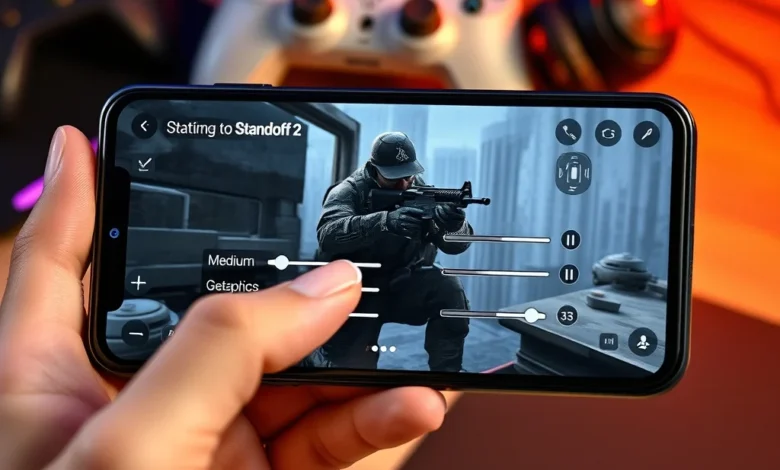
Standoff 2 has cemented its place as one of the most intense and competitive tactical shooters available on Android. With its blend of realistic gunplay, strategic depth, and smooth controls, the game demands a finely tuned experience to maximize both performance and visual fidelity. Whether you’re a seasoned player looking to dominate the battlefield or a newcomer trying to find the right balance between graphics and smoothness, optimizing your settings is essential.
In this guide, we’ll dive deep into the best settings for Standoff 2 on Android, covering everything from graphics and performance tweaks to control customization. Our goal is to help you achieve the perfect setup that enhances gameplay without sacrificing responsiveness or battery life. Let’s get started.
🚀 Why Optimizing Settings Matters in Standoff 2
Standoff 2 is a game that relies heavily on quick reflexes, precise aiming, and tactical awareness. Even the slightest lag or input delay can mean the difference between victory and defeat. By optimizing your settings, you ensure that your device runs the game smoothly while maintaining the visual clarity needed to spot enemies and react instantly.
Many players overlook the importance of in-game settings, often sticking with default configurations that may not suit their device. For example, running the game at maximum graphics settings on a mid-range device will likely result in frame drops, heat buildup, and reduced battery life. Conversely, lowering settings too much can make the game feel dull or lack detail. Finding the right balance is key, and this guide will help you do just that.
Additionally, Standoff 2 is frequently updated with new features, maps, and optimizations. Keeping your settings updated ensures you’re always getting the best possible experience, whether it’s improved FPS or enhanced visuals.
🔧 What You’ll Learn in This Guide
- Graphics Settings: How to balance visuals and performance for the best experience.
- Performance Settings: Tips to reduce lag, heat, and battery drain.
- Control Customization: Optimizing touch sensitivity, button layouts, and sensitivity settings.
- Device-Specific Recommendations: Settings tailored for low-end, mid-range, and high-end devices.
- Advanced Tweaks: Pro-level adjustments for competitive play.
🎮 Understanding Standoff 2’s Core Gameplay
Before diving into settings, it’s important to understand how Standoff 2 works and what elements are most critical for performance. Standoff 2 is a tactical shooter that emphasizes teamwork, strategy, and precision. The game features multiple modes, including Bomb Mode, Deathmatch, and Gun Game, each with unique objectives and gameplay mechanics.
The game’s combat system is designed to feel realistic, with recoil patterns, bullet drop, and weapon handling playing a major role in success. This realism extends to movement, where players can crouch, sprint, and jump to gain tactical advantages. The AI opponents are also programmed to react dynamically, making the game challenging even in single-player modes.
Given the game’s reliance on quick reactions and precise aiming, input lag and frame rate stability are crucial. A single dropped frame or delayed touch response can cost you a match. This is why optimizing your settings is not just about aesthetics—it’s about gaining a competitive edge.
🌍 Device Compatibility and Requirements
Standoff 2 is designed to run on a wide range of Android devices, from budget smartphones to flagship models. However, the optimal settings vary significantly depending on your device’s specifications. Below is a breakdown of device tiers and their general capabilities:
| Device Tier | Processor | RAM | GPU | Recommended Graphics Settings |
|---|---|---|---|---|
| Low-End | Snapdragon 4xx / Helio P2x | 3GB or less | Adreno 305 / Mali-T820 | Low |
| Mid-Range | Snapdragon 6xx / Helio P60 | 4-6GB | Adreno 512 / Mali-G52 | Medium |
| High-End | Snapdragon 8xx / Dimensity 9000 | 6GB or more | Adreno 640 / Mali-G78 | High or Ultra |
The game’s file size is approximately 1.8GB, and it requires at least 2GB of free storage space for updates and additional content. Battery consumption can be high during extended play sessions, so enabling battery-saving features in your device’s settings is recommended.
📱 Storage and Battery Considerations
Standoff 2 is a graphically demanding game, and its storage size can impact performance if your device is low on space. Here’s how storage affects gameplay:
- Low Storage (Less than 10GB free): May cause stuttering or slow loading times, especially during updates.
- Medium Storage (10-20GB free): Ideal for smooth performance, but regular cache clearing is recommended.
- High Storage (20GB+ free): Best for optimal performance, as the game can cache more assets for faster loading.
Battery life is another critical factor. Competitive players often spend hours grinding or participating in tournaments, so managing battery drain is essential. Lowering graphics settings and disabling unnecessary background processes can help extend playtime.

🎨 Graphics Settings: Balancing Visuals and Performance
The graphics settings in Standoff 2 are where you’ll find the most significant impact on both visuals and performance. Let’s break down each setting and explain how to optimize it for your device.
⚙️ Resolution and Texture Quality
Resolution: This setting determines the clarity of the game’s visuals. Higher resolutions provide sharper textures and more detail but require more GPU power. On mid-range and high-end devices, setting the resolution to High or Ultra is ideal. For low-end devices, stick with Medium or Low to avoid frame drops.
Texture Quality: This setting affects the sharpness of in-game textures, such as character models, weapons, and environments. Higher settings provide more detail but consume more memory. For most devices, Medium to High is a good balance. If you experience lag spikes, lower this to Low.
🎬 Shadows and Effects
Shadows: Shadows add realism to the game but are one of the most resource-intensive graphics settings. On high-end devices, setting shadows to High or Ultra enhances immersion. For mid-range devices, Medium is recommended, while low-end devices should use Low or disable shadows entirely.
Effects: This includes visual effects like muzzle flashes, explosion particles, and environmental details. While these effects enhance the game’s realism, they can also cause lag on weaker devices. Setting effects to Medium is a good compromise for most players. Competitive players may prefer Low effects to reduce visual clutter and improve FPS.
🖼️ Anti-Aliasing and Post-Processing
Anti-Aliasing: This setting smooths jagged edges on textures and models, making the game look more polished. However, it also increases GPU load. For low-end devices, set anti-aliasing to FXAA (lowest impact). Mid-range devices can use TAA, while high-end devices can enable MSAA or None for the best visuals.
Post-Processing: This includes effects like motion blur, depth of field, and color grading. These settings can enhance immersion but often come at a performance cost. Disabling post-processing entirely is recommended for competitive play, as it reduces visual distractions and improves clarity.
🌲 Environment and Draw Distance
Environment Detail: This setting affects the complexity of in-game environments, such as foliage, buildings, and terrain. Higher settings provide more detail but can cause lag on weaker devices. For most players, Medium is sufficient.
Draw Distance: This determines how far you can see into the distance. Higher draw distance provides a more immersive experience but can reduce FPS. Setting draw distance to Medium is ideal for most devices. Competitive players may prefer Low to minimize distractions and improve performance.
⚡ Performance Settings: Maximizing FPS and Stability
While graphics settings focus on visuals, performance settings are designed to maximize FPS, reduce lag, and improve overall stability. Let’s explore the most important performance tweaks for Standoff 2.
🎮 Frame Rate and Graphics Mode
Frame Rate: Standoff 2 supports up to 60 FPS on most devices. If your device supports 90Hz or 120Hz, enabling High Refresh Rate can provide a smoother experience. For devices with weaker GPUs, sticking to 30 FPS or 45 FPS is better for stability.
Graphics Mode: This setting allows you to choose between Performance, Balanced, and Quality modes. Performance mode prioritizes FPS and reduces graphics quality, while Quality mode prioritizes visuals at the cost of performance. Balanced mode is recommended for most players as it offers a good compromise.
⚙️ Advanced Settings for Competitive Play
Reduce Buffering: This setting minimizes input lag by reducing the game’s buffer size. Enabling this is highly recommended for competitive play, as it improves responsiveness.
Disable V-Sync: V-Sync synchronizes the game’s frame rate with your device’s refresh rate, which can reduce screen tearing but also introduces input lag. Disabling V-Sync can improve responsiveness, especially in fast-paced modes like Deathmatch.
Limit FPS: If your device struggles to maintain stable FPS, limiting the frame rate to 30 or 45 can reduce stuttering and heat buildup. This is especially useful for mid-range devices.
🔥 Temperature and Battery Management
Standoff 2 is a resource-intensive game, and prolonged play sessions can cause your device to overheat. Here’s how to manage temperature and battery life:
- Close Background Apps: Running multiple apps in the background increases CPU and GPU load, leading to higher temperatures. Always close unnecessary apps before playing.
- Enable Battery Saver: Some devices offer a battery saver mode that reduces background processes and lowers screen brightness. Enabling this can extend playtime.
- Lower Screen Brightness: High screen brightness increases power consumption and heat. Adjusting brightness to around 50-70% is ideal for extended play sessions.
- Use a Cooling Pad or Fan: If you play frequently, consider using a cooling pad or external fan to dissipate heat more effectively.
🎯 Control Customization: Enhancing Responsiveness and Accuracy
Standoff 2’s controls are highly customizable, allowing you to tailor the game to your playstyle. Whether you prefer touch controls, gyroscope, or a hybrid setup, optimizing your controls can significantly improve performance.
🖱️ Touch Sensitivity and Button Layout
Touch Sensitivity: This setting determines how quickly your character moves and aims when using touch controls. Higher sensitivity makes it easier to turn quickly but can also lead to overshooting your target. Most players find a sensitivity of 70-80% ideal for balancing speed and precision.
Button Layout: Standoff 2 offers several button layout options, including Classic, Custom, and Gyroscope. The Classic layout is the most widely used, as it places all essential buttons within easy reach. For advanced players, the Custom layout allows you to rearrange buttons for better accessibility.
🕹️ Gyroscope and Aim Assist
Gyroscope: The gyroscope allows you to aim by tilting your device, providing a more intuitive and precise aiming experience. Enabling gyroscope is highly recommended for competitive play, as it offers better control than touch alone. However, it requires a steady hand and some practice to master.
Aim Assist: This feature helps stabilize your aim, making it easier to track moving targets. Enabling aim assist is beneficial for casual players, but many competitive players prefer to disable it for a more authentic experience.
🔄 Sensitivity Settings for Different Weapons
Standoff 2 allows you to adjust sensitivity separately for each weapon category, such as rifles, pistols, and snipers. Here’s a recommended sensitivity setup for different weapon types:
| Weapon Type | Recommended Sensitivity | Notes |
|---|---|---|
| Rifles (AK-47, M4A1) | 75-85% | Balanced for recoil control and mobility. |
| Pistols (USP-S, Glock) | 80-90% | Higher sensitivity for quick flicks and close-quarters combat. |
| Snipers (AWP, Scout) | 60-70% | Lower sensitivity for precise aiming and minimal recoil. |
| SMGs (MP5, UMP) | 85-95% | High sensitivity for fast movement and quick reactions. |
Experiment with these settings to find what works best for your playstyle. Keep in mind that sensitivity is highly personal, so don’t be afraid to adjust it over time.
🏆 Device-Specific Settings: Tailoring for Your Hardware
Every Android device is different, and what works on one may not work on another. Below are tailored settings for different device tiers to help you achieve the best performance.
📱 Low-End Devices (Snapdragon 4xx, Helio P2x)
Low-end devices struggle with Standoff 2’s graphics demands, so prioritizing performance is essential. Here’s the recommended setup:
- Graphics Mode: Performance
- Resolution: Low
- Texture Quality: Low
- Shadows: Disabled
- Effects: Low
- Anti-Aliasing: FXAA
- Draw Distance: Low
- Frame Rate: 30 FPS
- Reduce Buffering: Enabled
- V-Sync: Disabled
With these settings, you should achieve stable 30 FPS with minimal lag. However, expect some visual compromises, such as blurry textures and reduced effects.
⚡ Mid-Range Devices (Snapdragon 6xx, Helio P60)
Mid-range devices can handle Standoff 2 at medium settings with stable FPS. Here’s the recommended setup:
- Graphics Mode: Balanced
- Resolution: Medium
- Texture Quality: Medium
- Shadows: Medium
- Effects: Medium
- Anti-Aliasing: TAA
- Draw Distance: Medium
- Frame Rate: 45-60 FPS
- Reduce Buffering: Enabled
- V-Sync: Enabled
These settings provide a good balance between visuals and performance, making the game enjoyable without causing overheating or battery drain.
🏎️ High-End Devices (Snapdragon 8xx, Dimensity 9000)
High-end devices can run Standoff 2 at ultra settings with high FPS. Here’s the recommended setup for maximum visuals and performance:
- Graphics Mode: Quality
- Resolution: High or Ultra
- Texture Quality: High
- Shadows: High or Ultra
- Effects: High
- Anti-Aliasing: MSAA or None
- Draw Distance: High
- Frame Rate: 60-90 FPS
- Reduce Buffering: Enabled
- V-Sync: Disabled (if using high refresh rate)
With these settings, you’ll experience crisp visuals, smooth animations, and high frame rates. However, monitor your device’s temperature to avoid overheating during extended play sessions.
🔥 Advanced Tweaks for Competitive Play
If you’re serious about competing in Standoff 2, optimizing your settings for competitive play can give you a significant advantage. Here are some advanced tweaks to consider:
🎯 Competitive Graphics Settings
For competitive play, visual clarity is more important than aesthetics. Here’s the recommended graphics setup:
- Resolution: Medium (to reduce input lag)
- Texture Quality: Medium (to improve loading times)
- Shadows: Low (to reduce visual clutter)
- Effects: Low (to minimize distractions)
- Anti-Aliasing: FXAA or None (to improve FPS)
- Draw Distance: Medium (to balance performance and immersion)
- Post-Processing: Disabled (to reduce eye strain)
These settings prioritize FPS and responsiveness, which are critical in fast-paced competitive matches.
🕹️ Control and Sensitivity Optimization
For competitive play, your control setup should maximize responsiveness and precision. Here are some recommended adjustments:
- Touch Sensitivity: 75-85% (for balanced movement and aiming)
- Gyroscope: Enabled (for more intuitive aiming)
- Aim Assist: Disabled (for a more authentic experience)
- Button Layout: Custom (to suit your playstyle)
- Large Buttons: Enabled (if using a large device)
Additionally, consider using a stylus or gaming controller for even greater precision. Many competitive players prefer controllers for their ergonomic design and precise analog sticks.
🔌 Network and Latency Optimization
Standoff 2 is an online multiplayer game, so network latency can significantly impact your performance. Here’s how to optimize your network settings:
- Use a Wired Connection: If possible, connect your device to a router via Ethernet to reduce latency.
- Prioritize Your Network: Enable Quality of Service (QoS) on your router to prioritize gaming traffic over other devices.
- Close Background Downloads: Pause any downloads or updates on your device to free up bandwidth.
- Use a VPN: Some players report improved latency by using a VPN, especially if their ISP is throttling gaming traffic.
If you’re experiencing high ping or lag spikes, try connecting to a different server or waiting until peak hours to play.
📊 Pros and Cons of Optimizing Standoff 2 Settings
✅ Advantages of Optimized Settings
Optimizing your Standoff 2 settings offers several benefits that enhance your overall gaming experience:
- Improved Performance: Custom settings ensure smooth FPS, reduced lag, and minimal stuttering, even on mid-range or low-end devices.
- Enhanced Visual Clarity: Balanced graphics settings make it easier to spot enemies, track movements, and react quickly.
- Better Battery Life: Optimized settings reduce power consumption, allowing you to play longer without draining your battery.
- Reduced Heat Buildup: Lowering graphics and performance settings minimizes CPU and GPU load, preventing overheating.
- Competitive Edge: Competitive players benefit from optimized settings that prioritize responsiveness and precision, giving them an advantage in matches.
❌ Disadvantages of Optimized Settings
While optimizing settings generally improves the experience, there are a few potential drawbacks to consider:
- Visual Compromises: Lowering graphics settings can result in reduced texture quality, shadows, and effects, which may impact immersion for some players.
- Learning Curve: Finding the perfect balance between performance and visuals requires experimentation, which can be time-consuming for beginners.
- Device Limitations: Some devices simply cannot handle high FPS or ultra settings, forcing players to settle for lower performance.
- Battery Drain: Even with optimized settings, Standoff 2 is a resource-intensive game that can drain your battery quickly.
- Input Lag: Disabling V-Sync or enabling reduce buffering can introduce minor input lag, which may affect some players’ aim precision.
🚀 Final Verdict: Is Your Setup Ready for Standoff 2?
Standoff 2 is a fantastic tactical shooter that rewards players who take the time to optimize their settings. Whether you’re playing casually or competitively, finding the right balance between performance and visuals is key to enjoying the game to its fullest.
For casual players, we recommend starting with the Balanced graphics mode and adjusting settings based on your device’s performance. Mid-range devices should aim for 45-60 FPS with medium graphics, while high-end devices can push for ultra settings and high FPS. Low-end devices will need to compromise on visuals to maintain stable performance.
Competitive players should prioritize responsiveness and clarity, opting for lower graphics settings and higher touch sensitivity. Additionally, optimizing network settings and using a controller can provide a significant advantage in matches.
Remember, the best settings for you depend on your device, playstyle, and personal preferences. Don’t be afraid to experiment and tweak your setup until you find what works best. With the right settings, you’ll be dominating the battlefield in no time.
❓ Frequently Asked Questions
-
What are the best settings for Standoff 2 on a low-end Android device?
For low-end devices, set the graphics mode to Performance, resolution to Low, texture quality to Low, shadows to Disabled, effects to Low, anti-aliasing to FXAA, draw distance to Low, and frame rate to 30 FPS. Enable Reduce Buffering and disable V-Sync to minimize lag.
-
How can I improve FPS in Standoff 2 without sacrificing too much visual quality?
Start with the Balanced graphics mode and adjust individual settings like shadows, effects, and anti-aliasing to Medium. Lowering the resolution to Medium can also help boost FPS without significantly impacting visuals.
-
Is gyroscope aiming better than touch controls in Standoff 2?
Gyroscope aiming offers more precise control and can improve your aim, especially in competitive play. However, it requires practice to master. Many competitive players prefer gyroscope for its natural feel, but touch controls are more accessible for beginners.
-
What is the ideal sensitivity for Standoff 2?
The ideal sensitivity depends on your playstyle and device. Most players find a sensitivity of 70-85% for rifles and 80-95% for pistols and SMGs works well. Snipers typically require lower sensitivity (60-70%) for precise aiming.
-
How do I reduce lag and input delay in Standoff 2?
Enable Reduce Buffering and disable V-Sync to minimize input delay. Additionally, close background apps, use a wired connection for online play, and limit your frame rate to 30 or 45 FPS if your device struggles with higher settings.
-
What are the best controls for competitive play in Standoff 2?
For competitive play, use a Custom button layout with large buttons enabled. Enable gyroscope for more intuitive aiming and disable aim assist for a more authentic experience. Adjust sensitivity separately for each weapon type to suit your playstyle.
-
Does lowering graphics settings improve battery life in Standoff 2?
Yes, lowering graphics settings reduces CPU and GPU load, which in turn decreases power consumption and extends battery life. This is especially useful for players who enjoy long gaming sessions.
-
Can I use a controller with Standoff 2?
Yes, Standoff 2 supports game controllers. Many competitive players prefer controllers for their ergonomic design and precise analog sticks. To use a controller, connect it via Bluetooth or USB and adjust the settings in the game’s control menu.
-
How often should I update my Standoff 2 settings?
You should check for updates and adjust your settings whenever the game receives a major patch or optimization. Developers often introduce new settings or improvements that can enhance performance or visuals.
-
What should I do if Standoff 2 overheats my device?
If your device overheats, try lowering graphics settings, closing background apps, enabling battery saver mode, and using a cooling pad or fan. Avoid playing in hot environments and take breaks to let your device cool down.