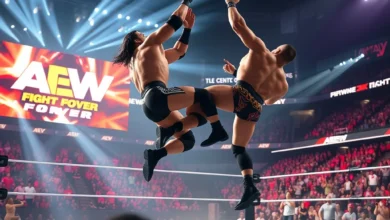


The world of professional wrestling simulation has reached new heights with the release of WWE 2K26. For fans and competitive players alike, understanding the graphical capabilities of this title is essential to maximizing both visual fidelity and performance. This comprehensive guide dives deep into every aspect of the graphics settings available in WWE 2K26. Whether you are playing on a high-end gaming PC or a modern console, optimizing these settings can transform your experience. We will explore how to balance frame rates with visual quality to ensure smooth wrestling action without compromising the immersive atmosphere of the ring.
WWE 2K26 introduces significant upgrades to the visual engine, allowing for more detailed character models, realistic lighting effects, and enhanced crowd interactions. However, these improvements come with performance demands that vary across different hardware configurations. By following this guide, you will learn how to adjust individual parameters to suit your specific needs. From texture quality to shadow resolution, every setting plays a crucial role in defining the look and feel of the game. We will also cover troubleshooting common visual glitches that may occur during intense matches.
🎮 Visual Quality and Engine Overview
The foundation of any great wrestling game lies in its visual engine. WWE 2K26 utilizes a highly advanced rendering system designed to capture the intensity of professional wrestling. This engine handles complex physics simulations alongside stunning graphical effects. Players can expect to see improved skin textures, more detailed wrestling attire, and realistic sweat effects that react to in-match action. The lighting system has been completely overhauled to provide dynamic shadows that shift as the match moves around the arena.
Understanding the underlying technology is key to making informed decisions about your settings. The game supports various upscaling technologies that allow for higher resolutions without sacrificing too much performance. This is particularly important for players who want to play in 4K or at high refresh rates. Below are the core components that make up the visual experience in WWE 2K26.
- ✅ Character Models – High-resolution textures for faces and bodies
- 🎯 Environment Lighting – Dynamic arena lighting and spotlight effects
- 🎮 Crowd Animation – Detailed crowd reactions and atmosphere
- 💡 Post-Processing – Bloom, motion blur, and color grading
⚙️ Core Graphics Settings Explained
To achieve the best balance between looks and speed, players need to understand what each setting controls. The graphics menu in WWE 2K26 is extensive, offering granular control over how the game renders on your screen. Some settings have a massive impact on frame rates, while others are purely cosmetic. We recommend starting with the preset options and then tweaking individual values based on your hardware capabilities.
🖥️ Resolution and Display Modes
Resolution is the most critical setting for visual clarity. Higher resolutions such as 1440p or 4K provide sharper images but require significantly more GPU power. In WWE 2K26, you can choose between native rendering and upscaling methods. Choosing the correct display mode ensures that your game runs at the intended frame rate. If you experience stuttering, lowering the resolution is often the fastest way to stabilize performance.
- 1) Native Resolution – Best quality, highest performance cost
- 2) Upscaled Resolution – Good balance for most systems
- 3) Windowed Mode – Useful for multitasking on PC
- 4) Borderless Window – Easier alt-tabbing without stutter
🖌️ Texture Quality and Detail
Texture quality determines how detailed the surfaces of the ring, the wrestlers, and the crowd appear. Higher texture settings allow for more intricate details on the canvas and the ring ropes. This is a setting that can be lowered if you are experiencing stuttering during camera cuts. However, keeping it at high levels is recommended for players who want to appreciate the high-fidelity character models created by the developers.
🌑 Shadow and Lighting Effects
Lighting and shadows are vital for creating depth and realism in the wrestling arena. WWE 2K26 features dynamic shadows that react to the move set and camera angle. Shadows add a sense of weight to the wrestlers and make the environment feel more tangible. Lowering shadow quality is one of the most effective ways to gain FPS without drastically affecting the overall look of the game.
- ✅ High Shadows – Best for visual immersion
- 🎯 Medium Shadows – Good balance for mid-range PC
- ⚠️ Low Shadows – Best for performance optimization
🚀 Performance Optimization Strategies
Performance is often just as important as visual fidelity in wrestling games. A stable frame rate ensures that moves feel responsive and that inputs are registered accurately. In WWE 2K26, several settings can be adjusted to boost performance without ruining the experience. We will break down these strategies into actionable steps for both PC and console users.
🔧 Frame Rate Limits and V-Sync
Controlling the frame rate limit can prevent screen tearing and reduce input lag. V-Sync synchronizes the frame rate with your monitor’s refresh rate to prevent tearing. However, V-Sync can introduce input lag, which is detrimental in competitive play. Many players prefer to disable V-Sync and use an in-game frame cap instead to maintain responsiveness.
📉 Anti-Aliasing and Smoothing
Anti-aliasing smooths out jagged edges on characters and objects. While it improves image quality, it can be resource-intensive. WWE 2K26 offers several anti-aliasing options including FXAA, SMAA, and TAA. TAA usually provides the best balance of quality and performance. If you are struggling with performance, switching to FXAA is a quick way to regain FPS.
🎬 Motion Blur and Depth of Field
Motion blur and depth of field are cinematic effects that add a sense of speed and focus to the game. While they look nice in cutscenes, they can sometimes make the gameplay feel less sharp during fast matches. Disabling these effects can make the action feel crisper and more immediate. This is a personal preference setting that should be tested during a match.


🛠️ Platform Specific Settings
Different platforms offer unique opportunities for optimization. Whether you are playing on a gaming PC, an Xbox console, or a PlayStation device, the approach to settings differs. We must consider the specific hardware capabilities of each platform to provide accurate advice.
🖥️ PC Optimization Guide
PC players have the most control over their settings. You can adjust everything from resolution scaling to driver-level optimizations. For PC users, keeping your graphics drivers up to date is essential for stability. NVIDIA and AMD both offer specific control panel settings that can enhance WWE 2K26 performance. Additionally, closing background applications can free up resources for the game.
- ✅ Driver Updates – Ensure latest GPU drivers are installed
- 🎯 Background Apps – Close unnecessary software
- 🎮 Power Settings – Set to High Performance mode
📱 Console Considerations
Console players generally have preset options that are optimized for the hardware. However, checking for system updates and ensuring the console is in Performance Mode is crucial. The PS5 and Xbox Series X offer specific performance modes that prioritize frame rate over resolution. Selecting the correct mode can significantly improve the fluidity of the match.
🎨 Advanced Visual Tweaks
For enthusiasts who want to push the limits of WWE 2K26, there are advanced tweaks available. These settings often require trial and error to find the perfect balance. We will explore some of the more technical aspects of the graphics menu that can further refine the visual experience.
🔍 Post-Processing Effects
Post-processing effects like bloom and color grading can drastically change the mood of the game. Bloom makes bright lights glow, which can enhance the arena lights. However, too much bloom can wash out the image. Adjusting the intensity of these effects allows you to customize the visual style to your liking.
🌌 Environmental Effects
Crowd density and environmental effects contribute to the atmosphere. A full crowd makes the match feel more authentic. Adjusting crowd density can be a good way to reduce load on the CPU. If you notice stuttering during crowd shots, lowering this setting can help maintain a steady frame rate.
📊 Performance and Settings Comparison
To help you make the best decision, we have compiled a comparison of how different settings affect performance. This table summarizes the impact of key settings on frame rates and visual quality.
| Setting | Performance Impact | Visual Quality | Recommended |
|---|---|---|---|
| Resolution | High | Very High | Native 1080p |
| Shadows | Medium | High | Medium |
| Textures | Low | Very High | High |
| Motion Blur | Low | Medium | Off |
| Anti-Aliasing | Medium | High | TAA |
As shown in the table above, Resolution has the highest impact on performance. If you need to gain FPS, lowering the resolution is the most effective method. Textures have a low impact on performance but a high impact on visuals, making them a safe setting to keep high. Shadows and Anti-Aliasing fall in the middle, offering a good balance. Players should experiment with these settings to find their sweet spot.
✅ Advantages of Optimized Settings
Optimizing your graphics settings offers several benefits beyond just better performance. It allows for a more immersive experience and ensures that the game runs smoothly for extended periods. Below are the key advantages of taking the time to configure your settings correctly.
- ✅ Stable Frame Rates – No stuttering during critical moments
- 🎯 Reduced Input Lag – Faster response to controls
- 🎮 Better Battery Life – Important for handheld devices
- 💡 Longer Hardware Lifespan – Less strain on components
❌ Disadvantages of Poor Configuration
Conversely, poor configuration can lead to a frustrating experience. Players may encounter stuttering, low frame rates, or visual artifacts that ruin the immersion. It is important to avoid these pitfalls to ensure a high-quality gaming session.
- ⚠️ Input Delay – Moves may not register correctly
- ⚠️ Visual Glitches – Textures may not load properly
- ⚠️ Overheating – Hardware may run too hot
🏁 Final Verdict on Graphics Configuration
Configuring the graphics settings in WWE 2K26 is a crucial step for any serious player. By understanding the trade-offs between visual quality and performance, you can tailor the experience to your specific hardware. Whether you prioritize 4K resolution or a smooth 144 frames per second, the game provides the tools to achieve your goals. We recommend starting with the recommended settings and adjusting from there based on your personal preference.
Remember that the best settings are the ones that make the game fun to play. If you are enjoying the match, your settings are likely appropriate. Don’t be afraid to experiment and find what works best for you. With the right configuration, WWE 2K26 offers one of the most visually stunning wrestling experiences available in 2026.
❓ Frequently Asked Questions
- Does WWE 2K26 support ray tracing?
Yes, the game supports ray tracing on high-end PC hardware and next-gen consoles for realistic lighting effects. - What is the minimum RAM required?
The minimum RAM requirement is 8GB, but 16GB is recommended for smooth performance. - Can I play on a low-end PC?
Yes, but you will need to lower settings significantly to maintain playable frame rates. - Does the game support DLSS?
Yes, NVIDIA DLSS is supported for better performance on RTX cards. - How do I fix texture pop-in?
Ensure you have installed the latest patches and increase the texture streaming pool if available. - Is controller support required for graphics?
No, graphics settings are independent of controller support. - Can I change resolution during gameplay?
Yes, but it is recommended to do so in the pause menu to avoid crashes. - Does motion blur affect performance?
It has a minimal impact, but disabling it can improve clarity. - Is 4K resolution supported?
Yes, 4K is supported on all major platforms with appropriate hardware. - How often are graphics settings updated?
Settings are updated via patch notes to fix bugs and improve optimization.