
Adobe Photoshop remains the industry standard for digital image editing and graphic design. For professionals and enthusiasts alike, the software’s power comes with significant resource demands. Many users experience slow performance, laggy brushes, or frequent crashes when working on large files. Understanding how to configure the application properly is the key to unlocking its full potential without requiring expensive hardware upgrades. This comprehensive guide dives deep into the specific settings that directly impact speed, responsiveness, and stability.
The optimization process involves adjusting multiple preference panels within the application. These settings control how the software manages memory, utilizes your graphics card, and handles scratch disk space. By configuring these elements correctly, you can significantly reduce load times and prevent interruptions during critical workflows. Whether you are using a high-end workstation or a mid-range laptop, these adjustments will help you achieve smoother operation.
🔧 Performance Configuration Settings
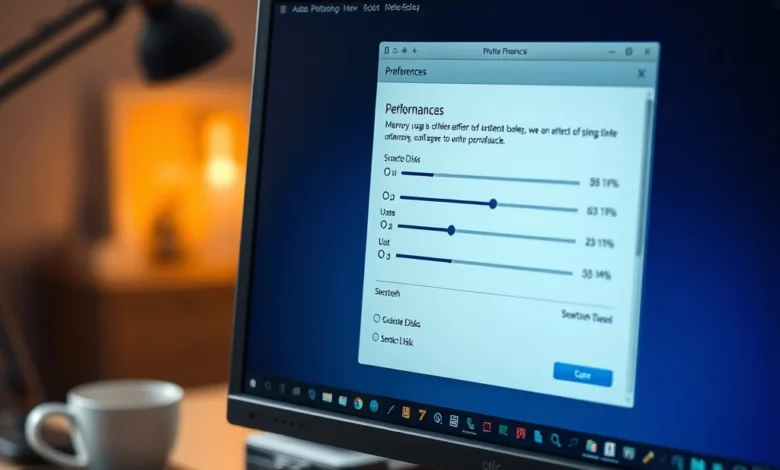
The Performance panel is the most critical area for optimizing speed. Located under the Edit menu on Windows or Photoshop menu on macOS, this section allows you to allocate system resources directly to the application. The default settings are often conservative to ensure stability across all hardware configurations, but they may not be optimal for your specific machine.
Memory Usage is the first factor to consider. Photoshop uses available Random Access Memory to cache data and manage open documents. If the allocation is too low, the software relies heavily on the slow hard drive. If it is too high, it starves other applications. The goal is to find a balance that maximizes speed without causing system-wide slowdowns. Typically, allocating between 70 and 80 percent of your total RAM is the sweet spot for most users.
Graphics Processor Acceleration is the second major setting. Modern graphics cards are designed to handle complex rendering tasks much faster than the central processor. Enabling this feature offloads heavy lifting like zooming, panning, and brush rendering. You must ensure your graphics driver is up to date to take full advantage of this capability. If the driver is outdated, the software may default to CPU rendering, which is significantly slower.
The Advanced Settings section within the Performance panel allows for finer control over how the GPU handles the interface. Selecting a specific performance mode can help if you experience visual glitches. For most users, Normal or Advanced is the best choice. However, on older systems, Basic mode might offer better stability despite sacrificing some visual smoothness.
- ✅ High RAM Allocation for faster multitasking
- 🎯 GPU Acceleration for smoother zooming and panning
- ⚠️ Driver Updates are mandatory for GPU features
💾 Scratch Disk Management
When your system memory runs out, Photoshop automatically switches to the Scratch Disk. This is essentially temporary storage space on your hard drive used to store pixel data. If this drive fills up or is too slow, the application will become sluggish or stop working entirely. Managing this space is crucial for maintaining consistent performance.
By default, Photoshop selects the primary drive where the operating system is installed. However, if you have multiple drives, it is highly recommended to move the scratch disk to a faster solid-state drive. Traditional hard disk drives are often too slow to keep up with the rapid read and write operations required by Photoshop. Using an NVMe SSD can reduce lag significantly during complex operations.
You can assign multiple scratch disks in the preferences. This allows Photoshop to distribute the load across different drives if one becomes full. It is generally best to prioritize the fastest drive first, followed by the second fastest. Avoid using external drives connected via USB 2.0, as the transfer speed will bottleneck the entire process.
Regular maintenance of the scratch disk is also necessary. Temporary files created by Photoshop can accumulate over time and consume valuable space. Deleting these files periodically helps maintain optimal speed. Some users prefer to set up a dedicated drive solely for Photoshop to avoid clutter and fragmentation on their main system drive.
- ✅ SSD Priority for faster data access
- 🎯 Multiple Disks prevent single-drive bottlenecks
- ⚠️ External USB 2.0 drives are too slow
🖥️ Interface and Cache Settings
The visual experience of Photoshop is heavily influenced by cache levels and history states. These settings determine how many versions of your image are stored in memory and how much detail is kept during zooming. Adjusting these parameters can improve responsiveness, especially when working on high-resolution images.
Cache Levels define the number of image zoom levels that are stored. Higher cache levels mean that when you zoom in and out, the software does not have to regenerate the image data every time. For large files, increasing the cache level to 8 or higher is beneficial. This reduces the strain on the processor during navigation.


History States represent the number of steps you can undo. By default, Photoshop allows for 50 undo steps, which can consume a lot of memory. If you find the application crashing frequently, reducing this number to 20 or 30 can free up significant RAM. This trade-off is often acceptable since saving your progress frequently is a best practice anyway.
The Interface settings also play a role in performance. The appearance of the workspace, including panels and toolbars, can be optimized. Using a dark interface can sometimes reduce eye strain, but it does not significantly impact performance. However, disabling automatic panel updates can help if you notice lag when moving windows around.
Text rendering is another factor. High-resolution monitors require more processing power to render fonts smoothly. Enabling ClearType for Windows or Font Smoothing for macOS can improve legibility without heavy performance costs. If you notice text appearing jagged or blurry, adjusting the sub-pixel rendering settings can resolve the issue.
- ✅ Caching improves zoom and pan speed
- 🎯 History States affect memory usage
- ⚠️ Reduce Undo Steps to save RAM
🔐 Security and File Handling
File handling settings control how Photoshop saves your work and manages compatibility with older versions. These settings are crucial for preventing data loss and ensuring that your files remain accessible. While they do not directly increase speed, they contribute to the overall workflow efficiency.
Auto-Save is a feature that saves your work at regular intervals. Enabling this ensures that you do not lose progress in the event of a crash. However, saving too frequently can slow down performance, especially on slower drives. Setting the interval to five or ten minutes is generally a good balance between safety and speed.
File Compatibility ensures that your documents can be opened in older versions of the software. This adds a large amount of data to your file, increasing save times. If you do not need to share files with users on older versions, setting this to Never can significantly reduce save times. This is particularly useful for large PSD files.
Plug-in management is another area that impacts performance. Third-party plug-ins can sometimes conflict with the core application. If you experience crashes, try disabling all plug-ins to see if stability improves. Disabling unused plug-ins also reduces the startup time of the application.
- ✅ Auto-Save prevents data loss
- 🎯 File Compatibility affects save time
- ⚠️ Third-party Plug-ins can cause crashes
📊 Performance Metrics Analysis
| Setting | Recommended Value | Impact |
|---|---|---|
| Memory Usage | 70-80% | High Speed |
| Scratch Disk | Fast SSD | Prevents Crashes |
| History States | 20-30 | Reduces Memory |
| Cache Levels | 8 | Improves Zoom |
| GPU Acceleration | Enabled | Smoother UI |
The table above summarizes the key settings discussed. Reviewing these metrics helps users understand the trade-offs involved in optimization. For example, increasing cache levels improves navigation but uses more disk space. Reducing history states saves memory but limits undo capabilities. Finding the right balance depends on your specific hardware and workflow needs.
Testing these settings in a controlled environment is advisable. Create a test document with a large file size and apply the settings. Monitor the performance using system tools to see the actual impact on RAM and CPU usage. This empirical approach ensures that the changes are beneficial for your specific setup.
🚀 Compatibility and Hardware
Understanding the hardware requirements of Adobe Photoshop is essential for setting realistic performance expectations. While the software is optimized for various devices, certain components have a larger impact than others. Knowing which hardware upgrades yield the best results can save money and frustration.
Random Access Memory is the most critical component for performance. If you have less than 16GB of RAM, you will likely experience bottlenecks when working with multiple large files. Upgrading to 32GB or more provides a substantial improvement in multitasking capabilities. The speed of the RAM also matters, so prioritize modules with higher clock speeds if possible.
The Central Processing Unit handles the logic and calculations for the software. A multi-core processor is preferred because Photoshop can utilize multiple threads for certain tasks. However, single-core performance is also important for brush rendering. Look for processors with high clock speeds and strong single-core performance ratings.
Storage speed is the final major hardware factor. As mentioned earlier, an SSD is vastly superior to a mechanical hard drive. NVMe drives offer the fastest read and write speeds, allowing for near-instant loading of large files. If your budget allows, investing in a high-speed storage solution is one of the best performance upgrades you can make.
- ✅ 16GB+ RAM for smooth multitasking
- 🎯 Multi-core CPU for calculation tasks
- ⚠️ SSD Required for scratch disks
❓ Frequently Asked Questions
- Does upgrading RAM help Photoshop performance? Yes, increasing RAM is the most effective way to improve speed when working with large files.
- Why is Photoshop slow on my computer? It is often due to insufficient RAM, a full scratch disk, or outdated graphics drivers.
- Can I use Photoshop on a low-end device? Yes, but you must reduce cache levels and history states to prevent crashes.
- How do I clear Photoshop cache? Go to Edit > Purge > All to free up memory temporarily.
- Is GPU acceleration safe to use? Yes, it is safe as long as your drivers are up to date.
- What is the best scratch disk location? A fast internal SSD with plenty of free space is ideal.
- Does disabling plugins speed up Photoshop? Yes, disabling unused plugins reduces startup time and potential conflicts.
- Should I turn off GPU acceleration? Only if you experience visual glitches or driver crashes.
- How often should I save my work? Save frequently using Auto-Save or manual saves every few minutes.
- Can I optimize Photoshop for gaming PCs? Gaming PCs usually have strong GPUs, which are excellent for Photoshop acceleration.
🏁 Final Verdict
Optimizing Adobe Photoshop settings is a necessary step for any serious user. The software offers a wide range of controls that allow you to tailor the experience to your specific hardware. By managing memory, scratch disks, and graphics preferences, you can achieve a significantly smoother workflow.
While no amount of software optimization can replace the need for adequate hardware, the right settings can squeeze every drop of performance out of your current setup. Users with older machines should focus on reducing history states and using fast SSDs. Power users with modern hardware should maximize cache levels and GPU acceleration.
We recommend starting with the recommended values in the performance table and adjusting based on your specific needs. If you experience issues, revert changes one by one to identify the culprit. With the right configuration, Photoshop becomes a powerful tool that responds instantly to your creative commands.