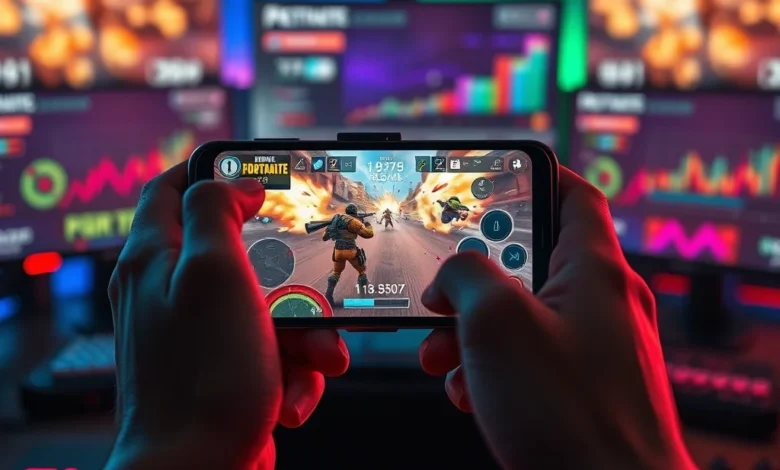
Free Fire remains one of the most popular battle royale experiences globally, offering intense combat and strategic gameplay across various devices. For competitive players, frame rate stability is crucial for gaining a tactical edge during matches. Low frames per second can lead to input lag, making aiming and movement feel sluggish and unresponsive. Many users struggle with stuttering or dropped frames, especially on older hardware or during peak network traffic times. Understanding how to optimize performance is essential for maintaining a smooth gaming session.
This comprehensive guide covers every aspect of boosting your FPS in Free Fire, from internal device settings to in-game configurations. We will explore technical adjustments that enhance rendering speed while preserving visual fidelity. Whether you play on Android, iOS, or via emulator on PC, these strategies apply universally to improve responsiveness. By implementing these changes, you can transform a laggy experience into a fluid competitive advantage.
🚀 Understanding FPS Performance in Battle Royale
Frames per second, commonly abbreviated as FPS, measures how many individual images the game renders each second. Higher numbers indicate smoother animation and faster reaction times. In a fast-paced shooter like Free Fire, a difference between 30 FPS and 60 FPS is significant for survival. Players often confuse resolution with performance, but lowering resolution can actually increase FPS on weaker devices.
The engine used in Free Fire prioritizes compatibility over graphical realism. This means many settings can be tweaked without breaking the game. Developers allow certain optimizations that third-party software cannot access. Managing thermal throttling is also critical because overheating causes the processor to slow down to protect components. Keeping your device cool ensures consistent performance throughout long sessions.
- ✅ Target Frame Rate: Aim for 60 FPS for competitive play.
- ⚠️ Warning: Do not use unauthorized scripts that may ban accounts.
- 🎯 Stability: Consistent FPS is better than fluctuating high numbers.
⚙️ Optimizing Device System Settings
Your smartphone operating system manages resources differently depending on the manufacturer. Android phones have developer options that can significantly impact gaming performance. Enabling specific tweaks forces the GPU to prioritize the active application over background processes. These settings vary by brand, so finding the right menu takes some exploration.
📱 Android Developer Options Configuration
To access developer settings, go to the About Phone section and tap Build Number seven times. Once enabled, look for the Window Animation Scale, Transition Animation Scale, and Animator Duration Scale. Setting these to 0.5x or Off reduces the time the system spends rendering UI elements, freeing up resources for the game. This creates a snappier interface even if it does not directly change in-game FPS.
Another vital setting is Force 4x MSAA. This improves anti-aliasing but consumes more battery and power. Disabling it can save GPU cycles for rendering the game world instead of smoothing edges. Additionally, enabling Hardware Rendering ensures the graphics card handles tasks instead of the CPU, which is generally more efficient for games.
- ✅ Animation Scale: Set to 0.5x for faster transitions.
- ✅ Force 4x MSAA: Turn OFF to save performance.
- ✅ Background Process Limit: Set to No background processes for maximum RAM.
🍎 iOS Specific Adjustments
iOS devices manage memory differently due to their closed ecosystem. There are no developer options to toggle, but reducing screen brightness helps reduce GPU load slightly. Turning off Vibration Feedback in system settings saves processing power used for haptic motors. Using Game Mode features available on newer iPhones can prioritize Free Fire allocation.
Ensure your iOS version is updated to the latest stable release. Newer updates often contain performance patches for popular apps. Clearing storage space is equally important on iPhones. When storage exceeds 90 percent capacity, the system slows down significantly to maintain file integrity. Free up at least two gigabytes before starting a gaming session.
🎮 In-Game Graphics and Sensitivity Tweaks
Free Fire offers granular control over visual quality within the main menu. These settings directly dictate how much work the processor must do to draw every frame. Balancing visuals with performance is the key to unlocking maximum frames per second. Some players prefer a black-and-white filter for better visibility, though this uses negligible extra power compared to full color.
🖥️ Visual Quality Settings
Set the graphics preset to Smooth or Standard rather than Ultra. Ultra mode enables effects like dynamic shadows and particle explosions that strain the GPU. Reducing Shadow Quality to Low or Off removes complex lighting calculations. This is often the single biggest factor in increasing FPS on mid-range devices.
High DPI allows text and icons to scale, but it increases the pixel density the screen must render. Lowering DPI slightly can improve rendering speed on smaller screens. Anti-Aliasing should be disabled completely if you are struggling with frame drops. This removes the smoothing effect on jagged edges but drastically improves clarity and speed.


- ✅ Graphics Preset: Select Smooth or Low.
- ✅ Shadow Quality: Set to Low or Disabled.
- ✅ Style: Choose Classic for best compatibility.
🎯 Sensitivity and Control Mapping
While sensitivity does not change FPS directly, poor controls can mimic lag. Customizing your HUD layout reduces clutter on the screen. Fewer visible buttons mean fewer elements the system needs to render. Place your fire button larger and position other tools in corners to minimize finger travel time.
Increase your camera sensitivity for quick turns. If your character feels stuck, adjust the ADS sensitivity to match your muscle memory. A well-tuned setup prevents unnecessary micro-adjustments that waste processing cycles on touch events. Practice in the Training Grounds to find the perfect balance.
🌐 Network Stability and Lag Reduction
Network latency often gets confused with low FPS. Lag spikes cause freezing even if the frame rate remains high. Ensuring a stable connection prevents packet loss which manifests as rubber-banding or teleportation. Wi-Fi is generally more stable than mobile data, but proximity to the router matters greatly.
📶 Connection Optimization
Switch to a 5GHz Wi-Fi band if available. It offers less interference than 2.4GHz bands found in crowded areas. If using mobile data, ensure you have strong signal bars. Signal strength drops below three bars can introduce jitter. Enable Airplane mode briefly before launching the game to reset the radio stack.
Close all background applications running on your device. Social media apps, streaming services, and cloud backups consume bandwidth and CPU cycles. Pausing downloads is essential before entering a match. A dedicated gaming profile on your router can prioritize game packets over other traffic.
- ✅ Wi-Fi Band: Prefer 5GHz over 2.4GHz.
- ✅ Data Usage: Pause automatic updates during matches.
- ✅ Signal Strength: Maintain at least four bars.
🖥️ PC Emulator Performance Tuning
Many players run Free Fire on computers using emulators like BlueStacks or LDPlayer. Emulation adds overhead, making optimization more complex. You must allocate sufficient resources to the virtual machine while leaving enough for Windows itself. Incorrect configuration leads to severe stuttering despite powerful hardware.
⚙️ Emulator Configuration
Assign at least 4 cores to the emulator instance. Increasing CPU cores allows better handling of physics calculations. Memory allocation should be set to 4GB or higher depending on total RAM. Video acceleration should be enabled to utilize the GPU. Disable unnecessary tabs within the emulator interface.
Set the emulator frame rate cap to match your monitor refresh rate. If you have a 60Hz display, lock the emulator to 60 FPS. Unlocking it to unlimited can cause fans to spin loudly and generate heat. Use the dedicated Gaming Mode in the emulator software to prioritize resource usage.
- ✅ CPU Cores: Allocate 4 or more cores.
- ✅ RAM: Assign 4GB minimum.
- ✅ Gaming Mode: Enable in emulator settings.
🔧 Advanced Troubleshooting Steps
Sometimes standard fixes fail to resolve persistent frame issues. Corrupted cache files can cause unexpected crashes or slowdowns. Clearing app data resets preferences but deletes local progress unless saved to the cloud. Always back up your account via Facebook or Google Play linking before clearing data.
Reinstalling the game removes any corrupted installation files. Download the latest version from official sources to ensure security. Avoid side-loading APKs from unknown websites as they may contain malware. Updating graphics drivers is critical for PC users playing via emulators.
🛠️ Factory Reset Considerations
If performance degradation persists across all apps, the OS may be bloated. Backing up photos and contacts allows a factory reset. This wipes all data and returns the phone to its initial state. This often restores performance to near-original levels on older devices.
Consider replacing aging hardware if the device cannot handle modern updates. Older processors lack the instruction sets required for new optimization techniques. Upgrading to a newer model with a dedicated GPU yields the best long-term results.
🏆 Final Verdict on Optimization
Achieving high FPS in Free Fire requires a combination of software tweaking and hardware awareness. Most improvements come from simple settings changes rather than expensive upgrades. Focus on cooling, background management, and graphics presets first. These steps provide immediate gains without financial cost.
Consistency is the ultimate goal of optimization. Fluctuating performance can be just as frustrating as low average FPS. Monitor your device temperatures and network stability regularly. With the right setup, you can compete at the highest level regardless of your device tier.
❓ Frequently Asked Questions
Below are common questions regarding performance optimization for Free Fire.
- Does Free Fire support controllers on mobile?
- Is it safe to use FPS boosters from the Play Store?
- How much storage space is needed for free updates?
- Can I play offline in Free Fire?
- Does clearing cache delete my account progress?
- What is the minimum RAM required for smooth gameplay?
- Why does my phone heat up during long matches?
- Are there official settings for tournament modes?
- Does closing apps really increase FPS?
- How do I fix stuttering on low-end devices?
📊 Key Points Summary
| Setting | Recommended Value | Impact on FPS |
|---|---|---|
| Graphics Preset | Smooth / Low | High |
| Shadow Quality | Low / Off | Medium |
| Developer Options | Animation Off | Low |
| Network Type | 5GHz Wi-Fi | High (Latency) |
| Background Apps | None | Medium |
The table above summarizes the most effective settings adjustments. Prioritizing graphics reduction yields the highest gain in frame rates. Network improvements primarily affect lag rather than raw FPS. Balancing these factors ensures the best possible experience.
✅ Advantages of Optimization
Optimizing your device provides several tangible benefits beyond just frame rate. Improved input lag makes aiming easier and reactions faster. Reduced heating extends the lifespan of your battery and motherboard. A stable connection prevents disconnections during critical moments.
- ✅ Better Accuracy: Smoother motion aids targeting.
- ✅ Longer Sessions: Less heat means less throttling.
- ✅ Competitive Edge: Faster reactions win fights.
❌ Disadvantages of Over-Tweaking
Pushing settings too far can introduce negative side effects. Lowering graphics too much may hide enemy models in dark areas. Excessive background killing can stop notifications from incoming calls. Aggressive fan speeds can become noisy distractions in public spaces.
- ⚠️ Visibility Issues: Darker textures may conceal threats.
- ⚠️ Noise Levels: Fans may distract others nearby.
- ⚠️ Notification Loss: Missed calls or messages.