PUBG Mobile has become a global phenomenon, attracting millions of players with its intense battle royale experience. One of the key features that sets PUBG Mobile apart is its gyroscope control, which allows for more precise aiming and smoother movements. However, to fully leverage this feature, you need to optimize your gyroscope settings. In this guide, we’ll walk you through the best gyroscope settings in PUBG Mobile to enhance your gameplay and give you a competitive edge.
🔥 Key Features
Before diving into the settings, let’s briefly discuss the key features of the gyroscope in PUBG Mobile. The gyroscope allows you to control your character’s movements and aiming by tilting your device. This can be particularly useful for quick turns, precise aiming, and smooth movements. However, to make the most of this feature, you need to fine-tune your settings to match your playstyle and device capabilities.
🌟 Why Optimize Gyroscope Settings?
Optimizing your gyroscope settings can significantly improve your gameplay experience. Here are some reasons why you should consider tweaking your settings:
- Better Control: Fine-tuned settings can provide more responsive and accurate control over your character’s movements.
- Improved Aiming: Precise gyroscope settings can enhance your aiming accuracy, making it easier to hit targets.
- Smoother Movements: Optimized settings can result in smoother and more fluid movements, reducing jerky motions.
- Competitive Edge: With better control and accuracy, you’ll have a competitive advantage over other players.
🔧 Step-by-Step Guide to Optimize Gyroscope Settings
Now, let’s get into the specifics of optimizing your gyroscope settings in PUBG Mobile. Follow these steps to fine-tune your settings for the best performance:
🎯 Accessing Gyroscope Settings
To access the gyroscope settings, follow these steps:
- Open PUBG Mobile and go to the main menu.
- Tap on the ‘Settings’ icon, usually located at the top right corner of the screen.
- Scroll down and select ‘Basic’ under the ‘Settings’ menu.
- Tap on ‘Gyroscope’ to access the gyroscope settings.
🔄 Adjusting Gyroscope Sensitivity
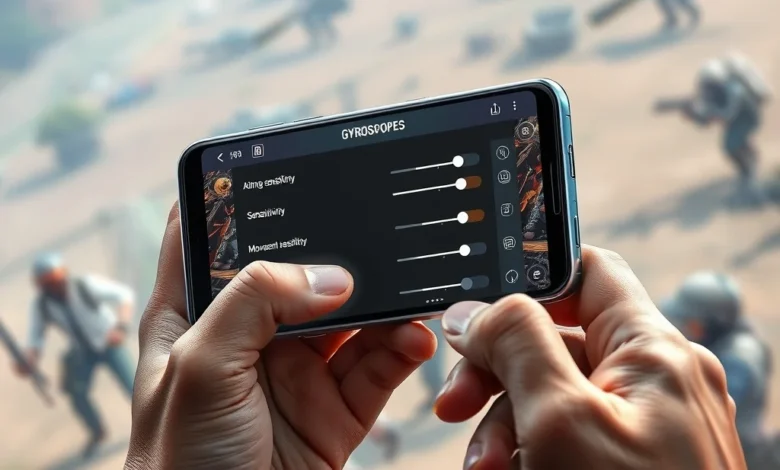
Gyroscope sensitivity is a crucial setting that determines how responsive your device is to tilting movements. Here’s how to adjust it:
- In the gyroscope settings menu, you’ll see a slider for ‘Sensitivity’.
- Move the slider to the left to decrease sensitivity or to the right to increase it.
- Start with a medium sensitivity setting and adjust based on your comfort and playstyle.
🎯 Fine-Tuning Gyroscope Aiming
To optimize your aiming with the gyroscope, follow these steps:
- In the gyroscope settings menu, look for the ‘Aiming Sensitivity’ option.
- Adjust the slider to find the perfect balance between responsiveness and control.
- Experiment with different settings in the training mode to find what works best for you.
🔄 Customizing Gyroscope Movement
Customizing your gyroscope movement settings can enhance your overall control. Here’s how:
- In the gyroscope settings menu, look for the ‘Movement Sensitivity’ option.
- Adjust the slider to fine-tune how your character responds to tilting movements.
- Test different settings in the training mode to find the optimal balance.
🎯 Advanced Gyroscope Settings
For advanced players, there are additional settings to explore:
- In the gyroscope settings menu, look for options like ‘Gyroscope Deadzone’ and ‘Gyroscope Inversion’.
- Adjust these settings based on your preferences and playstyle.
- Experiment with different combinations to find the best setup for you.
💡 Pro Tips for Gyroscope Control
Here are some pro tips to help you master gyroscope control in PUBG Mobile:
- Practice Regularly: Spend time in the training mode to get used to the gyroscope controls.
- Adjust Sensitivity: Find the right sensitivity settings that suit your playstyle.
- Use Both Hands: Hold your device with both hands for better stability and control.
- Stay Calm: Keep your movements smooth and controlled to avoid jerky motions.
📊 Key Points
To summarize, optimizing your gyroscope settings in PUBG Mobile can greatly enhance your gameplay experience. Here are the key points to remember:
| Setting | Description | Recommendation |
|---|---|---|
| Gyroscope Sensitivity | Determines how responsive your device is to tilting movements. | Start with medium sensitivity and adjust based on comfort. |
| Aiming Sensitivity | Controls the responsiveness of your aiming with the gyroscope. | Experiment with different settings in training mode. |
| Movement Sensitivity | Fine-tunes how your character responds to tilting movements. | Test different settings to find the optimal balance. |
| Advanced Settings | Includes options like Gyroscope Deadzone and Inversion. | Adjust based on preferences and playstyle. |
By following these guidelines, you can optimize your gyroscope settings for better control and accuracy in PUBG Mobile. Happy gaming!


💬 Frequently Asked Questions
- Does PUBG Mobile support gyroscope control?Yes, PUBG Mobile supports gyroscope control, allowing for more precise aiming and smoother movements.
- How do I access gyroscope settings in PUBG Mobile?To access gyroscope settings, go to the main menu, tap on ‘Settings’, select ‘Basic’, and then tap on ‘Gyroscope’.
- What is the best gyroscope sensitivity setting?The best gyroscope sensitivity setting depends on your playstyle and comfort. Start with a medium sensitivity and adjust as needed.
- Can I use gyroscope control with both hands?Yes, using both hands to hold your device can provide better stability and control for gyroscope movements.
- How can I improve my aiming with gyroscope control?To improve your aiming, adjust the aiming sensitivity setting and practice regularly in the training mode.
- Are there advanced gyroscope settings in PUBG Mobile?Yes, PUBG Mobile offers advanced gyroscope settings like Gyroscope Deadzone and Inversion, which can be adjusted based on your preferences.
- Can I use gyroscope control on all devices?Gyroscope control is available on most modern smartphones, but the performance may vary depending on the device’s hardware capabilities.
- How do I know if my device supports gyroscope control?Most modern smartphones support gyroscope control. You can check your device’s specifications to confirm if it has a gyroscope sensor.
- Can I use gyroscope control in competitive matches?Yes, gyroscope control can be used in competitive matches to gain a competitive edge with better control and accuracy.
- How do I reset gyroscope settings to default?To reset gyroscope settings to default, go to the gyroscope settings menu and look for the ‘Reset to Default’ option.