
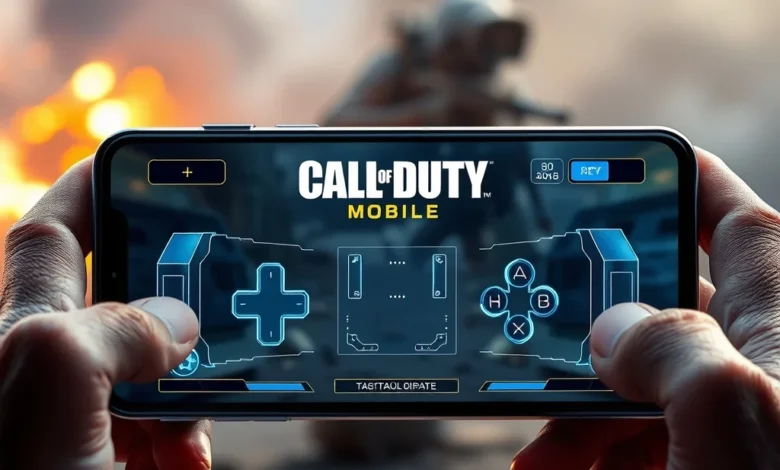
In the fast-paced world of mobile warfare, mastering your controls is often the difference between victory and defeat. Call of Duty: Mobile has established itself as a titan in the genre, bringing console-quality gunplay to handheld devices. However, the default settings rarely suit every player’s unique style and hardware capabilities. Finding the optimal control layout requires a deep understanding of how your fingers interact with the screen, the sensitivity settings that match your reflexes, and the weapon classes you prefer to dominate with.
This comprehensive guide dives into every aspect of optimizing your experience. We will explore custom HUD configurations, joystick placements, and advanced sensitivity tuning. Whether you are a sniper aiming for headshots or a rusher sprinting through maps, the right setup can elevate your performance significantly. By the end of this analysis, you will have the knowledge to configure your device for maximum efficiency and competitive edge.
🎮 Understanding the Heads-Up Display (HUD)
The Heads-Up Display serves as the foundation of your interaction with the game environment. It overlays critical information such as ammunition counts, mini-maps, and action buttons directly onto the gameplay screen. In Call of Duty: Mobile, the default HUD is functional but may clutter the screen or obstruct vision during intense firefights. Customizing this interface allows you to hide unnecessary elements and prioritize what matters most to your playstyle.
Players can adjust the transparency of various panels to blend them into the background, reducing visual noise. For instance, hiding the mini-map border can provide a clearer view of the surroundings without losing strategic positioning data. Additionally, resizing the mini-map itself ensures it does not cover potential enemies lurking near the edges of your field of view. Balancing visibility with functionality is key to maintaining situational awareness.
- ✅ Adjust transparency to reduce screen clutter
- 🎯 Resize the mini-map for better peripheral vision
- ⚠️ Hide ammo counters if you prefer manual tracking
🕹️ Joystick Configuration Strategies
Movement in Call of Duty: Mobile is entirely reliant on the virtual joystick. Unlike console controllers that offer physical resistance and tactile feedback, touchscreens require precision tapping and swiping. The default joystick size and position are generic, but experienced players often find them restrictive. Modifying the joystick dimensions and location can drastically improve movement fluidity and reaction times.
Many competitive players prefer smaller joysticks that occupy less screen real estate. A smaller joystick allows for finer micro-adjustments in direction, which is crucial for dodging incoming fire or strafing around corners. Conversely, larger joysticks offer more room for error, which might benefit casual players who prefer stability over agility. Placing the joystick lower on the screen can also prevent thumb fatigue during long sessions.
- 1) Experiment with joystick sizes ranging from small to large
- 2) Position the joystick in the bottom left corner for ergonomic comfort
- 3) Enable the move-to-jump option for faster aerial maneuvers
- 4) Consider separate jump buttons for quicker access
🔫 Sensitivity Settings Deep Dive
Sensitivity determines how quickly your camera moves in response to finger swipes. This setting is arguably the most critical factor in achieving consistent aim. If the sensitivity is too low, you may struggle to track moving targets or rotate quickly enough to engage enemies behind you. If it is too high, your aim may become jittery and unstable, making precise shots difficult to land.
There are multiple layers of sensitivity settings including General Camera, Red Dot, and ADS (Aim Down Sights). Each layer affects different aspects of gun handling. General Camera controls your free look, while ADS impacts your accuracy when firing down sights. Gyroscope settings add another dimension by allowing tilt adjustments for fine-tuning aim without using your thumbs. Finding the perfect balance takes time and practice across different weapon classes.
- ✅ Set General Camera to 80-100 for quick turns
- 🎯 Keep ADS sensitivity between 60-80 for stability
- ⚠️ Avoid max sensitivity settings as they cause overshooting
- 🔍 Test Gyroscope settings in private matches first
⚔️ Weapon Class Impact on Controls
Different weapons in Call of Duty: Mobile handle differently, requiring tailored control approaches to maximize their potential. Submachine guns rely on close-quarters agility and rapid fire, demanding fast joystick movements and high sensitivity. Assault rifles offer versatility but require steady aim and moderate sensitivity settings to maintain accuracy at medium ranges. Snipers demand extreme precision and often benefit from slower sensitivity to ensure crosshairs stay locked on distant targets.
Loading out with specific perks and attachments can further alter weapon handling characteristics. For example, a perk that reduces recoil can allow for looser sensitivity settings without sacrificing control. Similarly, laser sights can improve hip-fire accuracy, changing how you approach engagements without aiming down sights. Understanding how your gear influences your controls is essential for adapting to dynamic combat situations.
| Weapon Class | Recommended Sensitivity | Playstyle Focus |
|---|---|---|
| Submachine Gun | High (85-100) | Close Range Aggression |
| Assault Rifle | Medium (60-80) | Balanced Versatility |
| Sniper Rifle | Low (40-60) | Precision and Patience |
| Shotgun | Medium-High (70-90) | Rapid Movement |
After analyzing the table above, it becomes clear that no single setting works for all weapons. Players who switch frequently between classes may need to create multiple profiles within the game settings. This allows for instant switching between aggressive SMG sensitivity and precise Sniper settings. Maintaining muscle memory for each class is vital for consistent performance across different rounds.
🚀 Performance and Optimization Tips
Your device specifications play a significant role in how smoothly your control inputs register. Lower-end devices may experience input lag or frame drops that disrupt timing. Optimizing graphics settings can alleviate these issues and provide a more responsive control scheme. Reducing visual effects like shadows and particle density frees up processing power for smoother animations and faster input detection.
Additionally, closing background applications ensures that the game has access to maximum RAM and CPU resources. Thermal throttling can also slow down performance, so playing in a cool environment helps maintain peak speeds. Some devices offer gaming modes that prioritize network stability and touch response rates, which should be enabled for competitive play. Regularly updating your device drivers and the game client ensures compatibility with the latest optimizations.
- ✅ Disable unnecessary background apps before launching
- 🎯 Enable Gaming Mode or Performance Mode on your phone
- ⚠️ Keep your device cool to prevent thermal throttling
- 🔧 Update graphics drivers and game patches regularly
✅ Advantages of Custom Layouts
Creating a personalized control layout offers numerous benefits that enhance the overall gaming experience. The primary advantage is increased familiarity and comfort. When buttons are placed where your natural hand positions dictate, reactions become instinctive rather than calculated. This reduces cognitive load, allowing you to focus entirely on strategy and enemy positioning rather than worrying about finding the correct button.
Furthermore, custom layouts can accommodate specific physical limitations or preferences. Players with smaller hands might find the default buttons too spread out, leading to missed inputs. By consolidating buttons or adjusting their size, accessibility is improved without sacrificing functionality. This level of personalization fosters a deeper connection with the game mechanics and encourages longer, more engaging play sessions.
- 1) Improved reaction times due to muscle memory
- 2) Enhanced comfort reducing hand strain
- 3) Better accessibility for various hand sizes
- 4) Strategic advantage through optimized positioning
❌ Disadvantages and Risks
Despite the benefits, there are risks associated with excessive customization. Over-customizing the interface can lead to confusion if the layout deviates too far from standard conventions. During team-based modes, teammates may struggle to predict your movement patterns if your controls differ radically from the norm. Additionally, complex layouts require extensive practice to master, which can be frustrating for newcomers.
There is also the risk of accidental touches if buttons are placed too close together or are too large. Accidental reloads or grenade throws can cost valuable moments in a match. Furthermore, frequent changes to settings can disrupt muscle memory, causing a drop in performance until the new configuration is learned. It is important to find a stable setup and stick with it for a reasonable period.
- ⚠️ Risk of accidental inputs with crowded layouts
- 🎯 Potential disruption to muscle memory
- ✅ Limited compatibility with certain accessories
- 🔧 Steep learning curve for complex setups
🏁 Final Verdict
Optimizing your control layout in Call of Duty: Mobile is a journey of continuous refinement rather than a one-time fix. The best setup is subjective and depends heavily on individual preference, device capabilities, and preferred weapon classes. While the default settings provide a solid baseline, dedicating time to tweak and tune your configuration can yield noticeable improvements in accuracy and speed.
We recommend starting with the recommended sensitivity values outlined in this guide and adjusting them gradually based on your feedback from matches. Remember that consistency is more important than perfection. Once you find a layout that feels natural, resist the urge to change it frequently. Stick with it, practice diligently, and watch your win rate climb as your skills mature alongside your controls.
❓ Frequently Asked Questions
- Does Call of Duty: Mobile support external controllers?
Yes, the game supports Bluetooth controllers like Xbox and PlayStation pads, which can replace touch controls entirely for some users. - Can I save multiple control layouts?
Currently, the game allows you to customize one active layout per account, though you can reset and reconfigure freely. - Is gyroscope mandatory for competitive play?
No, many pro players use traditional touch controls, but gyro adds a layer of precision for fine adjustments. - How do I fix input lag on my phone?
Reduce graphics settings, close background apps, and ensure your device is not overheating during gameplay. - What is the best fire button size?
A medium-sized button (around 50% height) offers a good balance between visibility and ease of pressing. - Can I remap the jump button?
Yes, the jump button can be moved to different locations on the screen or merged with other action buttons. - Does sensitivity affect recoil recovery?
Sensitivity impacts how much you pull back to counter recoil, so lower sensitivity makes controlling heavy recoil harder. - Should I use a two-finger or four-finger claw?
Four-finger claw provides more independence for movement and actions, offering a mechanical advantage over two-finger play. - Is the default HUD sufficient for beginners?
The default HUD is suitable for learning basics, but customization becomes necessary for competitive ranking. - How often should I adjust my settings?
Only adjust settings after identifying a specific issue; constant tweaking prevents muscle memory development.