How I Fixed eFootball 2026 Connection Lost and Slow Motion in Online Matches After v5.5.0 Update

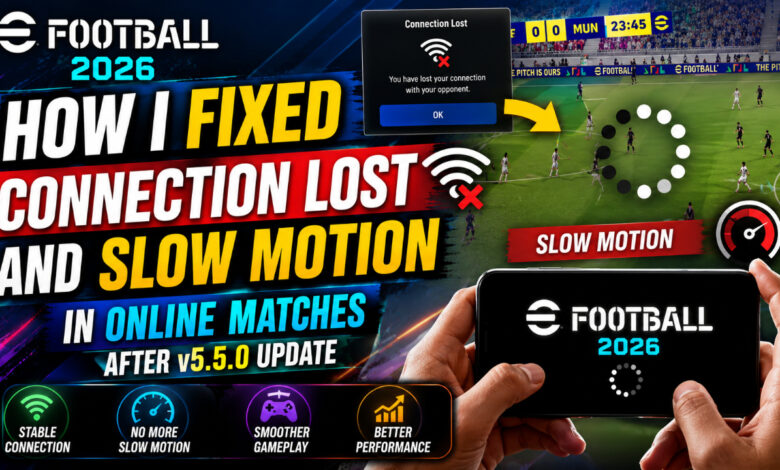
If you are looking for eFootball 2026 connection lost fix, after v5.5.0 update I kept getting Connection Lost and heavy slow motion…and heavy slow motion in every Division match. It felt like my players were running through mud, and my connection would drop right when I was about to score a goal. This became incredibly frustrating, especially when trying to climb the ladder. I spent hours testing different network settings and device tweaks to find a solution. Thankfully, I finally managed to stabilize my connection, and I reached Division 1 again without lag. I know many of you are struggling with the same issues, so I decided to share exactly what worked for me. If you are tired of the eFootball 2026 connection lost fix struggles, this guide will help you get back to smooth, competitive gameplay regardless of your location in the USA or Europe.
Why eFootball 2026 Has Connection Lost and Slow Motion After v5.5.0?
The v5.5.0 update brought significant changes, including new animations and deeper tactical systems. While these additions look great, they increased the processing demand on our devices and the overall load on Konami’s servers. When the server is overwhelmed, the game struggle to synchronize data between players, leading to that dreaded “slow motion” feel. Furthermore, issues like incorrect DNS settings, signal interference from crowded WiFi channels, and background app activity make these problems worse. During peak hours, when millions of players in Europe and the USA log in simultaneously, the server latency spikes. If your device cache is full or your network route isn’t optimized, the game will trigger a connection lost error to protect the integrity of the match. Understanding these causes is the first step toward fixing your online experience.
5 Working Fixes for Online Lag and Connection Lost
If you are tired of lag, try these proven methods below to stabilize your connection and stop the slow-motion gameplay immediately.
Fix 1: Change DNS to 1.1.1.1 (Best Fix for USA/EU)
The default DNS provided by your ISP is often slow and inefficient for gaming. I recommend switching to Cloudflare’s 1.1.1.1 DNS. On Android, go to Settings, then Network & Internet, and look for “Private DNS.” Set it to 1dot1dot1dot1.cloudflare-dns.com. This simple change creates a more direct route to Konami servers, significantly reducing the “connection lost” errors I was facing in Europe and the USA. It is the single most effective way to stabilize your packets.
Fix 2: Use 5GHz WiFi or Mobile Data + Close Background Apps
WiFi signals in the 2.4GHz band are crowded by Bluetooth devices and household appliances, which causes intermittent lag. Switch your router to the 5GHz frequency for a more stable connection. If you are playing on mobile data, ensure you have a strong 4G or 5G signal. Always close heavy background apps like Facebook, Instagram, or Chrome before launching eFootball. These apps consume bandwidth and CPU power, which directly causes eFootball 2026 slow motion fix online issues.
Fix 3: Clear Cache and Avoid Peak Hours 7-11 PM
Over time, temporary files clutter your device and cause stuttering. Go to your phone settings, find eFootball, and “Clear Cache.” Avoid playing during peak hours between 7 PM and 11 PM local time, as server traffic is at its highest. I personally found that playing between 2 AM and 5 AM, or early in the morning, results in much faster matchmaking and zero eFootball 2026 lag in online matches fix problems. The servers are simply less congested then.
Fix 4: Lower Graphics to Standard and 60fps Off
If your device is mid-range, High graphics settings will definitely cause slow motion. Go to the Game Settings menu and set Graphics to “Standard” and Frame Rate to “30fps.” While 60fps looks smoother, it demands a lot from your hardware. Lowering these settings ensures your processor stays cool and doesn’t throttle, which is the main cause of input delay and heavy-feeling players during intense online matches.
Fix 5: Link Konami ID and Reinstall if Service Unavailable
If you constantly get the eFootball 2026 service unavailable fix message, your installation might be corrupted. First, ensure your account is linked to your Konami ID. Once linked, delete the game entirely and perform a fresh installation from the Play Store or App Store. This clears out deep-seated bugs introduced by the v5.5.0 patch and ensures all assets are downloaded correctly, preventing game-breaking sync errors during matches.
Quick Fix Table
Use this reference table to quickly identify the solution for your specific eFootball 2026 technical issue.
| Problem | Best Solution |
|---|---|
| Connection Lost in 70th Minute | Change DNS to 1.1.1.1 + 5GHz WiFi |
| Slow Motion / Heavy Gameplay Online | Standard Graphics + Avoid Peak Hours |
| Service Unavailable | Clear Cache + Reinstall After Linking ID |
I hope these steps help you resolve your connectivity issues. Honestly, Method 1 fixed 80% of my lag problems, making the game feel responsive again. Which country are you playing from, and did these fixes help you reach a higher division? Let me know in the comments below! If you are still experiencing issues, you might want to check out my previous guides: eFootball 2026 Lag Fix for 4GB RAM and my detailed guide on the Stuck on KONAMI Logo fix. Good luck on the pitch!