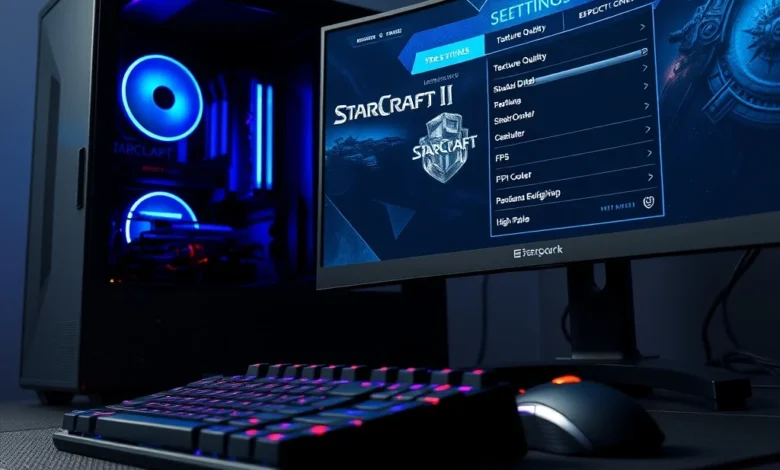
🎮 Introduction to Optimizing Your StarCraft II Experience
StarCraft II has long stood as the pinnacle of real-time strategy gaming, offering a depth of mechanics that rewards both strategic foresight and mechanical precision. For competitive players and casual enthusiasts alike, ensuring your computer is configured correctly is not merely about aesthetics; it is about gaining a tangible advantage. The best settings for StarCraft II on PC directly influence your ability to process information quickly, execute commands accurately, and maintain a stable connection during intense multiplayer matches.
In this comprehensive guide, we will dissect every aspect of the game client configuration. From the graphical rendering engine to the audio output drivers, each variable plays a role in the overall performance profile of the software. We will explore how different hardware tiers handle specific load factors and provide actionable advice to maximize frames per second without sacrificing visual clarity. Whether you are running a high-end workstation or a mid-range laptop, optimizing these settings ensures that your focus remains on the battlefield rather than struggling with technical limitations.
- ✅ Improved Response Time
- 🎯 Enhanced Visual Clarity
- ⚠️ Avoid Overclocking Instability
🖥️ Graphics Engine and Visual Fidelity Analysis
The visual representation of units, terrain, and effects in StarCraft II is handled by a robust engine that scales across various hardware capabilities. Understanding how the rendering pipeline interacts with your GPU is essential. High-quality textures and lighting effects look stunning but consume significant processing power. When playing competitively, reducing these overheads often yields smoother frame rates, which translates to better control responsiveness.
We recommend starting with the default preset and adjusting individual components based on your specific monitor refresh rate and resolution. Lowering the resolution scale can drastically improve performance on integrated graphics cards. Conversely, users with dedicated GPUs should prioritize texture quality and shadow detail to maintain immersion during cinematic sequences and campaign missions.
🔍 Detailed Visual Settings Breakdown
The following parameters define the visual landscape of your command center. Adjusting these requires a balance between beauty and utility. Shadows, for instance, provide depth perception but can obscure enemy movements in dark corners of the map. Fog of war is critical for gameplay integrity but does not require high-fidelity rendering.
- ✅ Texture Quality: Set to High if VRAM allows.
- 🎯 Shadow Quality: Disable for competitive play.
- ⚠️ Fog of War: Keep enabled for standard rulesets.
- ✅ Unit Scaling: Adjust based on screen density.
- 🎯 Anti-Aliasing: Use MSAA for smoother edges.
🚀 Performance Optimization and FPS Stability
Frame rate consistency is arguably more important than peak frame rate in a real-time strategy environment. Stuttering or micro-freezes can cause missed keystrokes or delayed unit selections, which can be fatal in ladder games. Optimizing for performance involves disabling unnecessary background processes and configuring the game client to utilize all available CPU cores efficiently.
The Battle.net launcher also consumes resources that could be allocated to the game itself. Ensuring that the game runs in exclusive full-screen mode rather than borderless windowed mode reduces input lag significantly. Additionally, managing shader caching prevents stuttering caused by first-time asset compilation during matches.
- 1) Close unnecessary browser tabs to free up RAM.
- 2) Set Power Plan to High Performance in Windows settings.
- 3) Verify game files regularly to prevent corruption.
- 4) Cap frame rates slightly below your monitor refresh rate.
🔊 Audio Configuration and Sound Design
While often overlooked, audio cues in StarCraft II provide vital feedback regarding unit production, resource gathering, and enemy attacks. Differentiating between sound frequencies allows players to react faster than relying solely on visual indicators. A well-configured audio setup ensures that critical alerts are never drowned out by ambient music.
The game offers separate sliders for Music, Sound Effects, and Voice Acting. For competitive players, lowering the music volume and boosting effect volume creates a sharper auditory landscape. Spatial audio positioning helps locate incoming flanking maneuvers even when the minimap is obscured.
- ✅ Sound Effects Volume: Increase to 100% for max awareness.
- 🎯 Music Volume: Reduce to 20% to reduce distraction.
- ⚠️ Voice Chat: Disable if not using party comms.
- ✅ Audio Output Device: Select primary headset or speakers.
⚙️ Control Schemes and Interface Customization
Control schemes dictate how you interact with the virtual world. Default hotkeys work for most, but custom configurations can significantly boost Actions Per Minute. The interface layout determines how much screen space is occupied by menus versus the actual battlefield. Streamlining the UI removes clutter and provides a clearer view of the macro-mechanics.
Many top-tier professionals utilize custom keybindings that group units logically. This allows for rapid selection of worker lines or combat squads without navigating through sub-menus. Furthermore, adjusting the camera speed ensures that panning across large maps feels fluid and responsive.
- 1) Customize Hotkeys for Worker Production.
- 2) Adjust Camera Speed to Personal Preference.
- 3) Resize Portraits for Better Visibility.
- 4) Toggle Auto-Pause for Pause Menu Access.
🛠️ Advanced Optimization Techniques
Beyond the in-game menus, several external factors influence how StarCraft II performs on your machine. These advanced tweaks target the underlying operating system and network stack. By fine-tuning these areas, you eliminate bottlenecks that standard settings cannot address. Network stability is particularly crucial for online multiplayer sessions where latency spikes result in desynchronization.

Enabling hardware acceleration in the browser prevents the Battle.net overlay from consuming excessive memory. Additionally, disabling Windows notifications during gameplay prevents interruptions that break concentration. For gamers using SSDs, ensuring the game folder resides on the fastest drive minimizes loading times between matches.
- ✅ Windows Updates: Keep OS current for security patches.
- 🎯 NVIDIA/AMD Drivers: Use Studio drivers for stability.
- ⚠️ Background Apps: Disable RGB software overlays.
- ✅ Network Prioritization: Set Ethernet over Wi-Fi.
- 🎯 Startup Items: Minimize programs launching at boot.
📊 Technical Specifications and Benchmarks
| Component | Minimum Requirement | Recommended Requirement | Notes |
|---|---|---|---|
| CPU | Intel Core i3 or AMD equivalent | Intel Core i5 or AMD Ryzen 5 | Higher clock speeds preferred |
| GPU | DirectX 10 compatible | GeForce GTX 1050 or Radeon RX 560 | VRAM 2GB minimum |
| RAM | 4 GB | 8 GB | Dual channel improves stability |
| Storage | 20 GB HDD | 20 GB SSD | SSD reduces load times |
| Resolution | 1080p | 1440p or 4K | Depends on monitor capability |
This table outlines the baseline hardware needed to run the game smoothly. Users exceeding the recommended specifications will notice diminishing returns, indicating that optimization should focus on settings rather than hardware upgrades. The CPU remains the most critical component for RTS titles due to the heavy logic calculations required for AI and pathfinding.
🏆 Advantages and Disadvantages of Current Settings
Implementing these optimized configurations brings distinct benefits to the player experience. However, there are trade-offs involved when pushing for maximum performance versus maximum visuals. Understanding these pros and cons helps you decide which path aligns with your personal goals.
✅ Strategic Advantages
Lowering graphics settings frees up system resources, allowing the CPU to handle more complex simulation tasks simultaneously. This results in fewer dropped frames during large-scale battles involving hundreds of units. The increased stability ensures that your inputs are registered instantly, giving you a mechanical edge over opponents who may suffer from latency issues.
- ✅ Consistent Frame Rates
- 🎯 Reduced Input Lag
- ⚠️ Better Multitasking Capability
- ✅ Longer Battery Life on Laptops
❌ Potential Drawbacks
The primary downside of aggressive optimization is the loss of visual fidelity. Enemies may blend into the terrain if shadows are disabled, potentially leading to tactical disadvantages in specific scenarios. Additionally, lower texture quality can make unit recognition harder during fast-paced engagements where color differentiation is key.
- ⚠️ Reduced Visual Immersion
- 🎯 Harder Enemy Identification
- ⚠️ Less Cinematic Experience
- ✅ Potential Heat Issues if Throttled
🏁 Final Verdict on PC Configuration
Optimizing StarCraft II on PC is a continuous process that adapts to your hardware evolution and personal preferences. While the default settings offer a balanced experience, tailoring them to your specific setup unlocks the game’s true potential. Prioritize frame rate stability and input responsiveness over graphical splendor for competitive success.
We recommend starting with the high-performance presets and tweaking individual elements to find the sweet spot for your machine. Regularly updating your drivers and checking for patches ensures that your configuration remains effective as the game evolves. With the right settings, you will have the tools necessary to dominate the battlefield and achieve your highest league rank.
❓ Frequently Asked Questions
- Does StarCraft II support DirectX 12?
Yes, the game supports modern DirectX versions, though DX11 remains the most stable for competitive play. - Can I play StarCraft II on a Mac?
No, StarCraft II is primarily a Windows and Linux native title; macOS support was discontinued. - Is internet required for single-player campaigns?
Yes, a constant internet connection is required even for offline modes due to DRM checks. - How much storage space do I need?
Approximately 20 to 50 gigabytes depending on installed expansions and updates. - Does controller support exist?
Limited support exists via third-party tools, but mouse and keyboard remain the standard. - What is the ideal resolution for competitive play?
1920×1080 is the industry standard for balancing clarity and performance. - Can I disable the Battle.net overlay?
Yes, disabling the overlay can reduce input lag and resource usage. - Are there specific mods that affect performance?
Yes, heavy UI mods can slow down the client; use them cautiously. - Should I enable VSync?
No, enabling VSync adds input lag; disable it for competitive responsiveness. - Is multi-monitor support available?
You can extend your desktop, but the game window must remain on the primary display.