
I had terrible lag yesterday after v5.5.0 update and I fixed it. If you are playing on a device with only 4GB of RAM, you are likely feeling the pain of stuttering matches and delayed controls. Every time the ball moves fast or a player sprints, the game seems to freeze for a split second. This is a common issue because modern football simulations are becoming much heavier for mobile hardware to handle. You are not alone in this struggle, and your device isn’t necessarily broken. The good news is that achieving a stable eFootball 2026 lag fix 4GB RAM is possible if you know exactly which settings to tweak. Follow my guide to get back to winning matches without the frustration of constant frame drops.
Why eFootball 2026 Lags on 4GB RAM After Update
The recent v5.5.0 update introduced new player animations, improved pitch textures, and more complex ball physics. While these additions look great, they require significant memory to process in real-time. On a 4GB RAM device, the system quickly runs out of available memory once the game starts. When the RAM is full, your phone begins to use virtual memory, which is significantly slower and leads to severe stuttering. Additionally, the processor has to work harder to keep up, which causes thermal throttling. This is when your phone gets hot and intentionally slows down its performance to protect the hardware. If you notice your screen dimming or the game turning into a slideshow after ten minutes of play, it is likely because your phone is overheating and struggling to manage the game’s high data demands.
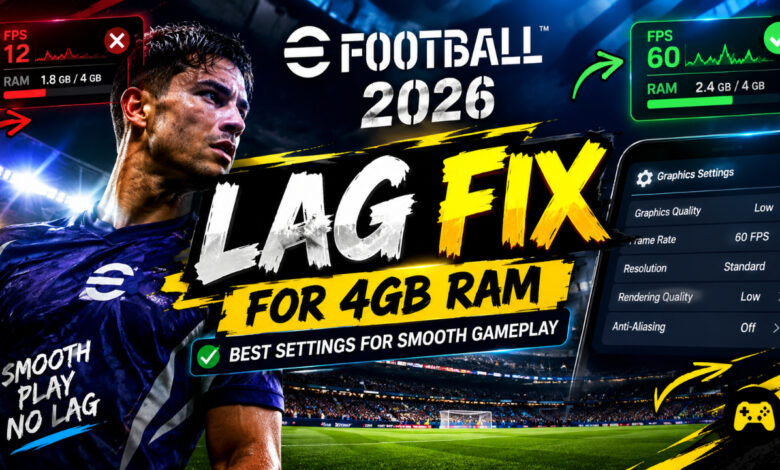
Best Settings I Use for Smooth 60FPS on 4GB RAM
I have spent hours testing every combination to ensure the game remains playable. These specific adjustments prioritize performance over visuals, ensuring you get the most responsive control possible.
| Setting | Recommended Value |
|---|---|
| Graphics Quality | Low |
| Resolution | Standard |
| Frame Rate | 60 FPS |
| Shadows | Off |
| Crowd | Off |
Many players think 30 FPS is easier for the phone, but 60 FPS is essential for eFootball 2026 smooth gameplay. When you set the game to 60 FPS on Low settings, the animation flows much more naturally, allowing you to time your tackles and passes with precision. At 30 FPS, the visual delay makes it almost impossible to react to fast gameplay. By keeping the graphics at Low and disabling background elements like the crowd and shadows, you reduce the load on your GPU significantly, allowing for a much more competitive experience on low-end hardware.
3 Extra Tricks to Stop Lag Completely
- Clear Background Apps – Before launching the game, close everything else including Facebook, Instagram, and Chrome. These apps constantly pull data and eat up your limited RAM.
- Use Game Mode – Most Android phones have a built-in Game Booster or Gaming Mode. Turn this on to prioritize the game’s CPU and RAM usage over other system notifications.
- Keep Phone Cool – Thermal throttling is the biggest enemy of eFootball 2026 60fps settings low end performance. Remove your phone case while playing to allow the heat to dissipate faster.
These adjustments worked wonders for me, and I am now playing matches consistently without those annoying micro-stutters. Remember that every phone handles memory management differently, so don’t be afraid to experiment with these settings until you find your perfect balance. If you are still experiencing issues, drop a comment below with your phone model and the chipset you are using. I check the comments regularly and would be happy to help you troubleshoot your specific device. Let’s get your game running smooth so you can climb the divisions without any technical excuses holding you back on the pitch!