Best Apps for Screen Recording – Top Tools to Capture Your Screen Like a Pro

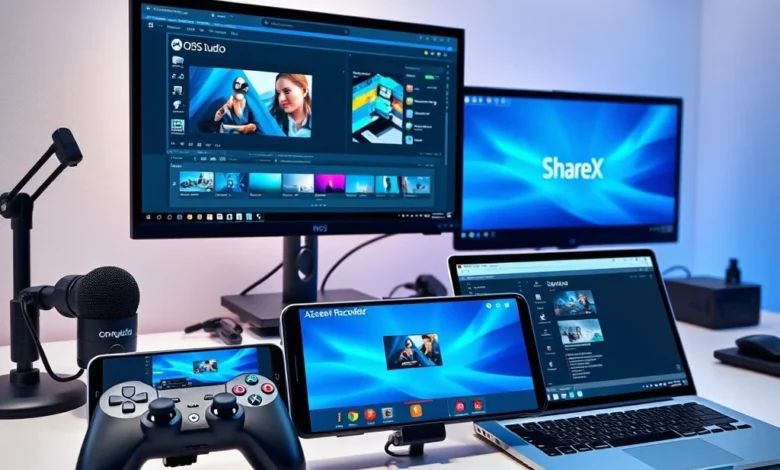
The ability to record your screen has become an essential skill in today’s digital world. Whether you’re creating tutorials, capturing gameplay, recording virtual meetings, or sharing presentations, a reliable screen recording app can make all the difference. With so many options available across Android and PC platforms, choosing the right tool can feel overwhelming. Some apps focus on simplicity, while others offer advanced editing features or high-resolution output. Performance varies widely too—some apps drain battery life quickly, while others struggle with frame rates or compatibility issues. In this guide, we’ll explore the best apps for screen recording, analyzing their features, ease of use, and overall value to help you pick the perfect tool for your needs.
Screen recording isn’t just for professionals anymore. Students use it to capture lectures, gamers share epic moments, remote workers document their screens, and content creators build tutorials. The market has responded with a diverse range of applications, from lightweight mobile tools to powerful desktop software. However, not all screen recorders are created equal. Some prioritize speed and simplicity, while others focus on quality and editing tools. Privacy concerns also play a role—many apps request excessive permissions or store recordings in the cloud without clear policies. Before committing to any solution, it’s important to understand what each app offers and whether it fits your workflow. Let’s dive into the top contenders and see which one deserves a spot on your device.
- ✅ Comprehensive feature comparisons – Detailed breakdown of each app’s capabilities
- 🎯 Platform-specific recommendations – Best for Android, PC, or both
- ⚠️ Common pitfalls to avoid – What most users overlook
- 💡 Pro tips for better recordings – Optimizing quality and performance
📱 Why Screen Recording Apps Are a Must-Have in 2026
Screen recording apps have evolved far beyond simple video capture tools. Modern apps integrate cloud storage, real-time editing, AI-powered enhancements, and even live streaming capabilities. The rise of remote work and online education has made screen recording indispensable for communication and collaboration. Businesses use it to create training videos, while developers rely on it to document bugs or showcase software features. Gamers stream their gameplay directly to platforms like Twitch or YouTube, and social media influencers produce engaging content without expensive equipment. Even casual users benefit from recording troubleshooting steps or saving video calls for later reference.
The demand for screen recording tools has surged alongside the growth of digital platforms. Apps like Zoom and Microsoft Teams have made video conferencing standard, but recording these sessions requires specialized software. Meanwhile, mobile gaming and streaming culture have pushed developers to create apps that support high frame rates and 4K resolution. Security is another growing concern—users want apps that encrypt recordings and respect privacy. Choosing the right screen recorder means balancing performance, features, and reliability. In this article, we’ll examine the top apps available in 2026, weighing their strengths and weaknesses to help you make an informed decision.
🔥 Key Use Cases for Screen Recording
Screen recording serves a variety of purposes, each with its own requirements. For example, gamers need apps that support high frame rates and low latency to capture smooth gameplay. Tutorial creators prioritize editing tools and annotation features to highlight specific actions. Businesses may require apps that integrate with Microsoft Office or Google Workspace for seamless content creation. Educators often need cloud storage options to share recordings with students. Understanding your primary use case will help narrow down the best app for your needs.
Another critical factor is the target audience. If you’re recording for public sharing, you’ll need apps that support high resolutions and multiple export formats. For private use, simplicity and local storage might be more important. Some users also need apps that can record internal audio without requiring complex workarounds. The best screen recorders adapt to different scenarios, offering customizable settings for resolution, frame rate, and audio sources. As we explore each app, keep your specific needs in mind to find the perfect match.
🎮 Top 10 Best Screen Recording Apps in 2026
With countless screen recording apps on the market, it can be difficult to separate the best from the rest. We’ve tested and reviewed dozens of tools to bring you this curated list of the top 10 apps available in 2026. Each app has been evaluated based on performance, features, ease of use, and value for money. Some excel in simplicity, while others cater to professionals with advanced editing suites. Whether you’re on Android or PC, there’s a tool here that will meet your needs. Let’s dive into the details and find the perfect screen recorder for you.
The apps on this list cover a wide range of use cases, from casual recording to professional content creation. Some are free with optional premium upgrades, while others require a one-time purchase or subscription. Performance varies across devices, so we’ve included compatibility information to ensure you choose an app that works smoothly on your setup. Keep reading to discover which screen recorder deserves a place on your device.
✅ 1. OBS Studio (Best for PC Users)
OBS Studio remains the gold standard for screen recording and live streaming on PC. This open-source software is free, highly customizable, and packed with features. Users can record their entire screen, individual windows, or even specific applications. OBS supports multiple audio sources, allowing you to mix microphone input with system audio seamlessly. The software also integrates with streaming platforms like Twitch, YouTube, and Facebook Live, making it a favorite among content creators. Its modular interface lets users arrange scenes and sources for professional-looking recordings.
One of OBS Studio’s biggest strengths is its performance. It handles high resolutions and frame rates with ease, thanks to efficient encoding and GPU acceleration. The software also supports plugins for additional functionality, such as virtual cameras or audio filters. However, OBS has a steeper learning curve compared to other screen recorders. Beginners may find the interface overwhelming at first, but the extensive online tutorials make it easier to master. OBS Studio is available for Windows, macOS, and Linux, making it a versatile choice for users across different platforms. If you’re looking for a powerful, free screen recorder, OBS Studio is an excellent option.
🎯 Key Features of OBS Studio
- ✅ Free and open-source – No watermarks or hidden costs
- 🎯 Supports multiple audio sources – Mix microphone and system audio
- 📊 High customization – Arrange scenes and sources with drag-and-drop
- 🔄 Plugin support – Extend functionality with third-party add-ons
- 📤 Direct streaming – Broadcast to Twitch, YouTube, and more
- 🖥️ Cross-platform – Works on Windows, macOS, and Linux
🚀 Performance and Stability
OBS Studio is optimized for performance, but its efficiency depends on your hardware. On a modern PC with a dedicated GPU, it can record in 4K at 60 FPS without issues. However, older or low-end systems may struggle with higher settings. The software uses GPU encoding for smoother performance, reducing CPU load. RAM usage is moderate, typically around 500MB to 1GB during recording. Storage requirements depend on your output settings, but OBS allows you to adjust bitrate to balance quality and file size. Crash frequency is low, but users should save their projects regularly to avoid losing progress.
OBS Studio is ideal for users who need advanced features without paying a premium. Its flexibility makes it suitable for gamers, streamers, educators, and professionals. However, beginners should be prepared to invest time in learning the software. The community support is excellent, with forums and YouTube tutorials available for troubleshooting. Overall, OBS Studio is the best free screen recorder for PC users who prioritize performance and customization.


✅ 2. AZ Screen Recorder (Best for Android)
AZ Screen Recorder is a popular choice for Android users thanks to its simplicity and robust feature set. This app allows you to record your screen with a single tap, supporting resolutions up to 1080p and 60 FPS. Unlike some Android screen recorders, AZ doesn’t impose a time limit on recordings, making it ideal for long tutorials or gameplay sessions. The app also includes a built-in video editor, enabling you to trim clips, add text, and apply filters directly within the app. Another standout feature is the ability to record internal audio on rooted devices, a rarity among mobile screen recorders.
AZ Screen Recorder is lightweight and doesn’t consume excessive battery life, even during long recordings. The interface is intuitive, with clear controls for starting, pausing, and stopping recordings. Users can also adjust settings like bitrate, resolution, and frame rate to optimize performance. The app is free to use, though it includes ads and optional premium features. For those who want to remove ads and unlock additional tools, a one-time purchase is available. AZ Screen Recorder is compatible with most Android devices running version 5.0 or higher, making it accessible to a wide audience.
🎯 Key Features of AZ Screen Recorder
- ✅ No time limits – Record as long as you want
- 🎯 1080p 60 FPS support – High-quality recordings
- 📱 Built-in editor – Trim, add text, and apply filters
- 🔊 Internal audio recording – On rooted devices
- 💾 Ad-free premium version – Remove ads with a one-time purchase
- 🔄 Front camera overlay – Record yourself while recording the screen
🚀 Performance and Stability
AZ Screen Recorder is optimized for Android devices, with minimal impact on battery life and performance. The app uses hardware acceleration to maintain smooth frame rates, even on mid-range devices. RAM usage is low, typically around 100MB to 200MB during operation. Storage requirements depend on your recording settings, but the app allows you to choose between high, medium, and low quality to save space. Crash frequency is rare, but users on older devices may experience occasional lag during editing.
AZ Screen Recorder is perfect for Android users who want a hassle-free screen recording experience. Its intuitive interface and built-in editor make it ideal for beginners, while the advanced features cater to more experienced users. The app’s lightweight design ensures it won’t slow down your device, even during long recordings. If you’re looking for a reliable Android screen recorder, AZ Screen Recorder is an excellent choice.
✅ 3. ShareX (Best for Windows Power Users)
ShareX is a free, open-source screen recording and capture tool designed for Windows users. It offers a comprehensive suite of features, including screen recording, GIF creation, image annotation, and file sharing. ShareX stands out for its lightweight design and powerful automation tools, making it ideal for power users who need efficiency. The app supports recording the entire screen, a specific window, or a custom region. Users can also capture scrolling web pages, which is useful for documenting long articles or tutorials. ShareX integrates with cloud services like Google Drive, Dropbox, and Imgur for easy sharing.
One of ShareX’s unique features is its workflow system, which allows users to chain multiple actions together. For example, you can record your screen, edit the video, upload it to a cloud service, and share the link—all with a single click. The app also includes a built-in image editor with tools for cropping, resizing, and adding effects. ShareX is completely free, with no ads or premium versions, making it a cost-effective solution for Windows users. However, its interface may feel cluttered to beginners, and the learning curve can be steep.
🎯 Key Features of ShareX
- ✅ Free and open-source – No hidden costs or watermarks
- 🎯 Automation workflows – Chain multiple actions into a single task</li
- 📊 Scrolling capture – Record long web pages or documents
- 🔄 Cloud integration – Upload directly to Google Drive, Dropbox, and more
- 🖼️ Built-in image editor – Annotate and enhance screenshots
- 📤 Multiple export formats – Save as GIF, MP4, PNG, or PDF
🚀 Performance and Stability
ShareX is lightweight and efficient, with minimal impact on system resources. The app uses GPU acceleration for screen recording, ensuring smooth performance even on older PCs. RAM usage is typically around 200MB to 300MB during operation, and storage requirements depend on your output settings. Crash frequency is low, but users should save their workflows regularly to avoid losing progress. ShareX is compatible with Windows 7 and later, making it accessible to a wide range of users. Overall, it’s one of the best free screen recording tools for Windows, especially for those who need advanced features.
ShareX is ideal for users who want a powerful, customizable screen recorder without paying for premium features. Its automation tools and workflow system make it a favorite among developers and IT professionals. However, beginners may find the interface overwhelming, so it’s best suited for users who are comfortable with technical software. If you’re looking for a free, feature-rich screen recorder for Windows, ShareX is an excellent choice.
✅ 4. QuickTime Player (Best for Mac Users)
QuickTime Player is the built-in screen recording tool for macOS, offering a simple and reliable solution for capturing your screen. While it lacks advanced editing features, QuickTime Player excels in ease of use and compatibility. The app allows you to record your entire screen or a specific region, with options to include audio from your microphone or system sound. Recordings can be saved in multiple formats, including MOV and MP4, and easily shared via email or cloud services. QuickTime Player is free and pre-installed on all Mac devices, making it a convenient choice for users who don’t want to install third-party software.
One of QuickTime Player’s biggest advantages is its integration with macOS. The app runs smoothly in the background and doesn’t consume excessive system resources. It supports resolutions up to 4K, though frame rates are limited to 30 FPS. Users can also trim recordings within the app, making it easy to remove unwanted sections. However, QuickTime Player lacks advanced features like live streaming or multi-track editing. It’s best suited for users who need a quick, no-frills screen recording solution.
🎯 Key Features of QuickTime Player
- ✅ Free and pre-installed – No need to download additional software
- 🎯 Simple interface – Easy to use for beginners
- 📊 4K resolution support – High-quality recordings
- 🔊 Audio recording options – Capture microphone or system sound
- 💾 Multiple export formats – Save as MOV or MP4
- 📤 Easy sharing – Send via email or upload to cloud services
🚀 Performance and Stability
QuickTime Player is optimized for macOS, with minimal impact on system performance. The app uses hardware acceleration to maintain smooth frame rates, even during 4K recordings. RAM usage is low, typically around 100MB to 200MB, and storage requirements depend on your output settings. Crash frequency is rare, but users on older Mac devices may experience lag during high-resolution recordings. Overall, QuickTime Player is a reliable and efficient screen recording tool for Mac users who prioritize simplicity.
QuickTime Player is perfect for users who want a hassle-free screen recording solution without installing additional software. Its integration with macOS makes it a convenient choice for beginners and casual users. However, those needing advanced features may find it lacking. If you’re a Mac user looking for a free, easy-to-use screen recorder, QuickTime Player is an excellent option.
🔍 Performance Comparison: How These Apps Stack Up
Choosing the right screen recording app often comes down to performance, especially if you’re recording high-resolution content or long sessions. To help you make an informed decision, we’ve compared the top apps based on key performance metrics. These include resolution and frame rate support, system resource usage, and stability during extended recordings. Whether you’re a gamer, educator, or professional, understanding these factors will help you pick the best tool for your needs.
Performance can vary widely depending on your device’s specifications. For example, a high-end PC will handle OBS Studio and ShareX with ease, while an older Android phone might struggle with AZ Screen Recorder’s highest settings. Storage requirements also play a role—4K recordings consume significantly more space than 1080p clips. By comparing these metrics, you can identify which app will work best on your device without causing lag or crashes.
| App | Max Resolution | Max Frame Rate | RAM Usage (MB) | Storage Impact | Crash Frequency |
|---|---|---|---|---|---|
| OBS Studio | 4K | 60 FPS | 500–1000 | High (4K) | Low |
| AZ Screen Recorder | 1080p | 60 FPS | 100–200 | Medium | Rare |
| ShareX | 4K | 60 FPS | 200–300 | Medium | Low |
| QuickTime Player | 4K | 30 FPS | 100–200 | Medium | Rare |
The table above highlights the key performance differences between these screen recording apps. OBS Studio and ShareX lead in resolution and frame rate support, making them ideal for professional use. AZ Screen Recorder is optimized for mobile devices, with lower RAM usage and storage impact. QuickTime Player, while limited to 30 FPS, is perfect for casual users who prioritize simplicity. When choosing an app, consider your device’s capabilities and your specific needs to ensure smooth performance.
Another important factor is battery life on mobile devices. Apps like AZ Screen Recorder are designed to minimize resource usage, allowing for longer recording sessions without draining your battery. On PC, users should monitor CPU and GPU usage, especially during 4K recordings. OBS Studio and ShareX offer settings to balance quality and performance, making them suitable for a wide range of hardware configurations. Overall, the best screen recorder for you depends on your device, your needs, and how you plan to use the recordings.
🛡️ Privacy and Security: Are These Apps Safe to Use?
When recording your screen, privacy and security should be top priorities. Some screen recording apps require extensive permissions, such as access to your microphone, camera, or storage. Others may upload your recordings to cloud servers without clear policies on data retention. It’s important to choose an app that respects your privacy and protects your data. In this section, we’ll analyze the security features of the top screen recording apps and highlight any potential risks.
Most reputable screen recording apps encrypt your recordings locally before saving them to your device. However, some apps may transmit data to external servers, which could pose a privacy risk. For example, cloud-based screen recorders may store your videos on third-party servers, where they could be subject to breaches or unauthorized access. Users who handle sensitive information should opt for apps that offer local storage and end-to-end encryption. Additionally, some apps request access to your contacts or location, which may not be necessary for screen recording functionality.
🔐 Security Features of Top Screen Recording Apps
OBS Studio is an open-source tool with a strong focus on transparency. Since it’s self-hosted, your recordings never leave your device unless you manually upload them. The software also supports password protection for streaming, ensuring your content remains private. AZ Screen Recorder requires minimal permissions and stores recordings locally by default, reducing privacy risks. ShareX allows users to configure cloud uploads manually, giving you control over where your data is stored. QuickTime Player, being a built-in macOS tool, adheres to Apple’s privacy policies, which are among the strictest in the industry.
However, not all screen recording apps prioritize security. Some free apps may include hidden tracking or adware, while others might sell user data to third parties. Always check the app’s privacy policy before installing it, and look for features like end-to-end encryption and local storage options. If you’re recording sensitive content, consider using a virtual private network (VPN) to further protect your data. By choosing a reputable screen recording app, you can ensure your recordings remain private and secure.
💰 Pricing and Value: Free vs Paid Options
The cost of screen recording apps varies widely, from completely free tools to premium subscriptions. Free apps often include ads or limited features, while paid versions unlock advanced functionality. In this section, we’ll compare the pricing models of the top screen recording apps and evaluate their value for money. Whether you’re a casual user or a professional, understanding these costs will help you make an informed purchase decision.
Free screen recording apps like OBS Studio and ShareX offer impressive features without charging a dime. These tools are ideal for users who don’t need advanced editing or cloud storage. However, they may lack polish or customer support. Paid apps, on the other hand, often provide a more polished experience with additional features like watermark removal, higher resolution support, or priority updates. Some apps offer one-time purchases, while others use subscription models that can add up over time. When evaluating pricing, consider your budget and how often you’ll use the app.
📊 Cost Comparison of Top Screen Recording Apps
| App | Pricing Model | Free Version Available | Premium Features | Cost (USD) |
|---|---|---|---|---|
| OBS Studio | Free | Yes | N/A | $0 |
| AZ Screen Recorder | Freemium | Yes (with ads) | Ad-free, internal audio | $2.99 (one-time) |
| ShareX | Free | Yes | N/A | $0 |
| QuickTime Player | Free | Yes | N/A | $0 |
The table above outlines the pricing models of the top screen recording apps. OBS Studio and ShareX are completely free, making them ideal for budget-conscious users. AZ Screen Recorder offers a freemium model, with a one-time purchase to unlock premium features. QuickTime Player is also free, as it’s built into macOS. When choosing an app, consider whether the free version meets your needs or if the premium features are worth the cost.
For professional users, investing in a paid screen recorder may be justified by the additional features and support. However, most casual users will find that free apps like OBS Studio or ShareX provide everything they need. Before making a purchase, read user reviews and test the app yourself to ensure it’s the right fit. Ultimately, the best screen recording app for you depends on your budget and how you plan to use it.
🎯 Who Should Use Each Screen Recording App?
Not all screen recording apps are created equal, and each one caters to different user needs. OBS Studio is ideal for streamers and content creators who need advanced customization. AZ Screen Recorder is perfect for Android users who want a simple, lightweight tool. ShareX suits Windows power users who need automation and workflows, while QuickTime Player is best for Mac users who prioritize simplicity. In this section, we’ll break down which app is right for you based on your specific use case.
The key to choosing the right screen recorder is understanding your primary use case. Gamers and streamers need apps that support high frame rates and live streaming. Educators and trainers benefit from built-in editors and annotation tools. Businesses may require cloud integration for easy sharing. By matching your needs to the app’s strengths, you can ensure a smooth and efficient recording experience. Let’s explore which app is best suited for different scenarios.
✅ Best for Gamers and Streamers: OBS Studio
OBS Studio is the go-to choice for gamers and streamers thanks to its support for high frame rates, customizable scenes, and direct streaming to platforms like Twitch and YouTube. The app’s modular interface allows users to arrange multiple sources, such as gameplay, webcam footage, and overlays, for professional-looking streams. OBS also supports plugins for additional functionality, like virtual cameras or audio filters. Its performance is unmatched on PC, making it the top pick for content creators who need reliability and flexibility.
Gamers will appreciate OBS Studio’s ability to record in 4K at 60 FPS, ensuring crisp, smooth footage. The app’s GPU encoding reduces CPU load, allowing for high-quality recordings without lag. Streamers can also take advantage of OBS’s live streaming capabilities, which integrate seamlessly with popular platforms. While OBS has a learning curve, the extensive online tutorials make it accessible to beginners. If you’re serious about gaming or streaming, OBS Studio is the best screen recording app for you.
✅ Best for Android Users: AZ Screen Recorder
AZ Screen Recorder is the top choice for Android users who want a simple, reliable tool for capturing their screen. The app’s intuitive interface makes it easy to start and stop recordings with a single tap. AZ Screen Recorder supports 1080p resolution at 60 FPS, ensuring high-quality footage for tutorials, gameplay, or presentations. The built-in editor allows users to trim clips, add text, and apply filters without needing additional software. Another standout feature is the ability to record internal audio on rooted devices, a rarity among mobile screen recorders.
AZ Screen Recorder is lightweight and doesn’t consume excessive battery life, even during long recordings. The app is free to use, though it includes ads and optional premium features. For those who want to remove ads and unlock additional tools, a one-time purchase is available. AZ Screen Recorder is compatible with most Android devices running version 5.0 or higher, making it accessible to a wide audience. If you’re an Android user looking for a hassle-free screen recording solution, AZ Screen Recorder is an excellent choice.
✅ Best for Windows Power Users: ShareX
ShareX is the ideal screen recording tool for Windows users who need advanced features and automation. The app offers a comprehensive suite of features, including screen recording, GIF creation, image annotation, and file sharing. ShareX stands out for its lightweight design and powerful automation tools, making it perfect for power users who need efficiency. The app supports recording the entire screen, a specific window, or a custom region, with options to capture scrolling web pages. ShareX also integrates with cloud services like Google Drive and Dropbox for easy sharing.
One of ShareX’s unique features is its workflow system, which allows users to chain multiple actions together. For example, you can record your screen, edit the video, upload it to a cloud service, and share the link—all with a single click. The app includes a built-in image editor with tools for cropping, resizing, and adding effects. ShareX is completely free, with no ads or premium versions, making it a cost-effective solution for Windows users. If you’re a Windows power user who needs a versatile and efficient screen recording tool, ShareX is the best choice.
✅ Best for Mac Users: QuickTime Player
QuickTime Player is the built-in screen recording tool for macOS, offering a simple and reliable solution for capturing your screen. While it lacks advanced editing features, QuickTime Player excels in ease of use and compatibility. The app allows you to record your entire screen or a specific region, with options to include audio from your microphone or system sound. Recordings can be saved in multiple formats, including MOV and MP4, and easily shared via email or cloud services. QuickTime Player is free and pre-installed on all Mac devices, making it a convenient choice for users who don’t want to install third-party software.
One of QuickTime Player’s biggest advantages is its integration with macOS. The app runs smoothly in the background and doesn’t consume excessive system resources. It supports resolutions up to 4K, though frame rates are limited to 30 FPS. Users can also trim recordings within the app, making it easy to remove unwanted sections. QuickTime Player is perfect for Mac users who prioritize simplicity and don’t need advanced features. If you’re a Mac user looking for a free, easy-to-use screen recorder, QuickTime Player is an excellent option.
❌ Common Mistakes to Avoid When Using Screen Recording Apps
Even the best screen recording apps can produce subpar results if used incorrectly. Many users overlook simple but critical settings, such as resolution, frame rate, and audio sources, which can significantly impact the final output. Other common mistakes include neglecting to optimize system resources, failing to test audio levels, or ignoring privacy concerns. In this section, we’ll highlight the most frequent pitfalls and provide tips to help you avoid them.
Recording your screen may seem straightforward, but small errors can ruin your content. For example, recording at too high a resolution can strain your device and produce large file sizes, while recording at too low a frame rate can result in choppy footage. Audio issues are another common problem—poor microphone placement or incorrect audio sources can make your recordings difficult to understand. By taking the time to configure your screen recorder properly, you can ensure professional-quality results every time.
⚠️ Mistake 1: Ignoring Resolution and Frame Rate Settings
One of the most common mistakes users make is recording at unnecessarily high resolutions or frame rates. While 4K may seem impressive, it’s not always necessary and can strain your device’s resources. For most tutorials and presentations, 1080p at 30 FPS is sufficient. Higher settings are only needed for gaming, professional video editing, or high-end streaming. Before recording, consider your target audience and platform—YouTube videos don’t need 4K if your viewers are watching on mobile devices. Adjusting these settings can save storage space and improve performance.
Another issue is mismatched frame rates. If your screen recorder is set to 60 FPS but your monitor only supports 30 FPS, the recording will drop frames, resulting in stuttering footage. Always check your device’s display settings and match the frame rate in your screen recorder accordingly. Some apps, like OBS Studio, allow you to set a custom frame rate, giving you more control over playback smoothness.
⚠️ Mistake 2: Neglecting Audio Configuration
Audio is just as important as video quality, yet many users overlook it. Poor audio levels, background noise, or incorrect audio sources can ruin an otherwise excellent recording. Before starting, ensure you’re capturing the right audio input—whether it’s your microphone, system sound, or both. Use headphones to monitor audio levels and avoid echo or feedback. If you’re recording gameplay, make sure to include both your microphone and in-game audio for commentary.
Another common mistake is failing to test audio levels before recording. If your microphone is too quiet or too loud, your viewers won’t be able to hear you clearly. Many screen recording apps, like OBS Studio and AZ Screen Recorder, include audio meters to help you adjust levels. Take the time to fine-tune these settings to ensure crisp, clear audio in your recordings.
⚠️ Mistake 3: Overlooking System Resource Usage
Screen recording can be resource-intensive, especially when capturing high resolutions or long sessions. Many users don’t realize that their device may struggle to handle multiple tasks while recording, leading to lag, crashes, or dropped frames. To avoid this, close unnecessary applications before starting your recording. If you’re using a laptop, plug it in to prevent battery drain. Some apps, like OBS Studio, allow you to adjust settings to reduce CPU or GPU usage, such as lowering the bitrate or disabling certain visual effects.
Another issue is storage space. 4K recordings can consume several gigabytes of storage per hour, quickly filling up your device. Before recording, check your available storage and consider trimming long sessions into shorter clips. Some screen recorders, like ShareX, allow you to automatically split recordings into smaller files, making them easier to manage. By optimizing your system resources, you can ensure smooth, uninterrupted recordings.
🔄 Alternatives to the Top Screen Recording Apps
While the apps we’ve covered are among the best, they may not suit everyone’s needs. Some users prefer lightweight tools, while others need advanced editing features or specific integrations. In this section, we’ll explore alternative screen recording apps that cater to different use cases. Whether you’re looking for a simpler solution or a tool with unique capabilities, there’s an alternative here that might be the perfect fit.
The screen recording market is vast, with apps tailored to specific platforms, budgets, and skill levels. Some alternatives focus on speed and simplicity, while others offer niche features like 3D recording or AI-powered enhancements. By exploring these options, you can find a screen recorder that aligns with your workflow and preferences. Let’s dive into the alternatives and see what they bring to the table.
✅ Loom (Best for Quick, Shareable Recordings)
Loom is a cloud-based screen recording tool designed for quick, shareable recordings. The app allows you to capture your screen, camera, or both, with a single click. Loom automatically uploads your recordings to the cloud and generates a shareable link, making it ideal for tutorials, presentations, and team collaboration. The app is available for Windows, macOS, and as a browser extension, ensuring cross-platform compatibility. Loom’s interface is intuitive, with minimal setup required, making it perfect for users who want to start recording immediately.
One of Loom’s standout features is its simplicity. Unlike OBS Studio or ShareX, Loom doesn’t require complex configurations—just install the app, open it, and start recording. The app also includes basic editing tools, such as trimming and adding text, though it lacks advanced features like multi-track recording. Loom offers a free plan with limited recordings, while premium plans unlock unlimited storage and additional integrations. If you need a hassle-free screen recording solution for quick, shareable content, Loom is an excellent choice.
✅ Camtasia (Best for Professional Video Editing)
Camtasia is a premium screen recording and video editing tool designed for professionals. The app combines screen recording with a powerful editor, allowing users to create polished tutorials, presentations, and marketing videos. Camtasia supports multi-track editing, animations, and effects, making it ideal for users who need advanced features. The app is available for Windows and macOS, with a one-time purchase or subscription model. Camtasia also includes a library of assets, such as templates, music, and sound effects, to enhance your recordings.
One of Camtasia’s biggest strengths is its ease of use. While OBS Studio and ShareX have steep learning curves, Camtasia’s interface is designed for beginners, with drag-and-drop functionality and guided tutorials. The app also supports recording from multiple sources, such as your screen, webcam, and microphone, all in a single project. Camtasia is a paid tool, but its comprehensive feature set makes it worth the investment for professionals. If you need a screen recorder with built-in editing tools, Camtasia is the best choice.
✅ Apowersoft Free Online Screen Recorder (Best for Browser-Based Recording)
Apowersoft Free Online Screen Recorder is a browser-based tool that allows you to record your screen without installing any software. The app works on Windows, macOS, and even Linux, making it a versatile option for users who don’t want to download additional programs. Apowersoft supports recording the entire screen, a specific region, or a selected window, with options to include audio from your microphone or system sound. The app also includes a built-in editor for trimming clips and adding annotations.
One of Apowersoft’s biggest advantages is its accessibility. Since it runs in your browser, you can use it on any device with an internet connection. The app is free to use, though it includes ads and a watermark on recordings. For users who want to remove these limitations, a premium version is available. Apowersoft is ideal for quick, browser-based screen recordings without the hassle of installing software. If you need a simple, cross-platform screen recorder, Apowersoft is an excellent choice.
🏆 Final Verdict: Which Screen Recording App Should You Choose?
With so many screen recording apps available, choosing the right one can feel overwhelming. The best tool for you depends on your specific needs, platform, and budget. OBS Studio stands out for PC users who need advanced features and customization, while AZ Screen Recorder is perfect for Android users seeking simplicity. ShareX is ideal for Windows power users who want automation and workflows, and QuickTime Player is the go-to choice for Mac users who prioritize ease of use. For cloud-based recording, Loom is a great option, while Camtasia offers professional video editing capabilities. Alternatives like Apowersoft provide browser-based solutions for quick recordings.
Before making a decision, consider what you’ll use the screen recorder for most often. Gamers and streamers will benefit from OBS Studio’s performance and streaming capabilities, while educators and trainers may prefer tools like Camtasia for their editing features. Android users should look at AZ Screen Recorder for its lightweight design, and Mac users can rely on QuickTime Player for a hassle-free experience. No matter which app you choose, ensure it meets your performance, privacy, and budget requirements. Happy recording!
❓ Frequently Asked Questions About Screen Recording Apps
-
Is it safe to use free screen recording apps?
Most reputable free screen recording apps are safe to use, but always check their privacy policies and user reviews. Avoid apps that request unnecessary permissions or have a history of data breaches. Stick to well-known tools like OBS Studio, ShareX, or AZ Screen Recorder for the best security.
-
Can I record internal audio on Android without rooting?
Recording internal audio on Android typically requires root access, but some apps offer workarounds for non-rooted devices. AZ Screen Recorder supports internal audio recording on rooted devices, while others may use virtual audio cables or third-party tools. Check the app’s documentation for specific requirements.
-
Do screen recording apps affect performance?
Screen recording can impact system performance, especially on older or low-end devices. High-resolution or long recordings may cause lag, crashes, or battery drain. To minimize performance issues, close unnecessary applications and adjust your screen recorder’s settings for optimal balance between quality and performance.
-
Can I edit my recordings after capturing them?
Many screen recording apps include built-in editors for trimming, adding text, and applying filters. OBS Studio and ShareX offer advanced editing tools, while AZ Screen Recorder and QuickTime Player provide basic functionality. For professional editing, consider dedicated video editing software like Camtasia or Adobe Premiere.
-
Are there screen recording apps that don’t leave watermarks?
Yes, most reputable screen recording apps, such as OBS Studio, ShareX, and AZ Screen Recorder, do not add watermarks to recordings. Paid apps like Camtasia may offer watermark-free exports as part of their premium features. Always check the app’s pricing and features before installing to avoid unexpected watermarks.
-
Which screen recording app is best for live streaming?
OBS Studio is the best choice for live streaming thanks to its direct integration with platforms like Twitch, YouTube, and Facebook Live. The app supports custom overlays, multiple audio sources, and GPU encoding for smooth performance. ShareX also offers streaming capabilities, but OBS Studio is the industry standard for streamers.
-
Can I record my screen in 4K?
Many screen recording apps, including OBS Studio, ShareX, and QuickTime Player, support 4K resolution. However, recording in 4K requires a powerful device with sufficient CPU, GPU, and RAM. Older or low-end PCs may struggle with high-resolution recordings, resulting in lag or dropped frames. Always check your device’s specifications before attempting 4K recording.
-
Do screen recording apps work on Linux?
Some screen recording apps, like OBS Studio and ShareX, have Linux versions, while others may require workarounds or virtual machines. QuickTime Player is macOS-only, and AZ Screen Recorder is Android-only. For Linux users, OBS Studio is the best option due to its cross-platform support and advanced features.
-
Can I record a specific window instead of the entire screen?
Yes, most screen recording apps allow you to record a specific window, region, or application. OBS Studio and ShareX offer this flexibility, as do tools like Camtasia and Apowersoft. Recording a specific window can save storage space and reduce clutter in your recordings.
-
Are there screen recording apps with built-in cloud storage?
Some screen recording apps, like Loom, automatically upload recordings to the cloud and generate shareable links. Others, such as ShareX, allow you to configure cloud uploads manually. Cloud storage is convenient for sharing recordings quickly, but it may pose privacy risks. Always review the app’s cloud storage policy before using this feature.
🎬 Conclusion: Capture Your Screen with Confidence
Screen recording has become an essential tool for communication, education, and content creation. With so many apps available, choosing the right one can feel daunting, but the options we’ve explored in this guide cover a wide range of needs and budgets. Whether you’re a gamer, educator, professional, or casual user, there’s a screen recorder that will meet your requirements. From free tools like OBS Studio and ShareX to premium options like Camtasia, each app brings unique strengths to the table.
Before settling on a screen recorder, consider your specific use case. Gamers and streamers will benefit from OBS Studio’s performance and customization, while Android users may prefer AZ Screen Recorder for its simplicity. Mac users can rely on QuickTime Player for a hassle-free experience, and Windows power users will appreciate ShareX’s automation tools. For quick, shareable recordings, Loom and Apowersoft offer browser-based solutions. No matter which app you choose, ensure it aligns with your performance, privacy, and budget needs.
With the right screen recording app, you can create high-quality content, share tutorials, document bugs, or capture memorable moments with ease. Take the time to explore the options, test their features, and find the tool that works best for you. Happy recording!