Best Photo Editing Apps for Beginners – Top Tools to Start Editing Like a Pro

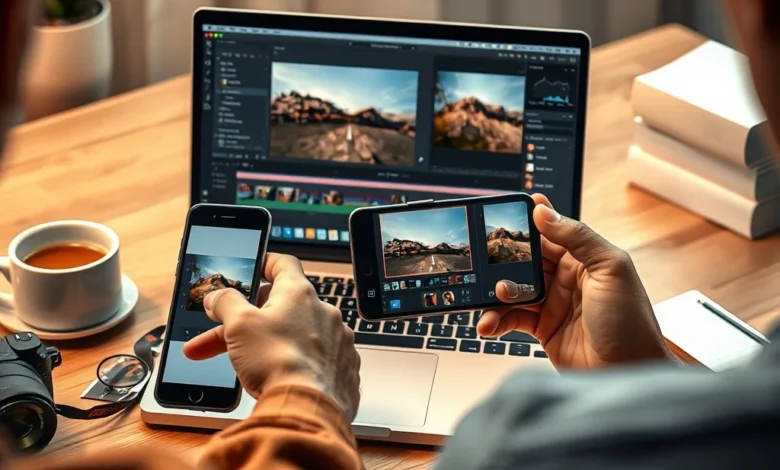
If you’re just starting your journey into photo editing, choosing the right app can feel overwhelming. With so many options available, each promising to turn your snapshots into stunning images, how do you know which one suits your needs? Whether you’re editing on your phone or computer, the best photo editing apps for beginners are designed to simplify the process while offering powerful tools. These apps prioritize user-friendliness, intuitive interfaces, and essential features without overwhelming new users.
In this guide, we’ll explore the top photo editing apps for beginners, breaking down their key features, performance, and ease of use. We’ll also look at what makes each app stand out, so you can confidently pick the one that fits your style and workflow. From mobile apps to desktop software, there’s a solution for every type of beginner editor.
- ✅ Best overall photo editing app for beginners
- 🎯 Most intuitive user interface
- 💡 Apps with free versions and premium upgrades
- ⚠️ Common mistakes beginners should avoid
🎨 Why Beginners Need the Right Photo Editing App
Photo editing can be both exciting and intimidating for beginners. On one hand, you have the opportunity to enhance your photos, correct mistakes, and unleash creativity. On the other, complex tools and jargon can make the process frustrating, leading to abandoned projects and lost motivation. The right photo editing app acts as a bridge, offering essential features without a steep learning curve.
The best apps for beginners strike a balance between simplicity and functionality. They provide guided tools, such as one-tap enhancements and basic filters, which make editing accessible. Additionally, these apps often include tutorials or tooltips to help users learn as they go. Whether you want to remove red-eye, adjust brightness, or apply stylish effects, the ideal app should empower you to achieve professional-looking results without requiring prior experience.
Another critical factor is compatibility. Beginners may start editing on their smartphones, but as they advance, they might want to switch to desktop software for more control. The top photo editing apps cater to both platforms, ensuring a seamless transition as your skills grow. Ultimately, the goal is to find an app that grows with you, offering room for progression while remaining easy to use.
📱 Top Photo Editing Apps for Mobile Users
Mobile photo editing has surged in popularity, thanks to the convenience of editing on the go. Whether you use an Android or iOS device, there’s no shortage of apps designed specifically for beginners. These apps leverage touch-friendly interfaces and streamlined tools to make editing accessible to everyone. Below, we’ll dive into the best photo editing apps for mobile users, highlighting their strengths and weaknesses.
🔥 Snapseed – The Powerful Free Option for Android and iOS
Snapseed, developed by Google, is a top choice for beginners seeking a free yet powerful photo editing app. Unlike many free apps that limit functionality, Snapseed offers a comprehensive suite of tools, including advanced features like selective adjustments and healing brushes. This makes it ideal for beginners who want to dive deeper into editing without switching to a paid app immediately.
The app’s interface is clean and intuitive, with a layout that’s easy to navigate. Tools are organized logically, so you can quickly find what you need. Snapseed also includes a variety of filters and presets, allowing beginners to achieve impressive results with minimal effort. Its non-destructive editing feature ensures that your original photo remains intact, giving you the freedom to experiment.
One of Snapseed’s standout features is its selective editing tool, which lets you adjust specific areas of your photo. This is perfect for beginners who want to enhance certain elements without affecting the entire image. Additionally, the app supports RAW files, which is a rare feature in free mobile editing apps and is highly beneficial for those looking to improve their photography skills long-term.
– ✅ Free with no ads
– 🎯 Advanced tools like selective editing and healing brush
– 💡 Supports RAW files
– ⚠️ Steeper learning curve for beginners new to photo editing
🎯 VSCO – Aesthetic Filters and Social Integration
VSCO is another popular photo editing app, known for its stylish filters and minimalist design. While it offers a free version, the app’s true potential shines through its premium membership, which unlocks additional filters and editing tools. VSCO’s strength lies in its ability to create a cohesive aesthetic, making it a favorite among influencers and social media enthusiasts.
The app’s interface is sleek and user-friendly, with a focus on simplicity. VSCO’s filters are professionally designed, giving your photos a polished look with just one tap. Beginners will appreciate the app’s straightforward approach, which avoids overwhelming them with complex tools. Additionally, VSCO includes a community feature where users can share their edited photos, providing inspiration and feedback.


However, VSCO’s free version has limitations. While you can access basic editing tools and a limited selection of filters, advanced features require a subscription. This might be a drawback for beginners who want to explore more without committing to a paid plan. Still, VSCO remains an excellent choice for those who prioritize aesthetics and social sharing.
– ✅ Beautiful, professional-grade filters
– 🎯 Minimalist and intuitive interface
– 💡 Built-in social community for sharing
– ⚠️ Premium features require a subscription
⚙️ Lightroom Mobile – Adobe’s Professional-Grade App for Beginners
Adobe Lightroom Mobile is a scaled-down version of the desktop software, offering a powerful set of tools designed for both beginners and advanced users. Unlike many mobile apps, Lightroom Mobile provides a comprehensive editing experience, including color correction, exposure adjustments, and advanced retouching. This makes it an excellent choice for beginners who want to learn professional techniques from the start.
The app’s interface is clean and organized, with tools grouped into intuitive categories. Lightroom Mobile also includes presets, which are pre-designed edits that you can apply with one tap. This feature is particularly helpful for beginners who want to achieve high-quality results quickly. Additionally, Lightroom Mobile syncs with Adobe Creative Cloud, allowing you to access your edits across devices seamlessly.
One of Lightroom Mobile’s standout features is its RAW editing capability. This allows beginners to work with high-quality image files, which is essential for learning proper editing techniques. However, the app’s extensive features might be overwhelming for absolute beginners, and some advanced tools require a subscription to unlock.
– ✅ Professional-grade tools with RAW support
– 🎯 Syncs with Adobe Creative Cloud
– 💡 Includes presets for quick edits
– ⚠️ Some features require a subscription
💻 Best Photo Editing Apps for Desktop Users
While mobile editing is convenient, desktop photo editing apps offer more control, precision, and advanced features. For beginners transitioning from mobile to desktop, these apps provide a natural progression in skill development. They also cater to users who prefer larger screens and more robust tools. Below, we’ll explore the best photo editing apps for desktop users, focusing on their ease of use and features.
🔥 GIMP – The Free and Open-Source Alternative to Photoshop
GIMP (GNU Image Manipulation Program) is a free, open-source photo editing software that rivals Adobe Photoshop in functionality. While it may not be as polished as commercial options, GIMP provides an extensive set of tools for beginners to learn photo editing fundamentals. Its customizable interface and plugin support make it a versatile choice for users who want to experiment with advanced techniques.
The app’s layout can be intimidating for beginners due to its complexity. However, GIMP offers a wealth of tutorials and documentation to help users get started. Its layer-based editing system, similar to Photoshop, is essential for understanding advanced editing techniques. Additionally, GIMP supports a wide range of file formats, including PSD, making it compatible with other professional software.
One of GIMP’s major advantages is its community-driven development. Users can contribute to the app’s improvement by creating plugins or sharing tutorials. This ensures that GIMP remains up-to-date with the latest trends and technologies. However, the learning curve can be steep, and beginners may need to invest time in tutorials before feeling comfortable using the software.
– ✅ Free and open-source
– 🎯 Supports advanced tools like layers and plugins
– 💡 Compatible with PSD files
– ⚠️ Steep learning curve for beginners
🎯 Canva – Drag-and-Drop Editing for Social Media and Marketing
Canva is a web-based photo editing tool designed for creating graphics, social media posts, and marketing materials. While it’s not a traditional photo editing app, Canva’s intuitive drag-and-drop interface makes it an excellent choice for beginners who want to enhance their images without complex tools. Its focus on templates and pre-designed elements ensures that users can create professional-looking graphics in minutes.
The app’s interface is clean and user-friendly, with a library of templates, fonts, and graphics to choose from. Canva also includes basic photo editing tools, such as cropping, filters, and adjustments, making it a versatile option for beginners. Additionally, Canva offers a free version with limited features, as well as a premium subscription for access to advanced tools and assets.
One of Canva’s standout features is its collaboration tools, which allow multiple users to work on a project simultaneously. This is particularly useful for beginners working in teams or for those who want feedback on their edits. However, Canva’s focus on templates may limit creativity for users who want to create unique designs from scratch.
– ✅ Intuitive drag-and-drop interface
– 🎯 Templates for social media and marketing
– 💡 Collaboration tools for team projects
– ⚠️ Limited advanced editing features
⚙️ Paint.NET – A Lightweight and User-Friendly Desktop Editor
Paint.NET is a Windows-based photo editing software designed for beginners who want a balance between simplicity and functionality. Unlike GIMP or Photoshop, Paint.NET features a straightforward interface that’s easy to navigate. It includes essential tools like layers, effects, and adjustments, making it a great choice for users who want to learn photo editing without overwhelming complexity.
The app’s layout is clean and organized, with tools grouped into logical categories. Paint.NET also supports plugins, allowing users to expand its functionality as they progress. Its lightweight design ensures that it runs smoothly even on older computers, making it accessible to beginners with limited hardware resources.
One of Paint.NET’s strengths is its active community, which creates and shares plugins, tutorials, and resources. This ensures that users have access to a wealth of information and support. However, the app lacks some advanced features found in professional software, which may limit its appeal for users looking to grow beyond basic editing.
– ✅ Lightweight and easy to use
– 🎯 Supports layers and plugins
– 💡 Runs smoothly on older computers
– ⚠️ Lacks advanced features for professional editing
🎮 How to Choose the Best Photo Editing App for Your Needs
With so many photo editing apps available, selecting the right one can be challenging. The best choice depends on your goals, skill level, and the type of device you’re using. For beginners, the ideal app should offer a balance between simplicity and functionality, allowing you to learn and grow without frustration. Below, we’ll explore key factors to consider when choosing a photo editing app.
🔥 Skill Level and Learning Curve
As a beginner, you’ll want an app that doesn’t overwhelm you with complex tools. Look for software with a clean interface and guided tutorials. Apps like Snapseed and VSCO are excellent choices because they offer essential features without a steep learning curve. However, if you’re eager to learn advanced techniques, apps like Lightroom Mobile or GIMP provide a more challenging but rewarding experience.
The learning curve is an important consideration. Some apps, like GIMP, require time and effort to master, while others, like Canva, are designed for quick and easy edits. Evaluate your goals and choose an app that aligns with your skill level and aspirations. Remember, the right app should empower you to grow as an editor, not discourage you with complexity.
🎯 Platform and Device Compatibility
Photo editing apps are available for both mobile and desktop platforms, each with its own advantages. Mobile apps are convenient for editing on the go, while desktop apps offer more control and precision. Consider your workflow and the devices you use most frequently. If you edit primarily on your phone, mobile apps like Snapseed or VSCO will suffice. If you prefer larger screens and advanced tools, desktop apps like Lightroom or GIMP are better suited.
Compatibility is another critical factor. Ensure the app supports your device’s operating system and hardware specifications. For example, some advanced desktop apps may not run smoothly on older computers. Similarly, mobile apps may have specific requirements, such as minimum Android or iOS versions. Always check the app’s compatibility before downloading to avoid compatibility issues.
– ✅ Mobile apps for editing on the go
– 🎯 Desktop apps for advanced control
– 💡 Check compatibility with your device
– ⚠️ Avoid apps that don’t support your OS or hardware
⚙️ Free vs. Paid: Weighing the Options
The cost of a photo editing app can vary widely, from completely free to expensive subscriptions. Beginners often prefer free or low-cost options to experiment before committing to a paid plan. Apps like Snapseed and GIMP offer robust features without requiring payment, making them ideal for budget-conscious users. However, free apps may have limitations, such as ads, watermarks, or restricted access to advanced tools.
Paid apps, on the other hand, often provide more features, better support, and regular updates. For example, Lightroom Mobile and Canva offer premium versions with additional tools and assets. If you plan to use the app long-term or for professional purposes, investing in a paid version may be worth it. However, always evaluate whether the features justify the cost and whether you’ll use them regularly.
Ultimately, the choice between free and paid apps depends on your budget and needs. Beginners may benefit from starting with a free app to learn the basics before upgrading to a paid version. Keep an eye out for free trials or money-back guarantees, which allow you to test premium features before making a commitment.
– ✅ Free apps for budget-conscious users
– 🎯 Paid apps for advanced features and support
– 💡 Look for free trials or money-back guarantees
– ⚠️ Evaluate whether features justify the cost
📊 Comparing the Top Photo Editing Apps: A Feature Breakdown
To help you make an informed decision, we’ve compiled a comparison table of the top photo editing apps for beginners. This table highlights key features, pricing, and platform compatibility, allowing you to quickly assess which app best suits your needs. Below the table, we’ll break down the data and provide insights into each app’s strengths and weaknesses.
| App Name | Platform | Price | Key Features | Best For |
|---|---|---|---|---|
| Snapseed | Android, iOS | Free | Selective editing, RAW support, advanced tools | Beginners who want a powerful free app |
| VSCO | Android, iOS | Free (Premium available) | Aesthetic filters, social sharing, minimalist interface | Beginners focused on style and social media |
| Lightroom Mobile | Android, iOS, Windows, macOS | Free (Premium available) | Professional tools, RAW editing, presets | Beginners aiming for professional results |
| GIMP | Windows, macOS, Linux | Free | Open-source, layers, plugins, PSD compatibility | Beginners willing to learn advanced tools |
| Canva | Web, iOS, Android | Free (Premium available) | Drag-and-drop, templates, collaboration | Beginners focused on social media and marketing |
| Paint.NET | Windows | Free | Layers, plugins, lightweight design | Beginners who prefer simple desktop editing |
The table above showcases the diversity of photo editing apps available for beginners. Snapseed stands out as the best free option, offering advanced tools without a price tag. VSCO excels in aesthetics and social sharing, making it ideal for influencers and content creators. Lightroom Mobile is the go-to choice for beginners who want to learn professional techniques, while GIMP provides a free alternative to Photoshop with a steeper learning curve.
Canva and Paint.NET cater to users who prioritize simplicity and ease of use. Canva’s templates and drag-and-drop interface make it perfect for quick edits, while Paint.NET’s lightweight design ensures smooth performance on older computers. Each app has its unique strengths, and the best choice depends on your specific needs and goals as a beginner editor.
✅ Pros and Cons of Each Photo Editing App
Choosing the right photo editing app involves weighing its strengths and weaknesses. Below, we’ll break down the pros and cons of each app we’ve discussed, providing a balanced view to help you make an informed decision. Whether you prioritize ease of use, advanced features, or affordability, this analysis will guide you toward the best choice for your needs.
✨ Advantages of Top Photo Editing Apps
Snapseed is a standout choice for beginners due to its powerful features and free availability. Its selective editing tool and RAW support make it ideal for users who want to experiment with advanced techniques without investing in a paid app. Additionally, Snapseed’s clean interface and logical tool organization ensure a smooth user experience.
VSCO shines in aesthetics and social integration, offering beautifully designed filters and a built-in community for sharing edits. Its minimalist interface is perfect for beginners who want to achieve a polished look with minimal effort. The app’s focus on style makes it a favorite among influencers and social media enthusiasts.
Lightroom Mobile is another excellent option for beginners aiming for professional results. Its professional-grade tools, RAW editing capability, and presets provide a comprehensive editing experience. The app’s integration with Adobe Creative Cloud ensures seamless synchronization across devices, making it ideal for users who edit on multiple platforms.
GIMP’s open-source nature and compatibility with PSD files make it a versatile choice for beginners willing to learn advanced tools. Its layer-based editing system and plugin support allow for endless customization and growth. While the learning curve is steep, GIMP’s community-driven development ensures it remains up-to-date with the latest trends.
Canva’s drag-and-drop interface and templates make it perfect for beginners focused on social media and marketing. Its collaboration tools and free version provide an accessible entry point for users who want to create professional-looking graphics quickly. However, its focus on templates may limit creativity for users seeking unique designs.
Paint.NET offers a lightweight and user-friendly alternative to complex desktop apps. Its support for layers and plugins provides room for growth, while its compatibility with older computers ensures accessibility. However, its lack of advanced features may limit its appeal for users looking to progress beyond basic editing.
❌ Disadvantages to Consider
While Snapseed is a powerful free app, its advanced tools may be overwhelming for absolute beginners. The learning curve can be steep, and users may need to invest time in tutorials to fully utilize its features. Additionally, Snapseed’s interface, while clean, lacks the guided approach found in some other apps.
VSCO’s free version is limited in features, with advanced filters and tools requiring a premium subscription. This may be a drawback for beginners who want to explore more without committing to a paid plan. Additionally, VSCO’s focus on aesthetics may limit its appeal for users seeking advanced editing capabilities.
Lightroom Mobile’s extensive features come with a price, as some advanced tools require a subscription to unlock. While the free version is robust, beginners may find themselves limited in their editing options. Additionally, the app’s complexity can be overwhelming for users new to photo editing.
GIMP’s steep learning curve is a significant disadvantage for beginners unfamiliar with photo editing. Its interface can feel cluttered and unintuitive, and users may need to rely on tutorials to navigate its tools. Additionally, GIMP lacks some of the polish found in commercial software, which can impact the user experience.
Canva’s focus on templates and drag-and-drop editing limits its appeal for users seeking advanced editing features. The free version also includes watermarks on some exports, which may be a dealbreaker for users looking for a professional finish. Additionally, its collaboration tools may not be necessary for individual beginners.
Paint.NET’s lack of advanced features may limit its appeal for users looking to progress beyond basic editing. While its lightweight design is an advantage, it lacks the polish and functionality found in more established software. Additionally, its Windows-only compatibility may be a drawback for users on other platforms.
- ✅ Snapseed: Powerful free tools, RAW support
- 🎯 VSCO: Beautiful filters, social integration
- 💡 Lightroom Mobile: Professional-grade tools, presets
- ⚠️ GIMP: Open-source, steep learning curve
- 🔥 Canva: Templates, drag-and-drop simplicity
- 🔄 Paint.NET: Lightweight, user-friendly
💡 Tips for Beginners to Improve Their Photo Editing Skills
Photo editing is a skill that improves with practice and patience. As a beginner, you may feel overwhelmed by the array of tools and techniques at your disposal. However, by following a few key tips, you can enhance your editing skills and achieve professional-looking results. Below, we’ll explore practical advice to help you get started and grow as an editor.
🔥 Start with Basic Adjustments
The foundation of good photo editing lies in basic adjustments like brightness, contrast, and saturation. These tools allow you to correct issues in your photos, such as overexposure or dull colors, and enhance their overall appearance. Most photo editing apps, including Snapseed and Lightroom Mobile, offer one-tap adjustments that simplify this process.
As a beginner, focus on mastering these fundamental tools before exploring advanced features. Experiment with different settings to see how they affect your photos. For example, increasing brightness can bring out details in dark areas, while adjusting contrast can add depth and dimension. These small changes can significantly improve your photos without requiring complex techniques.
🎯 Use Layers for Non-Destructive Editing
Layers are a powerful tool in photo editing that allows you to make changes without altering the original image. This non-destructive approach ensures that you can experiment freely, knowing that your original photo remains intact. Apps like GIMP and Paint.NET support layers, making them ideal for beginners who want to learn advanced techniques.
To use layers effectively, start by duplicating your base layer. This creates a copy that you can edit independently. For example, you can apply a filter or effect to the duplicate layer without affecting the original. This technique is particularly useful for creating composite images or experimenting with different editing styles.
While layers may seem intimidating at first, they’re an essential tool for any editor. Take the time to practice with them, and you’ll quickly see how they enhance your editing workflow.
– ✅ Non-destructive editing with layers
– 🎯 Experiment freely without losing original work
– 💡 Essential for composite images and advanced techniques
– ⚠️ Requires practice to master
⚙️ Learn Keyboard Shortcuts for Faster Editing
Keyboard shortcuts can significantly speed up your editing workflow, allowing you to apply changes quickly and efficiently. Most desktop photo editing apps, such as GIMP and Lightroom, offer customizable shortcuts that cater to your preferences. Learning these shortcuts will make you more productive and reduce the time spent navigating menus.
For example, in Lightroom, pressing the “D” key switches to the Develop module, where you can apply adjustments. In GIMP, the “Ctrl” + “Z” shortcut undoes your last action, while “Ctrl” + “Y” redoes it. These small efficiencies add up over time, making your editing process smoother and more enjoyable.
If you’re new to keyboard shortcuts, start by learning the most common ones for your chosen app. Many apps also offer cheat sheets or tutorials to help you get started. Over time, you’ll memorize these shortcuts and use them instinctively.
– ✅ Faster editing with keyboard shortcuts
– 🎯 Customizable shortcuts in most desktop apps
– 💡 Start with common shortcuts and expand as needed
– ⚠️ Requires practice to memorize
📱 Practice Regularly and Experiment
Like any skill, photo editing improves with practice. Set aside time each week to edit photos and experiment with different techniques. The more you practice, the more comfortable you’ll become with the tools and features of your chosen app. Don’t be afraid to make mistakes—each error is an opportunity to learn and grow.
Try editing the same photo multiple ways to see how different adjustments affect the final result. For example, you can experiment with different filters, color grades, or cropping styles. This hands-on approach will help you develop an eye for what works and what doesn’t.
Additionally, seek inspiration from other editors. Follow tutorials, browse editing communities, and analyze photos you admire. This exposure will broaden your perspective and introduce you to new techniques and styles.
🚀 Alternatives to Consider if You Want to Explore More
While the apps we’ve discussed are excellent choices for beginners, there are many other options to explore as you progress in your photo editing journey. These alternatives cater to different needs, from advanced editing to niche-specific tools. Below, we’ll highlight a few alternatives and explain who might benefit from using them.
🔥 Affinity Photo – A Budget-Friendly Alternative to Photoshop
Affinity Photo is a professional-grade photo editing software designed for both beginners and advanced users. It offers a comprehensive set of tools, including layers, masks, and advanced retouching, at a one-time purchase price. This makes it a budget-friendly alternative to Adobe Photoshop, with comparable functionality and a lower cost.
The app’s interface is clean and intuitive, with a layout similar to Photoshop. This makes it an excellent choice for beginners who want to learn professional techniques without investing in expensive software. Affinity Photo also supports a wide range of file formats, including PSD, ensuring compatibility with other professional tools.
One of Affinity Photo’s standout features is its performance. The app is optimized for modern hardware, ensuring smooth operation even when working with large files. Additionally, Affinity Photo includes a wealth of tutorials and resources to help beginners get started.
– ✅ Budget-friendly one-time purchase
– 🎯 Professional-grade tools and features
– 💡 Supports PSD files and modern hardware
– ⚠️ Steeper learning curve for beginners
🎯 Pixlr – A Free Web-Based Editing Tool
Pixlr is a free, web-based photo editing tool designed for quick and easy edits. It offers a simplified interface with essential tools like cropping, filters, and adjustments. Pixlr is ideal for beginners who want to edit photos without downloading software, making it a convenient option for users with limited storage or old devices.
The app’s interface is user-friendly, with a layout similar to Photoshop. This makes it easy for beginners to transition to more advanced tools in the future. Pixlr also includes a variety of templates and overlays, allowing users to add creative elements to their photos quickly.
One of Pixlr’s major advantages is its accessibility. Since it’s web-based, you can access it from any device with an internet connection. This makes it ideal for users who edit on multiple devices or don’t want to install software.
– ✅ Free and web-based
– 🎯 Simple interface with essential tools
– 💡 Accessible from any device
– ⚠️ Limited advanced features
⚙️ Photopea – A Free Photoshop Alternative in the Browser
Photopea is a free, browser-based photo editing tool that closely resembles Adobe Photoshop in functionality. It supports PSD files and offers a comprehensive set of tools, including layers, masks, and advanced adjustments. This makes it an excellent choice for beginners who want to learn Photoshop-like techniques without purchasing software.
The app’s interface is familiar to Photoshop users, with a layout and toolset that closely mirrors the professional software. This makes it easy for beginners to transition to Photoshop in the future if they choose. Photopea also includes a variety of tutorials and resources to help users get started.
One of Photopea’s standout features is its performance. The app runs smoothly in the browser, even when working with large files. Additionally, Photopea is entirely free, with no ads or watermarks, making it a top choice for budget-conscious users.
– ✅ Free and browser-based
– 🎯 Photoshop-like interface and tools
– 💡 Supports PSD files
– ⚠️ Requires internet connection
🏁 Final Verdict: Which Photo Editing App Should You Choose?
Choosing the best photo editing app for beginners depends on your goals, skill level, and the type of device you use. If you’re editing on your phone and want a powerful yet free app, Snapseed is an excellent choice. Its advanced tools and RAW support make it ideal for users who want to experiment with professional techniques without spending money. For those focused on aesthetics and social media, VSCO’s beautiful filters and built-in community are unbeatable.
If you’re editing on a desktop and aiming for professional results, Lightroom Mobile or Affinity Photo are top contenders. Lightroom Mobile offers a comprehensive set of tools with the added benefit of cloud synchronization, while Affinity Photo provides a budget-friendly alternative to Photoshop. For beginners who prefer simplicity, Canva’s drag-and-drop interface and templates make it a perfect choice for quick edits and social media content.
Ultimately, the best app for you is the one that aligns with your needs and inspires you to keep editing. Don’t be afraid to try multiple apps before settling on one. Each has its unique strengths, and the right choice will depend on your personal preferences and editing style. Start with a free app or trial to test the waters, and remember that every expert was once a beginner. Happy editing!
❓ Frequently Asked Questions About Photo Editing Apps for Beginners
What is the easiest photo editing app for absolute beginners?
The easiest photo editing app for absolute beginners is VSCO. Its minimalist interface, one-tap filters, and straightforward tools make it accessible for users with no prior editing experience. VSCO’s focus on aesthetics also ensures that beginners can achieve polished results with minimal effort.
Do I need to pay for photo editing apps as a beginner?
Not necessarily. Many excellent photo editing apps, such as Snapseed and GIMP, are completely free. However, paid apps like Lightroom Mobile and Canva offer additional features and tools that may be worth the investment as you progress in your editing skills.
Can I edit RAW files on my phone?
Yes, some mobile photo editing apps, such as Snapseed and Lightroom Mobile, support RAW file editing. This feature is particularly useful for beginners who want to learn professional techniques and achieve high-quality results. RAW files contain more data than standard JPEG files, allowing for greater flexibility in editing.
Which photo editing app is best for social media content?
The best photo editing app for social media content is VSCO or Canva. VSCO’s built-in community and stylish filters make it ideal for influencers and content creators, while Canva’s templates and drag-and-drop interface are perfect for quick edits and marketing materials.
Is GIMP really free, and does it have all the features of Photoshop?
Yes, GIMP is completely free and open-source. While it doesn’t have every feature of Adobe Photoshop, it offers a robust set of tools, including layers, masks, and plugins, that rival Photoshop’s capabilities. GIMP’s community-driven development also ensures that it remains up-to-date with the latest trends and technologies.
Can I use photo editing apps on older devices?
Yes, apps like Paint.NET and Photopea are designed to run smoothly on older devices. Paint.NET is a lightweight desktop app, while Photopea is a browser-based tool that doesn’t require powerful hardware. These options are ideal for beginners with limited resources who still want to edit photos effectively.
Do photo editing apps collect my data?
Most reputable photo editing apps prioritize user privacy and do not collect unnecessary data. However, it’s always a good idea to review the app’s privacy policy before downloading. Apps like Snapseed and GIMP are known for their commitment to user security, while others may require permissions for certain features.
Which app should I use if I want to learn professional photo editing techniques?
If you want to learn professional photo editing techniques, Lightroom Mobile or Affinity Photo are excellent choices. Both apps offer comprehensive tools, including RAW editing, layers, and advanced adjustments. Lightroom Mobile’s integration with Adobe Creative Cloud also ensures seamless synchronization across devices.
Are there any photo editing apps that work offline?
Yes, many photo editing apps, such as Snapseed, GIMP, and Paint.NET, work entirely offline. These apps don’t require an internet connection to edit photos, making them ideal for users who prefer to work without distractions or have limited connectivity.
How can I improve my photo editing skills quickly?
To improve your photo editing skills quickly, focus on practicing regularly and experimenting with different techniques. Use tutorials and resources from the app’s community to learn new skills, and don’t be afraid to make mistakes. Joining editing communities, such as Reddit’s r/photoshop or Instagram challenges, can also provide feedback and inspiration.