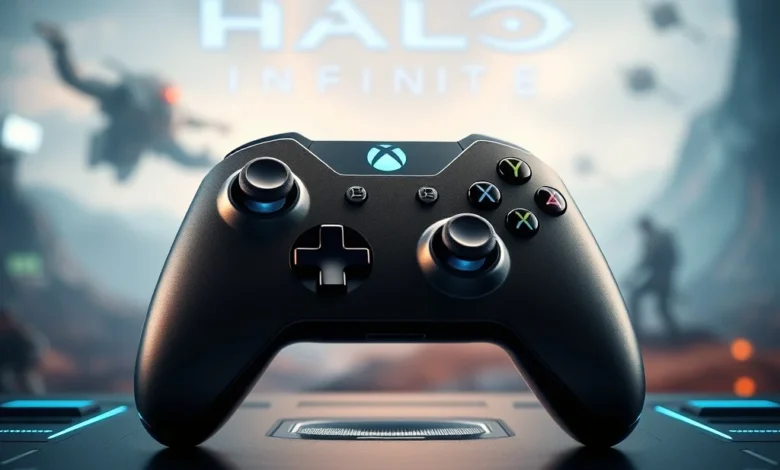
Mastering the controls is the single most important factor in dominating the battlefield of Halo Infinite. As a first-person shooter that relies heavily on precise aiming, fluid movement, and tactical decision-making, the default controller settings often fail to unlock the full potential of your hardware. Whether you are playing on PC or Xbox Series X, optimizing your controller configuration can dramatically improve your response time, accuracy, and overall comfort during long gaming sessions. This comprehensive guide dives deep into every adjustable setting available in the game, ensuring you have the competitive edge you need.
🎯 Why Controller Optimization Matters in Halo Infinite
Halo Infinite is not just another shooter; it is a tactical war game where milliseconds count. The default settings are designed for the average player, but they often include built-in acceleration and deadzones that can hinder your ability to make micro-adjustments. By taking the time to customize these settings, you align the game mechanics with your personal muscle memory and physical playstyle. This process transforms the controller from a simple input device into an extension of your own reflexes.
Many players overlook the nuance of controller settings, assuming that raw talent is the only variable. However, high-level players treat their configuration as a critical part of their loadout, just like their choice of weapon or armor. A slight adjustment in the stick sensitivity can mean the difference between missing a shot or securing a kill. Furthermore, proper deadzone calibration prevents stick drift issues that frequently plague multiplayer matches. Understanding these mechanics is the first step toward mastering Halo Infinite.
🕹️ Core Deadzone Calibration
The deadzone is perhaps the most critical setting for controller users. It defines the range of movement the controller ignores before registering an input. If your deadzone is too high, you will experience a delay in movement, making it difficult to turn quickly. Conversely, if it is too low, you may suffer from stick drift, where the character moves unintentionally even when the stick is centered.
📏 Finding the Sweet Spot
To find the optimal deadzone, start by setting it to the minimum value and observe the in-game character. If there is any unwanted movement when you release the stick, increase the value incrementally. The goal is to find the lowest number that prevents drift without introducing input lag. This setting directly impacts your ability to aim down sights and strafe effectively during combat.
- ✅ Low Deadzone: Best for precision aiming and quick reflexes.
- ✅ Medium Deadzone: Good for players who experience occasional drift.
- ✅ High Deadzone: Necessary for older controllers with significant stick wear.
🔫 Sensitivity and Acceleration Settings
Sensitivity determines how fast your camera moves in response to stick input. In Halo Infinite, there are multiple sensitivity sliders including Headlook, Look, and Aim. Acceleration adds a layer of complexity by increasing the speed of the camera the further you push the stick.
🎛️ Headlook and Look Sensitivity
Headlook sensitivity controls how fast you can look up or down, which is vital for tracking airborne enemies. Look sensitivity dictates your horizontal turning speed. Many competitive players prefer lower sensitivity for better control during long-range engagements. High sensitivity can lead to overshooting targets, especially in fast-paced firefights.
🚀 Acceleration Curve
Acceleration adds a non-linear element to your movement. While some players enjoy the feel of acceleration for rapid turns, it can be detrimental to consistent aiming. We recommend setting acceleration to off or linear mode to ensure that your muscle memory remains consistent regardless of how fast you push the stick.
🛡️ Button Layout Customization
The default button layout is functional, but it is not always the most ergonomic for your hands. Customizing your layout can reduce strain and allow you to perform complex actions faster. Halo Infinite supports various controller configurations, allowing you to remap almost every action.
🔄 Advanced Remapping
Consider moving the jump or action buttons to the shoulder triggers or side buttons. This allows you to jump or reload without removing your fingers from the aiming sticks. This technique, known as “claw grip,” is common among professional gamers who need to maintain aim while executing movement commands.
- ✅ Jump on RB: Frees up the face buttons for other actions.
- ✅ Reload on LB: Allows quick reloads while keeping aim on target.
- ✅ Melee on D-Pad: Keeps melee attacks accessible without reaching for triggers.
🎨 Visual Settings Impacting Gameplay
While not strictly controller settings, visual settings significantly influence how well you can control the game. Motion blur and field of view (FOV) can distort your perception of movement, making it harder to aim accurately. Adjusting these settings can make the game feel more responsive.
👁️ Field of View Adjustments
Increasing your FOV allows you to see more of the battlefield, giving you better situational awareness. A wider FOV can make the game feel faster and more immersive. However, be cautious as a very wide FOV can make distant targets appear smaller, which might affect your aiming precision.

🎞️ Motion Blur and Vignette
Turning off motion blur is essential for competitive play. It removes the artificial blur that occurs during camera movement, allowing for sharper vision. Similarly, disabling the vignette ensures that your peripheral vision is not obstructed by darkened corners of the screen.
🖥️ PC Specific Controller Enhancements
Playing Halo Infinite on PC offers additional flexibility compared to consoles. You can utilize third-party software to further refine your controller inputs and integrate advanced features.
⚙️ Steam Input and DS4Windows
Steam Input allows you to create profile-specific configurations for your controller. This includes gyro aiming support if your controller supports it, providing an extra layer of precision. DS4Windows can be used to emulate Xbox controller inputs if you are using a PlayStation controller.
🔧 Driver Optimization
Ensure your controller drivers are up to date to prevent latency issues. Windows 10 and 11 have built-in support for most modern controllers, but manufacturer-specific software can offer additional tuning options.
| Setting | Recommended Value | Impact |
|---|---|---|
| Deadzone | 0.10 – 0.15 | Prevents drift while maintaining responsiveness |
| Headlook Sens | 1.00 – 1.20 | Controls vertical aiming speed |
| Look Sens | 0.80 – 1.00 | Controls horizontal turning speed |
| Acceleration | 0 | Ensures consistent movement speed |
The table above summarizes the recommended baseline settings for competitive play. However, remember that these are starting points. You should adjust them based on your personal preference and the specific hardware you are using.
🎮 Console Performance and Haptics
For Xbox users, the controller haptic feedback can provide valuable information about in-game events. Understanding how to utilize vibration and haptics can enhance your immersion and awareness.
📳 Vibration Feedback
Keep vibration on to feel impacts, reloads, and weapon fire. This tactile feedback can help you anticipate enemy actions. For example, feeling the recoil of a heavy weapon can alert you that you are taking damage or engaging in a tough fight.
🎚️ Battery Life Management
Extended gaming sessions can drain battery life quickly. Adjusting the vibration intensity to a lower level can help conserve battery without sacrificing the feedback you need. This is particularly useful for wireless controllers during long tournaments or marathon sessions.
🚀 Advanced Tuning for Competitive Play
Once you have mastered the basics, you can explore advanced tuning options. These settings are designed for players who want to squeeze every drop of performance out of their setup.
🎯 Aiming Assist Tweaks
Halo Infinite includes aiming assist features that can be adjusted. For PC players, adjusting the strength of aiming assist can help balance the game against keyboard and mouse users. On console, it is generally recommended to keep it at the default or slightly higher to compensate for the lack of mouse precision.
🔄 Input Refresh Rate
Some controllers support higher input refresh rates. Ensure that your controller firmware is updated to the latest version to support these features. This reduces the time between your physical input and the game registering it.
🛠️ Troubleshooting Common Issues
Even with perfect settings, you may encounter technical issues. Here are some common problems and their solutions.
🕵️ Stick Drift
Stick drift is often caused by wear and tear or dust accumulation. Cleaning the controller can sometimes help. If the issue persists, try increasing the deadzone slightly to compensate for the drift.
📶 Wireless Interference
Wireless interference can cause lag spikes. Try moving your receiver closer to the controller or using a USB extension cable to reduce distance. This ensures a stable connection for uninterrupted gameplay.
- ✅ Update Firmware: Always check for controller updates.
- ✅ Check Battery: Low battery can cause signal issues.
- ✅ Re-pair Device: Disconnect and reconnect the controller to refresh the link.
🏁 Final Verdict and Conclusion
Optimizing your controller settings for Halo Infinite is an investment in your own skill ceiling. By carefully calibrating your deadzones, sensitivity, and button layouts, you create a personalized experience that maximizes your potential. The settings detailed in this guide serve as a foundation, but the true mastery comes from experimentation and practice.
Remember that there is no single “best” setting for everyone. What works for a professional player might not work for a casual gamer. Take the time to adjust these settings to fit your playstyle, and you will see a marked improvement in your performance. Whether you are defending a position or pushing for a victory, having the right controller configuration will give you the confidence to succeed.
❓ Frequently Asked Questions
- Does Halo Infinite support gyro aiming on PC?
- What is the best deadzone setting for Halo Infinite?
- Can I use a PlayStation controller with Halo Infinite on PC?
- Does vibration affect gameplay performance?
- How do I fix stick drift in Halo Infinite?
- Is aiming assist better on console or PC?
- What is the recommended FOV for competitive play?
- Can I remap buttons during a match?
- Does battery level affect controller latency?
- Are there any third-party tools to enhance controller settings?
Answering these questions requires a deeper dive into the specific mechanics of Halo Infinite. Generally, gyro aiming is supported through third-party tools on PC. The best deadzone is typically low, around 0.10 to 0.15. PlayStation controllers work well with PC via Steam Input. Vibration generally enhances immersion but can be turned off for competitive focus. Stick drift is often a hardware issue but can be mitigated by software settings. Aiming assist is a core feature on console. FOV is personal but 110 is standard. Button remapping is allowed. Battery level does not affect latency until critically low. Third-party tools exist but should be used cautiously.