In the fast-paced arena of modern mobile warfare, precision is the defining factor between victory and defeat. Call of Duty: Mobile has established itself as a titan in the genre, offering console-quality combat directly into the palm of your hand. However, navigating the battlefield effectively requires more than just reflexes; it demands a deep understanding of the game’s underlying mechanics. One of the most critical aspects of mastering this shooter is configuring your aim assist settings correctly. Without the right adjustments, even the most skilled players may find their shots drifting off-target or failing to lock onto enemies during intense firefights.
This comprehensive guide delves into the intricacies of optimizing your aim assist settings for maximum accuracy and control. We will explore everything from sensitivity sliders to control layout configurations, ensuring you have every advantage possible. Whether you are playing on a high-end gaming phone or a standard device, these settings are designed to adapt to your hardware and personal playstyle. By the end of this analysis, you will possess the knowledge needed to dominate the lobby with pinpoint accuracy.
🎯 Understanding Aim Assist in Call of Duty: Mobile
Aim assist is a fundamental mechanic built into the engine of Call of Duty: Mobile to compensate for the limitations of touchscreen controls compared to physical triggers. On a mobile device, players rely on swiping across a glass surface, which lacks the tactile feedback of a mouse or controller trigger. Aim assist functions by subtly adjusting your crosshair position to help it track moving targets more smoothly. This technology reduces the micro-movements required to stay locked onto an opponent, allowing you to focus more on positioning and timing rather than constant manual correction.
However, the default settings often cater to the average player, leaving potential performance gains on the table for those who wish to optimize. Understanding how the algorithm prioritizes targets is crucial. It typically favors proximity and movement speed, meaning enemies running laterally across your screen are easier to track than those moving directly towards you. Furthermore, the strength of the assist can vary depending on whether you are using hip-fire or aiming down sights. Adjusting these parameters allows you to tailor the experience to favor aggressive close-quarters combat or methodical long-range engagements.
- ✅ Target Acquisition: Helps snap crosshair near enemies automatically.
- ⚠️ Movement Compensation: Reduces sway when tracking targets.
- 🔍 Sight Adjustment: Fine-tunes sensitivity specifically for scopes.
⚙️ Core Sensitivity and Control Settings
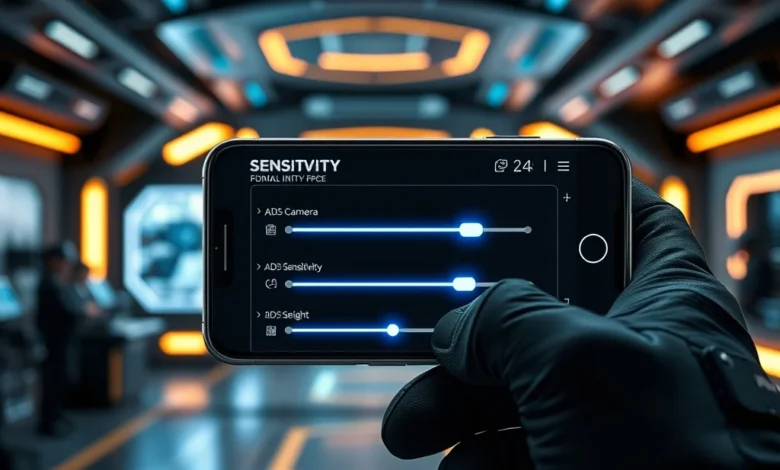
The foundation of any effective aim setup lies in your sensitivity configuration. These settings dictate how quickly your camera moves in response to finger swipes. Finding the sweet spot involves balancing speed and stability. If your sensitivity is too high, your crosshair will overshoot targets, making it difficult to land precise headshots. Conversely, if it is too low, you may struggle to turn quickly enough to engage flanking enemies. The goal is to achieve a setting that feels natural to your muscle memory.
🔥 General Sensitivity Configuration
General sensitivity controls the movement of your view when not actively aiming down sights. This is vital for situational awareness and quick target acquisition. For most competitive players, a higher general sensitivity is preferred to allow rapid 180-degree turns. However, this comes at the cost of stability during sniper engagements. We recommend starting with a value between 80 and 100 for both Free Look and Camera Sensitivity. This range provides a robust baseline that can be tweaked slightly up or down based on individual comfort levels.
It is essential to remember that general sensitivity affects your ability to reposition during gunfights. A slower setting might feel safer initially but can leave you vulnerable in chaotic melee scenarios. Experiment with different values in the Practice Range to gauge how your character reacts to flicks. Consistency is key; once you find a number that works, stick with it until you build significant muscle memory.
- ✅ High Sensitivity: Better for close-range chaos and quick reactions.
- ✅ Low Sensitivity: Better for long-range precision and recoil control.
- ⚠️ Balanced Approach: Recommended for versatile gameplay styles.
🔫 ADS Sensitivity Deep Dive
Aiming Down Sights (ADS) sensitivity is arguably the most critical setting for accuracy. When you zoom in with a weapon, your field of view narrows, requiring finer motor skills to maintain alignment. Many players mistakenly set this too high, causing their crosshair to jitter uncontrollably when trying to track a moving target. We suggest keeping ADS sensitivity lower than your general sensitivity to ensure stability. A range between 50 and 75 is typically optimal for assault rifles and submachine guns.
For sniper rifles, the dynamics change completely. Snipers require extreme precision, often demanding a much lower ADS sensitivity to prevent overshooting the enemy’s headbox. You might want to reduce this setting to around 30 or 40 for dedicated snipers. This allows for minute adjustments that result in cleaner kills. Testing this in the Training Grounds is highly recommended to find the perfect balance for each weapon class you intend to use frequently.
🛠️ Advanced Customization Options
Beyond simple sensitivity sliders, there are advanced options that significantly influence your aim. Gyroscope settings offer a layer of control that mimics the motion of a console controller. By tilting your device, you can make micro-adjustments to your aim without lifting your thumb from the screen. This technique is particularly useful for tracking enemies who move erratically or for managing recoil patterns on automatic weapons.
💾 Control Layouts and Finger Placement
The way you interact with the screen determines how many inputs you can process simultaneously. Two-finger setups are common for beginners, utilizing thumbs for movement and firing. However, four-finger or claw setups open up possibilities for independent jump, crouch, and slide actions without sacrificing aim control. More fingers mean more buttons accessible, reducing the need to navigate menus during combat. This leads to faster reaction times and smoother gameplay flow.
We strongly encourage transitioning to a multi-touch setup if you are serious about competitive play. While the learning curve is steep, the payoff in performance is substantial. Assign your most frequent actions—such as reloading or switching weapons—to buttons that are easily reachable by your index fingers. This keeps your thumbs free for aiming and movement, creating a seamless loop of action.

- ✅ Two-Finger Claw: Simple entry point for mobility.
- ✅ Four-Finger Claw: Standard for competitive players.
- ✅ Six-Finger Setup: Maximum accessibility for pros.
⚡ Fire Button Optimization
The fire button is the trigger for your engagement. Its size and placement affect how quickly you can initiate gunfire. A larger button covers more screen area, increasing the chance of accidental presses but also making it easier to hit under pressure. Conversely, a smaller button offers more screen real estate for visibility but requires greater precision. Most players prefer a medium-sized button placed slightly to the left or right of the center, depending on whether they are left or right-handed.
Transparency settings also matter. A semi-transparent button allows you to see what is happening behind it, such as an enemy peeking through a window. Opaque buttons obscure vision but provide clear visual feedback. We recommend setting the opacity to roughly 50 percent to strike a balance between visibility and feedback. Additionally, consider enabling the “Fire Button Scale” option to ensure it does not interfere with your HUD elements.
🌐 Platform Specifics: iOS vs Android
Different operating systems handle input processing and rendering differently, which can impact how aim assist behaves. Android devices generally offer more granular control over graphics and performance settings due to the open nature of the OS. Users can adjust frame rates more aggressively, potentially leading to smoother input tracking. iOS devices, however, benefit from tighter integration between hardware and software, often resulting in more consistent frame pacing.
📱 Android Performance Considerations
On Android, battery drain and heat management are significant factors. Running the game at maximum graphics settings can cause thermal throttling, which lowers the frame rate and introduces input lag. This lag disrupts the aim assist algorithm, making it less responsive. We advise lowering some visual effects, such as shadows or post-processing, to maintain a stable 60 frames per second or higher. Consistent frame rates are far more important than high-resolution textures when competing.
📱 iOS Stability Factors
iOS users typically enjoy better optimization out of the box. However, older models may struggle with newer updates. If you experience stuttering, try reducing the resolution scaling within the game settings. This helps maintain a fluid experience without compromising the overall visual fidelity too much. Remember that aim assist relies on smooth transitions; any hitch in the animation can throw off your tracking.
- ✅ Frame Rate Cap: Set to highest available for responsiveness.
- ✅ Graphics Preset: Medium or High for balance.
- ⚠️ Device Heat: Remove case during extended sessions.
🖥️ Visual Quality and Performance Impact
Visual fidelity plays a subtle but important role in competitive performance. High-quality graphics can sometimes obscure details, making it harder to spot enemies hiding in foliage or corners. Lowering certain effects can increase contrast and visibility, giving you a tactical edge. However, you must ensure that the reduction in quality does not negatively impact your device’s performance.
🔊 Sound Design and Audio Cues
Audio is the other half of the targeting equation. Footsteps, reload sounds, and environmental cues provide information about enemy locations before you see them. Proper audio settings allow you to hear footsteps clearly without drowning out the music. Using headphones is highly recommended, as stereo sound helps localize direction. Adjust the volume mixer so that dialogue and music are lowered while sound effects are boosted.
Equalizer settings can also enhance hearing. Boosting the mid-to-high frequencies makes footsteps and gunfire sharper and easier to distinguish from ambient noise. This auditory clarity complements your visual aim assist, allowing you to react to threats earlier. Combining sharp hearing with accurate aiming creates a formidable combat package.
📊 Detailed Settings Comparison Table
| Category | Recommended Value | Best For | Notes |
|---|---|---|---|
| Camera Sensitivity | 90-100% | General Movement | Adjust for turning speed |
| ADS Sensitivity | 60-75% | Aiming Down Sights | Lower for snipers |
| Gyroscope | Always Active | Micro-Aiming | Requires tilt hardware |
| Fire Button Size | Medium | Accuracy | Keep transparent |
| Frame Rate | Max Available | Smoothness | Prevents lag |
The table above summarizes the core settings we recommend for achieving optimal aim assist performance. These values serve as a baseline for most players. Individual preferences will vary, so use these numbers as a starting point for calibration. Pay special attention to the Frame Rate setting, as a consistent 60 FPS is the gold standard for competitive play. Dropping below this threshold can introduce noticeable input delay, negating the benefits of optimized aim assist settings.
✅ Advantages of Optimized Settings
Implementing these configurations yields several tangible benefits that directly translate to in-game success. First and foremost is improved accuracy. With the right sensitivity and aim assist strength, landing headshots becomes significantly easier. This increases your kill-to-death ratio and helps secure rounds in objective-based modes. Second, faster reaction times allow you to engage enemies before they can fully expose themselves.
Additionally, customized controls reduce cognitive load. When your interface feels intuitive, you spend less time thinking about how to move and more time planning your strategy. This mental bandwidth is crucial in high-stakes matches where split-second decisions determine the outcome. Finally, optimized settings often improve battery life by preventing unnecessary graphical strain, ensuring your device lasts through long gaming sessions.
❌ Common Pitfalls and Disadvantages
Despite the advantages, there are potential downsides to misconfigured settings. Over-reliance on aim assist can lead to a lack of genuine mechanical skill development. If the assist is too strong, you may struggle to play manually if it ever gets turned off or encounters bugs. Furthermore, incorrect sensitivity can cause frustration, leading to erratic behavior and poor team coordination.
Another pitfall is neglecting hardware maintenance. Even the best settings cannot overcome a dirty screen or a device that is overheating. Thermal throttling reduces processor speed, which impacts input handling. Players must regularly clean their devices and manage temperature to maintain peak performance. Ignoring these physical factors can undermine all the digital optimizations you have implemented.
🏁 Final Verdict and Conclusion
Mastering Call of Duty: Mobile requires a commitment to continuous improvement and adaptation. By fine-tuning your aim assist settings, sensitivity curves, and control layouts, you create a personalized environment tailored to your strengths. There is no single magic setting that works for everyone, but following the guidelines in this article will place you ahead of the majority of casual players. Take the time to practice in the training grounds and refine your settings until they feel instinctive.
Ultimately, the goal is to achieve a state of flow where your movements and your thoughts align perfectly. When your aim assist works seamlessly with your intent, the game opens up. You gain confidence in every engagement, knowing that your tools are working in your favor. We encourage you to experiment, share your findings, and stay updated with the latest patches. Good luck, soldier.
❓ Frequently Asked Questions
- Does aim assist work on PC versions of Call of Duty?
- Is gyroscope mandatory for good aim in Call of Duty Mobile?
- Can I customize my control layout after unlocking it?
- Why does my aim feel slippery after an update?
- What is the best sensitivity for sniper rifles?
- Does lowering graphics improve aim assist performance?
- How often should I recalibrate my touch sensitivity?
- Are there specific controllers supported for this game?
- What causes aim assist to fail during online matches?
- Should I use the same settings for all weapon classes?
These questions address common concerns regarding the technical and mechanical aspects of the game. Each answer highlights the importance of customization and maintenance. For instance, aim assist is primarily designed for touchscreen and controller inputs, whereas PC versions rely on mouse precision. Gyroscopes are optional but highly beneficial for micro-adjustments. Understanding these nuances helps players make informed decisions about their setup.