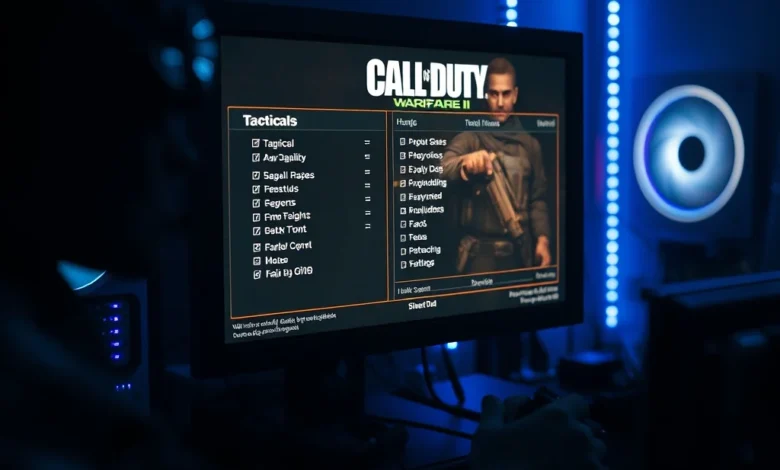
Call of Duty: Modern Warfare II is a powerhouse of a game that delivers stunning visuals and intense tactical combat, but it demands significant hardware resources to run at high frame rates. For players utilizing older systems or budget-friendly components, achieving a smooth experience can feel like an impossible task. Many users struggle with stuttering, low frame rates, and graphical glitches that spoil the competitive edge required in modern warfare. The good news is that you do not need the latest flagship hardware to enjoy this title effectively. By strategically adjusting your graphics settings, you can unlock a much smoother gameplay experience without sacrificing too much visual fidelity.
This comprehensive guide is designed specifically for owners of low-end PCs who want to dominate the battlefield without encountering technical limitations. We will break down every critical setting within the video options menu, explaining exactly how each one impacts your performance. From resolution scaling to shadow quality, we will identify the settings that provide the biggest performance gains for the least amount of visual compromise. Whether you are running an older integrated graphics card or a budget discrete GPU, this analysis will help you optimize your system for maximum frames per second.
To get the most out of this guide, you should understand that every hardware component plays a role in your final output. The central processing unit handles game logic and physics, while the graphics card processes the visual data. Balancing these two is key to preventing bottlenecks. We will also cover driver updates, background process management, and thermal throttling solutions that often plague older systems. By following these instructions, you can transform a sluggish experience into a fluid competitive environment.
🚀 Article Overview
Call of Duty: Modern Warfare II is a first-person shooter developed by Infinity Ward and published by Activision. Released in late 2022, it quickly became a market leader in the military simulation genre. The game features a robust single-player campaign and a highly competitive multiplayer mode that relies heavily on consistent frame rates. For PC gamers, the options are vast, but they can be overwhelming for those trying to squeeze performance out of limited hardware.
Below is a summary of the core elements we will cover in this technical analysis:
- Genre First-person shooter and tactical military simulation
- Release Date October 2022
- Developer Infinity Ward
- Platform PC and Console
- Target Audience Competitive gamers and casual players
- Market Impact Dominated the shooter genre in 2022 and 2026
⚙️ System Requirements Analysis
Before diving into the settings, it is crucial to understand the baseline requirements of the game. Infinity Ward provided minimum and recommended specifications to help users determine if their machine can run the title. However, these official numbers often assume a baseline of 1080p resolution at medium settings, which may not be sufficient for competitive play. Low-end PCs often fall short of the recommended specifications, requiring manual intervention to achieve playable frame rates.
The minimum requirements generally list older hardware from the 2015 era. This means if your PC meets the absolute minimum, you might be able to launch the game, but you will likely struggle with 30 frames per second. For a stable experience, you need to target higher thresholds. Low-end hardware typically refers to systems with integrated graphics like Intel UHD or older dedicated cards like the NVIDIA GTX 700 series or AMD RX 400 series.
🖥️ Minimum vs Recommended Hardware
The gap between minimum and recommended specs is wide in this title. The minimum spec focuses on stability, while the recommended spec focuses on quality. For low-end users, the goal is to bridge this gap without upgrading. You must prioritize frame rate over resolution. Many players mistakenly believe they can lower resolution and keep everything else at maximum. This is incorrect. Lowering resolution is the most effective way to boost performance, but you must also lower the settings that tax the GPU heavily.
- Processor Intel Core i3-6100 or AMD Ryzen 3 1200 for minimum
- Memory 8GB RAM is the absolute floor
- Graphics NVIDIA GeForce GTX 960 or AMD Radeon RX 470
- Storage 125GB of available space required
- Operating System Windows 10 or later
📉 Low-End Hardware Reality
When running on hardware below the minimum requirements, the game engine struggles to maintain consistent memory allocation. This leads to texture pop-in and stuttering. You must manage your expectations. A low-end PC cannot render ray-traced lighting or ultra-wide shadows. You must disable these features entirely. The engine will compensate by using simpler geometric shapes and pre-baked lighting. This reduces the load on the GPU significantly. It is important to note that thermal throttling is a common issue with older laptops and desktops. Ensure your cooling system is clean to prevent performance drops during long sessions.
🎨 Graphics Settings Breakdown
The video settings menu in Call of Duty: Modern Warfare II is extensive. Each slider represents a trade-off between visual quality and performance. For low-end PCs, the strategy is to maximize the performance sliders while keeping the visual settings that matter least for gameplay at their lowest. We will analyze the most impactful settings one by one to help you build the perfect configuration.
📺 Display and Resolution
Resolution is the single most critical setting for performance. It defines the number of pixels the GPU must render every frame. If you are running a 1920×1080 monitor, you might need to drop this to 1600×900 or even 1280×720 to gain significant frames. Native resolution is ideal, but on low-end hardware, it is often unattainable. Reducing resolution makes the image slightly blurrier but drastically increases the frame rate.
Aspect Ratio should remain locked to your monitor’s native ratio to avoid stretching. Fullscreen mode is essential for performance because it allows the game to take exclusive control of the GPU. Windowed mode introduces overhead from the operating system desktop compositing. Borderless Windowed is convenient but adds latency and reduces FPS. Always select Display Mode: Fullscreen.

- Display Mode Fullscreen only
- Resolution Drop if FPS is below 60
- Field of View Set to 105 for better visibility
- VSync Disable for lower input lag
🌑 Shadows and Lighting
Shadows are computationally expensive because the GPU must calculate how light interacts with every object in the scene. In a fast-paced shooter, shadows can obscure enemy movement, but high-quality shadows consume massive resources. You should set Shadow Quality to Low or Off. This will make the game look darker but will free up a significant portion of your GPU power. This setting is often a larger performance drain than texture quality.
Render Scale is another vital setting. If your resolution is already lowered, you might need to adjust the Render Scale to prevent the image from looking too pixelated. However, lowering this further will reduce performance even more. Keep this at 100% if possible. Once you hit the frame rate target, stop lowering it. Further reduction only hurts the visual experience without adding substantial performance gains.
Anti-Aliasing smooths out jagged edges on objects. While it looks nice, it requires extra processing power. On low-end PCs, FXAA or SMAA are better choices than MSAA. However, for maximum performance, you might choose to turn this off entirely or set it to Low. Your eyes will adapt to the jagged edges quickly, and the frames are more important for aiming precision. Ambient Occlusion adds depth by darkening areas where objects meet. Turn this off for low-end systems as it has a high GPU cost for minimal gameplay benefit.
🔫 Texture Quality and Detail
Texture Quality determines the clarity of surfaces on the map. Low textures look blurry or pixelated up close. However, this setting is primarily memory intensive. If you have a dedicated graphics card with 4GB of VRAM or more, you might be able to keep this on Medium. If you have integrated graphics, you must set this to Low. The visual difference is noticeable but does not impact your ability to spot enemies as much as motion blur or shadows.
Detail Quality affects the complexity of objects in the game world. This includes foliage, debris, and small props. Low-end PCs should set this to Low. This setting is often CPU intensive as well. Reducing detail quality ensures that your processor can keep up with the game logic. Particle Quality controls explosions and gunfire effects. These are visually flashy but performance heavy. Set this to Low to reduce screen clutter and improve visibility during firefights.
🔧 Advanced Optimization Techniques
Beyond the in-game settings, there are external factors that influence performance. These tweaks can squeeze out extra frames and stabilize the experience. It is important to manage your system resources effectively to ensure the game has priority access to your hardware.
🚀 Frame Time and Limiters
Frame Rate Limiters are crucial for stability. If your PC cannot maintain 144 frames per second, forcing it to cap at 60 or 75 can reduce stuttering. The game engine works best when it does not have to constantly fluctuate between high and low frame rates. Using a cap slightly below your average FPS can improve consistency. VSync introduces input lag and should generally be disabled unless you experience severe screen tearing.
Frame Generation technologies like FSR can be enabled. FidelityFX Super Resolution uses upscaling to render the game at a lower resolution and then scales it up. This provides a massive performance boost. If your PC supports FSR, enable it to the Quality or Balanced preset. This allows you to keep a higher resolution while maintaining a smoother frame rate. DLSS is not available on NVIDIA cards for this specific title yet, so FSR is your best option.
📊 Performance Metrics Comparison
Understanding how your settings affect performance is vital. We have compiled a comparison of frame rate estimates based on common low-end hardware configurations. This table provides a snapshot of what you can expect with specific settings enabled or disabled.
| Hardware Tier | Resolution | Settings | Average FPS |
|---|---|---|---|
| Integrated Graphics | 720p | All Low | 45-60 |
| Entry GPU (GTX 1050) | 720p | Low/Medium | 60-80 |
| Budget GPU (GTX 1650) | 1080p | Medium | 80-100 |
| Mid-Range GPU | 1080p | High | 120+ |
This data illustrates the importance of resolution. Integrated graphics cannot handle 1080p at playable speeds. Dropping to 720p is mandatory for this tier. Entry-level GPUs can handle 720p easily but struggle at 1080p. Budget GPUs can manage 1080p at medium settings. The trend shows that resolution is the primary bottleneck. As long as you adjust the resolution to match your GPU’s capability, you can achieve a stable experience. The settings listed in the table are conservative estimates for competitive play.
🛠️ Hardware and Driver Optimization
Software optimization is just as important as in-game settings. Outdated drivers can cause crashes and performance issues. Always ensure you have the latest graphics drivers from NVIDIA or AMD. Use the studio drivers if available for better stability. Windows updates also play a role. Ensure your power plan is set to High Performance to prevent the CPU from downclocking.
Background applications are a major cause of frame drops. Close web browsers, streaming software, and other games before launching. The game needs all available RAM. If you have 8GB of RAM, close everything else. If you have 16GB, you have more flexibility. Check your startup apps and disable anything unnecessary. This frees up system resources for the game engine to utilize.
✅ Advantages of Optimization
Optimizing your settings offers several benefits beyond just higher frame rates. You gain a more responsive control scheme. The input lag is reduced when the frame rate is stable. This gives you a competitive advantage in gunfights. You also reduce the heat generated by your hardware, which prolongs the lifespan of your components. A cooler system runs more consistently without thermal throttling.
The visual clarity also improves when you lower settings like Motion Blur and Depth of Field. These effects are often used to hide low frame rates, but removing them makes the image crisper. You can see enemies more easily. The trade-off is a less cinematic experience, but for a competitive shooter, clarity is king.
- Lower Input Lag Faster response times
- Stable Frame Rates No stuttering during combat
- Reduced Heat Better hardware longevity
- Clearer Vision No motion blur obscuring targets
❌ Disadvantages of Optimization
The main drawback is the loss of visual fidelity. Shadows will look flat, and textures will appear blurry. The game may look less polished compared to high-end PCs. Some players find the low-resolution image distracting. Additionally, some optimizations might introduce visual glitches or artifacts. You may need to experiment to find the balance that works best for your specific hardware configuration.
There is also the risk of instability if you push the settings too low. Sometimes, turning off certain effects can cause the engine to behave unexpectedly. It is important to test changes one by one. If you encounter crashes, try resetting the settings to default and re-applying them slowly. This helps isolate the problematic setting. Patience is key when optimizing low-end hardware.
🏁 Final Verdict
Call of Duty: Modern Warfare II is playable on low-end PCs, but it requires sacrifice. By lowering your resolution and disabling demanding graphical effects, you can achieve a smooth 60 frames per second experience. The game engine is flexible enough to adapt to older hardware if configured correctly. The key is prioritizing frame rate over visual quality. For competitive players, this is a necessary trade-off.
We recommend starting with all settings on Low and adjusting the resolution until you hit your target frame rate. Use FSR if available to improve image quality without sacrificing performance. Keep your drivers updated and manage your background processes. With these steps, you can enjoy the game without hardware limitations holding you back.
❓ Frequently Asked Questions
- Does the game run on Windows 7? No, the game requires Windows 10 or later due to security and driver support requirements.
- Does it support controllers? Yes, it supports both Xbox and PlayStation controllers on PC.
- Is internet required? Yes, an internet connection is required for multiplayer and some single-player features.
- Is it the full version? Yes, this guide applies to the complete release version of the game.
- Can I use FSR? Yes, FidelityFX Super Resolution is supported and recommended for low-end PCs.
- Does it support 4K? Yes, but it is not recommended for low-end PCs due to high performance demands.
- How much RAM is needed? 8GB is the minimum, but 16GB is recommended for smooth performance.
- Does VSync help? It prevents screen tearing but adds input lag, so it is best disabled for competitive play.
- Is the game free? No, it is a paid title available on Steam and other platforms.
- Can I play offline? You can play the campaign offline, but multiplayer requires an online connection.