
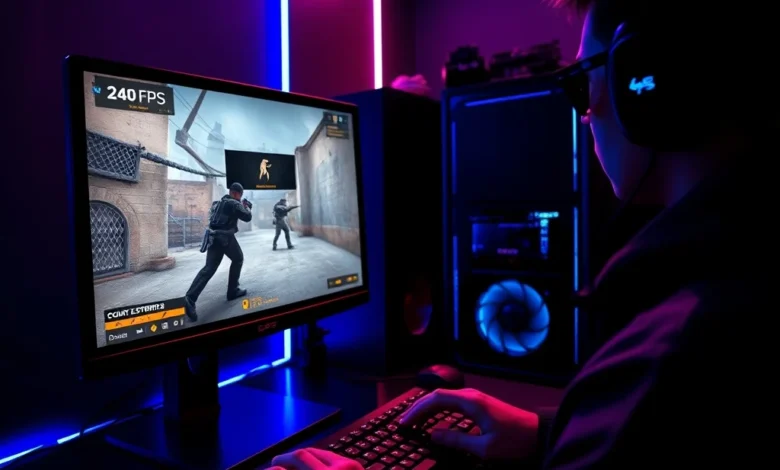
Counter-Strike 2 has revolutionized the tactical shooter landscape with its transition to the Source 2 engine, bringing stunning visual fidelity and refined mechanics to the franchise. However, this leap in graphical quality has also introduced performance challenges for many players. In competitive gaming, every frame counts. A higher frames per second (FPS) translates to smoother motion, reduced input lag, and a distinct advantage during critical engagements. Many players struggle to maintain consistent frame rates, especially in intense firefights or crowded map scenarios.
Optimizing your system is not just about tweaking a few sliders; it requires a comprehensive understanding of how the game interacts with your hardware and software. This guide provides a deep dive into every aspect of performance tuning. We will explore in-game settings, driver configurations, Windows optimizations, and advanced console commands. Whether you are running a mid-range rig or pushing the limits of a high-end build, these strategies will help you extract the maximum performance from your hardware.
By following the detailed steps outlined below, you can ensure that your experience is fluid and responsive. We will cover everything from disabling unnecessary visual effects to configuring your network settings for the lowest possible latency. Let us begin the process of transforming your Counter-Strike 2 experience into a seamless, high-performance competitive environment.
🚀 Understanding Source 2 Performance Requirements
The transition from the Source engine to Source 2 was not merely a visual upgrade; it was a fundamental architectural change. Source 2 utilizes modern rendering techniques such as physically based rendering (PBR) and dynamic lighting. While this looks better, it places a heavier load on the graphics processing unit (GPU) and central processing unit (CPU). Understanding this shift is crucial for optimization. You cannot simply apply old tricks from Counter-Strike: Global Offensive (CS:GO) and expect the same results.
In CS2, the game engine is more sensitive to CPU single-core performance. This is because the game relies heavily on the CPU to calculate physics, player positions, and hit registration. If your CPU is bottlenecked, you will experience stuttering even if your GPU is powerful. The GPU, on the other hand, handles the heavy lifting of the new lighting and particle effects. Balancing these two components is key. We will analyze how to balance your workload to ensure neither component holds the other back.
🔍 Hardware Architecture Impact
Modern processors with higher clock speeds generally perform better in CS2. This is because the Source 2 engine does not fully utilize multi-core processing for game logic. Therefore, a processor with a high single-core boost clock is preferable to one with many cores but lower clock speeds. For gamers on a budget, prioritizing a CPU upgrade often yields better FPS gains than upgrading the graphics card in this specific title.
The GPU requirement is also more demanding. The new engine supports higher resolution textures and better anti-aliasing. If you are playing at 1080p, a mid-range GPU should suffice, but for 1440p or 4K gaming, you will need a more robust card. Memory speed also plays a role. Faster RAM can reduce stuttering by allowing the CPU to access data more quickly, which is vital for maintaining high frame rates in complex scenes.
- CPU: Focus on single-core speed and cache size.
- GPU: Ensure you have enough VRAM for high-resolution textures.
- RAM: 16GB is the minimum, but 32GB is recommended for stability.
⚙️ In-Game Graphics Settings Optimization
The default settings in Counter-Strike 2 are designed to be visually impressive rather than performance-focused. To achieve maximum FPS, you must manually adjust these settings to prioritize fluidity over beauty. Every graphical option you disable can potentially free up resources for the frame buffer.
We start with the Video Settings tab in the options menu. Here, you will find the most impactful toggles. Resolution is the most obvious factor. Lowering your resolution is the quickest way to boost FPS, but it sacrifices clarity. Instead, focus on the Render Resolution slider. Setting this slightly below 100 percent can yield significant performance gains with minimal visual impact on gameplay.
Global Shadow Quality is another major resource hog. Shadows are essential for visibility, but high-quality shadows consume a lot of GPU power. Lowering this to Low or Medium can drastically improve performance. Similarly, Texture Quality should be adjusted based on your VRAM. If you have 6GB of VRAM or less, keep this on Low to prevent stuttering. If you have 8GB or more, Medium is safe.
🎨 Advanced Visual Effects
There are several advanced options that specifically target the rendering pipeline. Multi-Stream Processing (MSP) and V-Sync are two critical settings to manage. MSP can help with performance on systems with multiple GPUs, but it often causes instability. It is best to disable it unless you know exactly how to configure it. V-Sync should always be turned off in a competitive shooter. It introduces input lag that can cost you a round.
Film Grain and Bloom effects add a cinematic feel but have no place in a tactical shooter. Disabling them helps the game run smoother and removes distractions. The Particle Density setting controls the amount of smoke and fire effects. Reducing this is vital for maps with heavy smoke usage. If you play on maps like Overpass or Mirage, lowering this can prevent your FPS from dropping when smoke grenades are deployed.


- Display Mode: Always use Fullscreen for the lowest latency.
- Refresh Rate: Ensure this matches your monitor’s maximum refresh rate.
- Shader Cache: Set to On to prevent stuttering during load times.
🖥️ Video Driver and Control Panel Tweaks
Adjusting settings within the game is only half the battle. Your graphics drivers play a massive role in how the engine processes data. Both NVIDIA and AMD release specific drivers optimized for gaming. It is essential to keep these updated to the latest version. However, simply having the latest driver is not enough; you need to configure the driver software settings.
For NVIDIA users, the NVIDIA Control Panel is your best friend. Navigate to the Manage 3D Settings section. Look for Power Management Mode and set it to Preferred Maximum Performance. This ensures your GPU does not downclock during gameplay. The Texture Filtering Quality should be set to High Performance to reduce the load on the processor.
AMD users should look at the AMD Software: Adren Edition. Similar to NVIDIA, you want to prioritize performance over image quality. Enable Radeon Anti-Lag to reduce input delay. You can also adjust the Texture Cache Size to optimize memory usage. These settings ensure that your hardware is dedicated solely to rendering the game frames without background throttling.
🛡️ System-Level Optimizations
Beyond the graphics card, Windows settings can also interfere with performance. Windows Game Mode was designed to help, but in some cases, it can cause background processes to interfere. It is often recommended to turn Game Mode off for competitive shooters to ensure all resources are dedicated to the game. Additionally, Hardware Accelerated GPU Scheduling can help by allowing the GPU to manage its own memory better.
Background applications are another common culprit. Web browsers, especially those with hardware acceleration enabled, can steal significant CPU resources. Close Chrome, Discord, and Spotify before launching the game. This simple step can free up 5 to 10 percent of your CPU power. Ensure your system is free from malware that might be running in the background and consuming resources.
- Game Mode: Toggle off in Windows Settings.
- GPU Scheduling: Enable in Windows Graphics Settings.
- Background Apps: Close all non-essential software.
🚀 Counter-Strike 2 Launch Options and Console
Counter-Strike 2 allows for deep customization through launch options and console commands. These are text-based instructions sent to the game engine before it starts. While Valve has removed some commands from previous titles, many remain effective for optimization. You can access the launch options in the Steam library by right-clicking the game and selecting Properties.
The -high command sets the process priority to high, ensuring Windows gives the game more CPU time. The -freq command sets the refresh rate to your monitor’s maximum. This is often necessary if the game defaults to a lower rate. The -tickrate command is less relevant now as CS2 uses dedicated servers with fixed tick rates, but keeping other commands active can still help with initialization speed.
Console commands like cl_forcepreload can help by loading assets before the match starts. This reduces stuttering during gameplay as you explore the map. However, it may increase load times. Experiment with these settings to find the balance that works best for your specific hardware configuration. Be cautious with commands that modify network behavior, as some can result in bans if they are considered cheating.
📡 Network and Tickrate Stability
FPS is not just about frames per second; it is also about network stability. High FPS means nothing if your connection is lagging. Counter-Strike 2 relies on a robust connection to sync player positions. The console commands cl_updaterate and cl_cmdrate are critical here. Setting these to 128000 ensures the game receives the maximum amount of data from the server.
Packet loss can cause rubber-banding, where your character snaps back to a previous position. To fix this, ensure your Ethernet cable is securely connected. Wi-Fi is generally not recommended for competitive play due to interference. If you must use Wi-Fi, ensure you are on the 5GHz band. Lower latency ensures that your FPS feels smoother because the game state is more consistent.
- cl_updaterate: Set to 128000 for maximum data.
- cl_cmdrate: Set to 128000 for consistent output.
- Connection: Use a wired Ethernet connection whenever possible.
🏆 Hardware Bottlenecks and Upgrades
At some point, software optimization will hit a ceiling. If you are still experiencing low FPS after trying all the above methods, your hardware may simply be insufficient for the demands of the Source 2 engine. Understanding your bottleneck is the first step to upgrading wisely. You do not need to replace your entire PC to see improvements.
If your CPU usage is at 100 percent but your GPU usage is low, you have a CPU bottleneck. Upgrading to a newer generation processor will help. If your GPU is at 100 percent and CPU is low, you have a GPU bottleneck. In this case, a better graphics card is the solution. RAM speed is also a factor. Faster memory reduces latency between the CPU and memory, improving overall frame consistency.
🔋 Power Management and Thermal Throttling
Laptops often face thermal throttling issues. When the internal temperature gets too high, the system slows down to prevent damage. This results in sudden FPS drops during intense moments. To mitigate this, ensure your laptop has proper ventilation. Use a cooling pad to keep airflow consistent. Additionally, plug your laptop into the charger. Battery power often restricts performance to save energy.
For desktop users, cable management inside the case can improve airflow. Dust buildup is a silent killer of performance. Clean your fans and filters regularly. A clean system runs cooler and maintains higher clock speeds for longer periods. This stability is crucial for competitive gaming where consistency is key.
- Dust: Clean fans every three months.
- Thermal Paste: Reapply if the PC is several years old.
- Charging: Always use power for laptops during gaming.
❓ Frequently Asked Questions
Players often have specific questions when trying to optimize their performance. Here are the most common inquiries regarding Counter-Strike 2 FPS improvement.
- Does Counter-Strike 2 support Windows 10? Yes, Counter-Strike 2 is fully optimized for Windows 10 and Windows 11. Ensure you have the latest updates installed.
- Is Counter-Strike 2 better on PC or Console? PC offers higher FPS and lower input lag. Console versions are not officially available for competitive play yet.
- Can I play Counter-Strike 2 without an internet connection? No, it requires a persistent online connection for matchmaking and anti-cheat verification.
- Does enabling V-Sync improve FPS? No, V-Sync caps your FPS to your monitor refresh rate and adds input lag. Always disable it for competitive play.
- What is the recommended RAM for CS2? 16GB is the standard recommendation, though 8GB might work at lower settings.
- Does the graphics card affect FPS? Yes, the GPU is responsible for rendering frames. A better card will yield higher FPS, especially at higher resolutions.
- How do I check my FPS in-game? Open the console and type net_graph 1 to see a detailed performance overlay.
- Can I use a controller? Counter-Strike 2 does not support controllers natively for competitive modes. A keyboard and mouse are required.
- Does Steam Cloud save my settings? Yes, your configuration files are often synced, but local tweaks are usually best.
- Is 144Hz better than 60Hz? Yes, 144Hz allows for much smoother motion, making it easier to track enemies and react faster.
🏁 Final Verdict and Conclusion
Improving FPS in Counter-Strike 2 is a multifaceted task that requires attention to detail. By understanding the Source 2 engine, optimizing your graphics settings, and tweaking your system software, you can achieve a significant performance boost. The goal is not just high numbers, but consistent frame rates that provide a competitive edge.
Remember that hardware is only one part of the equation. Network stability and background processes play a crucial role. Regular maintenance of your system and staying updated with the latest drivers will ensure your experience remains smooth. Whether you are a casual player or a competitive pro, these tips will help you get the most out of your setup.
Take the time to experiment with these settings. Every system is different, and what works for one player might need adjustment for another. Stay persistent, and you will eventually find the perfect balance between visual quality and performance. Now, go out there and dominate the server with your new optimized setup.