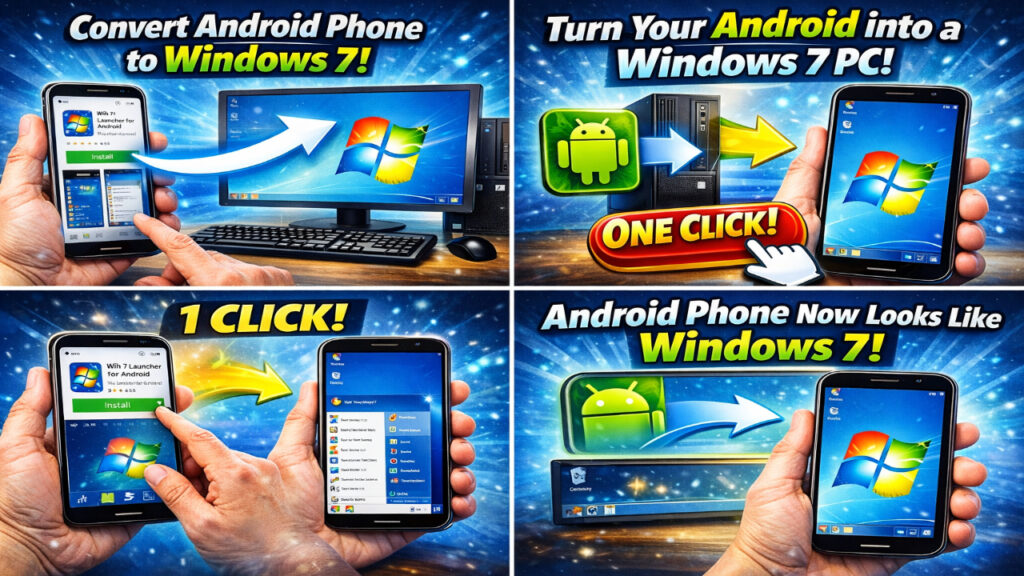
How to convert an Android phone to a Windows 7 Windows computer with one click

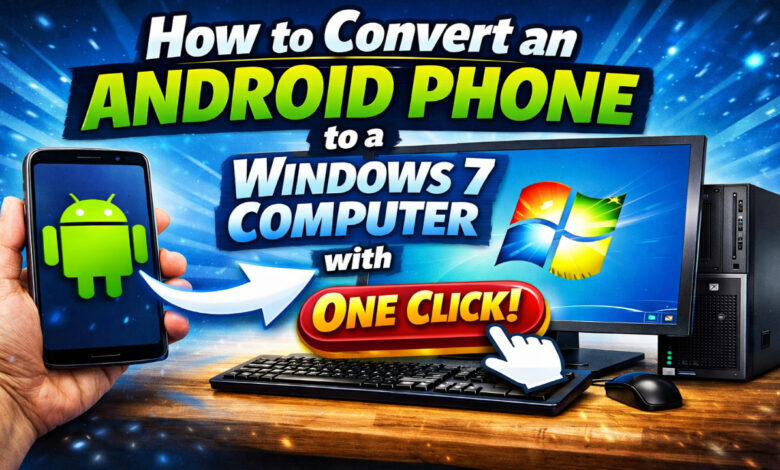
How to Convert Android Phone to Windows 7 Computer – One-Click Setup Guide 💻
Transform your mobile experience and bring the nostalgia of the classic desktop to your palm! With a Windows 7 Launcher, you can convert your Android interface into a fully functional Windows environment. Enjoy the iconic Start Menu, taskbar, and file explorer right on your smartphone. Whether you want to improve productivity or just love the Aero glass aesthetic, this guide shows you how to do it safely and easily. Download the tools today and turn your phone into a PC! 🚀✨
What is an Android to Windows 7 Conversion? 🖥️
Converting an Android phone to a Windows 7 computer usually involves using a highly optimized “Launcher” or a “Simulator” app. These applications redesign your entire home screen, icons, and navigation patterns to match the Windows 7 operating system. Unlike a complex OS flash, this method is safe, reversible, and works with a single click. It allows users to manage files in a “My Computer” style window, use a classic desktop layout, and even run simulated Windows software. It is perfect for users who find the standard Android grid layout boring and want a more professional, desktop-like feel for their daily tasks. 📱⌨️
Why this transformation appeals to users 🌍
The desire to convert windows 7 to android styles or vice-versa comes down to familiarity and power. This setup focuses on:
- Familiarity — Use the Start Menu you have known for decades to find your apps.
- Better File Management — The Windows-style File Explorer makes moving, copying, and pasting files much more intuitive.
- Multitasking — Open multiple “windows” on your screen just like you would on a laptop.
Key Features of Windows 7 for Android 🌟
Authentic Start Menu & Taskbar ⚡
The heart of the Windows experience is the Start Menu. In this conversion, the menu lists all your installed Android apps in alphabetical order, just like the original PC version. You can pin your favorite apps to the taskbar for quick access. The taskbar also shows the time, battery percentage, and network status in the bottom right corner, mimicking the system tray. This makes navigation feel natural and fast. 🖱️📂
Classic File Explorer (My Computer) 🎨
Forget the messy Android “Files” app. The Windows 7 conversion provides a “Computer” icon on your desktop. When you open it, you see your storage drives (Local Disk C and D). You can create folders, rename files, and zip/unzip documents using the same right-click (long press) logic you use on a PC. It brings a level of organization that standard mobile interfaces often lack. 📁🔍
Desktop Widgets & Shortcuts ⚡
Just like the real Windows 7, you can add sticky notes, clocks, and weather gadgets to your desktop. You can also place app shortcuts anywhere on the screen, rather than being forced into a strict grid. This freedom allows you to design a workspace that helps you get things done faster. 📝☁️
Multi-Window Support 🏆
- Windowed Apps – Run your browser, gallery, and notes in separate, movable windows.
- Minimize & Maximize – Hide windows to the taskbar and bring them back instantly.
- Drag and Drop – Move files between folders by dragging them across the screen.
- Recycle Bin – Safely delete files and restore them if you change your mind.
- Personalization – Change wallpapers and glass transparency colors to match your mood.
Customizable Resolution & Scaling ⚙️
Not all phone screens are the same size. The conversion tool allows you to adjust the icon size and font scaling. This ensures that the Windows 7 interface looks sharp on a small 5-inch phone or a large 12-inch tablet. You can even connect an external mouse via USB OTG or Bluetooth, and the cursor will appear just like it does on a computer. 🖱️🔧
The User Experience Explained 🎯
When you first activate the conversion, your phone feels entirely different. The vertical scrolling of Android disappears, replaced by a horizontal, wide-screen desktop environment. Below, we break down how the daily experience changes so you can master the new layout.
Navigation and App Launching
Launching apps feels more deliberate. Instead of swiping through pages of icons, you click the “Start” orb. You can use the search bar to find an app instantly—a feature that saves time if you have hundreds of apps installed. The “All Programs” list keeps your games, social media, and tools neatly categorized. 🎯
Managing Daily Tasks
Browsing the web while taking notes is much easier in this mode. You can have your browser open on one half of the screen and a notepad on the other. This “split-view” capability, combined with the Windows 7 aesthetic, turns your phone into a legitimate secondary workstation. 💥
Interacting with Notifications
Notifications appear as “pop-up balloons” or are integrated into the Action Center near the clock. This prevents intrusive banners from blocking your view while you are working within a windowed app. It keeps the desktop clean and professional. 🛡️
Comparison: Launcher vs. Full OS Installation ⚽
There are two main ways to get Windows on Android. The “One-Click” method uses a Launcher, while the “Pro” method uses an Emulator. Here is how they compare to help you choose the right path.
| Feature | One-Click Launcher | Full Emulator (Limbo/Bochs) |
|---|---|---|
| Installation Time | 1 Minute | 1-2 Hours |
| Difficulty | Very Easy (No Root) | Hard (Requires ISO files) |
| Performance | Extremely Fast | Slow / Laggy |
| App Compatibility | Runs all Android Apps | Runs .EXE Windows files |
| Battery Usage | Low | Very High |
How to Connect Android to Windows 10/11 🌐
Part of the “Computer” experience is connectivity. Many users want to know how to connect android phone to windows 10 via bluetooth or Wi-Fi to share files while using their new desktop interface.
Bluetooth Pairing Strategy
Go to your Windows 10 PC settings and turn on Bluetooth. On your Android (now looking like Windows 7), open the “Control Panel” and find Bluetooth settings. Pair the devices to move photos and documents wirelessly. This creates a seamless ecosystem between your mobile “PC” and your actual desktop. 📊🚀
Using “Link to Windows”
For a deeper connection, use the Microsoft Link to Windows app. Even while your phone looks like Windows 7, you can mirror your screen to your Windows 10/11 computer. This allows you to answer texts and use mobile apps directly from your laptop. 🏆
System Requirements for Android 📱
Most modern phones can handle the Windows 7 transformation without any issues. However, for the smoothest animations and multi-window performance, check these specs.
| Component | Requirement |
|---|---|
| Android Version | 5.0 (Lollipop) or newer |
| RAM | 2 GB minimum; 4 GB recommended |
| Free Storage | 100 MB for the basic app; 1 GB for themes |
| Display | HD Resolution (720p) or higher for clarity |
Graphics, Themes, and Customization 🎵
The beauty of Windows 7 was its visual flair. You can fully customize how the “conversion” looks on your device.
- Wallpapers | Choose the classic “Harmony” blue wallpaper or upload your own high-res images.
- Icon Packs | Switch between Windows 7, Windows 10, or even Mac OS icon styles.
- System Sounds | Enable the classic startup chime and click noises for the full nostalgia trip.
Using high-quality themes will make the interface indistinguishable from a real computer. For the best effect, hide your Android navigation bar (Home, Back, Recents) to allow the Windows taskbar to take its place. 🎧
🤔 Why Choose the Windows 7 Transformation?
Converting your phone offers a unique set of benefits you won’t find in standard launchers:
- Increased Productivity — A desktop layout encourages focused work and better file organization.
- Lightweight Performance — These launchers are optimized to use very little RAM compared to heavy manufacturer skins.
- No Root Required — You don’t need to risk voiding your warranty to get a totally new OS look.
- Conversation Starter — Show off a unique phone interface that looks exactly like a mini laptop.
- Customizable Layout — Move the taskbar to the top, side, or bottom to suit your hand grip.
Download the Windows 7 Launcher now and give your phone a professional makeover! 🚀
Step-by-Step Installation Guide ⬇️
Ready to switch? Follow these simple steps to convert windows to android style layouts in under 60 seconds.
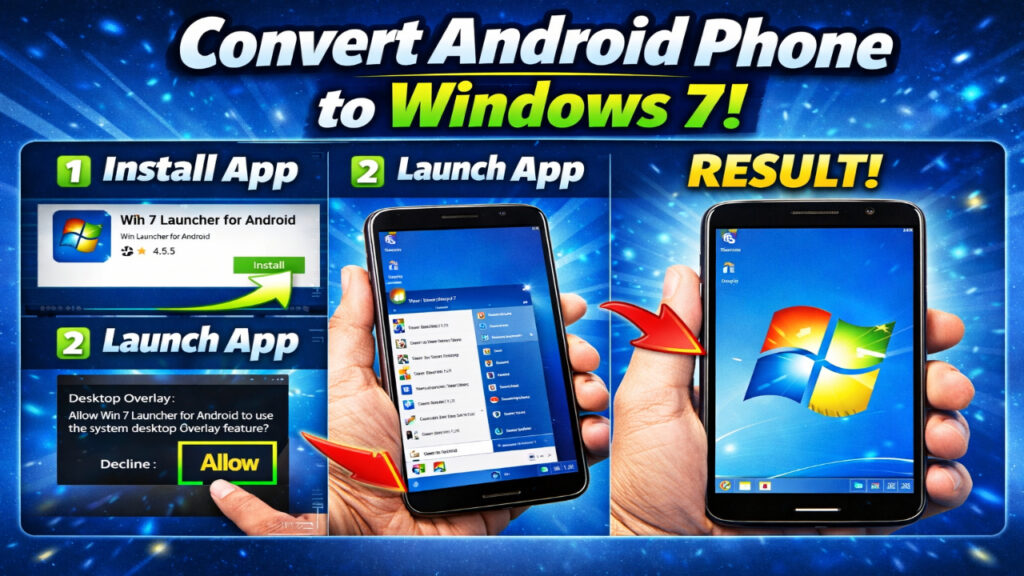
- Open the Google Play Store and search for “Computer Launcher” or “Win 7 Simulator.”
- Download and install the app with the highest ratings (usually “Computer Launcher 2” or similar).
- Press your phone’s “Home” button. A prompt will ask which app you want to use as your home screen.
- Select the new Launcher and click “Always.” Your desktop will instantly transform into Windows 7.
- Long-press on the desktop to open “Launcher Settings.” From here, you can enable the “Recycle Bin” and “Google Search” widgets.
- Grant “File Access” permissions so the “My Computer” icon can show your actual photos and downloads.
Tips and Tricks for Power Users 💎
- Keyboard Shortcuts – If you use a Bluetooth keyboard, use ‘Win + D’ to show the desktop and ‘Win + E’ to open the explorer. 🎯
- Hide Apps – Keep your desktop clean by hiding system apps you don’t use through the Start Menu settings.
- Right-Click Function – Long-pressing an icon acts as a right-click, allowing you to see file properties or create shortcuts.
- Task Manager – Use the built-in task manager in the launcher to kill background apps that are draining your battery.
- Custom Folders – Create folders on the desktop for “Work,” “Games,” and “Social” to mimic a professional PC environment.
- Screen Orientation – Lock your phone in Landscape mode for a true “Mini-Laptop” experience while typing.
- Quick Settings – Click the battery or Wi-Fi icon in the taskbar to toggle your flashlight, data, and airplane mode.
Advanced: Running Real .EXE Files (Optional) 🔧
If you want to go beyond looks and actually run Windows software (like old games or office tools):
- Install the “ExaGear” or “Winlator” app. These are wine-based layers for Android.
- Copy your Windows program folders to your phone’s “Download” directory.
- Open the emulator and run the .exe file. Note that this requires a powerful processor (Snapdragon 800 series or better).
Combining a Windows 7 Launcher with an .exe emulator gives you the ultimate convert windows to android experience. 🧩
Frequently Asked Questions (FAQ) ❓
Will this delete my Android apps?
No. This is just a visual skin. All your apps, photos, and contacts remain exactly where they are. You can switch back to your normal Android look at any time by uninstalling the launcher. ⚖️
Does it work offline?
Yes! The Windows 7 interface is built into the app. You do not need an internet connection to use the desktop, file explorer, or start menu. 🌐
Can I use a mouse?
Absolutely. You can connect a USB mouse via an OTG adapter or use a Bluetooth mouse. A real cursor will appear on the screen, making the “PC” feel even more authentic. 🕹️
Does it drain the battery?
Good quality launchers are very efficient. They use about the same amount of battery as the standard launcher that came with your phone. Only 3D animated themes will cause a noticeable drain. 🛠️
Accessibility & Ease of Use ♿
The Windows 7 conversion is great for users with vision impairments because it allows for much larger icons and text than standard Android. You can also enable “Single Click to Open” if you have trouble with double-tapping. All elements are designed to be “finger-friendly,” even though they look like they were made for a mouse. 📏
Community & Custom Themes 🤝
There is a massive community of enthusiasts who create custom themes for these launchers. You can find “Windows XP,” “Windows 11,” and even “Linux” skins on various forums. Joining these communities is a great way to find unique wallpapers and icons that aren’t available in the standard app. Always scan downloaded theme files for safety before applying them. 💬
Final Verdict 🎯
Converting your Android phone to a Windows 7 computer is a fun, safe, and productive way to refresh your device. It combines the versatility of Android with the structured, professional layout of a desktop PC. Whether you are using it to manage files more effectively or just to enjoy a trip down memory lane, the “One-Click” launcher method is the perfect solution. It’s fast, lightweight, and requires zero technical knowledge. Give your smartphone a new life today—you might find that you never want to go back to a standard mobile grid again!
Enjoy your new mobile PC — the desktop is waiting for you! 💻🔥