How to Fix Packet Loss in PUBG PC – Ultimate Troubleshooting Guide for Smooth Gameplay

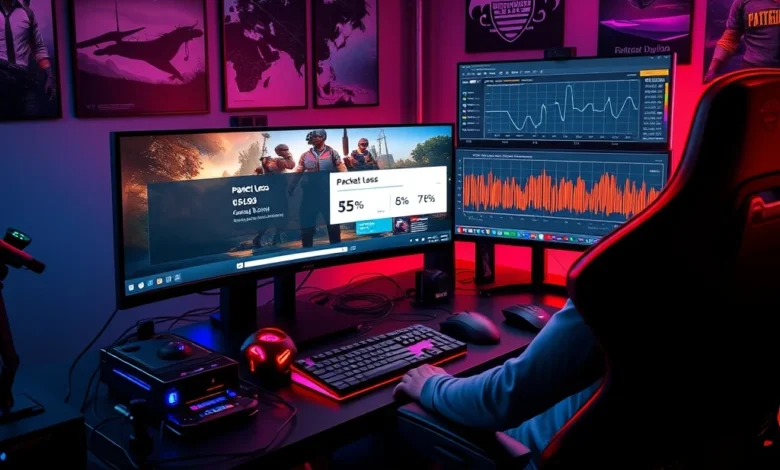
Packet loss in PUBG PC can turn a thrilling battle royale match into a frustrating experience, causing lag spikes, rubber-banding, and sudden disconnections. If you’ve ever experienced disconnected lobbies, delayed actions, or mismatched game states between players, packet loss is likely the culprit. Unfortunately, it’s a common issue that affects both casual and competitive players alike, especially in high-stakes matches where every millisecond counts.
Packet loss occurs when data packets sent between your PC and PUBG’s servers fail to arrive or arrive out of order. This can happen due to network congestion, unstable ISP connections, router misconfigurations, or even software conflicts on your system. The good news? You can diagnose and fix packet loss in PUBG PC with a few targeted steps. Whether you’re using a wired Ethernet connection or Wi-Fi, this guide covers everything from network optimization to advanced troubleshooting techniques to ensure seamless gameplay.
In this comprehensive guide, we’ll explore the root causes of packet loss, provide step-by-step solutions, and offer expert tips to improve your network stability. By the end, you’ll know exactly how to identify, reduce, and eliminate packet loss in PUBG PC for a lag-free experience.
Before diving into technical fixes, it’s important to understand what packet loss looks like in PUBG PC. Common symptoms include:
- ✅ Delayed actions – Your character doesn’t respond immediately to movement or shooting commands.
- 🎯 Rubber-banding – Your character teleports back to a previous position after moving.
- ⚠️ Disconnections – Sudden drops from the game, often mid-match.
- 🔄 Desync between players – You see enemies in different positions than other players.
- ⏳ Slow loot and revive timers – Delayed actions during intense moments.
🔍 Understanding Packet Loss: Causes and Consequences
Packet loss isn’t just a technical nuisance—it directly impacts your performance in PUBG PC. When packets are lost, your game has to wait for retransmissions or guess the missing data, leading to visual glitches and input delays. The most common causes of packet loss in PUBG PC include:
🌐 Network Congestion and ISP Issues
Your internet service provider (ISP) may throttle or congest traffic during peak hours, especially in densely populated areas. If your ISP is routing your traffic through overloaded servers, packet loss becomes inevitable. This is particularly common in regions with limited network infrastructure or during events like esports tournaments or game launches.
Additionally, some ISPs prioritize certain types of traffic (like video streaming) over gaming, which can lead to higher packet loss rates for real-time applications like PUBG PC. If you’re experiencing consistent packet loss, your ISP might be the root cause.
🏠 Router and Modem Problems
A poorly configured router or modem can introduce latency and packet loss. Issues like:
- ✅ Outdated firmware – Older router software may not handle gaming traffic efficiently.
- 🎯 QoS misconfiguration – Quality of Service settings might be prioritizing non-gaming traffic.
- ⚠️ Interference from other devices – Smart TVs, phones, or IoT devices consuming bandwidth.
- 🔄 Overheating or hardware failure – Routers can throttle performance when overheating.
can significantly degrade your PUBG PC experience. Even high-end routers may struggle if they’re not optimized for gaming.
💻 System and Software Conflicts
Your PC itself can contribute to packet loss through:
- ✅ Background processes – Antivirus software, Windows updates, or streaming apps consuming bandwidth.
- 🎯 Driver issues – Outdated or corrupted network drivers can cause instability.
- ⚠️ Wi-Fi interference – If using wireless, nearby networks or electronic devices can disrupt signals.
- 🔄 VPN or proxy usage – Some VPNs introduce additional latency and packet loss.
Even a minor software conflict can result in packet loss, so it’s important to check your system’s health before troubleshooting further.
🌍 Server-Side Issues
Sometimes, packet loss isn’t your fault. PUBG PC servers may experience overload during large-scale events or due to server-side bugs. In these cases, packet loss is widespread among players in the same region. While you can’t directly fix server issues, you can mitigate their impact by adjusting your network settings or switching servers.


🛠️ Step-by-Step Fixes to Reduce Packet Loss in PUBG PC
Now that we’ve identified the potential causes, let’s dive into practical solutions. Follow these steps in order to systematically eliminate packet loss in PUBG PC.
🔌 Step 1: Use a Wired Ethernet Connection
Wi-Fi is convenient, but it’s prone to interference, signal drops, and latency spikes. For the most stable connection in PUBG PC, always use an Ethernet cable. A wired connection eliminates wireless interference and provides a direct link to your router, reducing packet loss significantly.
If you must use Wi-Fi:
- ✅ Connect to the 5GHz band – It offers less interference than 2.4GHz.
- 🎯 Place your router closer to your PC – Reduce the distance and obstacles.
- ⚠️ Avoid crowded networks – Check nearby Wi-Fi networks using tools like Wifi Analyzer.
🔄 Step 2: Optimize Your Router Settings
Your router plays a crucial role in reducing packet loss. Here’s how to optimize it for PUBG PC:
- ✅ Update router firmware – Visit your router’s admin panel (usually via 192.168.1.1) and check for updates.
- 🎯 Enable QoS (Quality of Service) – Prioritize gaming traffic over other devices.
- Access your router settings.
- Find the QoS section.
- Add PUBG PC (or Steam, if playing via Steam) to the high-priority list.
- ⚠️ Disable SIP ALG – This feature can interfere with gaming traffic.
- 🔄 Change DNS servers – Use Google DNS (8.8.8.8, 8.8.4.4) or Cloudflare DNS (1.1.1.1) for faster, more stable connections.
💻 Step 3: Close Background Applications
Many programs run in the background, consuming bandwidth and causing network congestion. To reduce packet loss in PUBG PC:
- ✅ Close unnecessary apps – Use Task Manager (Ctrl+Shift+Esc) to end tasks like:
- Windows updates
- Discord or other VoIP apps
- Cloud backup services (OneDrive, Google Drive)
- Torrent clients
- 🎯 Disable automatic updates for Windows and other software during gaming sessions.
- ⚠️ Pause cloud syncs – Dropbox, Google Drive, or OneDrive can spike network usage.
- 🔄 Use a dedicated gaming PC profile – Disable apps that aren’t essential for gaming.
Additionally, disable any VPN or proxy services while playing PUBG PC, as they can introduce additional latency and packet loss.
🔧 Step 4: Update Network Drivers and Windows
Outdated or corrupted drivers are a leading cause of packet loss. To fix this:
- ✅ Update network drivers:
- Open Device Manager (Win + X > Device Manager).
- Expand Network adapters.
- Right-click your network adapter (e.g., Intel Wi-Fi 6, Realtek PCIe GbE).
- Select Update driver > Search automatically.
- Restart your PC after updating.
- 🎯 Reinstall drivers if issues persist:
- In Device Manager, right-click the adapter > Uninstall device.
- Check Delete the driver software for this device.
- Restart your PC and let Windows reinstall the driver automatically.
- ⚠️ Update Windows – Go to Settings > Update & Security > Windows Update and install any pending updates.
🌐 Step 5: Change Your ISP or Server Region
If your ISP is consistently causing packet loss, consider switching providers. Some ISPs are better optimized for gaming than others. You can check ISP performance using tools like Speedtest.net or Cloudflare’s Internet Quality tool.
Additionally, PUBG PC allows you to switch server regions. If you’re experiencing high packet loss on your default server, try connecting to a different region:
- ✅ Open PUBG PC > Settings > Network.
- 🎯 Select a server closer to your location (e.g., if you’re in Europe, try EU West or EU East instead of NA East).
- ⚠️ Avoid overloaded servers – Popular regions like NA or EU West can get congested during peak times.
ping pubg-na.playbattlegrounds.com
Compare ping times across different regions and choose the one with the lowest latency.
🔄 Step 6: Use a Gaming VPN (If Necessary)
While VPNs are generally discouraged for gaming due to added latency, some premium VPNs (like Windscribe, ProtonVPN, or NordVPN) offer optimized gaming servers that can reduce packet loss in specific cases. These VPNs route your traffic through gaming-optimized servers, bypassing ISP throttling or congestion.
However, only use a VPN if:
- ✅ Your ISP is throttling gaming traffic – A VPN can bypass these restrictions.
- 🎯 You’re in a region with poor server infrastructure – A VPN can route you through a better-connected server.
- ⚠️ You’re experiencing DDoS attacks or network spoofing – A VPN masks your IP address.
If you decide to use a VPN:
- ✅ Choose a server close to your location to minimize added latency.
- 🎯 Enable split tunneling to exclude non-gaming traffic from the VPN.
- ⚠️ Avoid free VPNs – They often introduce more latency and packet loss.
🛡️ Step 7: Protect Against DDoS and Network Attacks
DDoS attacks can cause severe packet loss by flooding your network with fake traffic. While PUBG PC has anti-cheat measures, your home network may still be vulnerable. To protect against DDoS:
- ✅ Use a firewall – Ensure Windows Defender Firewall is enabled (Settings > Update & Security > Windows Security > Firewall & network protection).
- 🎯 Change your router’s default IP – Some DDoS attacks target default IPs (e.g., 192.168.1.1).
- ⚠️ Enable DoS protection on your router – Most modern routers have built-in protection against flooding attacks.
- 🔄 Use a VPN to mask your IP – This prevents attackers from targeting your home network.
📊 Step 8: Monitor and Test Your Network
To confirm that your fixes are working, use network monitoring tools to track packet loss in real time. Here are the best tools for the job:
- ✅ PingPlotter – Continuously monitors packet loss, latency, and route stability to PUBG’s servers.
- 🎯 Wireshark – Advanced packet analysis tool to detect anomalies in network traffic.
- ⚠️ Command Prompt (Ping and Tracert) – Basic but effective for quick checks.
- Open Command Prompt and type:
ping pubg-na.playbattlegrounds.com -t(to continuously ping the NA server)tracert pubg-na.playbattlegrounds.com(to trace the route and check for drops)
- Open Command Prompt and type:
- 🔄 Speedtest.net – Measures your internet speed and jitter (though it doesn’t directly test packet loss).
If you notice consistent packet loss (>2%) during these tests, revisit the previous steps or contact your ISP.
🔥 Advanced Troubleshooting for Persistent Packet Loss
If you’ve tried all the basic fixes and still experience packet loss in PUBG PC, it’s time to dig deeper. Advanced troubleshooting involves checking hardware, network configurations, and even your ISP’s policies.
🖥️ Check for Hardware Issues
A failing network card, router, or modem can cause intermittent packet loss. To diagnose hardware issues:
- ✅ Test with a different network adapter – If you’re using a USB Wi-Fi adapter, try your built-in Wi-Fi or an Ethernet connection.
- 🎯 Swap routers or modems – Borrow a friend’s router or use a different modem to see if the issue persists.
- ⚠️ Check for overheating – Routers and modems can overheat, leading to performance drops. Ensure they’re in a well-ventilated area.
- 🔄 Reset your router – Sometimes, a simple reset (hold the reset button for 10 seconds) can resolve stability issues.
If the problem disappears with new hardware, your original router or network card may be faulty.
🌐 ISP Throttling and Traffic Shaping
Some ISPs throttle gaming traffic to manage bandwidth, leading to artificial packet loss. To check for throttling:
- ✅ Run a throttling test – Use tools like NetLimiter or GlassWire to monitor bandwidth usage.
- 🎯 Contact your ISP – Ask if they’re throttling gaming traffic. If they confirm, threaten to switch providers (this often resolves the issue).
- ⚠️ Use a VPN to bypass throttling – A gaming-optimized VPN can route your traffic through non-throttled servers.
- 🔄 Test at different times of day – Throttling is often worse during peak hours (evening).
If your ISP is indeed throttling gaming traffic, consider switching to a provider known for better gaming support (e.g., Google Fiber, Verizon Fios, or local gaming ISPs).
🔧 Port Forwarding and Firewall Rules
Port forwarding ensures that PUBG PC traffic flows smoothly through your router. If ports are blocked or misconfigured, packet loss can occur. Here’s how to set it up:
- ✅ Find PUBG’s required ports – PUBG PC uses ports 11000–11010 (UDP) and 8000 (TCP).
- 🎯 Access your router’s admin panel (usually via 192.168.1.1).
- ⚠️ Forward the ports to your PC’s local IP:
- Find your PC’s local IP: Open Command Prompt and type
ipconfig. - In your router settings, go to Port Forwarding or NAT Forwarding.
- Add a new rule:
- Protocol: UDP
- Port Range: 11000–11010
- Local IP: Your PC’s IP (e.g., 192.168.1.100)
- Find your PC’s local IP: Open Command Prompt and type
- 🔄 Disable UPnP – Universal Plug and Play can sometimes interfere with port forwarding. Disable it in your router settings.
📡 Check for Wireless Interference
Even with a wired connection, interference from other devices can cause packet loss. To minimize interference:
- ✅ Switch to 5GHz Wi-Fi – Less crowded than 2.4GHz.
- 🎯 Use a Wi-Fi analyzer – Tools like Wifi Analyzer (Android) or NetSpot (PC) can show crowded channels.
- Change your router’s Wi-Fi channel to a less congested one (e.g., channel 36 or 149 for 5GHz).
- ⚠️ Move your router away from other electronics – Microwaves, cordless phones, and baby monitors can interfere with Wi-Fi signals.
- 🔄 Switch to a less crowded Wi-Fi network – If you live in an apartment, your neighbors’ networks might be interfering.
🎯 Optimizing PUBG PC for Minimum Packet Loss
Once your network is stable, you can further optimize PUBG PC itself to reduce the impact of any residual packet loss. These in-game settings can help mitigate visual glitches and input delays.
🎮 In-Game Network Settings
Adjusting these settings in PUBG PC can improve your experience:
- ✅ Set Network Mode to Wired – Even if you’re on Wi-Fi, this prioritizes stable connections.
- Go to Settings > Network > Network Mode > Wired.
- 🎯 Enable Low Latency Mode – Reduces input delay.
- Settings > Game > Graphics > Low Latency Mode > Enable.
- ⚠️ Disable Background Network Usage – Prevents other apps from hogging bandwidth.
- Settings > Game > Network > Enable Low Network Usage.
- 🔄 Set Preferred Packet Rate – Higher packet rates improve responsiveness but may increase bandwidth usage.
- Settings > Game > Network > Preferred Packet Rate > High (for wired connections).
🎨 Graphics and Performance Settings
While graphics settings don’t directly cause packet loss, they can affect how packet loss manifests. For smoother gameplay:
- ✅ Lower graphics settings – Reduces GPU/CPU load, freeing up resources for networking.
- Set shadows, effects, and foliage to Medium or Low.
- 🎯 Enable V-Sync – Reduces screen tearing but may add input delay (disable if packet loss is severe).
- Settings > Game > Graphics > V-Sync > Enable.
- ⚠️ Disable Fullscreen Exclusive Mode – Sometimes causes stability issues.
- Right-click PUBG in Steam > Properties > Launch Options > add
-noborder.
- Right-click PUBG in Steam > Properties > Launch Options > add
- 🔄 Set FPS limit to match your monitor – Prevents screen tearing and reduces strain.
- If you have a 144Hz monitor, set FPS limit to 144.
🚨 What to Do If Packet Loss Persists
If you’ve exhausted all troubleshooting steps and still experience packet loss in PUBG PC, it’s time to escalate the issue. Here’s what to do next:
📞 Contact Your ISP
If your ISP is the root cause, they may be unaware of the issue. Provide them with:
- ✅ PingPlotter logs – Shows packet loss over time.
- 🎯 Tracert results – Displays the route your traffic takes and where packets are dropped.
- ⚠️ Speedtest results – Confirms if your bandwidth is throttled.
- 🔄 PUBG’s official server IPs – Ask them to whitelist these addresses to prevent throttling.
If they refuse to help, consider switching providers or filing a complaint with your local communications authority.
📝 Report to PUBG’s Support
If the issue is server-side, report it to PUBG’s support team via:
- ✅ In-game report system – Open the menu during a match and select Report > Network Issue.
- 🎯 PUBG’s official website – Submit a ticket with screenshots of PingPlotter logs.
- Go to https://support.pubg.com.
- ⚠️ Community forums – Post on the PUBG forums or Reddit (r/PUBG) to see if others are experiencing the same issue.
Include detailed logs, screenshots, and steps to reproduce the problem. PUBG’s team may acknowledge the issue and push fixes in future updates.
🔄 Last Resort: Change Your Network Setup
If all else fails, consider a complete network overhaul:
- ✅ Upgrade to a gaming router – Routers like ASUS ROG Rapture GT-AX11000 or Netgear Nighthawk Pro Gaming XR700 are optimized for low latency and minimal packet loss.
- 🎯 Switch to fiber internet – Fiber connections are more stable than cable or DSL and have lower packet loss rates.
- Check if fiber is available in your area.
- ⚠️ Use a mobile hotspot – If your home network is unreliable, a 5G mobile hotspot (like Verizon 5G Home Internet) can provide a more stable connection.
🏁 Final Verdict: Enjoy Lag-Free PUBG PC Gameplay
Packet loss in PUBG PC is a solvable problem, but it requires a methodical approach. Start with the basics: switch to a wired connection, optimize your router, and close background applications. If the issue persists, dive into advanced troubleshooting like port forwarding, ISP throttling checks, and hardware diagnostics. Remember, a stable network is the foundation of a smooth gaming experience.
By following this guide, you should be able to significantly reduce or eliminate packet loss in PUBG PC. Whether you’re a casual player or an aspiring pro, a lag-free experience will give you the competitive edge you need to survive the final circle. Don’t let packet loss ruin your matches—take control of your network and dominate the battlefield.
If you’re still struggling, don’t hesitate to reach out to your ISP or PUBG’s support team. Persistent packet loss is often a sign of deeper network issues that require professional intervention. With the right fixes in place, you’ll be back to dropping into Erangel or Miramar with confidence, knowing your connection is as stable as your aim.
Now, grab your loadout, drop into the next match, and experience PUBG PC the way it was meant to be played—smooth, responsive, and free from the frustrations of packet loss.
❓ Frequently Asked Questions About Packet Loss in PUBG PC
- What is a good packet loss percentage for PUBG PC?
Anything below 0.5% is excellent. Packet loss between 0.5% and 2% may cause minor issues like rubber-banding, while anything above 2% will significantly impact gameplay.
- Does packet loss affect both PC and console players?
Yes, packet loss can affect all versions of PUBG, including PUBG Mobile and PUBG Console. However, PC players have more control over their network settings, making it easier to diagnose and fix.
- Can VPNs reduce packet loss in PUBG PC?
In some cases, yes. Premium VPNs with gaming-optimized servers can bypass ISP throttling and route your traffic through more stable paths. However, free VPNs often introduce more latency and packet loss.
- How do I check my packet loss without third-party tools?
You can use Command Prompt to run a continuous ping test. Open Command Prompt and type:
ping pubg-na.playbattlegrounds.com -tIf you see replies with more than 2% lost packets, you have a packet loss issue.
- Why does my packet loss spike during matches but not in other games?
PUBG PC requires a constant, low-latency connection to sync player positions in real time. Other games (like single-player or turn-based games) aren’t as sensitive to packet loss, which is why you may only notice it during intense PUBG matches.
- Will upgrading my internet plan reduce packet loss?
Not necessarily. Packet loss is often caused by network routing issues rather than bandwidth speed. However, a higher-tier plan may provide more stable routing and better ISP support.
- Can a weak Wi-Fi signal cause packet loss?
Yes. If your signal strength is low (below 50%), packet loss is likely. Switching to 5GHz Wi-Fi or using a wired connection will resolve this issue.
- Does PUBG’s server region affect packet loss?
Absolutely. If you’re playing on a server far from your location, packet loss and latency will increase. Always select a server close to your region for the best experience.
- How do I know if my router is the problem?
Test your connection on a different device. If the other device has no packet loss, your router is likely the issue. Alternatively, borrow a friend’s router and see if the problem persists.
- What should I do if PUBG’s support ignores my packet loss report?
Escalate the issue. Post on PUBG’s forums or Reddit to gather community support. If multiple players report the same issue, PUBG’s team is more likely to investigate and release a fix.