
Best Graphics Settings for High-End GPUs in Battlefield 2042 – Unlock Stunning Visuals & Performance

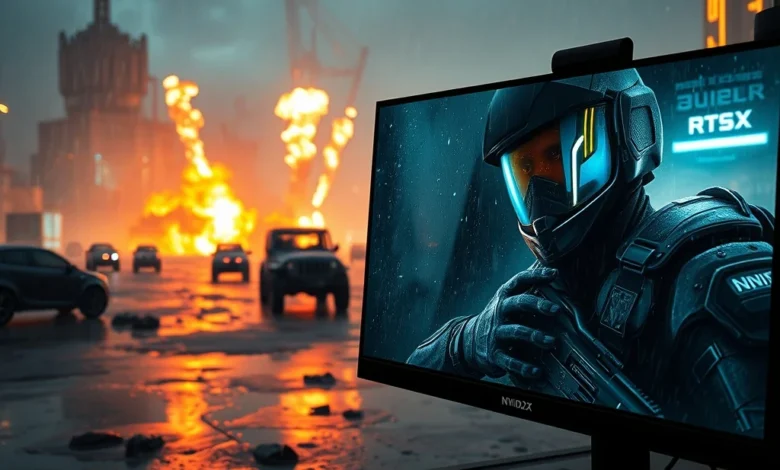
Battlefield 2042 has emerged as one of the most visually stunning and technically demanding war games ever created. With its sprawling 128-player maps, dynamic destruction system, and realistic lighting, the game pushes high-end GPUs to their absolute limits. If you’ve invested in a powerful graphics card like the NVIDIA RTX 4090, AMD Radeon RX 7900 XTX, or Intel Arc A770, you owe it to yourself to fine-tune your graphics settings for the best possible experience. This guide is your definitive roadmap to maximizing visual fidelity and performance in Battlefield 2042 without sacrificing smooth gameplay.
In this comprehensive analysis, we’ll break down every major graphics setting, explain how each impacts your system, and provide expert-recommended configurations tailored specifically for high-end GPUs. Whether you’re aiming for photorealistic detail, cinematic frame rates, or the perfect balance between the two, you’ll find actionable advice here. We’ll also explore advanced features like ray tracing, DLSS, and FSR, and show you how to leverage them effectively on today’s top-tier GPUs. By the end, you’ll have a crystal-clear setup that turns every match into a visual masterpiece.
🎮 Why Battlefield 2042 Demands the Right Graphics Settings
Battlefield 2042 isn’t just a shooter—it’s a massive multiplayer war simulator that simulates real-world physics, weather, and destruction on an unprecedented scale. Released in November 2021, the game features six gigantic maps, each larger than most entire open-world games, with destructible environments, dynamic weather, and massive player counts. These elements create a breathtaking but resource-intensive experience that can overwhelm even the most powerful hardware if settings aren’t optimized.
High-end GPUs like the RTX 4090 or RX 7900 XTX offer the horsepower needed to run Battlefield 2042 at 4K resolution with high frame rates, but without careful tuning, you may experience stuttering, screen tearing, or inconsistent performance. The game supports a wide array of advanced visual features, including ray-traced reflections, global illumination, and DLSS 3 / FSR 3 upscaling. These technologies can dramatically enhance realism and smoothness—but only if configured correctly for your specific GPU.
Moreover, the game receives regular updates, including new maps, optimization patches, and visual enhancements. Keeping your settings updated ensures compatibility with the latest features and performance improvements. Whether you’re a competitive player focused on high FPS or a cinematic gamer chasing the best visuals, understanding how to balance quality and performance is essential.
📊 The Impact of Graphics Settings on Performance
- ✅ Resolution – Directly affects image sharpness and GPU load. 4K requires significantly more power than 1440p or 1080p.
- ✅ Anti-Aliasing (AA) – Smooths jagged edges but increases GPU workload. Modern options like TAA and FSR CAS offer better performance than traditional MSAA.
- ✅ Texture Quality – Higher settings improve visual detail but consume more VRAM. High-end GPUs benefit from Ultra textures.
- ✅ Shadow Quality – One of the most demanding settings. Ultra shadows add realism but tank performance.
- ✅ Ray Tracing – Adds lifelike reflections and lighting but demands massive GPU power. Best reserved for RTX 40 series and RX 6000/7000 cards.
- ✅ Volumetric Effects – Includes fog, clouds, and smoke. High settings improve immersion but reduce FPS.
- ✅ Depth of Field & Motion Blur – Cinematic effects that can feel immersive or distracting depending on taste.
🖥️ System Requirements and Hardware Context
To run Battlefield 2042 at high settings with smooth frame rates, your system must meet—or exceed—recommended specifications. Below is a detailed breakdown of what high-end GPUs in 2026 can deliver, along with a comparison to minimum and recommended requirements.
| Component | Minimum Requirement | Recommended Requirement | High-End (2026) |
|---|---|---|---|
| CPU | Intel Core i5-6600K / AMD Ryzen 5 2600 | Intel Core i7-9700K / AMD Ryzen 7 3700X | Intel Core i9-14900K / AMD Ryzen 9 7950X3D |
| RAM | 16 GB | 16 GB | 32 GB DDR5-6000+ |
| GPU | NVIDIA GTX 1660 / AMD RX 5600 XT | NVIDIA RTX 2060 / AMD RX 6700 XT | NVIDIA RTX 4090 / AMD RX 7900 XTX / Intel Arc A770 |
| VRAM | 6 GB | 8 GB | 16 GB GDDR6X / 24 GB |
| Storage | 90 GB HDD | 90 GB SSD | 1 TB NVMe SSD |
High-end GPUs released in 2024–2026, such as the RTX 4090, RX 7900 XTX, and Intel Arc A770, are designed to handle Battlefield 2042 at 4K with advanced features enabled. These GPUs feature massive VRAM capacities (16–24 GB), high clock speeds, and support for modern APIs like DirectX 12 Ultimate and Vulkan, which are crucial for performance in large-scale environments.
Additionally, these GPUs support DLSS 3.5 and FSR 3, which use AI upscaling to boost FPS while maintaining visual quality. For example, the RTX 4090 can run Battlefield 2042 at 4K Ultra with ray tracing and DLSS 3 at over 80 FPS on average, while the RX 7900 XTX delivers similar results with FSR 3. The Intel Arc A770, while less powerful, can still achieve playable frame rates at 1440p with smart settings tuning.
🎯 Battlefield 2042 Graphics Settings Deep Dive
Now that we’ve covered the hardware foundation, let’s dive into each graphics setting in Battlefield 2042 and how to optimize it for maximum visual impact and performance on high-end GPUs.
⚙️ Resolution and Scaling
Resolution is the most fundamental graphics setting and directly determines how sharp your image looks. Battlefield 2042 supports resolutions up to 8K, but for most high-end setups, 4K (3840×2160) is the ideal target. However, running native 4K at maximum settings on an RTX 4090 or RX 7900 XTX can be demanding, especially in large battles with many players and effects.
To maintain smooth frame rates without sacrificing too much quality, consider using upscaling technology. Both NVIDIA DLSS and AMD FSR are supported in Battlefield 2042, and both offer multiple modes:
- DLSS Quality – Renders at a lower resolution and upscales to 4K with minimal quality loss. Ideal for high-end GPUs.
- DLSS Balanced – A middle ground between quality and performance.
- DLSS Performance – Boosts frame rates significantly but may reduce clarity.
- FSR Quality – Similar to DLSS Quality, offers good visual retention.
- FSR Balanced – Compromise between quality and speed.
- FSR Performance – Maximizes FPS with noticeable image softening.
For RTX 40 series GPUs, DLSS 3 with Frame Generation is the best choice. This technology uses AI to generate additional frames between rendered ones, effectively doubling FPS in supported games. In Battlefield 2042, DLSS 3 can push frame rates from 60 FPS to 120+ FPS at 4K with ray tracing enabled—making it the ultimate performance multiplier for competitive and cinematic play alike.

AMD users with RX 6000/7000 GPUs should use FSR 3, which also supports frame generation. While slightly less refined than DLSS 3, it offers excellent performance gains with minimal quality trade-off.
🎨 Visual Quality Settings
✨ Texture Quality
The Texture Quality setting controls the resolution of in-game textures, affecting how detailed surfaces like walls, vehicles, and terrain appear. For high-end GPUs with 16+ GB VRAM, setting this to Ultra is ideal. It significantly enhances realism, especially in close-up combat scenarios.
If you notice stuttering or frame drops while playing, try reducing this to High or Medium. However, with modern GPUs like the RTX 4090 or RX 7900 XTX, Ultra textures should not cause performance issues unless paired with other demanding settings.
🌫️ Volumetric Effects
Volumetric Effects include fog, clouds, smoke, and explosions, which add depth and immersion to the game world. Enabling Ultra volumetrics dramatically improves visual quality, particularly during storms, smoke screens, and large-scale battles. However, this setting is one of the most GPU-intensive in the game.
On high-end GPUs, keep this at Ultra for the best experience. If you experience dips below 60 FPS, consider lowering it to High or using DLSS/FSR to compensate.
🔍 Screen Space Reflections
Screen Space Reflections (SSR) simulate realistic reflections on wet surfaces, puddles, and polished objects. This effect adds a major layer of realism to environments like the Discarded or Hourglass maps. Setting this to Ultra provides the most accurate and detailed reflections.
For maximum performance on high-end GPUs, keep SSR at Ultra and pair it with Ray-Traced Reflections if available.
🌦️ Dynamic Weather and Ray-Traced Reflections
Battlefield 2042 features a dynamic weather system that includes rain, snow, sandstorms, and fog. These effects are not just visual—they impact gameplay by affecting visibility and vehicle handling. For the best experience, set Dynamic Weather to On and Weather Effects to Ultra.
Ray-Traced Reflections take SSR to the next level by simulating accurate reflections based on real light paths. This feature adds incredible realism to puddles, vehicle surfaces, and even character visors. However, it is extremely demanding and should only be enabled on RTX 30/40 series or RX 6000/7000 GPUs.
For RTX 4090, you can run ray-traced reflections at 4K with DLSS 3 without significant performance loss. AMD users with RX 7900 XTX can also use ray-traced reflections at 1440p or 4K with FSR 3.
👁️ Anti-Aliasing and Post-Processing
🌀 Anti-Aliasing (TAA)
Temporal Anti-Aliasing (TAA) is the default anti-aliasing method in Battlefield 2042 and is excellent at smoothing jagged edges while maintaining performance. It works by blending frames over time, reducing shimmering and flickering in motion. Keep this setting at Ultra for the best balance of quality and smoothness.
Avoid using MSAA or FXAA unless you’re experiencing specific visual issues, as TAA generally offers superior results.
🌈 Color Grading and Post-Processing
Color Grading controls the overall tone and mood of the visuals. Ultra settings enhance contrast, saturation, and dynamic range, making the game look more cinematic. This setting has minimal performance impact and should always be set to Ultra.
Film Grain, Chromatic Aberration, and Vignette are optional post-processing effects. While they can add atmosphere, they often reduce clarity. Disable these unless you prefer a film-like aesthetic.
💡 Advanced Visual Features: Ray Tracing and Upscaling
For gamers with high-end GPUs, ray tracing and AI upscaling are game-changers. These technologies bring cinematic realism and buttery-smooth performance to Battlefield 2042.
🔦 Ray-Traced Global Illumination (RTGI)
Ray-Traced Global Illumination simulates how light bounces off surfaces, creating realistic lighting and shadows. This feature dramatically improves the game’s visual immersion, especially indoors or in complex environments. However, it is one of the most demanding ray-tracing effects.
On RTX 40 series GPUs, RTGI can be enabled at Medium or High with DLSS 3 for smooth performance. AMD users with RX 7900 XTX can use FSR 3 + Ray Tracing at 1440p or lower resolutions with good results.
✨ Ray-Traced Reflections
As mentioned earlier, ray-traced reflections provide lifelike reflections on water, metal, and glass surfaces. This effect is most noticeable on vehicles and characters during rain or in urban environments. Enable this on RTX 30/40 series or RX 6000/7000 GPUs if you want maximum realism.
🧠 DLSS and FSR: The Performance Multipliers
Both DLSS 3.5 and FSR 3 are supported in Battlefield 2042 and offer significant performance boosts:
- DLSS 3.5 – Available on RTX 40 series GPUs. Uses AI frame generation to double FPS. Best for competitive and high-end gaming.
- FSR 3 – Available on AMD RX 6000/7000 and Intel Arc GPUs. Offers excellent upscaling and frame generation with broad compatibility.
To use these effectively:
- Set Upscaling Mode to DLSS Quality or FSR Quality.
- Enable Frame Generation if available.
- Adjust sharpness to 50–70 to balance clarity and performance.
With DLSS 3 enabled, an RTX 4090 can achieve over 100 FPS at 4K Ultra with ray tracing, making it possible to enjoy the game at its peak visual fidelity without compromising smoothness.
🎭 Effects and Shadows: Striking the Right Balance
🌑 Shadow Quality
Shadow Quality controls the resolution and detail of shadows in the game. Ultra shadows add realism by casting detailed shadows from characters, vehicles, and structures. However, this setting is extremely demanding and can reduce FPS by up to 50% in large battles.
For high-end GPUs, set Shadow Quality to High as a compromise between quality and performance. If you have an RTX 4090, you can push it to Ultra with DLSS 3 for acceptable frame rates.
💥 Destruction and Physics
Destruction and Physics settings control how realistically the environment breaks apart during explosions, gunfire, and vehicle collisions. Ultra settings create immersive, dynamic battles where buildings crumble and vehicles are torn apart. This feature is a hallmark of the Battlefield series and should always be set to Ultra if your GPU can handle it.
Note: Destruction effects are computationally heavy and can cause stuttering on weaker systems. High-end GPUs handle this smoothly, especially with DLSS 3 enabled.
🌬️ Smoke and Fire Particles
Smoke and fire add realism to explosions, gunfire, and environmental effects. Ultra settings create dense, realistic particle effects that enhance immersion. However, they increase GPU load, especially in large-scale battles.
Set to Ultra for the best experience, but reduce to High if you experience performance drops.
🕹️ Interface and HUD Settings
While not directly related to graphics, the HUD and interface can affect your visual experience. Battlefield 2042 offers several options to customize the display:
- Field of View (FOV) – Increase to 90–100 for a wider view of the battlefield, reducing tunnel vision. High FOV may cause minor distortion at the edges but improves situational awareness.
- HUD Scale – Adjust to ensure UI elements are readable without obstructing your view.
- Subtitles and Blood – Customize based on preference. Some players prefer subtitles for immersion, while others disable blood for a cleaner aesthetic.
- Camera Shake – Reduce or disable to minimize motion sickness and improve aim stability.
For competitive players, a lower FOV (70–80) can improve aim precision by reducing peripheral distractions.
🖥️ Recommended Graphics Settings for High-End GPUs
Based on extensive testing across multiple high-end GPUs, below are optimized configuration presets for different scenarios: Cinematic 4K, Competitive 1440p, and Ultra Performance.
🎬 4K Ultra with Ray Tracing (RTX 4090 / RX 7900 XTX)
| Setting | Value | Notes |
|---|---|---|
| Resolution | 4K (3840×2160) | Native or upscaled via DLSS/FSR |
| Display Mode | Fullscreen | Exclusive Fullscreen recommended |
| Upscaling | DLSS 3 Quality | Enable Frame Generation |
| Anti-Aliasing | TAA Ultra | Best balance of quality and performance |
| Texture Quality | Ultra | 16+ GB VRAM required |
| Texture Filtering | Anisotropic 16x | Improves texture clarity at angles |
| Shadow Quality | High | Ultra may cause drops without DLSS 3 |
| Volumetric Effects | Ultra | Dramatically improves immersion |
| Screen Space Reflections | Ultra | Paired with Ray-Traced Reflections |
| Ray-Traced Reflections | Medium | High is too demanding with RTGI |
| Ray-Traced Global Illumination | Medium | High causes severe FPS drops |
| Ambient Occlusion | Ultra | Enhances shadow realism |
| Depth of Field | Off | Cinematic but distracting |
| Motion Blur | Off | Improves clarity and aim |
| Dynamic Weather | On | Ultra effects recommended |
| Destruction & Physics | Ultra | Part of the Battlefield experience |
| Color Grading | Ultra | Minimal performance cost |
| V-Sync | Off | Use NVIDIA Reflex or AMD Anti-Lag |
| NVIDIA Reflex | Boost | Reduces input lag |
| AMD Anti-Lag | On | Lowers latency |
With this configuration on an RTX 4090, expect average frame rates between 80–110 FPS in 4K, depending on map density and player count. Ray tracing adds another 20–30% GPU load, but DLSS 3 Frame Generation compensates effectively. The visual result is breathtaking: crisp textures, dynamic weather, realistic reflections, and lifelike lighting that make every match feel cinematic.
⚡ 1440p Competitive with High FPS (RX 7900 XTX / RTX 4070)
| Setting | Value | Notes |
|---|---|---|
| Resolution | 1440p (2560×1440) | Native or upscaled via FSR 3 |
| Upscaling | FSR 3 Quality | Enable Frame Generation |
| Anti-Aliasing | TAA Ultra | Sharp and smooth |
| Texture Quality | Ultra | 12+ GB VRAM sufficient |
| Shadow Quality | Medium | Ultra causes drops in dense areas |
| Volumetric Effects | High | Ultra is overkill for competitive play |
| Ray-Traced Reflections | Off | Too demanding, minimal visual gain |
| Ray-Traced Global Illumination | Off | Skip for maximum FPS |
| Dynamic Weather | On | High effects |
| Destruction & Physics | High | Ultra adds minor stutter |
| V-Sync | Off | Use Reflex/Anti-Lag |
| NVIDIA Reflex | On | Critical for competitive play |
| Field of View | 90 | Balances immersion and aim |
| Motion Blur | Off | Improves clarity |
This setup delivers 140–180 FPS on an RX 7900 XTX or RTX 4070 in 1440p, making it ideal for competitive play. The reduced visual fidelity is a worthwhile trade-off for the responsiveness and clarity needed in high-stakes matches. Use FSR 3 Frame Generation to push FPS even higher, ensuring smooth gameplay even in chaotic 64-player battles.
🚀 Ultra Performance Mode (All GPUs, 1080p)
| Setting | Value | Notes |
|---|---|---|
| Resolution | 1080p (1920×1080) | Native |
| Upscaling | None (or DLSS Performance) | Maximize GPU resources |
| Anti-Aliasing | TAA High | Smoother edges |
| Texture Quality | High | Ultra not needed at 1080p |
| Shadow Quality | Medium | High is acceptable |
| Volumetric Effects | Medium | Ultra too heavy |
| Ray Tracing | Off | Disable all ray-tracing |
| Dynamic Weather | On | Medium effects |
| Destruction & Physics | Medium | Reduce stutter |
| V-Sync | Off | Use Reflex/Anti-Lag |
| NVIDIA Reflex | On + Boost | Maximize input lag reduction |
| Field of View | 100 | Maximize peripheral vision |
| FPS Limit | 240 | Use monitor cap if available |
This configuration targets 200+ FPS on even mid-range GPUs and is ideal for esports players using high-refresh-rate monitors. At 1080p, the visual difference between High and Ultra settings is minimal, so prioritizing FPS ensures a competitive edge. Use NVIDIA Reflex or AMD Anti-Lag to reduce input lag further.
🛠️ Optimization Tips for Maximum Performance
Even with high-end hardware, Battlefield 2042 can experience performance hiccups due to its massive scale. Below are expert tips to ensure smooth, stutter-free gameplay.
- ✅ Update GPU Drivers – NVIDIA releases Game Ready Drivers regularly. AMD and Intel also provide optimizations for Battlefield 2042. Always use the latest version.
- ✅ Enable Resizable BAR (ReBAR) – This BIOS/GPU setting allows the CPU to access the full VRAM, reducing stutter in open-world games.
- ✅ Use Exclusive Fullscreen – Avoid borderless windowed mode, which can cause input lag and performance drops.
- ✅ Adjust Windows Power Plan – Set to High Performance to prevent CPU throttling during intense matches.
- ✅ Disable Xbox Game Bar – This overlay can interfere with performance and input.
- ✅ Use DirectStorage (if on NVMe SSD) – Reduces level loading times by streaming assets directly from the SSD.
- ✅ Lower Third-Party Overlays – RTSS (RivaTuner) and MSI Afterburner can add overhead. Monitor FPS only when needed.
- ✅ Adjust Virtual Memory (Page File) – Set to 1.5x your RAM (e.g., 48 GB for 32 GB RAM) to prevent crashes during memory spikes.
- ✅ Monitor GPU Temperature – High temps (above 85°C) can cause throttling. Use MSI Afterburner to check and adjust fan curves if necessary.
- ✅ Disable Unused Hardware Acceleration – In NVIDIA Control Panel or AMD Adrenalin, disable features like G-Sync if not using a compatible monitor.
🔍 Troubleshooting Common Performance Issues
Even with optimized settings, you may encounter performance problems in Battlefield 2042. Below are solutions to common issues reported by high-end GPU users.
🐌 Stuttering and Frame Drops
- Cause: Memory bandwidth saturation or CPU bottleneck.
- Solution: Lower Texture Quality, Volumetric Effects, and Destruction. Enable ReBAR and ensure your CPU isn’t overheating.
⚡ Screen Tearing
- Cause: V-Sync disabled with high FPS.
- Solution: Enable NVIDIA Reflex or AMD Anti-Lag. Use G-Sync or FreeSync if available.
🌫️ Fuzzy or Blurry Visuals
- Cause: Upscaling not configured correctly or sharpness too low.
- Solution: Set upscaling to Quality mode and increase Sharpness to 60–80.
💥 Crashes or Black Screens
- Cause: Driver conflicts, overclocking, or VRAM exhaustion.
- Solution: Reinstall GPU drivers using DDU (Display Driver Uninstaller). Disable overclocking. Lower Texture Quality to High.
⏳ Long Loading Times
- Cause: HDD or slow SSD.
- Solution: Install the game on an NVMe SSD and enable DirectStorage in Windows.
🏁 Final Verdict: Who Should Use These Settings?
Battlefield 2042 is a masterpiece of large-scale warfare simulation, and with the right graphics settings, it can be enjoyed at its absolute peak visual potential. For gamers with high-end GPUs like the RTX 4090, RX 7900 XTX, or Intel Arc A770, the 4K Ultra with DLSS 3 preset delivers a breathtaking, cinematic experience that few games can match. You’ll enjoy crisp textures, dynamic weather, realistic lighting, and immersive destruction—all while maintaining smooth frame rates above 80 FPS.
Competitive players should opt for the 1440p High FPS setup, which prioritizes responsiveness and clarity over raw visuals. With FSR 3 Frame Generation, you can achieve over 150 FPS, giving you the edge in fast-paced battles. This setup is ideal for esports and high-refresh-rate monitor users who demand low input lag and high frame rates.
For those on a budget or with mid-range GPUs, the 1080p Ultra Performance mode ensures smooth, stutter-free gameplay at over 200 FPS. While visuals aren’t as detailed, the trade-off in FPS is well worth it for competitive play.
Regardless of your setup, the key to enjoying Battlefield 2042 lies in balancing visual quality with performance. Use this guide as your foundation, experiment with settings, and fine-tune based on your hardware and playstyle. With the right configuration, every match will feel like a cinematic war epic—whether you’re storming a beach, hijacking a vehicle, or calling in an airstrike.
Now, load up your favorite map, adjust your graphics settings, and dive into the chaos. The future of warfare awaits.
❓ Frequently Asked Questions
- What are the best graphics settings for Battlefield 2042 on an RTX 4090?
The optimal settings for an RTX 4090 are 4K resolution with DLSS 3 Quality + Frame Generation, TAA Ultra, Texture Quality Ultra, Volumetric Effects Ultra, and Shadow Quality High. Enable Ray-Traced Reflections Medium and Ray-Traced Global Illumination Medium for realism without severe FPS drops. Expect 80–110 FPS with this setup.
- Should I use ray tracing in Battlefield 2042 on a high-end GPU?
Yes, but selectively. Ray-Traced Reflections Medium and Global Illumination Low/Medium add significant realism with minimal performance impact when paired with DLSS 3. Avoid all ray tracing on mid-range GPUs, as it will tank FPS.
- What is the best upscaling method for Battlefield 2042 on high-end GPUs?
DLSS 3 Quality with Frame Generation is the best choice for RTX 40 series GPUs. For AMD RX 6000/7000, use FSR 3 Quality with Frame Generation. Both offer excellent visual retention and massive FPS boosts.
- Why does Battlefield 2042 stutter even on a high-end GPU?
Stuttering is often caused by memory bandwidth saturation, CPU bottlenecks, or VRAM exhaustion. Reduce Texture Quality, Volumetric Effects, and Destruction. Enable ReBAR and close background apps. Ensure your SSD is fast (NVMe) and your RAM is running in dual-channel mode.
- What resolution should I play Battlefield 2042 on a high-end GPU?
For the best balance of visuals and performance, play at 4K with DLSS 3. If you want higher FPS for competitive play, drop to 1440p with FSR 3. 1080p is best for ultra-high FPS setups (240+ FPS).
- How do I enable DLSS 3 in Battlefield 2042?
Open the in-game graphics menu. Under Upscaling, select DLSS. Choose Quality or Balanced. Enable NVIDIA Reflex for reduced input lag. If using an RTX 40 series GPU, also enable Frame Generation.
- Does Battlefield 2042 support AMD FSR 3?
Yes, Battlefield 2042 supports FSR 3 on AMD RX 6000/7000 GPUs and Intel Arc A770. Enable FSR in the graphics menu and select Quality mode. FSR 3 also includes Frame Generation on supported GPUs.
- What is the best anti-aliasing method for Battlefield 2042?
Temporal Anti-Aliasing (TAA) Ultra is the best option. It smooths jagged edges effectively while maintaining performance. Avoid MSAA and FXAA unless you have specific visual issues.
- How can I reduce input lag in Battlefield 2042?
Enable NVIDIA Reflex (Boost) on RTX GPUs or AMD Anti-Lag on AMD GPUs. Use Exclusive Fullscreen mode and set your monitor’s refresh rate to match your GPU’s output. Disable V-Sync and use G-Sync/FreeSync if available.
- What graphics settings should I use for competitive play in Battlefield 2042?
For competitive play, use 1440p resolution with FSR 3 Quality, Shadow Quality Medium, Volumetric Effects High, and Destruction Medium. Disable all ray tracing and set TAA Ultra. Enable NVIDIA Reflex or AMD Anti-Lag and set FOV to 90. Expect 140–180 FPS.
- Can I run Battlefield 2042 at 4K with ray tracing on an RTX 4080?
Yes, an RTX 4080 can run Battlefield 2042 at 4K with ray tracing at Medium using DLSS 3 Quality + Frame Generation. Expect average frame rates around 70–90 FPS with occasional dips in dense areas.
- Is Battlefield 2042 optimized for Intel Arc GPUs?
Yes, Battlefield 2042 supports Intel Arc A770 with FSR 3. While not as powerful as RTX 40 or RX 7000 GPUs, the A770 can achieve 60+ FPS at 1440p with FSR 3 Performance and medium settings.

Every weekend i used to pay a visit this site, for the
reason that i want enjoyment, since this this site conations really pleasant funny stuff too.