How to Fix Performance Problems in Amnesia: The Bunker – Optimization Tips

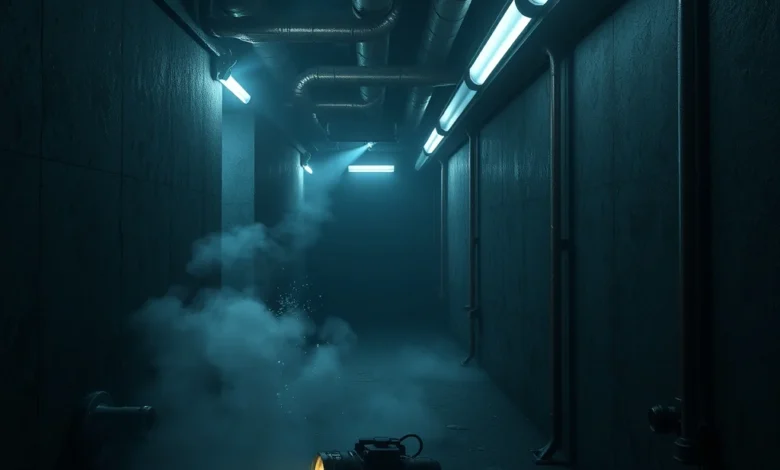
The world of Amnesia: The Bunker offers a terrifyingly immersive experience, but it demands significant computational power to run smoothly. Many players have reported frame drops, stuttering, and unexpected crashes when exploring the dark, industrial corridors of the bunker. This comprehensive guide addresses the most common performance issues faced by gamers in 2026, providing actionable solutions to ensure your horror experience remains uninterrupted. By following these optimization tips, you can maximize your hardware potential and focus entirely on survival.
Performance optimization is not just about achieving higher frame rates; it is about stability. A stutter during a chase scene can break immersion and potentially lead to a game over. Whether you are playing on a high-end PC or a mid-range system, understanding the game engine is crucial. This article covers every aspect of performance tuning, from driver updates to in-game graphical settings, ensuring you have the best possible setup for the bunker.
🔧 Understanding the Technical Requirements
Before diving into fixes, it is essential to understand what the game engine requires to function correctly. Amnesia: The Bunker utilizes a modern rendering engine that handles dynamic lighting and physics simulations with high fidelity. This results in a beautiful atmosphere but also places a heavy load on the CPU and GPU. If your hardware does not meet the baseline requirements, you will experience significant performance degradation. It is not merely a matter of lowering settings; it is about matching your system capabilities to the game’s demands.
The game features a massive, non-linear map that requires constant asset streaming. This means your storage drive speed and system RAM play a critical role in preventing texture pop-in and stuttering. Players often overlook the importance of storage speed, assuming that a mechanical hard drive is sufficient. However, for this specific title, an SSD is highly recommended to ensure seamless transitions and reduced load times. Ensuring your hardware meets the minimum standards is the first step toward a stable gaming session.
🖥️ Hardware Baseline Checklist
- ✅ CPU: Minimum Intel Core i5 or AMD Ryzen 5
- ✅ GPU: Minimum NVIDIA GTX 1060 or AMD RX 580
- ✅ RAM: 8 GB Minimum, 16 GB Recommended
- ✅ Storage: 50 GB SSD Space Required
🚀 Essential Optimization Settings
Once you have confirmed your hardware meets the requirements, the next step is to adjust the in-game settings. The default settings are often designed for high-end rigs, which can cause issues on average systems. By manually tweaking these parameters, you can achieve a significant boost in performance without sacrificing too much visual quality. The goal is to find the balance between immersion and fluidity.
One of the most critical settings to adjust is the resolution scaling. Running the game at native 4K on a mid-range GPU will inevitably lead to frame rate drops. Lowering the resolution or enabling dynamic resolution scaling can alleviate the burden on your graphics card. Additionally, shadow quality is a major performance drain in this engine. Shadows define the horror atmosphere, but they are computationally expensive. Reducing shadow quality can yield a substantial performance gain.
🎨 Graphics Settings Guide
- 1) Render Resolution: Set to 100% or lower for better FPS.
- 2) Texture Quality: Keep at High if you have 8GB+ RAM.
- 3) Shadow Quality: Set to Medium or Low to reduce lag.
- 4) Anti-Aliasing: Use FXAA instead of MSAA for performance.
- 5) Post-Processing: Disable Bloom and Depth of Field.
🛠️ Troubleshooting Common Performance Issues
Even with optimized settings, players may encounter specific technical glitches. These issues can range from audio desynchronization to sudden frame rate drops. Identifying the root cause is key to fixing the problem. Many of these issues are related to software conflicts or background processes that interfere with the game’s execution. By systematically checking these areas, you can isolate and resolve the bottleneck.
A common issue is the conflict with overlay software. Programs like Discord overlays, GeForce Experience, or MSI Afterburner can introduce latency. These tools hook into the game process to display information, which can disrupt the game loop. Disabling these overlays often results in a smoother experience. Additionally, ensuring that the game is running in fullscreen mode rather than borderless windowed mode can reduce input lag and improve frame pacing.
🔍 Diagnostic Steps
- ❌ Overlay Conflicts: Disable all third-party overlays.
- ❌ Background Apps: Close unnecessary browser tabs and apps.
- ❌ Fullscreen Mode: Switch from Borderless to Exclusive Fullscreen.
- ❌ Power Settings: Set Windows Power Plan to High Performance.
🧠 Advanced CPU and GPU Management
Performance issues often stem from how the CPU and GPU communicate with the game. The game engine relies heavily on single-core performance for logic and physics. If your CPU is older or has fewer cores, you may experience stuttering during intense scenes. Managing the processor affinity can help dedicate more resources to the game. This involves setting the process priority in the Task Manager to ensure it gets the necessary computing power.
Furthermore, GPU scheduling plays a vital role. Modern GPUs allow for hardware-accelerated GPU scheduling, which can reduce latency. Enabling this feature in your graphics control panel can provide a noticeable improvement in responsiveness. It is also important to monitor temperatures. If your hardware overheats, it will throttle performance to protect itself. Cleaning your dust filters and ensuring proper airflow can prevent thermal throttling during long horror sessions.
⚙️ System Tweaks for Stability
- 1) Process Priority: Set Amnesia: The Bunker to High priority in Task Manager.
- 2) GPU Scheduling: Enable Hardware-Accelerated GPU Scheduling in Windows.
- 3) Thermal Paste: Reapply thermal paste if temperatures exceed 85°C.
- 4) Background Services: Stop non-essential Windows services before playing.
📊 Performance Benchmarks and Analysis
Understanding how your system performs under load is crucial for long-term optimization. Below is a summary of expected performance metrics based on different hardware tiers. This data helps you gauge whether your setup is sufficient for the game or if further optimization is needed.
| Hardware Tier | Resolution | Average FPS | Performance Verdict |
|---|---|---|---|
| Low-End | 720p | 30-40 FPS | Playable with Low Settings |
| Mid-Range | 1080p | 50-60 FPS | Recommended Configuration |
| High-End | 1440p | 80+ FPS | Ultra Settings Supported |
Analyzing these benchmarks reveals that most mid-range systems can achieve a stable 60 FPS at 1080p. This is the sweet spot for horror games where smooth movement is essential. If you are falling below 30 FPS, you should consider lowering the render resolution or disabling ray tracing features if enabled. Stability is more important than visual fidelity in a survival horror context. A consistent frame rate ensures that your reactions remain sharp.

🎮 Gameplay Impact of Optimization
Optimization is not just a technical exercise; it directly impacts your survival. In Amnesia: The Bunker, the tension is created by the sound design and the atmosphere. If the game stutters, the audio may lag behind the visuals, breaking the immersion. A smooth frame rate allows the sound to sync perfectly with the visuals, enhancing the fear factor. Furthermore, quick reaction times are necessary when the monster appears. Lag can mean the difference between life and death in the bunker.
Players should also consider the impact of modding on performance. Community mods can introduce new assets that are not optimized for the game engine. While mods can enhance the experience, they must be used with caution. Running too many mods simultaneously can lead to crashes and performance degradation. It is best to stick to essential mods that improve stability rather than adding excessive visual changes.
🎯 Key Gameplay Benefits
- ✅ Better Immersion: Synced audio and visuals enhance fear.
- ✅ Faster Reactions: High FPS allows for quicker responses.
- ✅ Reduced Anxiety: Stable performance reduces frustration.
- ✅ Longer Sessions: Lower temperatures prevent overheating shutdowns.
🏁 Final Verdict and Conclusion
Fixing performance problems in Amnesia: The Bunker requires a combination of hardware awareness and software optimization. By following the steps outlined in this guide, you can ensure a smooth and terrifying experience. The game is designed to be immersive, and technical issues should not detract from that goal. Whether you are a veteran horror fan or a newcomer, optimizing your setup is a worthwhile investment.
Remember to keep your drivers updated and monitor your system temperatures. Regular maintenance of your gaming PC or console will prevent many common issues. If problems persist, consider reaching out to the support team with detailed logs. With the right configuration, the bunker is ready for you to explore. Good luck, and try to survive.
❓ Frequently Asked Questions
- 1) Does Amnesia: The Bunker run on Windows 10? Yes, the game is fully compatible with Windows 10 and Windows 11 operating systems.
- 2) Do I need a dedicated graphics card? A dedicated GPU is highly recommended for optimal performance and visual quality.
- 3) Is a solid-state drive required? While an HDD works, an SSD is strongly recommended to prevent loading stuttering.
- 4) Does the game support controller input? Yes, the game fully supports Xbox and PlayStation controllers out of the box.
- 5) Why is my game stuttering? Stuttering is often caused by thermal throttling or insufficient RAM allocation.
- 6) Can I play offline? Yes, the game is a single-player experience and does not require an internet connection.
- 7) How much storage space is needed? You need at least 50 GB of free space on your drive to install the game.
- 8) Does the game support 4K resolution? Yes, but high-end hardware is required to maintain playable frame rates.
- 9) Is ray tracing available? Ray tracing is supported on compatible NVIDIA and AMD GPUs for better lighting.
- 10) What are the minimum system specs? Minimum specs include an Intel Core i5 processor and 8 GB of RAM.