Mastering Controller Settings in Burnout Paradise Remastered for Maximum Performance

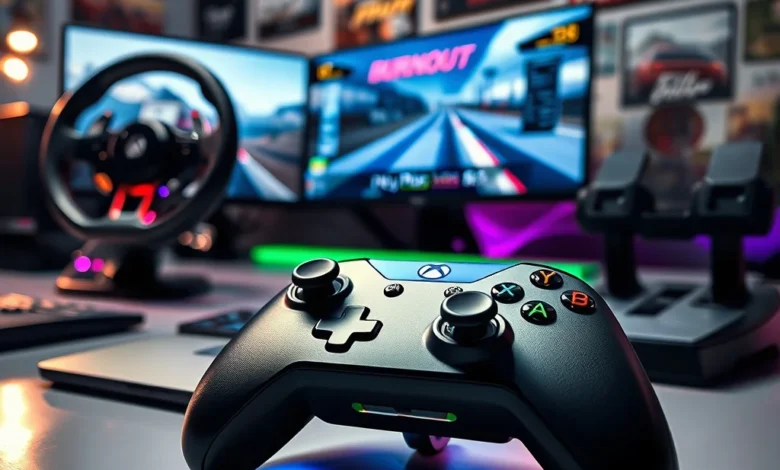
Burnout Paradise Remastered remains a benchmark for arcade-style racing games, blending high-octane action with accessible controls. Whether you’re drifting through Paradise City or smashing into rival racers, mastering your controller settings can transform your experience from frustrating to flawless. This guide breaks down every setting, from dead zones to sensitivity, to help you optimize your setup for precision, speed, and sheer adrenaline. We’ll explore PC and console-specific tweaks, advanced techniques, and troubleshooting tips to ensure your controller is always race-ready.
🎮 Why Controller Settings Matter in Burnout Paradise Remastered
Controller settings are the invisible bridge between player intention and in-game execution. In Burnout Paradise Remastered, where split-second decisions determine victory or defeat, even the smallest adjustments can mean the difference between a podium finish and a fiery wreck. The game’s arcade-style physics and aggressive AI reward players who can precisely control their vehicles, making input responsiveness critical.
Unlike simulation racers that demand hyper-realistic inputs, Burnout Paradise Remastered thrives on accessibility. Its controls are designed to feel responsive and intuitive, but this doesn’t mean default settings are optimal for everyone. Customization allows players to tailor the experience to their playstyle—whether you prefer a more forgiving setup for drifting or a razor-sharp configuration for high-speed collisions. Additionally, modern controllers like the Xbox Elite Series 2 or DualSense offer advanced remapping and sensitivity options that can elevate your gameplay to the next level.
🔥 Core Controller Settings Explained
The foundation of your setup lies in understanding the core controller settings. These include dead zones, sensitivity, vibration, and button layouts. Each plays a distinct role in how your inputs translate to in-game actions.
Dead zones determine how much movement is required before the game registers an input. Too high, and your controls feel sluggish; too low, and erratic inputs may occur. Sensitivity controls the speed at which your vehicle responds to stick movements—crucial for drifting and high-speed maneuvers. Vibration feedback can enhance immersion but may distract during intense races. Finally, button layouts should prioritize comfort and accessibility, especially for frequent actions like boosting or drifting.
- ✅ Dead Zone Adjustments: Start at 5-10% for steering and throttle. Increase only if you experience unintended inputs.
- 🎯 Sensitivity Settings: Lower values (50-70%) work best for precision driving, while higher values (80-100%) suit aggressive playstyles.
- ⚠️ Vibration Control: Disable vibration entirely if it feels distracting, or reduce intensity for better focus.
- 🔧 Button Remapping: Assign frequently used actions (e.g., boost, drift) to easily accessible buttons.
🛠️ Advanced Controller Customization
For players seeking a competitive edge, advanced customization is key. Modern controllers offer features like adjustable trigger stops, hair-trigger locks, and custom profiles that can fine-tune your setup. On PC, software like XInput Plus or DS4Windows allows for deeper remapping and sensitivity curves, while console players can leverage firmware updates and accessory settings.
One underrated feature is input smoothing, which can reduce the jarring feel of abrupt inputs during high-speed chases. Additionally, exponential sensitivity curves can make subtle adjustments feel more natural, while linear curves provide direct, predictable responses. Experiment with these settings in practice modes before diving into online races.
🖥️ PC Controller Settings: Optimizing for Performance
Playing Burnout Paradise Remastered on PC offers unparalleled flexibility, especially when it comes to controller settings. Unlike console versions, PC players can leverage third-party software to remap inputs, adjust dead zones, and fine-tune sensitivity with surgical precision. This section covers the best practices for PC controller setups, including software recommendations and hardware considerations.
🖱️ Recommended Software for Controller Customization
Several programs stand out for their ability to enhance controller functionality on PC. XInput Plus is a fan favorite for Xbox controllers, offering granular control over dead zones, sensitivity, and button layouts. DS4Windows is the go-to for PlayStation DualSense controllers, providing similar customization options along with advanced macros and input delays. For those using older controllers, AntiMicroX offers a versatile solution for remapping inputs to any device.
These programs also allow players to create multiple profiles, each tailored to different racing styles. For example, a profile optimized for drifting will prioritize slower, more controlled steering inputs, while a profile for high-speed races will emphasize quick, responsive turns. Additionally, software like InputMapper can help calibrate your controller’s analog sticks, ensuring they register inputs accurately across their full range.
- ✅ XInput Plus: Best for Xbox controllers; supports advanced dead zone and sensitivity adjustments.
- 🎯 DS4Windows: Ideal for PlayStation controllers; offers macros and input delay customization.
- ⚠️ AntiMicroX: A versatile option for non-standard controllers; supports extensive remapping.
- 🔧 InputMapper: Focuses on calibration and analog stick precision.
⚙️ Hardware Considerations for PC Players
The quality of your controller significantly impacts your performance in Burnout Paradise Remastered. While entry-level controllers like the Xbox 360 or DualShock 4 work well, premium options like the Xbox Elite Series 2 or DualSense Edge offer features that can give you an edge. Adjustable paddles, customizable triggers, and swappable thumbsticks allow for a level of personalization that stock controllers simply can’t match.
For wired vs. wireless controllers, consider latency and battery life. Wired controllers eliminate input lag, which is critical for competitive play, while wireless options provide greater freedom of movement. If you opt for a wireless controller, ensure it uses a 2.4GHz connection for minimal latency. Additionally, invest in a controller with a hall-effect joystick, as these are more durable and precise than traditional potentiometer-based sticks.

🎮 Button Layout Optimization for PC
A well-optimized button layout can streamline your gameplay, allowing you to focus on the road rather than fumbling with controls. In Burnout Paradise Remastered, the most critical actions are boosting, drifting, and using weapons. Assigning these to easily accessible buttons (e.g., triggers, paddles, or face buttons) can significantly improve your reaction time.
For Xbox controllers, the rear paddles are ideal for boosting or drifting, leaving your thumbs free for steering and throttle. PlayStation controllers can utilize the touchpad or side buttons for secondary actions. Avoid cluttering your layout with seldom-used functions—prioritize speed and accessibility over unnecessary customization.
Here’s a recommended layout for a standard controller:
- ✅ Left Stick: Steering
- 🎯 Right Stick: Camera control (if enabled)
- ⚠️ Left/Right Triggers: Throttle/Brake
- 🔧 A Button: Boost
- 🔥 B Button: Drift
- 🛠️ X/Y Buttons: Weapon selection
- ⚡ Paddles (if available): Boost or Drift (for advanced setups)
🎮 Console Controller Settings: PlayStation and Xbox
Console players may have fewer customization options than PC players, but Burnout Paradise Remastered still offers plenty of ways to optimize your controller. Both PlayStation and Xbox consoles provide built-in settings for dead zones, sensitivity, and vibration, along with firmware updates that can enhance performance. This section covers the best practices for tuning your controller on PlayStation 4/5 and Xbox One/Series X|S.
🎮 Xbox Controller Settings
The Xbox controller is a natural fit for Burnout Paradise Remastered, offering responsive inputs and a layout designed for third-party games. On Xbox One and Series X|S, you can adjust dead zones, sensitivity, and vibration through the console’s settings menu. For more advanced customization, the Xbox Accessories app allows you to reconfigure buttons, adjust trigger stops, and create multiple profiles.
To access controller settings on Xbox:
- Navigate to Settings > Devices & connections > Accessories.
- Select your controller and choose Configure.
- Adjust dead zones, sensitivity, and button mappings as needed.
For competitive play, disable vibration to reduce distractions and increase dead zones slightly to avoid accidental inputs. If you’re using the Xbox Elite Series 2, take advantage of its paddles for boosting or drifting, freeing up your thumbs for more precise steering.
- ✅ Dead Zone: 10-15% for steering; 5-10% for triggers.
- 🎯 Sensitivity: 60-80% for balanced handling; 80-100% for aggressive play.
- ⚠️ Vibration: Disable entirely for competitive play or reduce intensity by 50%.
- 🔧 Button Layout: Use paddles for boosting or drifting; assign weapons to face buttons.
🎮 PlayStation Controller Settings
PlayStation controllers, particularly the DualShock 4 and DualSense, offer a unique blend of responsiveness and immersion. On PlayStation 4 and 5, you can adjust dead zones, sensitivity, and vibration through the Settings > Devices > Controllers menu. For deeper customization, DS4Windows (on PC) or the PlayStation App (on mobile) can help remap inputs and fine-tune performance.
To access controller settings on PlayStation:
- Go to Settings > Devices > Controllers > Controller Settings.
- Adjust dead zones, sensitivity, and vibration intensity.
- Enable or disable features like Vibration Feedback or Analog Stick Response.
For competitive racing, reduce vibration to zero and increase dead zones slightly to prevent accidental inputs. The DualSense’s adaptive triggers can simulate the resistance of a brake pedal, adding a layer of immersion, but competitive players may prefer to disable this feature for consistency.
- ✅ Dead Zone: 10-15% for steering; 5-10% for triggers.
- 🎯 Sensitivity: 60-80% for balanced handling; 80-100% for aggressive play.
- ⚠️ Vibration: Disable entirely for competitive play or reduce intensity by 50%.
- 🔧 Button Layout: Use the touchpad or side buttons for secondary actions; assign weapons to face buttons.
🔥 Advanced Techniques for Competitive Racing
For players aiming to dominate in online races or leaderboard challenges, advanced controller techniques can provide a significant advantage. These strategies go beyond basic settings, focusing on input timing, muscle memory, and adaptive playstyles. Whether you’re mastering the art of chaining boosts or executing perfect drifts, these techniques will elevate your gameplay.
🚀 Boost Management and Chaining
Boost management is the cornerstone of competitive racing in Burnout Paradise Remastered. The game’s boost system rewards precision and timing, allowing players to chain boosts for maximum speed. To master this technique, focus on these key principles:
- ✅ Boost Timing: Activate boost just before a turn to maintain speed through the apex.
- 🎯 Boost Chaining: After your first boost ends, immediately press the boost button again to chain the next boost seamlessly.
- ⚠️ Boost Conservation: Avoid overusing boost during straightaways; save it for corners and overtaking maneuvers.
- 🔧 Boost Recovery: After a collision or near-miss, quickly regain control and resume boosting to minimize lost time.
Boost chaining is especially effective on tracks with long straightaways, such as Arcade Island or Big Surf Island. Practice in Time Trial mode to get a feel for the timing and spacing of your boosts. Over time, you’ll develop muscle memory that allows you to chain boosts instinctively, even in high-pressure races.
💨 Drifting for Maximum Speed
Drifting is more than just a stylish maneuver in Burnout Paradise Remastered—it’s a key technique for maintaining speed through corners and avoiding slower traffic. The game’s drifting system rewards players who can balance throttle control with precise steering inputs. To drift effectively, follow these steps:
- Initiate the Drift: As you approach a turn, reduce your speed slightly and turn sharply into the corner.
- Engage the Drift: Pull back on the right stick (on PlayStation) or hold the drift button (on Xbox) to initiate the drift.
- Maintain the Drift: Adjust your steering inputs to keep the drift stable. Use the throttle to control your speed—less throttle will tighten the drift, while more throttle will widen it.
- Exit the Drift: As you approach the apex of the turn, straighten your steering and reduce the drift angle to regain full control.
Mastering drifting requires practice, especially in tight corners like those found on Palm Bay Heights or Sunset Heights. Experiment with different drift angles and throttle levels to find the sweet spot that works for your playstyle. Over time, you’ll develop a feel for when to drift and when to power through a turn with a simple turn-and-boost maneuver.
🎯 Weapon Timing and Positioning
Weapons are a double-edged sword in Burnout Paradise Remastered. Used correctly, they can help you overtake opponents or defend your position; used poorly, they can waste valuable time or even backfire. The key to effective weapon use lies in timing, positioning, and strategic planning.
Here’s a breakdown of when and how to use each weapon:
- ✅ Machine Gun: Use in straightaways to damage opponents ahead of you. Aim for their rear bumper to maximize impact.
- 🎯 Missile: Ideal for targeting racers in front of you who are speeding away. Fire when they’re in a straight line for maximum accuracy.
- ⚠️ EMP: Best used when you’re close to a pack of racers. It temporarily disables their boost, allowing you to gain ground.
- 🔧 Shockwave: Deployed in tight corners or near obstacles to create chaos. Use it to block opponents or force them into a spin.
- ⚡ Orbital: The most powerful weapon; save it for critical moments when you need to overtake or escape a dangerous situation.
Positioning is just as important as timing. Always keep an eye on the track ahead and your opponents’ positions. If you’re in the lead, focus on maintaining your speed and avoiding collisions. If you’re trailing, use weapons to create space or force opponents into defensive positions. Avoid using weapons in the final stretch of a race unless absolutely necessary—every second counts when you’re fighting for the lead.
🛠️ Troubleshooting Common Controller Issues
Even the most meticulously optimized controller setup can encounter issues. Whether you’re dealing with input lag, drifting, or unresponsive buttons, troubleshooting is essential to maintaining peak performance. This section covers the most common controller problems in Burnout Paradise Remastered and how to resolve them.
🐌 Input Lag and Latency
Input lag can be a nightmare in a fast-paced racing game, turning precise maneuvers into sluggish reactions. If you’re experiencing input lag, start by checking your connection. For wireless controllers, ensure you’re using a 2.4GHz connection to minimize latency. Wired controllers should use high-quality USB cables to avoid signal interference.
On PC, disable background apps and services that may consume resources. For console players, try resetting your network connection or restarting your console to clear any temporary glitches. If the issue persists, update your controller’s firmware or try a different controller to rule out hardware defects.
- ✅ Check Connection: Use a wired connection for wireless controllers; ensure USB cables are high-quality.
- 🎯 Update Firmware: Regularly update your controller’s firmware to ensure compatibility and performance.
- ⚠️ Disable Background Apps: Close unnecessary apps on PC to reduce resource consumption.
- 🔧 Reset Controller: Disconnect and reconnect your controller; reset it to default settings if needed.
🌀 Drifting Problems and Unresponsive Inputs
If your drifts feel sluggish or your inputs aren’t registering, the issue likely lies in your controller settings. Start by adjusting the dead zone for your steering stick—too high, and your drifts will feel delayed; too low, and accidental inputs may occur. On PC, use software like XInput Plus or DS4Windows to fine-tune dead zones and sensitivity.
For console players, check the controller’s analog stick calibration through the console’s settings menu. If the sticks are worn or dirty, clean them with a soft cloth and isopropyl alcohol. In extreme cases, the analog stick may need replacement, especially if it’s exhibiting drift (where the stick registers movement without user input).
🔋 Battery Drain and Connection Drops
Wireless controllers are convenient but can suffer from battery drain and connection drops. To maximize battery life, disable features like vibration and Bluetooth connectivity when not in use. On PlayStation controllers, enable Power Saving Mode in the controller settings to conserve battery. For Xbox controllers, use the Xbox Accessories app to adjust power settings and disable unnecessary features.
If your controller keeps disconnecting, try moving closer to the console or using a USB cable for a stable connection. Interference from other wireless devices can also cause issues—try turning off Wi-Fi or other Bluetooth devices in the vicinity. If the problem persists, consider replacing the controller’s batteries or using rechargeable batteries with a high capacity.
- ✅ Disable Vibration: Reduce battery consumption by turning off vibration feedback.
- 🎯 Enable Power Saving: Use built-in power-saving modes on PlayStation and Xbox controllers.
- ⚠️ Check for Interference: Move closer to the console or turn off other wireless devices.
- 🔧 Replace Batteries: Use high-capacity rechargeable batteries to extend playtime.
🎮 Controller Settings for Different Playstyles
Burnout Paradise Remastered offers a variety of playstyles, from casual cruising to competitive racing. Each playstyle demands a unique approach to controller settings. Whether you prefer drifting, high-speed chases, or weapon-focused gameplay, tailoring your setup to your strengths can give you a significant advantage. This section explores the best settings for different playstyles and how to adapt them as you progress through the game.
🏁 Casual and Beginner-Friendly Settings
If you’re new to Burnout Paradise Remastered or prefer a more relaxed experience, focus on settings that prioritize comfort and accessibility. Start with moderate dead zones and sensitivity to reduce accidental inputs. Disable vibration to minimize distractions and assign commonly used actions (e.g., boosting, drifting) to easily accessible buttons.
For beginners, the default controller layout is a great starting point. Experiment with sensitivity settings to find a balance between responsiveness and control. Avoid overly aggressive setups—your goal should be to enjoy the game without feeling overwhelmed by the controls.
- ✅ Dead Zones: 10-15% for steering; 5-10% for triggers.
- 🎯 Sensitivity: 60-70% for balanced handling.
- ⚠️ Vibration: Disable entirely or reduce intensity by 50%.
- 🔧 Button Layout: Use default assignments; prioritize comfort over customization.
🔥 Competitive and Aggressive Settings
Competitive players need razor-sharp controls and minimal input lag. For aggressive playstyles, reduce dead zones to 5-10% for steering and sensitivity to 80-100%. This setup maximizes responsiveness, allowing for quick turns and precise drifts. Disable vibration entirely and assign boosting or drifting to paddles or rear buttons for faster access.
On PC, use software like XInput Plus or DS4Windows to fine-tune your setup. Experiment with input curves—exponential curves can provide more natural responses during high-speed maneuvers. Save your competitive profile and switch to it before jumping into online races or leaderboard challenges.
- ✅ Dead Zones: 5-10% for steering; 0-5% for triggers.
- 🎯 Sensitivity: 80-100% for maximum responsiveness.
- ⚠️ Vibration: Disable entirely.
- 🔧 Button Layout: Assign boosting/drifting to paddles or rear buttons; remap weapons for quick access.
💨 Drifting-Focused Settings
Drifting specialists should prioritize controlled inputs and precise throttle management. Increase dead zones slightly to 10-15% for steering to reduce accidental inputs during tight corners. Set sensitivity to 60-70% for balanced handling, and assign drifting to a rear button or paddle for quick activation. Experiment with throttle control to find the right balance between speed and stability.
For drifting, the key is consistency. Practice in Time Trial mode to develop muscle memory for initiating and maintaining drifts. Adjust your throttle inputs based on the angle of your drift—less throttle tightens the drift, while more throttle widens it. Over time, you’ll develop a feel for the perfect drift angle and throttle level for any corner.
- ✅ Dead Zones: 10-15% for steering; 5% for triggers.
- 🎯 Sensitivity: 60-70% for balanced handling.
- ⚠️ Vibration: Disable entirely to avoid distractions.
- 🔧 Button Layout: Assign drifting to a paddle or rear button; use face buttons for weapons.
📊 Controller Settings Comparison: PC vs. Console
While the core principles of controller optimization remain the same across platforms, PC and console players enjoy different levels of customization and hardware options. This section compares the advantages and limitations of each platform, helping you decide which setup is right for your playstyle.
| Setting | PC | Console (PlayStation/Xbox) |
|---|---|---|
| Customization Options | Extensive (XInput Plus, DS4Windows, AntiMicroX) | Limited (Built-in settings, firmware updates) |
| Button Remapping | Full support | Basic support (Xbox Accessories app, PlayStation App) |
| Dead Zone Adjustment | Granular control | Basic adjustment |
| Sensitivity Curves | Exponential and linear options | Linear only |
| Hardware Options | Premium controllers (Elite Series 2, DualSense Edge) | Standard controllers (DualShock 4, Xbox One/Series) |
| Input Lag | Minimal with wired controllers | Slightly higher with wireless controllers |
| Firmware Updates | Not applicable | Regular updates for performance and compatibility |
PC Advantages: The sheer depth of customization available on PC is unmatched. Players can fine-tune every aspect of their controller, from dead zones to sensitivity curves, using third-party software. Premium controllers like the Xbox Elite Series 2 offer features like paddles, customizable triggers, and swappable thumbsticks, which can provide a competitive edge. Additionally, wired connections eliminate input lag, making PC the ideal platform for competitive racing.
Console Advantages: Console players benefit from plug-and-play simplicity. While customization options are limited, firmware updates and accessory apps provide enough flexibility to optimize your setup. Console controllers are also designed specifically for gaming, with ergonomic layouts and responsive inputs. For players who prefer a hassle-free experience, consoles offer a reliable and consistent setup.
🏁 Final Verdict: Optimizing Your Controller for Burnout Paradise Remastered
Burnout Paradise Remastered is a game that rewards precision, adaptability, and a well-optimized controller setup. Whether you’re a casual player or a competitive racer, tailoring your settings to your playstyle can transform your experience from frustrating to flawless. By focusing on dead zones, sensitivity, button layouts, and advanced techniques, you can unlock the full potential of your controller and dominate the streets of Paradise City.
The key to mastering Burnout Paradise Remastered lies in experimentation. Start with default settings, make incremental adjustments, and test your setup in practice modes before jumping into races. Save multiple profiles for different playstyles, and don’t be afraid to revisit your settings as you improve your skills. With the right configuration, you’ll find that your controller becomes an extension of your hands, allowing you to drift, boost, and smash your way to victory.
For competitive players, we recommend investing in a premium controller with advanced customization options. The Xbox Elite Series 2 and DualSense Edge offer features that can give you a significant advantage, such as paddles for boosting or drifting and swappable thumbsticks for different playstyles. On PC, third-party software like XInput Plus or DS4Windows provides unparalleled flexibility, allowing you to fine-tune every aspect of your controller.
Ultimately, the best controller settings are the ones that feel right for you. There’s no one-size-fits-all solution—what works for a drifting specialist may not suit a high-speed chaser. Take the time to explore your options, experiment with different setups, and most importantly, have fun. Burnout Paradise Remastered is a game that thrives on accessibility and excitement, so don’t let suboptimal settings hold you back from experiencing all it has to offer.
❓ Frequently Asked Questions
- What are the best controller settings for drifting in Burnout Paradise Remastered?
For drifting, increase your dead zone to 10-15% for steering to reduce accidental inputs. Set sensitivity to 60-70% for balanced handling, and assign drifting to a paddle or rear button for quick activation. Practice in Time Trial mode to develop muscle memory for initiating and maintaining drifts.
- How can I reduce input lag on PC?
To reduce input lag on PC, use a wired controller with a high-quality USB cable. Disable background apps and services that may consume resources, and update your controller’s firmware. Additionally, ensure your graphics settings are optimized to minimize CPU/GPU bottlenecks.
- Is it better to use a wired or wireless controller for competitive play?
For competitive play, a wired controller is ideal due to its minimal input lag. Wireless controllers can introduce slight delays, especially if they’re connected via Bluetooth. If you prefer wireless, ensure you’re using a 2.4GHz connection for the best performance.
- How do I remap buttons on my Xbox or PlayStation controller?
On Xbox, use the Xbox Accessories app to remap buttons and adjust dead zones. On PlayStation, use the PlayStation App or DS4Windows (on PC) to customize your layout. Both platforms support basic remapping, but PC players enjoy more advanced options.
- What’s the best sensitivity setting for high-speed racing?
For high-speed racing, set sensitivity to 80-100% for maximum responsiveness. This setup allows for quick turns and precise maneuvers, but it requires practice to avoid oversteering. Start with lower sensitivity (60-70%) if you’re new to the game, then gradually increase as you become more comfortable.
- How can I fix drifting problems with my controller?
If your drifts feel sluggish, check your dead zone settings—too high, and your inputs will feel delayed. Clean your analog sticks with a soft cloth and isopropyl alcohol, or consider replacing them if they’re worn. On PC, use software like XInput Plus or DS4Windows to fine-tune your dead zones and sensitivity.
- Should I disable vibration during races?
Disabling vibration is recommended for competitive play, as it can distract you during intense races. If you enjoy the immersion, reduce the intensity by 50% to minimize distractions while still feeling the feedback.
- What’s the best way to chain boosts in Burnout Paradise Remastered?
To chain boosts, activate your first boost just before a turn, then immediately press the boost button again as it ends. Practice in Time Trial mode to get a feel for the timing and spacing of your boosts. Over time, you’ll develop muscle memory that allows you to chain boosts instinctively.
- Can I use a PlayStation controller on PC for Burnout Paradise Remastered?
Yes, you can use a PlayStation controller on PC, but you’ll need to install DS4Windows to ensure full compatibility. Enable the PlayStation Configuration Support in DS4Windows to optimize the controller’s performance for racing games.
- What’s the best controller for Burnout Paradise Remastered?
The best controller depends on your playstyle and platform. For PC players, the Xbox Elite Series 2 offers premium customization options like paddles and swappable thumbsticks. PlayStation players may prefer the DualSense Edge for its advanced features and ergonomic design. For console players, the default controllers (Xbox One/Series or DualShock 4/5) are more than sufficient for casual and competitive play.