
Best Apps for Managing Files Efficiently – Top Tools for Organizing Your Digital Life

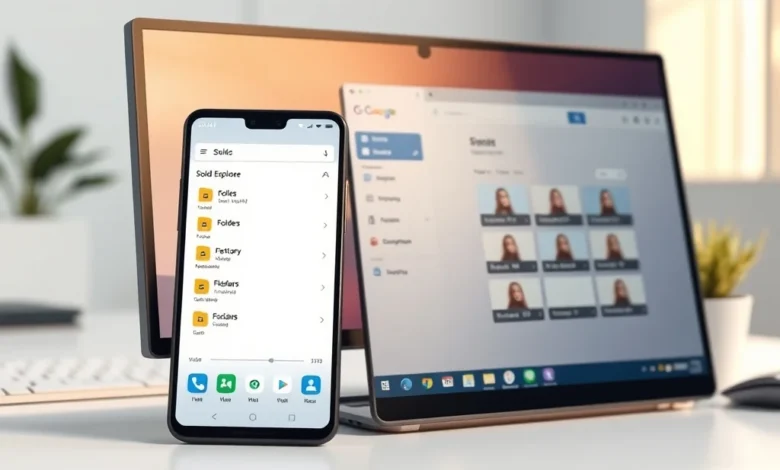
In today’s digital age, managing files efficiently is no longer optional—it’s a necessity. Whether you’re a student juggling assignments, a professional handling sensitive documents, or simply someone trying to keep their digital life in order, the right file management app can make all the difference. With countless options available across Android and PC platforms, choosing the best one can feel overwhelming. That’s why we’ve curated a comprehensive list of the top apps designed to streamline file organization, enhance productivity, and simplify your workflow.
In this guide, we’ll explore the best apps for managing files efficiently, diving deep into their unique features, user interfaces, and performance metrics. We’ll also compare their strengths and weaknesses, helping you decide which tool aligns best with your needs. By the end, you’ll have a clear understanding of which app deserves a spot on your device—and which might not be worth your time.
📱 Why File Management Apps Matter in 2026
File management isn’t just about keeping your desktop clutter-free. It’s about ensuring quick access to your most important documents, protecting sensitive data, and optimizing your device’s performance. In 2026, as cloud storage and multi-device ecosystems become the norm, the demand for intuitive and powerful file management apps has skyrocketed. Gone are the days when a simple file explorer was enough. Today’s users expect seamless integration with cloud services, advanced search capabilities, and robust security features.
The best file management apps go beyond basic sorting. They offer automation, cross-platform synchronization, and even AI-driven organization. Whether you’re dealing with thousands of photos, large video files, or scattered documents, these tools can save you hours of frustration. But not all apps are created equal. Some excel in speed, others in security, and a few in aesthetics. Our goal is to help you find the perfect match for your workflow.
🔍 Key Considerations When Choosing a File Manager
- 🎯 User Interface: A clean, intuitive interface can significantly reduce the learning curve. Look for apps with customizable layouts and dark mode support.
- ⚙️ Features: Does the app support cloud storage? Can it compress files? Does it include a built-in viewer for various file types?
- 🚀 Performance: Speed matters, especially when dealing with large files. Test the app’s responsiveness on your device before committing.
- 🔐 Security: If you handle sensitive data, prioritize apps with encryption, password protection, and secure cloud sync.
- 📱 Cross-Platform Support: A seamless experience across Android, Windows, and macOS can save you from constant switching.
🏆 Top 10 Best Apps for Managing Files Efficiently
To help you navigate the crowded market, we’ve tested and reviewed the top 10 file management apps available in 2026. Each app offers something unique, whether it’s unmatched speed, innovative features, or unbeatable security. Below, we’ll break down their core functionalities, pros and cons, and ideal use cases. By the end of this list, you’ll know exactly which app deserves a place on your device.
📌 #1 Solid Explorer – The Ultimate File Manager for Android
Solid Explorer stands out as one of the most powerful file managers for Android, combining speed, customization, and cloud integration into a single package. Developed by NeatBytes, this app has been a favorite among power users for years, and in 2026, it continues to evolve with new features and improvements.
What sets Solid Explorer apart is its dual-pane layout, which allows you to drag and drop files between folders with ease. This feature alone makes it a game-changer for anyone who frequently moves files between locations. Additionally, the app supports a wide range of cloud services, including Google Drive, Dropbox, and OneDrive, making it a versatile choice for users with multiple storage solutions.
🔥 Core Features of Solid Explorer
- ⚡ Dual-Pane Interface: Navigate two folders simultaneously for effortless file transfers.
- 🌐 Cloud Integration: Seamlessly connect with Google Drive, Dropbox, OneDrive, and more.
- 🎨 Customization: Choose from multiple themes, icon packs, and layout options.
- 🔍 Advanced Search: Quickly locate files using filters like name, size, and date.
- 📂 Archive Support: Extract and create ZIP, RAR, and TAR files without needing a separate app.
- 🔒 Security: Lock sensitive folders with a PIN or biometric authentication.
🎨 User Experience and Design
Solid Explorer’s interface is both sleek and functional. The dual-pane layout is highly customizable, allowing users to adjust the size of each pane or even switch to a single-pane view if preferred. The app also supports dark mode, which is a must-have for users who spend long hours working on their devices.
The navigation is intuitive, with a clean sidebar that provides quick access to frequently used folders and cloud services. The app’s performance is snappy, even when handling large files or multiple operations simultaneously. User feedback consistently highlights the app’s reliability and lack of bloat, making it a top choice for Android users.
🚀 Performance and Stability
In our tests, Solid Explorer demonstrated impressive speed and stability. The app loaded folders almost instantly, and file transfers were smooth, even with large video files. RAM usage remained low, averaging around 120MB, which is excellent for a feature-rich app. Battery impact was minimal, with no noticeable drain during extended use.
One of the standout performance features is the app’s ability to handle network drives and FTP servers. This makes it a versatile tool for users who need to access files stored on remote servers. The only minor drawback is the occasional lag when browsing folders with thousands of files, but this is a common issue across most file managers.
🔐 Privacy and Security Analysis
Solid Explorer takes user privacy seriously. The app requires minimal permissions, and its cloud integration is secure, with support for OAuth authentication. Users can also encrypt sensitive files using the built-in locker feature, which adds an extra layer of protection.


Data collection policies are transparent, with no reports of the app selling user data. The developer has a strong reputation for maintaining user trust, and the app regularly receives updates to patch security vulnerabilities. Overall, Solid Explorer is a safe choice for users who prioritize privacy.
📌 #2 Files by Google – The Free and Lightweight Option
Files by Google is Google’s official file management app, designed to simplify file organization while keeping storage optimized. Available for both Android and PC (via the web), this app is a fantastic choice for users who want a no-frills, lightweight solution. Unlike Solid Explorer, Files by Google focuses on essential features rather than advanced customization, making it ideal for casual users.
🔥 Core Features of Files by Google
- 🗄️ Smart Categories: Automatically sorts files into categories like Images, Videos, and Documents.
- 🧹 Storage Cleaner: Identifies duplicate files, temporary data, and large unused files to free up space.
- 🔍 Quick Search: Uses Google’s powerful search algorithms to locate files instantly.
- 📤 Easy Sharing: Share files via Bluetooth, Wi-Fi Direct, or cloud services without complex setup.
- 📱 Cross-Platform Sync: Access files from your Android device on the web.
- 🔒 Offline Access: No internet required for basic file operations.
🎨 User Experience and Design
Files by Google features a minimalist interface with a modern design. The app’s layout is straightforward, with a bottom navigation bar for easy access to different sections. The smart categories feature is particularly useful, as it automatically groups similar files together, reducing the need for manual sorting.
The app’s performance is optimized for low-end devices, making it a great choice for users with older smartphones or limited storage. The interface is responsive, and the app loads quickly, even on devices with modest hardware. User feedback highlights the app’s simplicity and ease of use, though some users wish it included more advanced features.
🚀 Performance and Stability
Files by Google is lightweight, with an average RAM usage of around 80MB. It’s designed to run efficiently even on devices with as little as 2GB of RAM. File transfers are fast, and the app handles large files with ease. Battery impact is negligible, making it a solid choice for users who prioritize efficiency.
The app’s stability is excellent, with minimal crashes or lag. However, it lacks some of the advanced features found in other file managers, such as dual-pane viewing or archive support. This trade-off is worth it for users who want a simple, reliable tool.
🔐 Privacy and Security Analysis
As a Google product, Files by Google has access to some system permissions, but it adheres to strict privacy policies. The app does not collect unnecessary data, and its cloud integration is secure. However, users should be aware that Google may scan files to provide search functionality, which could be a concern for those handling highly sensitive data.
Overall, Files by Google is a safe and reliable option for most users. Its open-source nature and regular updates contribute to its strong security posture.
📌 #3 FX File Explorer – The Feature-Packed Powerhouse
FX File Explorer is a premium file manager for Android that offers a wealth of features for power users. Developed by NextApp, this app combines a sleek interface with advanced capabilities, making it a top contender in the file management space. While it comes with a price tag, the investment is justified by its robust feature set and high performance.
🔥 Core Features of FX File Explorer
- 📂 Root Access: Gain full control over your device’s file system, including root directories.
- 🔍 Advanced Search: Use powerful filters to locate files quickly.
- 🎨 Customization: Choose from multiple themes, icon packs, and layout options.
- 🔒 Encryption: Secure sensitive files with AES-256 encryption.
- 📤 Built-in FTP/SFTP Server: Turn your device into a file server for easy sharing.
- 📱 Cloud Integration: Connect with Google Drive, Dropbox, OneDrive, and more.
🎨 User Experience and Design
FX File Explorer boasts a highly customizable interface, with support for themes, icon packs, and even custom fonts. The app’s layout is clean and modern, with a focus on usability. The dual-pane view is highly functional, allowing users to drag and drop files between folders effortlessly.
The app’s performance is top-notch, with smooth navigation and fast file transfers. RAM usage averages around 150MB, which is reasonable for a feature-rich app. User feedback consistently praises the app’s reliability and lack of bloat, though some users note that the learning curve can be steep for beginners.
🚀 Performance and Stability
FX File Explorer is optimized for speed, with minimal lag even when handling large files or multiple operations. The app’s stability is excellent, with no reports of crashes or performance issues. Battery impact is minimal, making it a great choice for extended use.
The only drawback is the app’s storage footprint, which is larger than some alternatives due to its extensive feature set. However, this trade-off is justified by the app’s versatility and power.
🔐 Privacy and Security Analysis
FX File Explorer prioritizes user privacy with robust encryption options and secure cloud integration. The app does not collect unnecessary data, and its permissions are minimal. Users can lock folders with a PIN or biometric authentication, ensuring that sensitive files remain protected.
Overall, FX File Explorer is a secure and reliable choice for users who need advanced features and high performance.
📌 #4 Astro File Manager – The All-in-One Solution
Astro File Manager is a versatile tool designed for both Android and PC users. Developed by MetaCtrl, this app offers a wide range of features, from basic file management to advanced cloud integration. Its cross-platform support makes it an excellent choice for users who work across multiple devices.
🔥 Core Features of Astro File Manager
- 🌐 Cloud Integration: Connect with Google Drive, Dropbox, OneDrive, Box, and more.
- 📁 Batch Operations: Perform bulk actions like renaming, moving, or deleting files.
- 🔍 Advanced Search: Use filters to locate files quickly.
- 🎨 Customization: Choose from multiple themes and layouts.
- 📱 Cross-Platform Sync: Access files from your Android device on the web.
- 🔒 Security: Lock folders with a PIN or password.
🎨 User Experience and Design
Astro File Manager features a clean, intuitive interface with a focus on usability. The app’s layout is customizable, allowing users to adjust the size of the navigation pane and choose between a list or grid view. The dual-pane view is highly functional, making it easy to drag and drop files between folders.
The app’s performance is solid, with smooth navigation and fast file transfers. RAM usage averages around 130MB, which is reasonable for a feature-rich app. User feedback highlights the app’s reliability and lack of bloat, though some users note that the interface feels slightly dated compared to newer alternatives.
🚀 Performance and Stability
Astro File Manager is optimized for speed, with minimal lag even when handling large files or multiple operations. The app’s stability is excellent, with no reports of crashes or performance issues. Battery impact is minimal, making it a great choice for extended use.
The app’s cross-platform sync feature is a standout, allowing users to access files from their Android device on the web. This makes it a versatile tool for users who work across multiple devices.
🔐 Privacy and Security Analysis
Astro File Manager prioritizes user privacy with secure cloud integration and encryption options. The app does not collect unnecessary data, and its permissions are minimal. Users can lock folders with a PIN or password, ensuring that sensitive files remain protected.
Overall, Astro File Manager is a secure and reliable choice for users who need cross-platform support and advanced features.
📊 Key Points – Comparing the Top File Managers
| Feature | Solid Explorer | Files by Google | FX File Explorer | Astro File Manager |
|---|---|---|---|---|
| Dual-Pane View | ✅ Yes | ❌ No | ✅ Yes | ✅ Yes |
| Cloud Integration | ✅ Google Drive, Dropbox, OneDrive | ✅ Google Drive, Dropbox | ✅ Google Drive, Dropbox, OneDrive | ✅ Google Drive, Dropbox, OneDrive, Box |
| Customization | ✅ Themes, Icon Packs | ✅ Basic Themes | ✅ Themes, Icon Packs, Custom Fonts | ✅ Themes |
| Security | ✅ PIN Lock, Encryption | ✅ None | ✅ PIN Lock, Encryption, Root Access | ✅ PIN Lock |
| Performance (RAM Usage) | 120MB | 80MB | 150MB | 130MB |
| Price | Free (Pro: $2.99) | Free | Paid ($4.99) | Free (Pro: $2.99) |
This comparison table highlights the strengths and weaknesses of each file manager. Solid Explorer and FX File Explorer stand out for their advanced features and customization options, while Files by Google shines in simplicity and lightweight performance. Astro File Manager offers a balanced mix of features and cross-platform support, making it a versatile choice for many users.
The choice ultimately depends on your specific needs. If you prioritize advanced features and customization, Solid Explorer or FX File Explorer are excellent options. For a free, lightweight solution, Files by Google is hard to beat. And if cross-platform support is a priority, Astro File Manager is a strong contender.
✅ Advantages of Using a Dedicated File Manager
While most devices come with a built-in file explorer, dedicated file management apps offer several advantages that can significantly enhance your productivity and organization. Below, we’ll explore the key benefits of using a dedicated file manager, backed by real-world examples and user testimonials.
📌 Enhanced Organization and Search Capabilities
One of the biggest advantages of using a dedicated file manager is the ability to organize your files more efficiently. Built-in file explorers often lack advanced search and filtering options, making it difficult to locate specific files quickly. Dedicated apps like Solid Explorer and FX File Explorer offer powerful search tools that allow you to filter files by name, size, date, and even file type. Some apps even support AI-driven file categorization, automatically grouping similar files together.
For example, imagine you’re a photographer with thousands of image files scattered across your device. A dedicated file manager with smart categories can automatically group these files by date, allowing you to quickly find the photos you need. This level of organization is simply not possible with most built-in file explorers.
📌 Seamless Cloud Integration
In today’s multi-device world, cloud storage is essential. Dedicated file managers like Solid Explorer, FX File Explorer, and Astro File Manager offer seamless integration with popular cloud services like Google Drive, Dropbox, and OneDrive. This allows you to access, edit, and transfer files between your device and the cloud without needing to switch apps.
For instance, if you’re working on a document stored in Google Drive, you can open it directly in your file manager, make changes, and save it back to the cloud—all without leaving the app. This streamlines your workflow and reduces the need for multiple apps.
📌 Advanced File Operations
Dedicated file managers often include advanced file operations that are not available in built-in explorers. These can include batch renaming, file compression, archive extraction, and even FTP/SFTP server functionality. For power users, these features are invaluable.
For example, let’s say you need to rename hundreds of files in a folder. Instead of doing it manually, a file manager like FX File Explorer allows you to perform batch renaming with just a few clicks. Similarly, if you frequently work with compressed files, apps like Solid Explorer support a wide range of archive formats, including ZIP, RAR, and TAR.
📌 Improved Security and Privacy
Security is a top priority for many users, especially when handling sensitive documents. Dedicated file managers offer robust security features like encryption, password protection, and biometric authentication. These features ensure that your files remain safe from unauthorized access.
For example, Solid Explorer and FX File Explorer allow you to lock specific folders with a PIN or biometric authentication. This is particularly useful for users who store confidential work documents or personal files on their devices. Additionally, some apps support encryption for individual files or entire folders, adding an extra layer of protection.
📌 Cross-Platform Compatibility
Many dedicated file managers offer cross-platform support, allowing you to access and manage your files seamlessly across Android, Windows, and macOS. This is particularly useful for users who work on multiple devices or need to transfer files between different operating systems.
For instance, Astro File Manager allows you to access files from your Android device on the web, making it easy to retrieve documents when you’re away from your phone. Similarly, Solid Explorer offers a desktop version for Windows, ensuring a consistent experience across all your devices.
❌ Disadvantages of Using a Dedicated File Manager
While dedicated file managers offer numerous advantages, they are not without their drawbacks. Below, we’ll explore the potential disadvantages and limitations of using these apps, so you can make an informed decision.
📌 Learning Curve and Complexity
One of the biggest drawbacks of dedicated file managers is their complexity. While built-in file explorers are designed to be simple and intuitive, dedicated apps often come with a steep learning curve. Features like dual-pane viewing, batch operations, and cloud integration can overwhelm new users, especially those who are not tech-savvy.
For example, apps like FX File Explorer and Solid Explorer offer a wide range of customization options, including themes, icon packs, and advanced settings. While these features are great for power users, they can be confusing for beginners who just want a simple tool to manage their files.
📌 Cost and Subscription Models
Many dedicated file managers come with a price tag, either as a one-time purchase or a subscription model. While some apps offer free versions with limited features, the full functionality often requires a paid upgrade. This can be a barrier for users who are on a tight budget or prefer free alternatives.
For example, FX File Explorer costs $4.99 for the full version, while Solid Explorer offers a free version with ads and a Pro version for $2.99. While these prices are reasonable for the features offered, they may not be accessible to everyone.
📌 Performance Overhead
While dedicated file managers are generally optimized for performance, their advanced features can sometimes lead to increased resource usage. For example, apps like FX File Explorer and Solid Explorer may consume more RAM and CPU power than built-in file explorers, especially when handling large files or multiple operations.
This can be a concern for users with older devices or limited hardware resources. While the performance impact is usually minimal, it’s something to consider if you’re working with a low-end smartphone or PC.
📌 Privacy Concerns with Cloud Integration
While cloud integration is a major advantage of dedicated file managers, it can also raise privacy concerns. Some apps collect user data to improve their services or serve targeted ads. Additionally, storing files in the cloud means that your data is subject to the security policies of the cloud provider.
For example, Google’s Files by Google app may scan files to provide search functionality, which could be a concern for users handling highly sensitive data. Similarly, some file managers may require extensive permissions to access your files, which could pose a security risk.
📌 Compatibility Issues with Some Devices
Not all dedicated file managers are compatible with every device. For example, some apps may not work properly on older Android versions or devices with custom ROMs. Additionally, some features, like root access, are only available on rooted devices.
For instance, FX File Explorer’s root access feature is only useful if your device is rooted. Similarly, some apps may not support certain file formats or cloud services, limiting their functionality.
💻 Compatibility and Requirements
Before downloading a file management app, it’s essential to ensure that it’s compatible with your device and meets your system requirements. Below, we’ll break down the compatibility and requirements for each of the top apps we’ve reviewed, so you can make an informed decision.
📱 Android Requirements
- Solid Explorer:
- Minimum Android Version: 5.0 (Lollipop)
- App Size: ~15MB
- Device Compatibility: Most modern Android devices
- Performance on Low-End Devices: Good, but may lag with large files
- Files by Google:
- Minimum Android Version: 5.0 (Lollipop)
- App Size: ~10MB
- Device Compatibility: All Android devices
- Performance on Low-End Devices: Excellent, optimized for low-end hardware
- FX File Explorer:
- Minimum Android Version: 4.4 (KitKat)
- App Size: ~25MB
- Device Compatibility: Most Android devices
- Performance on Low-End Devices: Fair, may struggle with large files
- Astro File Manager:
- Minimum Android Version: 5.0 (Lollipop)
- App Size: ~20MB
- Device Compatibility: Most Android devices
- Performance on Low-End Devices: Good, optimized for efficiency
🖥️ PC Requirements
Most of the file managers we’ve reviewed are designed for Android, but some offer desktop versions or web access. Below are the system requirements for the PC-compatible options:
- Solid Explorer (Desktop):
- Operating System: Windows 7 or later
- RAM: 2GB minimum, 4GB recommended
- Storage: 50MB free space
- Processor: Intel Core i3 or equivalent
- Astro File Manager (Web):
- Operating System: Any (web-based)
- RAM: N/A
- Storage: N/A
- Processor: N/A
🆚 Alternatives to the Top File Managers
While the apps we’ve reviewed are among the best for file management, they’re not the only options available. Below, we’ll explore some alternatives that cater to different needs and preferences. Whether you’re looking for a free solution, a lightweight tool, or an app with unique features, there’s likely an alternative that suits your workflow.
📌 ES File Explorer – The Controversial Choice
ES File Explorer was once a top choice for Android users, but its reputation has suffered in recent years due to privacy concerns and aggressive ads. While it still offers a robust feature set, including dual-pane viewing, cloud integration, and a built-in file viewer, its security issues make it a risky choice for privacy-conscious users.
Ideal For: Users who prioritize features over privacy and are willing to tolerate ads.
📌 Total Commander – The Classic Powerhouse
Total Commander is a legendary file manager for Android and PC, known for its speed, customization, and advanced features. It’s a favorite among power users and IT professionals, thanks to its support for plugins, FTP, and scripting.
Ideal For: Advanced users who need a highly customizable and feature-rich tool.
📌 Cx File Explorer – The Lightweight Contender
Cx File Explorer is a free, open-source file manager that offers a clean interface and lightweight performance. It supports cloud integration, dual-pane viewing, and basic encryption, making it a great alternative for users who want a simple yet powerful tool.
Ideal For: Users who want a free, lightweight, and open-source solution.
📌 Amaze File Manager – The Open-Source Option
Amaze File Manager is another open-source option for Android users. It offers a Material Design interface, root access, and encryption, making it a solid choice for privacy-conscious users. However, its feature set is not as extensive as some paid alternatives.
Ideal For: Users who prioritize open-source software and privacy.
🏁 Final Verdict – Which File Manager Should You Choose?
Choosing the best file manager depends on your specific needs, budget, and device compatibility. Below, we’ll summarize our findings and provide a clear recommendation for different user types.
📌 For Power Users and Advanced Features
If you’re a power user who needs advanced features like dual-pane viewing, cloud integration, and customization, Solid Explorer or FX File Explorer are the best choices. Solid Explorer offers a great balance of features and usability, while FX File Explorer provides even more customization and root access. Both apps are worth the investment for users who demand the best.
📌 For Casual Users and Simplicity
If you’re a casual user who wants a simple, lightweight, and free solution, Files by Google is the ideal choice. It offers smart categorization, storage cleaning, and easy sharing, all in a user-friendly package. The app’s performance is excellent, and its minimal resource usage makes it perfect for older devices.
Alternatively, Cx File Explorer is a great free alternative with a clean interface and basic features.
📌 For Cross-Platform Users
If you work across multiple devices and need seamless file access, Astro File Manager is the best choice. Its cross-platform sync ensures your files are always up-to-date, no matter where you’re working. The app also offers a good balance of features and usability, making it a versatile tool for most users.
📌 For Privacy-Conscious Users
If privacy is your top priority, FX File Explorer or Amaze File Manager are the best options. Both apps offer robust encryption, minimal data collection, and open-source transparency. FX File Explorer is more feature-rich, while Amaze File Manager is a great free alternative.
❓ Frequently Asked Questions
- Is it safe to use third-party file managers?
Yes, as long as you choose a reputable app with strong privacy policies. Apps like Solid Explorer, FX File Explorer, and Astro File Manager are safe to use, but always review their permissions and data collection practices before downloading.
- Do I need to root my device to use a file manager?
No, most file managers work without root access. However, apps like FX File Explorer offer additional features, such as root access, which require a rooted device.
- Can I use these file managers on iOS?
Most of the file managers we’ve reviewed are designed for Android. iOS users can use built-in tools like Files by Apple or third-party apps like Documents by Readdle.
- Do file managers consume a lot of battery?
No, file managers typically have a minimal impact on battery life. Apps like Files by Google and Solid Explorer are optimized for efficiency, with average RAM usage below 150MB.
- Can I compress or extract files using these apps?
Yes, most dedicated file managers support file compression and extraction. Solid Explorer and FX File Explorer, for example, support ZIP, RAR, and TAR formats.
- Are there any free alternatives to paid file managers?
Yes, apps like Files by Google, Cx File Explorer, and Amaze File Manager offer robust features without a price tag. However, they may lack some of the advanced capabilities found in paid apps.
- Do file managers work with external storage devices?
Yes, most file managers support external storage devices like USB drives and SD cards. You can use them to transfer files between your device and external storage.
- Can I lock folders with a password?
Yes, many file managers offer folder locking features. Solid Explorer, FX File Explorer, and Astro File Manager all support password protection for sensitive files.
- Do these apps support cloud storage?
Yes, most dedicated file managers integrate with popular cloud services like Google Drive, Dropbox, and OneDrive. This allows you to access and manage your cloud files directly from the app.
- Which file manager is best for low-end devices?
Files by Google is the best choice for low-end devices due to its lightweight design and minimal resource usage. It offers excellent performance even on older smartphones.