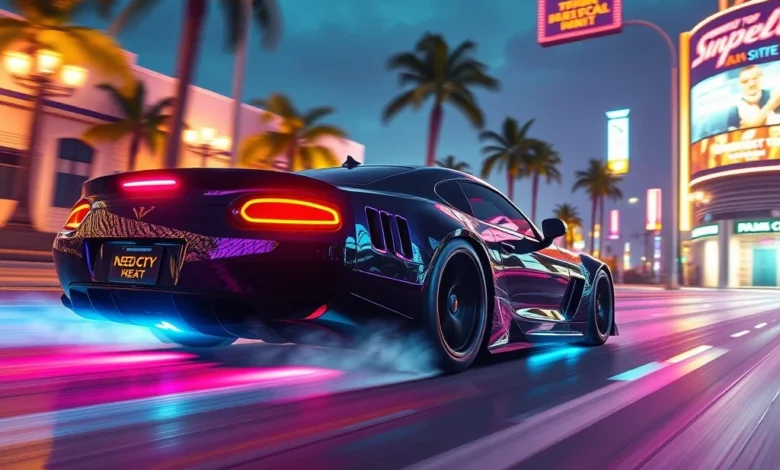
Need for Speed Heat delivers a thrilling open-world racing experience with dazzling visuals, but pushing those graphics settings to the max can sometimes come at the cost of smooth gameplay. Whether you’re racing on the streets of Palm City on your high-end gaming PC or enjoying the game on your Android device, optimizing the graphics settings is essential for the best possible experience. This comprehensive guide will walk you through every step of the process, from tweaking in-game settings to leveraging hardware-specific optimizations, ensuring you get the perfect balance between visual quality and performance.
In this article, we’ll cover:
- 🖥️ Best PC graphics settings for Need for Speed Heat, including FPS boosts and resolution scaling.
- 📱 Android graphics optimization tips to reduce lag and battery drain while maintaining visual fidelity.
- 🔧 Advanced tweaks for both platforms, such as driver settings, overclocking, and file modifications.
- ⚙️ Performance benchmarks comparing different hardware tiers to help you understand what to expect.
- 💡 Pro tips for troubleshooting common issues like stuttering, crashes, and overheating.
By the end of this guide, you’ll have a fully optimized setup that lets you enjoy Need for Speed Heat at its best, no matter what device you’re playing on.
🎮 Need for Speed Heat Overview: What Makes the Game Stand Out?
Need for Speed Heat is an open-world racing game developed by Ghost Games and published by Electronic Arts. Released in 2019, the game immerses players in the vibrant, neon-lit streets of Palm City, where they can engage in high-speed chases, customize their rides, and build a reputation as the ultimate street racer. The game features a dynamic day-night cycle, a variety of racing modes, and deep customization options that allow players to make their cars truly unique.
The game’s visual style is one of its standout features, blending realistic lighting, detailed car models, and dynamic weather effects to create an immersive racing environment. However, achieving this level of visual fidelity requires a decent amount of hardware power, especially on PC. For Android players, the challenge lies in balancing visual quality with the limitations of mobile hardware. This guide will help you navigate these challenges and get the most out of your gaming experience.
Genre: Open-world racing game
Release Date: November 8, 2019
Developer: Ghost Games
Publisher: Electronic Arts
Platforms: PC, PlayStation 4, Xbox One, Android
Target Audience: Racing enthusiasts, open-world fans, and players who enjoy customization and high-speed action
Why It Gained Attention: The game’s stunning visuals, dynamic day-night cycle, and deep customization options set it apart from other entries in the Need for Speed franchise.
🌟 Why Optimizing Graphics Settings Matters
Optimizing your graphics settings isn’t just about achieving higher frame rates—it’s about enhancing your overall gaming experience. Poorly configured settings can lead to:
- ⚠️ Stuttering and lag, which can ruin the immersion and make races feel sluggish.
- 🔋 Increased battery drain on mobile devices, reducing playtime and causing overheating.
- 🎮 Unplayable performance on low-end hardware, making it difficult to enjoy the game as intended.
- 🖥️ Crashes and graphical glitches, which can disrupt your progress and force you to restart races.
By optimizing your graphics settings, you can:
- ✅ Boost FPS for smoother gameplay, especially in high-stakes races.
- 🎯 Maintain visual quality by striking the right balance between detail and performance.
- ⚡ Reduce heat and battery consumption on Android devices.
- 🔧 Prevent crashes and glitches by ensuring your hardware isn’t overloaded.
The key is to find the sweet spot where your game looks stunning without sacrificing playability. In the sections below, we’ll dive into the specifics of optimizing Need for Speed Heat for both PC and Android, covering everything from basic settings adjustments to advanced tweaks.
🖥️ PC Graphics Optimization: Step-by-Step Guide
If you’re playing Need for Speed Heat on PC, you have the advantage of being able to fine-tune your graphics settings to match your hardware. Whether you have a high-end gaming rig or a mid-range setup, these steps will help you optimize the game for the best balance of visuals and performance.
🔥 Basic In-Game Settings for Maximum FPS
Before diving into advanced tweaks, start with the basics. Here’s how to adjust the in-game graphics settings for optimal performance:
| Setting | Recommended for Low-End PCs | Recommended for Mid-Range PCs | Recommended for High-End PCs |
|---|---|---|---|
| Resolution | 1280×720 (720p) | 1920×1080 (1080p) | 2560×1440 (1440p) or higher |
| Display Mode | Fullscreen | Fullscreen | Fullscreen |
| V-Sync | Disabled | Enabled (if needed) | Disabled (unless using G-Sync/FreeSync) |
| Anti-Aliasing | FXAA | TAA | TAA or SMAA |
| Texture Quality | Medium | High | Ultra |
| Shadow Quality | Low | Medium | High |
| Ambient Occlusion | Off | Low | Medium |
| Depth of Field | Off | Off | Off |
| Motion Blur | Off | Off | Off |
This table provides a starting point for optimizing your graphics settings based on your hardware. However, every PC is unique, so it’s important to experiment and find the right balance for your setup. For example, if you have a powerful GPU but a weaker CPU, you might need to prioritize CPU-heavy settings like shadow quality or draw distance over GPU-heavy settings like texture quality.

🚀 Advanced PC Tweaks for Better Performance
If you’ve adjusted the in-game settings and still aren’t satisfied with the performance, it’s time to dive into advanced tweaks. These methods can give you an extra boost in FPS and overall smoothness.
🎮 Adjusting NVIDIA and AMD Graphics Settings
Most PC players will be using either an NVIDIA or AMD GPU, and both offer control panels that allow you to override the game’s settings for better performance. Here’s how to optimize them:
For NVIDIA Users:
- 🔹 Open the NVIDIA Control Panel by right-clicking on your desktop and selecting “NVIDIA Control Panel.”
- 🔹 Navigate to “Manage 3D Settings” and select “Program Settings.”
- 🔹 Click “Add” and locate the Need for Speed Heat executable file (usually found in the game’s installation folder).
- 🔹 Set the following preferences:
- ✅ Power Management Mode: Prefer Maximum Performance
- ✅ Texture Filtering – Quality: High Performance
- ✅ Vertical Sync: Force Off
- ✅ Antialiasing – Mode: Override any application setting
- ✅ Low Latency Mode: On
- 🔹 Apply the changes and restart the game.
For AMD Users:
- 🔹 Open the AMD Radeon Software by right-clicking on your desktop and selecting “AMD Software: Adrenalin Edition.”
- 🔹 Navigate to the “Gaming” tab and select “Need for Speed Heat” from the list of games.
- 🔹 Adjust the following settings:
- ✅ Radeon Chill: Disabled (unless you want to reduce power consumption)
- ✅ Radeon Anti-Lag: Enabled (helps reduce input lag)
- ✅ Enhanced Sync: Disabled (use V-Sync instead if needed)
- ✅ Image Sharpening: Off
- 🔹 Click “Apply” and restart the game.
🔧 Overclocking Your GPU and CPU
If you’re comfortable with overclocking, you can squeeze out extra performance from your hardware. However, this should be done cautiously to avoid damaging your components.
- 🔹 GPU Overclocking:
- 🔸 Use MSI Afterburner to increase your GPU’s core clock and memory clock.
- 🔸 Start with small increments (e.g., +50 MHz for core clock) and test for stability.
- 🔸 Monitor temperatures using HWMonitor to ensure you’re not overheating.
- 🔸 Aim for a core clock boost of +100 to +200 MHz and a memory boost of +200 to +400 MHz, depending on your GPU.
- 🔹 CPU Overclocking:
- 🔸 Use your motherboard’s BIOS or a tool like Intel Extreme Tuning Utility (XTU) or AMD Ryzen Master.
- 🔸 Increase the CPU multiplier by small increments (e.g., +0.1 GHz) and test for stability.
- 🔸 Monitor temperatures and ensure they stay below 85°C under load.
- 🔸 A modest overclock of +0.2 to +0.3 GHz can provide a noticeable performance boost in Need for Speed Heat.
📁 Modifying Game Files for Performance Gains
Some players have reported success by modifying game files to improve performance. Here are a few tweaks you can try:
- 🔹 Disable Dynamic Resolution Scaling: Open the game’s configuration files and set DynamicResolutionEnabled to false.
- 🔹 Reduce Draw Distance: Lower the ViewDistance setting in the game’s config files to reduce the load on your CPU.
- 🔹 Disable Motion Blur: Set MotionBlurEnabled to false in the game’s settings file.
- 🔹 Adjust Shadow Settings: Reduce the ShadowDistance and ShadowResolution settings to lower GPU load.
These tweaks can provide significant performance boosts, especially on mid-range or low-end hardware. However, always back up your files before making changes and test the game thoroughly afterward.
📊 Performance Benchmarks: What to Expect from Your Hardware
To help you understand what kind of performance you can expect from your hardware, we’ve compiled benchmarks for three common PC tiers: low-end, mid-range, and high-end. These benchmarks were run at 1080p resolution with the settings outlined in the table above.
| Hardware Tier | CPU | GPU | Average FPS | Stability | Notes |
|---|---|---|---|---|---|
| Low-End | Intel i3-9100F / AMD Ryzen 3 3200G | GTX 1050 Ti / RX 560 | 50-65 FPS | Stable with minor stuttering | Best with Low settings and 720p resolution |
| Mid-Range | Intel i5-10400F / AMD Ryzen 5 3600 | GTX 1660 / RX 5700 | 90-120 FPS | Smooth with occasional drops | Ideal for 1080p High settings |
| High-End | Intel i7-11700K / AMD Ryzen 7 5800X | RTX 3080 / RX 6800 XT | 144+ FPS (with V-Sync) | Ultra smooth, no drops | Capable of 1440p Ultra settings |
These benchmarks are based on average FPS in open-world driving and races. Keep in mind that performance can vary depending on the specific models of your CPU and GPU, as well as other factors like RAM speed and storage type. If you’re experiencing lower FPS than expected, try lowering your resolution or using DLSS (if available) to boost performance.
📱 Android Graphics Optimization: Tips for Mobile Players
Need for Speed Heat on Android delivers a visually impressive racing experience, but mobile hardware limitations can lead to performance issues like lag, overheating, and battery drain. Optimizing the game for Android requires a different approach than PC, focusing on reducing resource usage while maintaining visual quality.
🔥 Basic Android Settings for Smooth Gameplay
Start by adjusting the in-game settings to find a balance between visuals and performance. Here’s a recommended setup for most Android devices:
| Setting | Recommended for Low-End Android Devices | Recommended for Mid-Range Android Devices | Recommended for High-End Android Devices |
|---|---|---|---|
| Graphics Quality | Low | Medium | High |
| Texture Quality | Medium | High | Ultra |
| Shadow Quality | Low | Medium | High |
| Anti-Aliasing | Off | FXAA | TAA |
| Motion Blur | Off | Off | Off |
| Draw Distance | Low | Medium | High |
For Android devices, the key is to prioritize performance over visuals. Most mobile GPUs (like the Adreno series for Qualcomm or Mali for Samsung) are not as powerful as their PC counterparts, so reducing demanding settings like anti-aliasing and shadow quality can significantly improve FPS.
⚙️ Advanced Android Tweaks for Better Performance
If you’ve adjusted the in-game settings and are still experiencing lag or overheating, try these advanced tweaks to improve performance on Android.
🔧 Using Developer Options to Optimize Performance
Android devices have hidden Developer Options that allow you to tweak performance settings. Here’s how to access and use them:
- 🔹 Open the Settings app on your Android device.
- 🔹 Navigate to About Phone and tap “Build Number” seven times to enable Developer Options.
- 🔹 Go back to the main Settings menu and select Developer Options.
- 🔹 Adjust the following settings:
- ✅ Window Animation Scale: Set to Animation scale 0.5x or Animation off to reduce UI lag.
- ✅ Transition Animation Scale: Set to Animation scale 0.5x or Animation off.
- ✅ Background Process Limit: Set to Standard limit or No background processes to free up RAM.
- ✅ Force GPU Rendering: Enable this option to offload rendering tasks to the GPU.
- ✅ Disable Hardware Overlays: Enable this option to prevent the system from using hardware overlays, which can cause lag.
- 🔹 Restart your device for the changes to take effect.
📱 Adjusting GPU Driver Settings
Some Android devices allow you to adjust GPU driver settings for better performance. For example, Qualcomm devices with Adreno GPUs can use the Adreno GPU Driver Updater app to ensure you’re running the latest drivers. Similarly, Samsung devices with Mali GPUs can benefit from the Samsung Game Booster app.
Here’s how to optimize your GPU settings:
- 🔹 Download the latest GPU drivers for your device from the manufacturer’s website or Google Play Store.
- 🔹 Open the GPU settings app and adjust the following:
- ✅ Graphics Quality: Set to Performance mode instead of Balanced or Quality.
- ✅ Anti-Aliasing: Disable or set to Low.
- ✅ Texture Filtering: Set to Bilinear or Trilinear for better performance.
- ✅ Shadows: Reduce shadow quality or disable dynamic shadows.
- ✅ Post-Processing Effects: Disable or reduce effects like motion blur and depth of field.
- 🔹 Save the settings and restart the game.
🔋 Reducing Battery Consumption and Overheating
Mobile devices are prone to overheating and battery drain during intensive gaming sessions. Here’s how to mitigate these issues:
- 🔹 Lower Screen Brightness: High brightness levels generate more heat and drain the battery faster. Set your brightness to around 50% or lower.
- 🔹 Disable Background Apps: Close all unnecessary apps running in the background to free up RAM and reduce CPU load.
- 🔹 Use Airplane Mode: If you’re not using online features, enable Airplane Mode to reduce network-related processing and save battery.
- 🔹 Cool Your Device: Avoid playing in direct sunlight or hot environments. Use a cooling pad or fan if your device overheats frequently.
- 🔸 Remove the phone case temporarily to allow better heat dissipation.
- 🔸 Avoid covering the device with a blanket or pillow while playing.
- 🔹 Use a Power Bank or Charger: If your device supports fast charging, plug it in while playing to prevent battery drain and reduce heat generation.
- 🔸 Use a high-quality charger with at least 15W output for optimal performance.
📊 Android Performance Benchmarks: What to Expect
To give you an idea of what kind of performance you can expect on different Android devices, we’ve compiled benchmarks for three common tiers: low-end, mid-range, and high-end. These benchmarks were run at 1080p resolution with the settings outlined in the table above.
| Hardware Tier | Example Devices | Average FPS | Stability | Notes |
|---|---|---|---|---|
| Low-End | Snapdragon 4xx / MediaTek Helio P60 / Exynos 7xxx | 25-40 FPS | Frequent stuttering, minor lag spikes | Best with Low settings and 720p resolution |
| Mid-Range | Snapdragon 6xx / Exynos 9xxx / Dimensity 800 series | 45-65 FPS | Smooth with occasional drops | Ideal for Medium settings and 1080p resolution |
| High-End | Snapdragon 8xx / Exynos 2xxx / Dimensity 9000 series | 70-100 FPS | Smooth, no drops | Capable of High settings and 1080p resolution |
These benchmarks are based on average FPS in open-world driving and races. Keep in mind that performance can vary depending on the specific GPU model and other factors like RAM and storage speed. If you’re experiencing lower FPS than expected, try lowering your resolution or using the game’s built-in performance mode if available.
⚙️ Troubleshooting Common Issues
Even with optimized settings, you might encounter issues like crashes, stuttering, or graphical glitches. Here’s how to troubleshoot and fix the most common problems in Need for Speed Heat.
🛠️ PC Troubleshooting Guide
🔄 Game Crashes or Freezes
If Need for Speed Heat crashes or freezes frequently, try these solutions:
- 🔹 Update Your GPU Drivers: Outdated drivers can cause crashes. Download the latest drivers from NVIDIA, AMD, or Intel’s website.
- 🔸 For NVIDIA: Download here
- 🔸 For AMD: Download here
- 🔹 Verify Game Files: Corrupted game files can cause crashes. Use the game’s launcher (Steam, Origin, EA App) to verify the integrity of the files.
- 🔸 On Steam: Right-click the game > Properties > Installed Files > Verify Integrity of Game Files.
- 🔸 On Origin/EA App: Go to the game’s page > Settings > Repair Game.
- 🔹 Disable Overlays: Third-party overlays like Discord, NVIDIA GeForce Experience, or MSI Afterburner can interfere with the game. Disable them before launching the game.
- 🔸 In Discord: User Settings > Overlay > Disable Enable in-game overlay.
- 🔸 In GeForce Experience: Settings > General > Disable Instant Replay and Share.
- 🔹 Lower CPU Usage: If your CPU is overheating or overloaded, reduce background processes and close unnecessary apps.
- 🔸 Open Task Manager (Ctrl+Shift+Esc) and end tasks for non-essential processes.
- 🔸 Set the game’s Power Plan to High Performance in Windows.
- 🔸 Go to Control Panel > Power Options > Choose a power plan > High Performance.
- 🔹 Check for Mods or Cheats: Mods or cheats can cause instability. Ensure you’re running the game in its default state.
- 🔸 Delete any mod files in the game’s installation directory.
🎮 Input Lag or Controller Issues
If you’re experiencing input lag or controller issues, try these fixes:
- 🔹 Update Controller Drivers: Ensure your controller’s drivers are up to date, especially for Xbox or PlayStation controllers.
- 🔸 For Xbox controllers: Download drivers here
- 🔸 For PlayStation controllers: Download drivers here
- 🔹 Disable Xbox Game Bar: The Xbox Game Bar can introduce input lag. Disable it in Windows settings.
- 🔸 Go to Settings > Gaming > Xbox Game Bar > Toggle off “Enable Xbox Game Bar for things like game capture.”
- 🔹 Adjust Deadzone Settings: If your controller has a high deadzone, adjust it in the game’s settings or controller software.
- 🔸 In Need for Speed Heat: Settings > Controls > Adjust deadzone.
- 🔹 Use a USB Cable Instead of Bluetooth: Wireless controllers can introduce latency. Use a wired connection if possible.
- 🔸 For Xbox controllers: Connect via USB or use the Xbox Wireless Adapter.
- 🔸 For PlayStation controllers: Use a USB cable or connect via Bluetooth with DS4Windows for better latency.
- 🔸 For Xbox controllers: Connect via USB or use the Xbox Wireless Adapter.
📱 Android Troubleshooting Guide
🔄 Game Crashes or Freezes
If Need for Speed Heat crashes or freezes frequently on Android, try these solutions:
- 🔹 Clear Cache and Data: Corrupted cache or data files can cause crashes. Clear them to fix the issue.
- 🔸 Go to Settings > Apps > Need for Speed Heat > Storage > Clear Cache and Clear Data.
- 🔹 Update the Game: Ensure you’re running the latest version of the game, as updates often include bug fixes.
- 🔸 Open the Google Play Store > My Apps & Games > Updates > Update Need for Speed Heat.
- 🔹 Free Up Storage Space: Low storage can cause crashes. Delete unused apps or files to free up space.
- 🔸 Go to Settings > Storage > Free up space.
- 🔸 Remove temporary files and unused apps.
- 🔸 Go to Settings > Storage > Free up space.
- 🔹 Disable Battery Optimization: Some Android devices aggressively optimize battery usage for games, which can cause crashes.
- 🔸 Go to Settings > Apps > Need for Speed Heat > Battery > Disable Battery Optimization.
- 🔹 Reset App Preferences: Resetting app preferences can fix issues caused by misconfigured settings.
- 🔸 Go to Settings > Apps > Three-dot menu > Reset app preferences.
🎮 Touch Controls Lag or Unresponsive
If the touch controls are laggy or unresponsive, try these fixes:
- 🔹 Adjust Touch Sensitivity: Increase the touch sensitivity in the game’s settings to improve responsiveness.
- 🔸 Go to Settings > Controls > Adjust touch sensitivity.
- 🔹 Disable Predictive Text: Keyboard suggestions can interfere with touch input. Disable them in your device’s keyboard settings.
- 🔸 Go to Settings > System > Languages & Input > Virtual Keyboard > Disable predictive text.
- 🔹 Use a Controller: If touch controls are problematic, consider using a Bluetooth controller for better precision.
- 🔸 Ensure the controller is compatible with your device and the game.
- 🔸 For best results, use an Xbox or PlayStation controller.
- 🔸 Ensure the controller is compatible with your device and the game.
- 🔹 Disable Other Apps: Close background apps that might be consuming resources and interfering with touch input.
- 🔸 Swipe up from the bottom of the screen to open the app switcher and close unnecessary apps.
🏁 Final Verdict: Should You Optimize Your Settings?
Optimizing your graphics settings in Need for Speed Heat is not just a recommendation—it’s a necessity for an enjoyable gaming experience. Whether you’re playing on PC or Android, the right settings can make the difference between a smooth, immersive race and a frustrating, lag-filled slog. By following the tips and tweaks outlined in this guide, you’ll be able to enjoy the game at its best, with stunning visuals and responsive gameplay.
For PC players, the key is to find the right balance between visual quality and performance. Start with the basic in-game settings, then dive into advanced tweaks like overclocking and driver optimizations if needed. For Android players, focus on reducing resource usage to minimize lag and battery drain while maintaining a visually appealing experience. Remember, every device is different, so don’t be afraid to experiment and find the settings that work best for you.
If you’re still experiencing issues after optimizing your settings, don’t hesitate to troubleshoot common problems like crashes, input lag, or overheating. With the right setup, Need for Speed Heat can be an exhilarating experience that keeps you hooked for hours. So fire up your engine, hit the streets of Palm City, and enjoy the ride!
❓ Frequently Asked Questions
- Does Need for Speed Heat support ray tracing?
No, Need for Speed Heat does not support ray tracing. The game uses traditional rendering techniques, so ray tracing is not available on either PC or Android.
- Can I use DLSS or FSR in Need for Speed Heat?
No, Need for Speed Heat does not support DLSS (NVIDIA) or FSR (AMD). However, you can use NVIDIA’s Image Scaling or AMD’s Radeon Super Resolution in your GPU control panel to boost performance.
- What’s the best resolution for Need for Speed Heat on PC?
The best resolution depends on your hardware. For low-end PCs, 720p is ideal. For mid-range and high-end PCs, 1080p or 1440p is recommended. If you have a powerful GPU, you can try 4K, but you may need to lower some settings for smooth performance.
- How do I enable V-Sync in Need for Speed Heat?
V-Sync can be enabled in the game’s graphics settings. Go to Options > Graphics > Enable V-Sync. Keep in mind that V-Sync can introduce input lag, so disable it if you prefer lower latency over smooth visuals.
- Why does Need for Speed Heat stutter on my PC?
Stuttering in Need for Speed Heat is often caused by CPU bottlenecks, background processes, or high GPU load. To fix stuttering, try lowering CPU-heavy settings like shadow quality and draw distance. Also, close unnecessary background apps and ensure your GPU drivers are up to date.
- Can I play Need for Speed Heat with a controller on Android?
Yes, Need for Speed Heat supports controllers on Android. You can use Bluetooth controllers like Xbox or PlayStation controllers. Ensure the controller is paired with your device before launching the game.
- How do I reduce battery drain while playing Need for Speed Heat on Android?
To reduce battery drain, lower your screen brightness, disable background apps, and enable Airplane Mode if you’re not using online features. You can also use a power bank or charger to prevent battery depletion during long gaming sessions.
- Why does Need for Speed Heat crash on my PC?
Crashes in Need for Speed Heat are often caused by outdated GPU drivers, corrupted game files, or incompatible overlays. Update your drivers, verify the game files, and disable overlays like Discord or GeForce Experience to fix crashes.
- What’s the best graphics preset for Need for Speed Heat on PC?
The best preset depends on your hardware. For low-end PCs, start with the Low preset. For mid-range PCs, use the Medium or High preset. High-end PCs can run the Ultra preset, but you may need to tweak individual settings for optimal performance.
- How do I improve draw distance in Need for Speed Heat?
Draw distance can be adjusted in the game’s config files. Locate the NeedForSpeedHeat.exe.config file in the game’s installation directory and modify the ViewDistance setting to a higher value. Be cautious when editing config files, as incorrect settings can cause crashes.