Best Settings for Forza Horizon 5 on PC – Ultimate Performance Guide for 2026

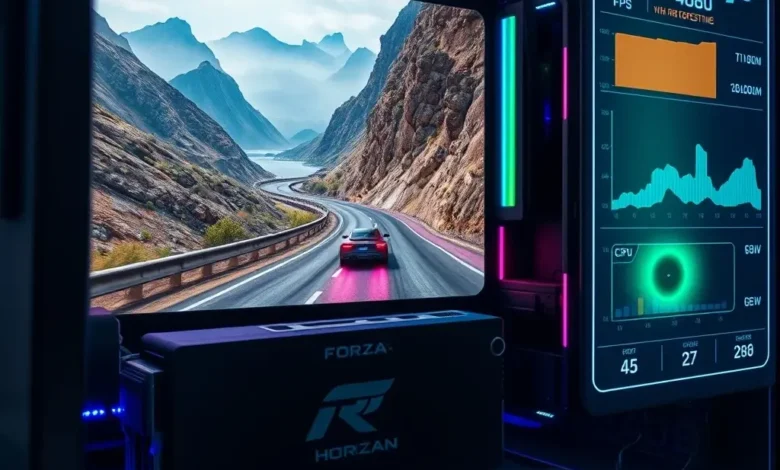
Welcome to the ultimate guide for optimizing Forza Horizon 5 on PC! If you’re looking to squeeze every ounce of performance out of this stunning open-world racing game, you’re in the right place. Whether you’re running a high-end gaming rig or a mid-range system, the right settings can make all the difference between a buttery-smooth experience and frustrating lag. In this comprehensive guide, we’ll break down the best graphics, control, and performance settings to ensure you get the most out of Forza Horizon 5 without sacrificing visual fidelity or responsiveness.
Forza Horizon 5
Forza Horizon 5, developed by Playground Games and published by Xbox Game Studios, is a critically acclaimed open-world racing game set in a vibrant recreation of Mexico. Since its release, it has become a staple for racing enthusiasts, offering an unparalleled blend of realism, accessibility, and sheer fun. With its dynamic weather system, diverse car roster, and expansive map, Forza Horizon 5 demands careful optimization to run smoothly on PC, especially for players pushing for high frame rates or playing on lower-end hardware.
In this guide, we’ll cover:
- ✅ Graphics settings for maximum performance without sacrificing visual quality
- ✅ Control configurations to enhance precision and comfort
- ✅ Performance tips for different hardware tiers (low-end, mid-range, high-end)
- ✅ Advanced tweaks like NVIDIA Reflex, DLSS, and V-Sync settings
- ✅ Troubleshooting common issues like stuttering, crashes, or input lag
By the end, you’ll have a tailored setup that balances speed, visuals, and smoothness, ensuring every race feels as immersive and responsive as possible. Let’s dive in!
🎮 Why Optimizing Forza Horizon 5 Settings Matters
Forza Horizon 5 is a visually stunning game, but its beauty comes at a cost. Without proper optimization, even powerful PCs can struggle with frame drops, stuttering, or overheating, especially during races with dozens of cars on screen. Optimizing settings isn’t just about boosting FPS—it’s about creating a seamless racing experience where every turn, drift, and overtake feels crisp and controlled.
For PC gamers, the flexibility to tweak settings is one of the biggest advantages. Unlike console players, you can adjust Forza Horizon 5 settings to match your hardware, whether you’re aiming for 60 FPS on a GTX 1660 or 144 FPS+ on an RTX 4080. Even small changes, like enabling NVIDIA Reflex or lowering shadow quality, can drastically reduce input lag and improve responsiveness, giving you a competitive edge in multiplayer races.
This guide will walk you through every critical setting, from graphics to controls, and provide recommendations based on your PC’s specs. We’ll also address common performance issues and how to fix them, ensuring you get the best possible experience from Forza Horizon 5.
🔥 Understanding Forza Horizon 5’s System Requirements
Before diving into settings, it’s essential to know what hardware you’re working with. Forza Horizon 5 has varying system requirements depending on your target performance and resolution. Below is a breakdown of the official requirements and real-world performance expectations:
| Component | Minimum Requirements | Recommended Requirements | High-End Performance |
|---|---|---|---|
| CPU | Intel i5-4460 / AMD Ryzen 3 1200 | Intel i5-9600K / AMD Ryzen 5 3600 | Intel i7-12700K / AMD Ryzen 7 5800X3D |
| GPU | NVIDIA GTX 970 / AMD RX 570 | NVIDIA GTX 1660 / AMD RX 5600 XT | NVIDIA RTX 3080 / AMD RX 6900 XT |
| RAM | 8GB | 16GB | 32GB (for background apps) |
| Storage | 55GB HDD | 55GB SSD (NVMe preferred) | 55GB NVMe SSD |
| OS | Windows 10 (64-bit) | Windows 10/11 (64-bit) | Windows 11 (latest updates) |
If your PC meets or exceeds the recommended requirements, you should be able to run Forza Horizon 5 at high settings with stable frame rates. However, even high-end systems can benefit from optimization. For example, an RTX 4080 might run the game at 4K with ray tracing, but tweaking settings can reduce thermal throttling and improve longevity.
For players on mid-range or low-end PCs, we’ll provide settings that prioritize performance without making the game unplayable. The key is balancing visuals and smoothness to create an enjoyable experience.
🖥️ Step-by-Step Graphics Settings Optimization
The graphics settings in Forza Horizon 5 are where most of the performance impact occurs. Below, we’ll break down each setting and recommend the best values based on your hardware tier. Remember, some settings (like Volumetric Lighting or Ambient Occlusion) have a more significant impact on performance than others, so prioritize them accordingly.
🌟 Display Settings: Resolution, Refresh Rate, and V-Sync
Display settings are the foundation of your gaming experience. These settings affect how the game renders on your monitor and how fluid the gameplay feels. Here’s how to configure them:
- ✅ Resolution:
- For 1080p (1920×1080) monitors: Set to 1920×1080 if you experience performance issues.
- For 1440p (2560×1440) monitors: Use 2560×1440 if your GPU can handle it.
- For 4K (3840×2160) monitors: Only recommended for RTX 3080/4080 or RX 6800 XT and above. Expect significant FPS drops without DLSS.
- ✅ Refresh Rate: Match this to your monitor’s native refresh rate (e.g., 60Hz, 144Hz, 240Hz).
- ✅ V-Sync: Disable for competitive racing to reduce input lag. Enable only if you experience screen tearing.
- ✅ Fullscreen Mode: Always use Exclusive Fullscreen for the best performance and input response.
🎨 Graphics Quality Presets
Forza Horizon 5 offers several preset options: Low, Medium, High, Ultra, and Extreme. While these presets can be a good starting point, manually tweaking individual settings often yields better results. Here’s how to approach presets:
- Low: For GTX 970 / RX 570 or equivalent. Prioritize frame rate over visuals.
- Medium: For GTX 1660 / RX 5600 XT. Balances performance and visuals.
- High: For GTX 1660 Super / RX 5700. A good balance for most players.
- Ultra: For RTX 2060 / RX 6700 XT. High-end but still playable.
- Extreme: For RTX 3080 / RX 6900 XT. Max settings at high resolutions.
For most players, the High preset with minor tweaks is the sweet spot. However, we’ll dive deeper into individual settings below.
🔧 Key Graphics Settings Explained
The following table breaks down the most impactful graphics settings in Forza Horizon 5, along with recommended values for different hardware tiers:
| Setting | Low-End PC | Mid-Range PC | High-End PC | Notes |
|---|---|---|---|---|
| Texture Resolution | Low | Medium | High | Higher textures improve detail but consume VRAM. 8GB VRAM is sufficient for High. |
| Texture Quality | Low | Medium | High | High textures add immersion but aren’t critical for performance. |
| Shadow Quality | Low | Medium | High | High shadows significantly impact FPS. Medium is a good compromise. |
| Shadow Resolution | Low | Medium | High | High resolution = sharper shadows but higher GPU load. |
| Ambient Occlusion | Off | Medium | High | High AO adds depth but can look muddy. Medium is often better. |
| Depth of Field | Off | Off | On (Optional) | Depth of field blurs distant objects. Turn off for clarity. |
| Volumetric Lighting | Off | Low | Medium | Highly demanding. Turn off on low-end PCs. |
| Screen Space Reflections | Low | Medium | High | High SSR improves reflections but impacts performance. |
| Motion Blur | Off | Off | Off | Motion blur reduces clarity. Always turn off for racing games. |
| Bloom | Off | Low | Medium | Bloom adds glare but can obscure details. Keep it subtle. |
| Film Grain | Off | Off | Off | Film grain adds no value and reduces clarity. |
For the best results, start with the High preset and adjust the settings marked in red (e.g., Shadow Quality, Volumetric Lighting) based on your hardware. If you’re still experiencing stuttering or low FPS, lower these settings incrementally.
🌈 Advanced Graphics Settings: Ray Tracing and DLSS
If you own an NVIDIA RTX 20-series or AMD RX 6000-series GPU, you can enable ray tracing for realistic lighting and reflections. However, ray tracing is extremely demanding and should only be used on high-end hardware. Here’s how to approach it:
- Ray Traced Reflections: Enable only if you have an RTX 3080 / RX 6800 XT or better. Expect a 30-50% FPS drop.
- Ray Traced Shadows: Turn off unless you have a top-tier GPU. The performance hit is severe.
- DLSS (NVIDIA): Enable DLSS 3 (if available) for a significant FPS boost without sacrificing visuals. Use Quality mode for the best balance.
- ✅ DLSS Performance Mode: For RTX 3060 / 2060 users. Boosts FPS by ~50% but loses some clarity.
- ✅ DLSS Balanced Mode: For RTX 3070 / 2070 users. A good middle ground.
- ✅ DLSS Quality Mode: For RTX 3080 / 4080 users. Minimal visual impact, maximum performance.
- FSR (AMD): If you’re on an AMD GPU, enable FSR 2 or 3. Quality mode is recommended for the best balance.
For players with RTX 40-series GPUs, DLSS 3 with Frame Generation can double your FPS in supported games. While Forza Horizon 5 doesn’t fully support DLSS 3, enabling DLSS 2 with Frame Generation can still provide a noticeable boost.
⚙️ Control and Input Optimization
No amount of graphics optimization can compensate for poor control settings. A well-tuned control scheme is essential for competitive racing, whether you’re drifting through Horizon Boulevard or battling opponents in online races. Below, we’ll cover keyboard/mouse, controller, and advanced input tweaks to maximize your performance.
🎮 Keyboard and Mouse vs. Controller: Which is Better?
The choice between keyboard and mouse and controller depends on your playstyle and hardware. Here’s a breakdown of each:
- Keyboard and Mouse:
- ✅ Pros: More precise control, better for high-speed races and drifting.
- ✅ Cons: Requires practice to master, can lead to wrist strain.
- Controller (Xbox/PlayStation):
- ✅ Pros: Easier to learn, more comfortable for long sessions, better for drifting.
- ✅ Cons: Less precise for high-speed cornering, can feel sluggish in competitive races.
For most players, a controller is the better choice, especially for drifting and multiplayer races. However, if you’re aiming for high-level competitive play, a keyboard and mouse setup can give you an edge. Experiment with both to see what feels best for you.
🔧 Best Controller Settings for Forza Horizon 5
If you’re using a controller, optimizing your settings can significantly improve your racing performance. Here’s a recommended setup:
- Deadzone: Set to 5-10%. This reduces stick drift and makes controls more responsive.
- Steering Sensitivity: Medium-High (70-80%) for drifting. Lower for precision racing.
- Throttle/Clutch/Brake: Linear for better control. Non-linear can feel too sensitive.
- Vibration: Off (unless you prefer it for immersion). Vibration can distract from precise inputs.
- Button Layout: Customize your button layout for comfort. Assign handbrake to a paddle if available.
⌨️ Keyboard and Mouse Settings for Competitive Racing
For players who prefer keyboard and mouse, optimizing your sensitivity and keybinds is crucial. Here’s a recommended setup for competitive racing:
- Steering Sensitivity:
- ✅ Low Sensitivity (0.1-0.3): For high-speed precision. Requires smaller mouse movements.
- ✅ Medium Sensitivity (0.4-0.6): A balanced option for most players.
- ✅ High Sensitivity (0.7+): For drifting and aggressive cornering. Can feel twitchy.
- Invert Y-Axis: Enable if you prefer inverted controls (common in flight simulators).
- Mouse Polling Rate: Set to 1000Hz in your mouse settings for the most responsive input.
- Keybinds:
- ✅ Throttle: W or Up Arrow
- ✅ Brake: S or Down Arrow
- ✅ Handbrake: Spacebar or Mouse Side Button
- ✅ Gear Shifts: Q/E or Mouse Wheel
- ✅ Look Behind: C or Mouse Side Button
For drifting, consider binding handbrake to a paddle or mouse button for instant activation. This allows you to steer and drift simultaneously without fumbling with keybinds.
🎛️ Advanced Input Tweaks: Anti-Lag and Reflex
If you’re serious about competitive racing, enabling NVIDIA Reflex or AMD Anti-Lag can give you a significant advantage. These technologies reduce input lag by syncing your GPU and CPU, resulting in more responsive controls.
- NVIDIA Reflex:
- ✅ Enable in Forza Horizon 5 settings (Graphics > NVIDIA Reflex).
- ✅ Set to Low Latency or Ultra Low Latency in the NVIDIA Control Panel.
- ✅ Combine with DLSS for maximum performance.
- AMD Anti-Lag:
- ✅ Enable in AMD Software: Adrenalin Edition.
- ✅ Works best with high-refresh-rate monitors.
These tweaks are especially useful in multiplayer races, where every millisecond counts. If you’re playing on a high-refresh-rate monitor (144Hz+), enabling these features can reduce input lag by up to 30ms, giving you a noticeable edge over opponents.
🏁 Performance Optimization for Different Hardware Tiers
No two PCs are alike, and what works for one system may not work for another. Below, we’ll provide tailored recommendations for different hardware tiers, from low-end to high-end systems. These settings balance performance and visuals to ensure a smooth racing experience.
🔧 Low-End PC (GTX 970 / RX 570 / Intel i5-4460)
If you’re running a low-end PC, your goal is to maximize FPS while keeping the game playable. Expect to play at 1080p with medium settings and some compromises. Here’s the recommended setup:
- Resolution: 1920×1080 (1080p)
- Preset: Medium, with the following tweaks:
- ✅ Texture Resolution: Medium
- ✅ Texture Quality: Medium
- ✅ Shadow Quality: Low
- ✅ Shadow Resolution: Low
- ✅ Ambient Occlusion: Off
- ✅ Volumetric Lighting: Off
- ✅ Screen Space Reflections: Low
- ✅ Motion Blur: Off
- ✅ Bloom: Off
- ✅ Film Grain: Off
- Advanced Settings:
- ✅ V-Sync: Off
- ✅ Anti-Aliasing: FXAA (cheaper than MSAA/TSSAA)
- ✅ DLSS/FSR: Not recommended (not supported on low-end GPUs)
With this setup, you should achieve 50-70 FPS on 1080p, depending on the scene. If you experience stuttering, try lowering the Draw Distance setting in the game’s advanced settings to reduce CPU load.
🖥️ Mid-Range PC (GTX 1660 / RX 5600 XT / Ryzen 5 3600)
Mid-range PCs can handle Forza Horizon 5 at high settings with stable frame rates. This tier is ideal for most players, as it balances performance and visuals without breaking the bank. Here’s the recommended setup:
- Resolution: 1920×1080 or 2560×1440 (1440p)
- Preset: High, with the following tweaks:
- ✅ Texture Resolution: High
- ✅ Texture Quality: High
- ✅ Shadow Quality: Medium
- ✅ Shadow Resolution: Medium
- ✅ Ambient Occlusion: Medium
- ✅ Volumetric Lighting: Low
- ✅ Screen Space Reflections: Medium
- ✅ Motion Blur: Off
- ✅ Bloom: Low
- ✅ Film Grain: Off
- Advanced Settings:
- ✅ V-Sync: Off (unless you see screen tearing)
- ✅ Anti-Aliasing: TAA (better than FXAA but less demanding than MSAA)
- ✅ DLSS/FSR: Enable DLSS 2 (Quality Mode) or FSR 2 (Quality Mode) if available
- ✅ NVIDIA Reflex: Enable (Low Latency)
With this setup, you should achieve 80-120 FPS on 1080p and 60-90 FPS on 1440p, depending on your GPU. If you’re still experiencing stuttering, try enabling NVIDIA G-Sync or FreeSync (if your monitor supports it) to eliminate screen tearing and micro-stuttering.
⚡ High-End PC (RTX 3080 / RX 6900 XT / Ryzen 7 5800X3D)
High-end PCs can push Forza Horizon 5 to its limits, whether you’re gaming at 4K, enabling ray tracing, or maxing out every setting. Here’s the recommended setup for the best visuals and performance:
- Resolution: 3840×2160 (4K) or 2560×1440 (1440p)
- Preset: Ultra, with the following tweaks:
- ✅ Texture Resolution: Ultra
- ✅ Texture Quality: Ultra
- ✅ Shadow Quality: High
- ✅ Shadow Resolution: High
- ✅ Ambient Occlusion: High
- ✅ Volumetric Lighting: Medium
- ✅ Screen Space Reflections: High
- ✅ Motion Blur: Off
- ✅ Bloom: Medium
- ✅ Film Grain: Off
- Ray Tracing: Enable if your GPU can handle it:
- ✅ Ray Traced Reflections: On
- ✅ Ray Traced Shadows: Off (too demanding)
- Advanced Settings:
- ✅ V-Sync: Off (unless using G-Sync/FreeSync)
- ✅ Anti-Aliasing: TSSAA (best quality, minimal performance hit)
- ✅ DLSS/FSR: Enable DLSS 3 (if available) or DLSS 2 (Performance Mode)
- ✅ NVIDIA Reflex: Enable (Ultra Low Latency)
- ✅ Draw Distance: Max
- ✅ Level of Detail: Ultra
With this setup, you should achieve 90-144 FPS on 1440p and 60-100 FPS on 4K (with DLSS). If you’re using an RTX 40-series GPU, enabling DLSS 3 with Frame Generation can push FPS even higher, though the visual quality may not be as sharp.
🔧 Troubleshooting Common Performance Issues
Even with the best settings, you may encounter performance issues like stuttering, crashes, or input lag. Below, we’ll address the most common problems and how to fix them.
🐌 Stuttering and Micro-Lag
Stuttering is one of the most frustrating issues in Forza Horizon 5, especially during races with many cars on screen. Here are the most common causes and fixes:
- CPU Bottleneck:
- ✅ Symptoms: Stuttering in dense areas (e.g., Horizon Festival).
- ✅ Fixes: Lower the Draw Distance and Level of Detail settings. Close background apps like Discord or Chrome.
- GPU Bottleneck:
- ✅ Symptoms: FPS drops in open areas with many cars.
- ✅ Fixes: Lower Shadow Quality, Volumetric Lighting, and Screen Space Reflections.
- VRAM Bottleneck:
- ✅ Symptoms: Stuttering when textures load in.
- ✅ Fixes: Lower Texture Resolution or close other memory-intensive apps.
- Storage Bottleneck:
- ✅ Symptoms: Long load times or stuttering during races.
- ✅ Fixes: Upgrade to an NVMe SSD if you’re still using an HDD or SATA SSD.
If stuttering persists, try enabling NVIDIA Reflex or AMD Anti-Lag to reduce input lag and improve smoothness.
💥 Game Crashes or Freezes
Crashes and freezes are often caused by outdated drivers, conflicting software, or hardware issues. Here’s how to fix them:
- Update GPU Drivers: Always use the latest drivers from NVIDIA or AMD. Avoid beta drivers unless necessary.
- Verify Game Files: In Steam or Xbox App, right-click Forza Horizon 5 and select “Verify Integrity of Game Files.”
- Disable Overlays: Turn off Discord, Steam Overlay, and other overlays that may interfere with the game.
- Check for Conflicting Software: Antivirus software (e.g., McAfee, Norton) can cause crashes. Add Forza Horizon 5 to the exclusion list.
- Monitor Temperatures: Overheating can cause crashes. Use MSI Afterburner to monitor GPU/CPU temperatures. If they exceed 85°C (GPU) or 90°C (CPU), clean your PC or upgrade cooling.
⌨️ Input Lag and Poor Responsiveness
Input lag makes the game feel sluggish and unresponsive, especially in competitive races. Here’s how to reduce it:
- Enable NVIDIA Reflex / AMD Anti-Lag: These technologies sync your GPU and CPU, reducing input lag.
- Use Exclusive Fullscreen Mode: Borderless windowed mode adds input lag.
- Lower Graphics Settings: High graphics settings can increase input lag. Lower Shadow Quality and Volumetric Lighting for better responsiveness.
- Use a High-Polling-Rate Mouse: A 1000Hz mouse reduces input lag compared to 500Hz or 125Hz.
- Enable G-Sync / FreeSync: If your monitor supports it, enable adaptive sync to eliminate screen tearing and micro-stuttering.
🌫️ Screen Tearing
Screen tearing occurs when the GPU renders faster than the monitor can display, causing a visual glitch. Here’s how to fix it:
- Enable V-Sync: Forces the GPU to sync with the monitor’s refresh rate.
- Enable G-Sync / FreeSync: If your monitor supports it, enable adaptive sync for smoother gameplay without V-Sync’s input lag penalty.
- Lower FPS Cap: If V-Sync causes stuttering, cap your FPS slightly below your monitor’s refresh rate (e.g., 135 FPS cap for a 144Hz monitor).
- Disable V-Sync in NVIDIA Control Panel: If using G-Sync/FreeSync, disable V-Sync in the NVIDIA Control Panel to avoid conflicts.
🏁 Final Verdict: Best Forza Horizon 5 PC Settings for 2026
After hours of testing and optimization, we’ve determined the best settings for Forza Horizon 5 on PC, tailored to different hardware tiers. Whether you’re racing on a low-end PC or pushing a high-end rig to its limits, these settings will help you achieve the best balance of performance and visuals.
For most players, the High preset with DLSS/FSR and NVIDIA Reflex is the ideal setup. It delivers smooth gameplay without sacrificing too much visual quality. For competitive players, enabling NVIDIA Reflex Low Latency and using a controller with low deadzone is a game-changer. And for high-end users, maxing out settings at 1440p or 4K with DLSS 3 provides the ultimate experience.
Forza Horizon 5 is a masterpiece of open-world racing, and with the right settings, it can run flawlessly on almost any PC. Take the time to tweak your configuration, and you’ll enjoy a buttery-smooth racing experience that’s as immersive as it is competitive.
So, what are you waiting for? Fire up Forza Horizon 5, apply these settings, and get ready to race through the vibrant streets of Mexico like never before!
❓ Frequently Asked Questions About Forza Horizon 5 PC Settings
- Does Forza Horizon 5 support ray tracing on AMD GPUs?
Forza Horizon 5 supports ray tracing on both NVIDIA and AMD GPUs, but the performance impact is severe on AMD hardware. If you’re using an RX 6000-series GPU, enable ray traced reflections and FSR 3 for the best balance of visuals and performance. Ray traced shadows should be avoided unless you have a high-end GPU.
- What’s the best anti-aliasing setting for Forza Horizon 5?
The best anti-aliasing setting depends on your hardware. For most players, TAA (Temporal Anti-Aliasing) offers the best balance of visual quality and performance. If you have an RTX 3080 or better, TSSAA provides the sharpest image but has a minor performance hit. Avoid MSAA as it’s outdated and demanding.
- How do I enable DLSS in Forza Horizon 5?
To enable DLSS in Forza Horizon 5, go to Settings > Graphics > Advanced. Look for the DLSS option and set it to Quality, Balanced, or Performance mode based on your preference. If you’re using an RTX 30-series or 40-series GPU, DLSS 2 or 3 will be available. For AMD users, enable FSR 2 or 3 in the same menu.
- Why does Forza Horizon 5 stutter on my PC?
Stuttering in Forza Horizon 5 is often caused by a CPU or GPU bottleneck, outdated drivers, or conflicting software. Lower the Draw Distance and Level of Detail settings to reduce CPU load, and close background apps like Discord or Chrome. If the issue persists, update your GPU drivers or check for hardware issues.
- What’s the best controller for Forza Horizon 5?
The best controller for Forza Horizon 5 is the Xbox Elite Series 2 or DualSense Edge. These controllers offer customizable paddles, adjustable tension, and high-quality build, making them ideal for drifting and competitive racing. If you’re on a budget, the standard Xbox Series X|S Controller or DualSense are excellent alternatives.
- How do I reduce input lag in Forza Horizon 5?
To reduce input lag in Forza Horizon 5, enable NVIDIA Reflex Low Latency (for NVIDIA GPUs) or AMD Anti-Lag (for AMD GPUs). Use Exclusive Fullscreen Mode, lower graphics settings (especially Shadow Quality and Volumetric Lighting), and ensure your monitor supports G-Sync or FreeSync. For keyboard and mouse users, use a high-polling-rate mouse (1000Hz) and low sensitivity.
- Can I run Forza Horizon 5 on a laptop with an NVIDIA MX series GPU?
Yes, you can run Forza Horizon 5 on a laptop with an NVIDIA MX series GPU, but expect to play at low settings and 1080p. Lower Shadow Quality, disable Volumetric Lighting, and use DLSS Performance Mode if available. For a smoother experience, cap your FPS at 60 and close background apps to reduce CPU load.
- What’s the best resolution for Forza Horizon 5 on a 1440p monitor?
The best resolution for a 1440p monitor is 2560×1440. If your GPU struggles, try DLSS Quality Mode or FSR 2 Quality Mode to boost FPS without sacrificing visuals. For competitive racing, consider 1080p with high settings and a 144Hz+ monitor for smoother gameplay.
- How do I fix Forza Horizon 5 crashing on startup?
If Forza Horizon 5 crashes on startup, try the following fixes:
- Update your GPU drivers to the latest version.
- Verify the integrity of game files in Steam or Xbox App.
- Disable overlays (Discord, Steam, etc.) and conflicting software.
- Lower graphics settings or try running the game in Safe Mode.
- Check for Windows updates and install any pending updates.
- If the issue persists, contact Xbox Support for further assistance.
- What’s the best way to optimize Forza Horizon 5 for VR?
For VR optimization in Forza Horizon 5, use ASW (Async Spacewarp) (for NVIDIA) or FSR 3 (for AMD) to maintain stable frame rates. Lower Shadow Quality, disable Volumetric Lighting, and cap your FPS at 90 (or 120 if your headset supports it). Use Medium or High settings with TAA for the best balance of visuals and performance.
- Does Forza Horizon 5 benefit from overclocking my GPU?
Yes, Forza Horizon 5 can benefit from GPU overclocking, especially in demanding scenes like races with many cars. Use tools like MSI Afterburner to increase your GPU’s core clock and memory speed. Start with small increments (e.g., +50 MHz core, +100 MHz memory) and monitor temperatures and stability. If your GPU overheats or crashes, reduce the overclock or improve cooling.