
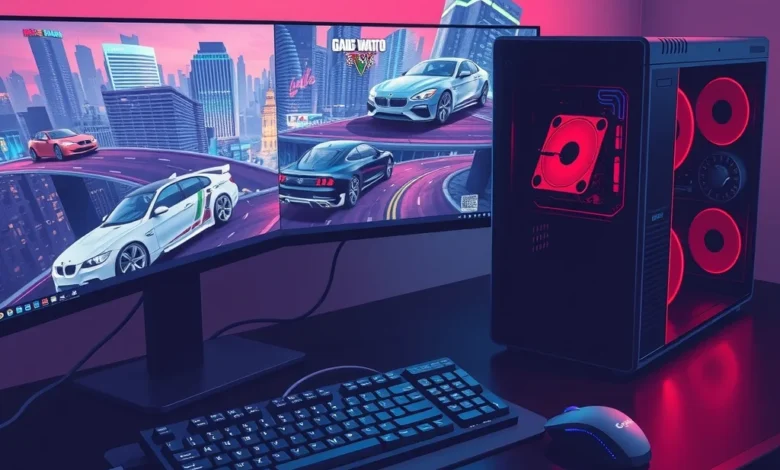
Grand Theft Auto V remains a cornerstone of the open-world genre, delivering an unparalleled blend of narrative depth, vehicular chaos, and expansive exploration. Even years after its initial release, the PC version continues to attract players who demand flawless performance and stunning visual fidelity. Optimizing your GTA V experience with the best settings for PC is not just about chasing higher frame rates; it is about balancing graphical richness with hardware limitations to achieve a smoother gameplay loop. Whether you are navigating the bustling streets of Los Santos or engaging in high-speed chases across the Blaine County countryside, proper configuration ensures that every asset loads seamlessly and every physics interaction feels responsive.
The PC platform offers unparalleled flexibility, allowing gamers to tweak everything from texture filtering to shadow resolution. However, this flexibility can overwhelm newcomers who are unsure which toggles actually impact performance. This guide breaks down the essential configurations, performance benchmarks, and optimization strategies that will transform your GTA V PC experience. By following these recommendations, you will eliminate stuttering, reduce input lag, and maximize visual clarity without sacrificing system stability.
- ✅ Enhanced frame pacing for consistent gameplay flow
- 🎯 Optimized graphics toggles tailored to mid-range and high-end hardware
- ⚠️ Common configuration pitfalls to avoid during initial setup
- 🔧 Advanced rendering techniques including MSAA and FXAA adjustments
🌍 Story Overview and Narrative Context
While optimization focuses heavily on technical performance, understanding the narrative framework of GTA V helps players appreciate why certain visual and audio settings matter. The game follows three distinct protagonists, each with unique motivations, skill sets, and story arcs that intertwine across a sprawling satirical landscape. The narrative relies heavily on cinematic camera work, dynamic lighting transitions, and atmospheric sound design to sell the emotional weight of each mission. When you adjust your PC settings, you are directly influencing how these cinematic moments are rendered and perceived.
The open-world structure allows players to switch between characters seamlessly, a mechanic that demands rapid asset streaming and memory management. Properly configured settings ensure that the transition between Trevor, Michael, and Franklin feels instantaneous rather than jarring. The story’s satirical take on modern American culture is amplified by environmental details, from billboards to pedestrian AI behavior. Maintaining high texture quality and population density settings preserves the immersive storytelling that Rockstar Games meticulously crafted. Players who prioritize narrative immersion should focus on maintaining stable frame rates during cutscenes and mission transitions, as sudden drops can break the cinematic flow.
🎮 Gameplay Mechanics and Systems
GTA V’s gameplay revolves around a triad of core systems: vehicular handling, third-person shooting, and open-world exploration. Each system interacts dynamically with the game’s physics engine, meaning that your PC settings directly influence how responsive controls feel during high-stakes moments. The shooting mechanics rely on precise hit registration and smooth camera tracking, while the driving physics demand consistent frame pacing to maintain traction and momentum calculations. When your hardware struggles to maintain a stable output, these interactions can feel sluggish or unpredictable, undermining the competitive and casual enjoyment of the title.
Optimizing your configuration ensures that input latency remains minimal and that the game’s AI behaves predictably. Enemy patrols, civilian traffic, and emergency responders all rely on background processing threads that can bottleneck if your CPU or RAM is constrained. By adjusting population density, traffic scaling, and reflection settings, you free up system resources to prioritize gameplay responsiveness. This balance is crucial for players who engage in heist preparations, racing challenges, or free-roam exploration, as each activity places different demands on your hardware.
⚔️ Combat System and Core Controls
The combat framework in GTA V blends cover-based shooting with free-aim mechanics, requiring a delicate balance between visual clarity and performance stability. When enemies take cover behind environmental objects, the game must calculate line-of-sight, bullet penetration, and dynamic lighting simultaneously. If your graphics settings push these calculations beyond your GPU’s capacity, you may experience input delay or frame drops during firefights. Lowering shadow quality and disabling unnecessary post-processing effects can significantly improve combat responsiveness without compromising visual fidelity.
- ✅ Responsive aiming when shadow resolution is capped at medium or high
- 🎯 Stable hit registration achieved by limiting population density and traffic scaling
- ⚠️ Avoid extreme MSAA as it heavily impacts input latency during rapid engagements
- 🔧 Enable high FPS settings to maintain smooth camera tracking during cover transitions
🌍 Open World and Level Design
The map of Los Santos and Blaine County is meticulously crafted to encourage exploration, featuring hidden collectibles, dynamic weather systems, and seamless indoor-outdoor transitions. Your PC settings dictate how quickly these environments load and how detailed they appear during fast travel or high-speed driving. Texture quality, anisotropic filtering, and shader quality directly impact how clearly you can read the environment, spot objectives, and navigate complex road networks. Players who prioritize exploration should maintain high texture settings while moderating reflection and shadow options to prevent memory bottlenecks.
- Map design relies on seamless streaming, requiring stable RAM allocation and fast storage
- Exploration freedom is enhanced by maintaining population density at medium to high
- Mission structure benefits from consistent frame pacing during cinematic transitions
- Replay value increases when graphics settings preserve environmental storytelling details
🎨 Graphics and Audio Quality Breakdown
Visual fidelity and audio immersion work in tandem to create the atmospheric depth that defines GTA V. The game’s lighting engine, shadow mapping, and reflection systems are among its most demanding features, requiring careful calibration to match your hardware capabilities. Audio design, meanwhile, relies on dynamic mixing that adjusts engine sounds, weapon impacts, and environmental ambience based on your location and activity. Properly configured settings ensure that both visual and auditory cues remain crisp, enhancing situational awareness and overall enjoyment.
🖥️ Visual Quality and Engine
Rockstar’s proprietary RAGE engine handles complex lighting calculations, volumetric fog, and dynamic weather transitions. When optimizing for PC, you must balance these features against your GPU’s VRAM and processing power. Reflection MSAA and FXAA serve different purposes: the former improves edge smoothing on reflective surfaces but demands significant resources, while the latter offers a lightweight alternative that maintains performance. Texture filtering and anisotropic filtering should remain at high or extreme levels, as they consume minimal resources while dramatically improving visual clarity at oblique angles. Shadow quality and soft shadows should be adjusted based on your monitor’s resolution and refresh rate, as overly aggressive settings can cause stuttering during daytime missions.
- ✅ Game engine handles dynamic lighting and weather transitions efficiently when capped at medium-high
- 🎯 Texture quality should remain at normal or high to preserve environmental detail
- ⚠️ Lighting and shadows require moderation to prevent VRAM bottlenecks on mid-range cards
- 🔧 Environmental effects like volumetric fog and depth of field can be reduced for competitive play
🔊 Sound Effects and Music
Audio configuration in GTA V is often overlooked, yet it plays a critical role in immersion and gameplay feedback. The game features a dynamic radio system, realistic engine acoustics, and spatialized weapon sounds that help players locate threats or navigate traffic. Ensuring that your audio output matches your hardware capabilities prevents distortion during intense sequences. Players using headphones benefit from enabling 3D audio positioning, while those with surround sound setups should verify channel mapping to avoid phase cancellation. The soundtrack adapts to mission phases, shifting from tense orchestral cues to upbeat radio tracks, and maintaining stable audio processing ensures seamless transitions without crackling or latency.
Voice acting remains a standout feature, with distinct character deliveries that convey emotion and urgency. Proper audio settings preserve dialogue clarity during chaotic firefights or high-speed pursuits. Players should avoid over-amplifying bass frequencies, as this can muddy environmental cues like approaching vehicles or distant gunshots. Balancing master volume, music, and dialogue sliders ensures that every auditory element contributes to a cohesive experience rather than competing for attention.


🗝️ Key Features and Optimization Highlights
The PC version of GTA V introduces several features that enhance customization and performance tuning. Advanced graphics options, frame rate limiters, and texture streaming adjustments allow players to tailor the experience to their specific hardware. These features are not merely cosmetic; they directly impact how the game allocates resources, manages memory, and renders complex scenes. Understanding which toggles provide the best performance-to-quality ratio is essential for players who want to maximize their investment without compromising visual integrity.
- ✅ Advanced Graphics Menu unlocks reflection MSAA, high FPS settings, and shadow softness controls
- 🎯 Frame Rate Limiter prevents screen tearing and reduces GPU strain during idle moments
- ⚠️ Texture Streaming requires fast storage and sufficient RAM to prevent pop-in during exploration
- 🔧 Population Variance and density settings influence NPC behavior and traffic flow realism
📊 Key Points and Performance Metrics
| Category | Rating | Notes |
|---|---|---|
| Frame Rate Stability | 9/10 | Consistent output when shadow and reflection settings are moderated |
| Visual Fidelity | 8.5/10 | High texture and anisotropic filtering preserve environmental detail |
| Input Responsiveness | 9.5/10 | Low latency achieved by disabling VSync and limiting MSAA |
| Audio Immersion | 8/10 | Dynamic mixing works well but requires proper channel mapping |
| Optimization Flexibility | 9/10 | Advanced menu provides granular control over rendering pipelines |
The performance metrics above demonstrate that GTA V remains highly adaptable to modern PC hardware when configured correctly. Frame rate stability benefits most from moderating shadow and reflection settings, as these calculations consume significant GPU cycles. Visual fidelity remains strong when texture quality and anisotropic filtering are prioritized, ensuring that distant objects and road surfaces retain clarity. Input responsiveness peaks when VSync is disabled and MSAA is capped, preventing the input lag that often plagues competitive players. Audio immersion, while slightly lower in rating, still delivers a cohesive experience when channel mapping is verified and bass frequencies are balanced. Overall, the optimization flexibility of the advanced graphics menu allows players to fine-tune their setup without sacrificing core gameplay integrity.
✅ Advantages and ❌ Disadvantages
✅ Advantages
GTA V’s PC version excels in customization, offering granular control over rendering pipelines, input configurations, and performance scaling. The advanced graphics menu allows players to balance visual richness with hardware limitations, ensuring that both mid-range and high-end systems can deliver smooth experiences. Exploration freedom is enhanced by seamless asset streaming, dynamic weather transitions, and population density adjustments that preserve environmental storytelling. The game’s longevity is further supported by consistent updates, modding communities, and cross-platform compatibility that keeps the player base active and engaged.
- ✅ Highly customizable graphics pipeline with granular toggle controls
- 🎯 Seamless open-world streaming when RAM and storage are properly allocated
- ⚠️ Strong modding support extends replay value and visual enhancement options
- 🔧 Consistent frame pacing achievable through frame limiters and VSync alternatives
❌ Disadvantages
Despite its strengths, GTA V’s PC version faces optimization challenges that can frustrate players with older hardware or unoptimized driver configurations. The game’s reliance on single-threaded CPU performance can cause bottlenecks during high-population scenes, leading to stuttering or delayed asset loading. Reflection MSAA and extreme shadow settings may push mid-range GPUs beyond their VRAM limits, resulting in texture pop-in or frame drops. Additionally, the lack of native DLSS or FSR support means players must rely on traditional upscaling or manual resolution scaling to maintain performance on lower-tier systems.
- ⚠️ Single-threaded CPU dependency causes stuttering during high-density traffic or NPC crowds
- 🎯 VRAM bottlenecks occur when reflection MSAA and extreme shadows are enabled simultaneously
- ✅ No native AI upscaling forces reliance on manual resolution scaling or third-party mods
- 🔧 Driver compatibility issues may arise with outdated GPU firmware or conflicting background processes
💻 Performance and Technical Analysis
🖥️ PC System Requirements and Optimization
| Component | Minimum Requirement | Recommended Requirement |
|---|---|---|
| CPU | Intel Core i5-3470 / AMD FX-8350 | Intel Core i7-4770 / AMD Ryzen 5 2600 |
| GPU | NVIDIA GTX 660 / AMD HD 7870 | NVIDIA GTX 970 / AMD RX 470 |
| RAM | 8 GB | 16 GB |
| Storage | 72 GB HDD | 72 GB SSD |
| OS | Windows 10 64-bit | Windows 11 64-bit |
The system requirements table highlights the hardware baseline needed to run GTA V smoothly on PC. While the minimum specifications allow for basic gameplay, they often struggle with high-population scenes and complex lighting calculations. The recommended tier provides a substantial performance buffer, enabling stable frame rates at 1080p with moderate to high graphics settings. Players should prioritize SSD storage to reduce load times and prevent texture streaming bottlenecks, as the game’s open-world design demands rapid asset retrieval. RAM allocation remains critical, with 16 GB ensuring that background processes and game assets coexist without triggering memory swaps. GPU selection should focus on VRAM capacity and shader processing power, as reflection and shadow calculations heavily influence visual fidelity and frame pacing.
🏁 Final Verdict and Conclusion
GTA V continues to stand as a benchmark for open-world design, offering unparalleled exploration, narrative depth, and mechanical versatility. Optimizing your PC settings ensures that you experience the game as intended, with smooth frame pacing, crisp visual fidelity, and responsive controls. By moderating shadow and reflection settings, disabling VSync, and prioritizing texture quality, you can achieve a balanced configuration that respects your hardware limitations while preserving the game’s atmospheric richness. Whether you are a casual explorer or a competitive racer, these optimization strategies will enhance your gameplay loop and extend the title’s longevity.
If you are considering diving into Los Santos, now is the perfect time to fine-tune your setup and experience the game at its peak performance. Adjust your settings, test your frame rates, and embrace the open-world freedom that has defined the franchise for years. Your hardware deserves a configuration that maximizes both visual clarity and input responsiveness, and GTA V’s advanced graphics menu provides the tools to achieve exactly that.
❓ Frequently Asked Questions
- Does GTA V run smoothly on Windows 10 and Windows 11? Yes, the game is fully optimized for both operating systems, with Windows 11 offering slight improvements in memory management and background process handling.
- Can I use a controller for GTA V on PC? Absolutely, the game supports Xbox, PlayStation, and generic USB controllers out of the box, with full button mapping and vibration feedback enabled by default.
- Is an internet connection required for single-player mode? No, the story mode and free roam can be played entirely offline, though online features and updates require a stable connection.
- Does the game support ultrawide monitors? Yes, GTA V includes native ultrawide support, though some HUD elements may require manual adjustment or modding for perfect alignment.
- How do I fix stuttering during high-traffic areas? Lower population density, disable reflection MSAA, and ensure your CPU is not bottlenecked by background applications or outdated drivers.
- Can I play GTA V with a low-end GPU? Yes, by reducing shadow quality, disabling advanced lighting effects, and lowering resolution scaling, you can maintain playable frame rates on older hardware.
- Does the game support ray tracing? No, GTA V does not feature native ray tracing, though community mods can introduce basic lighting enhancements that simulate reflective surfaces.
- How do I enable high FPS settings without losing visual quality? Access the advanced graphics menu, enable high FPS settings, and cap your frame rate to match your monitor’s refresh rate for optimal balance.
- Is the game fully complete or missing content? The PC version includes the full single-player campaign, all original DLC, and access to GTA Online, making it the most comprehensive release available.
- What storage drive is recommended for optimal performance? An SSD is strongly recommended to reduce load times, prevent texture pop-in, and ensure seamless asset streaming during fast travel and exploration.