
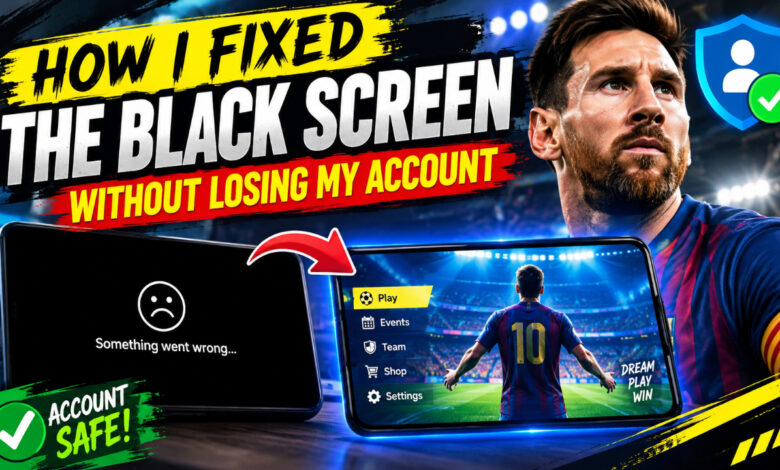
I had this problem yesterday on my phone/PC and I fixed it. I was just about to start my Division Rivals match in eFootball 2025, and suddenly, my screen just went completely black. The sound was still working, I could hear the crowd and the menu music, but there was no video. I tried restarting the app, I tried restarting my phone, but nothing was working. I was terrified I’d lose my dream squad or my account progress, but after digging around for an hour, I found the fix. It was actually pretty simple!
Why This Happens and How I Cleared the Cache
Most of the time, that annoying black screen happens because of some corrupted temporary files or a conflict with the graphics settings. When eFootball updates, sometimes the old “junk” data stays in the background and causes the game to glitch when it tries to load the textures. I tried clearing the cache, and it worked for me immediately. You don’t have to delete the whole game or uninstall it; just follow these steps to reset the connection between the app and your hardware.
- Force Stop the App: Go to your phone’s “Settings,” find “Apps,” select eFootball 2025, and tap “Force Stop.” This kills any hidden processes that might be stuck.
- Clear Cache Only: Still in that same app menu, tap on “Storage.” Hit “Clear Cache.” Do not tap “Clear Data” (that’s the button that deletes your account progress, so just stick to the cache).
- Check for Permissions: Sometimes a recent update resets permissions. Ensure the app has permission to access your storage and display over other apps.
- Restart the Device: Turn your phone off completely for 30 seconds and turn it back on to flush out any temporary memory hiccups.
- Check Your Internet: Sometimes a weak connection prevents the game assets from loading, causing a black screen. Try toggling your Wi-Fi off and on or switching to mobile data just to rule that out.
Adjusting Your Graphics for Stability
If the game launches but still feels a bit jittery or prone to crashing again, you should tweak your in-game graphics settings. When I got back into the game, I lowered my settings slightly to make sure the app wasn’t pushing my phone too hard. Here are the settings I currently use to keep it stable:
| Setting | Recommendation |
|---|---|
| Graphics Quality | Standard / Low |
| Frame Rate | 60 FPS |
| Crowd Detail | Off |
| Resolution | Medium |
Why Your Account Stays Safe
I know the biggest fear is losing your account. The good news is that your eFootball 2025 account data is stored on Konami’s servers, not just on your phone’s internal storage. As long as you have your KONAMI ID linked (which you should have done when you first started), your team, your GP, and your coins are completely safe in the cloud. Even if you had to uninstall and reinstall the game, your progress wouldn’t be lost as long as you log in with your linked account. Don’t panic! Just make sure your account is linked to your email or Game Center/Google Play Games, and you’ll be able to recover your progress on any device.
If you’re still stuck, check if your phone has a “Game Mode” or “Game Booster.” Sometimes those boosters try to optimize the game too much and end up blocking the screen. I turned mine off, and that actually helped the game load faster. Take your time, don’t rush the steps, and you’ll be back on the pitch in no time.
Let me know your phone model in comments, I will help you.