🎨 Unlocking the Power of Adobe Photoshop
Adobe Photoshop remains the industry standard for digital image manipulation. However, many users only scratch the surface of its capabilities. This software contains a vast array of tools that are not immediately visible in the default interface.
By understanding these hidden features, you can significantly speed up your workflow. You will also discover ways to achieve professional results with less effort. The goal is to move beyond basic editing into advanced territory.
In this comprehensive guide, we will explore the secret menus and advanced tools. We will also discuss keyboard shortcuts that save hours of work.
Whether you are a beginner or a pro, there is something here for you. Let us dive deep into the software that changed photography forever.
🔍 Why Hidden Features Matter
Most tutorials focus on the basics like cropping or color correction. They rarely touch on the deeper functionality. This leaves users feeling limited by the software.
Hidden features often provide the most powerful effects. They allow for non-destructive editing and greater flexibility. You can achieve complex composites much faster.
Knowing these tools sets you apart from other editors. It gives you an edge in the competitive design market.
🛠️ Core Features and Functionality
The core of Photoshop lies in its layer system and selection tools. However, there are many utilities tucked away in menus. These are often the key to solving difficult editing problems.
You should explore the Filter Gallery for artistic effects. It contains many presets that are not on the main toolbar.
Content-Aware Fill is another powerful utility. It removes unwanted objects seamlessly from your images.
Neural Filters offer AI-driven adjustments. These features are often disabled by default. You must enable them in the preferences menu.
- ✅ Advanced Selection Tools – Use Select and Mask for precision.
- 🎯 Non-Destructive Layers – Keep your original image intact.
- ⚠️ Hidden Shortcuts – Press keys to access hidden panels.
🖥️ User Experience and Design
The interface of Photoshop is dense and complex. It can be overwhelming for new users to navigate. However, the design allows for immense customization.

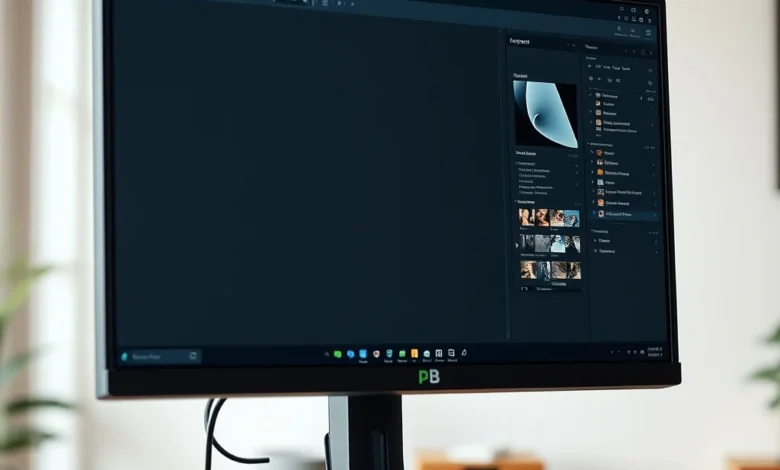
You can rearrange panels to suit your specific workflow. This personalization is crucial for efficiency. Dark mode is available to reduce eye strain during long sessions.
Accessibility options are also built into the software. You can adjust contrast and font sizes for better visibility.
Performance has improved significantly in recent updates. The software now handles large files much better.
However, it still requires a powerful computer to run smoothly. You need a good graphics card for the best experience.
🚀 Performance and Stability
Running Photoshop requires significant system resources. It is important to understand how the software uses your hardware. The GPU plays a major role in rendering speed.
RAM usage can spike when working with multiple layers. You should close other applications to free up memory.
Storage space is also a critical factor. You need fast SSD drives for optimal performance.
Crash frequency has decreased in the latest versions. However, saving your work frequently is always recommended.
- ✅ Fast Rendering – Enabled via GPU settings.
- 🎯 Low Memory Usage – Optimize cache settings.
- ⚠️ High Battery Drain – Not ideal for laptops on battery.
🔐 Privacy and Security Analysis
Adobe uses cloud services for some features. This means your files might be uploaded for processing. You should be aware of the data collection policies.
Encryption is used to protect your data in transit. However, local files are not always encrypted by default.
You should review your privacy settings in the account menu. You can choose to opt out of certain data sharing.
Security risks are minimal for standard users. However, you should keep the software updated.
Updates often patch vulnerabilities that hackers might exploit.
📊 Key Performance Metrics and Features
Here is a summary of the key features and their access methods. This table helps you quickly reference the hidden tools.
| Feature Name | Access Method | Best Use Case |
|---|---|---|
| Neural Filters | Filter Menu | AI Face Restoration |
| Content-Aware Scale | Edit Menu | Resizing Without Distortion |
| Camera Raw | Open As | Raw File Adjustments |
| Quick Selection | Left Toolbar | Fast Object Selection |
| Adjustment Layers | Layers Panel | Non-Destructive Editing |
The table above highlights the most useful hidden tools. Neural Filters are particularly powerful for portraits. Camera Raw allows for better color grading than standard tools.
Content-Aware Scale is essential for web designers. It keeps the aspect ratio correct while resizing.
Understanding these tools saves time on every project. You will not need to use third-party plugins as often.
✅ Advantages of Hidden Tools
Using these advanced features provides distinct benefits. They allow for a more professional look in your work. You can achieve effects that were difficult before.
Speed is a major advantage. Many tasks that took minutes now take seconds. This increases your overall productivity significantly.
- ✅ Time Savings – Faster editing workflows.
- 🎯 Quality Improvement – Better final output.
- ✅ Automation – Less manual labor required.
❌ Disadvantages and Limitations
There are some drawbacks to consider. The learning curve can be steep for beginners. You need to invest time to master these tools.
Some features require a subscription to access. This might be a barrier for casual users. Performance issues can occur on older machines.
Complexity can lead to accidental errors. You must be careful when applying advanced filters.
- ⚠️ Steep Learning Curve – Requires practice.
- 🎯 Subscription Cost – Monthly fees apply.
- ⚠️ Hardware Demands – Needs powerful PC.
💻 Compatibility and Requirements
Photoshop is primarily designed for desktop computers. It runs on both Windows and macOS systems. Mobile versions exist but lack full functionality.
You need a specific operating system version. The software is updated regularly for compatibility.
🖥️ PC Requirements
The minimum requirements are quite high for good performance. You should aim for at least 16GB of RAM.
Storage should be an SSD for faster loading times. A dedicated graphics card is highly recommended.
Processor speed matters for rendering. A multi-core CPU will handle tasks better.
- ✅ Windows 10 or 11 – Supported OS versions.
- 🎯 16GB RAM – Recommended memory.
- ⚠️ Graphics Card – GPU acceleration needed.
🆚 Alternatives to Adobe Photoshop
While Photoshop is the leader, there are other options. Some users prefer free alternatives for their needs.
GIMP is a popular open-source choice. It offers many similar features without a cost.
Scribus is good for layout design tasks. It is not an image editor but a layout tool.
Canva is better for quick social media graphics. It is less powerful but easier to use.
Choose an alternative based on your budget and needs.
🏁 Final Verdict
Adobe Photoshop is the best tool for professional editing. Its hidden features provide unmatched power and flexibility. You should invest time to learn them fully.
It is not suitable for casual users who just want to crop photos. The cost and complexity are too high for simple tasks.
However, for serious photographers and designers, it is essential. The long-term value is immense for your career.
❓ Frequently Asked Questions
- Is it safe to use hidden features?
Yes, they are official tools provided by Adobe. They are safe for daily use without risks.
- Does it work on older computers?
Performance will be slow on older hardware. You need a modern PC for best results.
- Are there any subscription fees?
Yes, a Creative Cloud subscription is required. Free trials are available for new users.
- Can I use it on mobile devices?
There is a mobile app but it is limited. Full features require a desktop computer.
- Does it require internet connection?
Most features work offline. Some cloud features require connectivity.
- Is there a free version?
No, there is no permanent free version. Only a trial period is offered.
- Does it contain ads?
Commercial versions do not contain ads. Ads may appear in trial modes.
- Is there a premium version?
All versions require a subscription. There are no one-time purchase options.
- Does it work on Linux?
It is not natively supported on Linux. You need to use a virtual machine.
- Can I edit RAW files?
Yes, Camera Raw supports RAW files. This is a built-in capability.
- Is it worth the price?
For professionals, yes. The tools justify the subscription cost.