
Wrestling games have evolved significantly over the last decade, moving from simple button mashing to complex grappling systems that require precise input. WWE 2K26 represents the latest evolution in this genre, offering deep customization options that allow players to tailor the experience to their specific playstyle. One of the most critical aspects of this customization is the controller setup. A properly configured controller can mean the difference between dominating the ring and struggling to execute basic moves. This guide will walk you through every aspect of configuring your input devices for WWE 2K26, ensuring maximum performance and responsiveness.
Whether you are playing on PC or a modern console, the controller is your primary interface with the virtual roster. Misconfigured sensitivity or incorrect button mapping can lead to missed submissions, failed reversals, and general frustration during matches. In this comprehensive overview, we will explore the nuances of input settings, hardware recommendations, and advanced tuning techniques. By the end of this article, you will have a fully optimized setup that maximizes the potential of WWE 2K26 on your chosen platform.
🎮 Why Controller Configuration Matters in WWE 2K26
The mechanics of professional wrestling simulation are inherently complex. Unlike fighting games where strikes are often binary inputs, wrestling involves chains of moves, timing-based reversals, and contextual interactions that rely heavily on analog stick precision. A standard out-of-the-box configuration is designed for the average player, but competitive players and enthusiasts often find they need to adjust these defaults. This is particularly true for the new physics engine introduced in WWE 2K26, which reacts differently to input velocity and angle.
Proper configuration reduces input lag and ensures that your commands are registered exactly when you intend them to be executed. This is crucial for executing high-risk maneuvers like top-rope dives or submission holds. Furthermore, a consistent setup allows your muscle memory to develop effectively. If your sensitivity fluctuates or your buttons are mapped awkwardly, you will find it difficult to build the reflexes necessary for high-level gameplay. Taking the time to configure your controller correctly is an investment in your overall gaming performance.
🖥️ Understanding Input Devices and Hardware
Before diving into the software settings, it is essential to understand the hardware you are using. WWE 2K26 supports a wide variety of input devices, ranging from standard Xbox and PlayStation controllers to specialized fighting sticks and even keyboard and mouse setups on PC. Each device has its own strengths and weaknesses regarding precision and comfort.
⚙️ Standard Gamepad Configuration
The standard gamepad is the most common input method for this title. When using a controller, the analog sticks are primarily used for movement and grapple positioning, while the face buttons handle strikes and special moves. The key to making this work well is ensuring the analog sticks have the correct deadzone settings. Deadzones prevent the controller from registering movement when the stick is not being pushed. If the deadzone is too high, you may find yourself unable to move your wrestler slowly, which is vital for grapple manipulation.
For most players, a low to medium deadzone is recommended. This allows for fine-tuned control over the wrestler’s position in the ring. Additionally, the trigger buttons should be tested to ensure they have the correct sensitivity. In WWE 2K26, triggers are often used for stamina management or specific finishing move inputs. Ensuring these buttons register quickly without requiring too much pressure is essential for fluid gameplay.
- Analog Stick Sensitivity: Set to Low for better control.
- Trigger Deadzone: Adjust to prevent accidental stamina drain.
- Vibration Feedback: Enable for immersion, but reduce if it causes input delay.
🕹️ PC and Keyboard Options
PC players have the advantage of using keyboard and mouse setups, though this is less common in wrestling simulations due to the nature of grappling. However, for those who prefer the precision of a mouse for camera control, the controller settings must be adapted. The game allows you to map specific functions to custom keys. This is useful for binding complex move sets to single keys rather than combinations. It is important to note that some features may be locked when using non-standard input devices.
If you choose to use a keyboard, ensure that the keybinds are comfortable and do not require awkward finger stretches. The goal is to keep your hands in a natural resting position to prevent fatigue during long matches. You can also use software like Steam Input to remap your controller on the fly if you switch between different devices frequently.
- Key Priority: Assign high-frequency moves to easy-to-reach keys.
- Mouse Sensitivity: Lower settings are better for camera control.
- Conflict Checks: Ensure no two keys are mapped to the same function.
🔧 Deep Dive into Button Mapping
One of the most impactful changes you can make to your experience is customizing the button mapping. The default layout is functional, but it may not align with your personal preferences or the way you naturally play. WWE 2K26 offers a robust customization menu that allows you to swap almost any button function. This is particularly useful for players who have muscle memory from previous wrestling games or those who play other genres like fighting games.
🎯 Strike and Grapple Remapping
Strikes and grapples are the core of combat in WWE 2K26. In the standard setup, strikes are often assigned to the face buttons, while grapples are mapped to the shoulder buttons. However, many players find it more intuitive to have strikes closer to their fingers for quick access. You can map strikes to the triggers or even the d-pad for faster execution during combos. Similarly, grapple inputs can be moved to the rear buttons if your controller supports them.
When remapping, consider the context of the move. For example, a submission hold usually requires a specific sequence of inputs. If you remap the hold buttons too far apart, you may struggle to execute the chain. Try to keep related functions close together on the controller face to minimize finger travel distance. This reduces the chance of error during high-pressure moments in the match.
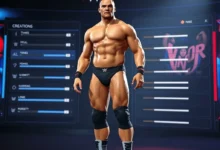

- Face Buttons: Best for basic strikes and special attacks.
- Shoulder Buttons: Ideal for grapple initiation and reversals.
- Triggers: Useful for stamina management and quick escapes.
📱 Mobile and Touch Controls (Android)
While WWE 2K26 is primarily a console and PC title, if you are playing on Android via remote play or emulated versions, touch controls are available. These require careful calibration to mimic the analog stick feel. The virtual d-pad should be set to the bottom left, with the action buttons on the right. It is crucial to ensure the touch sensitivity is not too high, as accidental touches can trigger attacks unintentionally. Adjusting the transparency of the interface can also help you see the ring better without the overlay blocking your view.
- Virtual Stick Size: Make it large enough for accuracy.
- Button Placement: Keep away from the center to avoid accidental presses.
- Lock Function: Enable to prevent screen rotation during play.
📏 Sensitivity and Deadzone Calibration
Sensitivity settings control how quickly your wrestler responds to stick input. This is perhaps the most technical aspect of controller setup. If the sensitivity is too high, your wrestler may overshoot their target during a grapple attempt. If it is too low, you may struggle to react quickly to an opponent’s attack. Finding the middle ground is essential for competitive play.
📉 Deadzone Settings Explained
The deadzone is the range around the center of the stick where movement is ignored. This is designed to prevent the stick from drifting when not in use. However, a large deadzone can make the stick feel unresponsive. In WWE 2K26, you can adjust the deadzone for both the left stick (movement) and the right stick (camera). For movement, a lower deadzone is generally better for precision grapples. For the camera, a slightly higher deadzone can prevent jitters when focusing on specific wrestlers.
🚀 Response Curve Adjustments
Beyond deadzones, the response curve determines how the input translates to movement speed. A linear response curve means the stick position directly corresponds to movement speed. A nonlinear curve might accelerate movement as you push the stick further. For wrestling, linear is usually preferred for consistent control. However, some players prefer a slight acceleration for faster transitions. Experiment with the curve settings in the advanced options menu to find what suits your rhythm.
- Linear Curve: Best for consistent grapple execution.
- Exponential Curve: Good for fast camera panning.
- Inverted Axis: Useful for players who prefer reverse movement.
💾 Managing Control Profiles
WWE 2K26 allows you to save multiple control profiles. This is incredibly useful if you play different game modes or if you want to switch between casual and competitive settings. For example, you might have a profile with simplified controls for story mode and another with full customization for online matches. Managing these profiles ensures you never have to reconfigure your settings every time you start the game.
🔐 Profile Switching Strategies
To switch profiles efficiently, navigate to the settings menu and select the “Control Profiles” tab. Here you can name each profile based on its use case. For instance, name one “Competitive” and another “Casual.” This makes it easy to select the right setup before entering a match. You can also import profiles from other users if you find a configuration that works well for others. Sharing your profile is a great way to contribute to the community.
- Save Frequently: After making changes, save immediately to avoid data loss.
- Backup Profiles: Export your custom profiles to a cloud save if possible.
- Default Reset: Always keep a factory default profile for troubleshooting.
🔧 Advanced Troubleshooting
Even with the perfect setup, you may encounter issues with your controller. Input lag, unregistered buttons, or drift can ruin the experience. Troubleshooting these issues is a necessary part of maintaining your setup. This section covers common problems and how to resolve them within the game and on your hardware.
🛠️ Common Issues and Fixes
If you experience input lag, try disconnecting other Bluetooth devices that may be interfering with your controller connection. On PC, ensure your drivers are up to date. For console players, try a different USB cable or charging port. If buttons are not registering, check for debris on the buttons and clean them gently. Sometimes the issue is software-related, and a game update may be required to fix the bug.
- Connection Interference: Move closer to the console or receiver.
- Driver Updates: Check for updates via the manufacturer’s website.
- Game Cache: Clear the game cache to resolve temporary glitches.
🏁 Final Verdict on Control Optimization
Optimizing your controller setup for WWE 2K26 is not just a technical task; it is a way to express your personal playstyle. By taking the time to map buttons, adjust sensitivity, and manage profiles, you create a seamless connection between your intentions and the game’s response. This level of customization is what separates casual players from dedicated enthusiasts. Whether you are aiming for the top of the online ranks or simply want to enjoy a smoother story mode, the effort you put into your setup will pay dividends.
Remember that settings are personal. What works for one player may not work for another. Do not be afraid to experiment and find the configuration that feels right for you. The goal is to make the game feel like an extension of your own reflexes, allowing you to focus on the strategy and drama of the match rather than fighting the interface.
❓ Frequently Asked Questions
Here are some of the most common questions players have regarding controller setup for WWE 2K26.
- Does WWE 2K26 support custom controllers on PC?
Yes, the game supports a wide range of custom input devices, including fighting sticks and specialized arcade controllers, provided they are recognized by the operating system. - Can I use a controller on Android for this game?
Yes, if you are playing via cloud gaming or a compatible mobile version, most Bluetooth controllers are supported with a configuration menu. - How do I fix controller drift?
Calibrate the controller in the system settings and ensure the stick is clean. If the issue persists, the hardware may need replacement. - Is it better to use a wired or wireless connection?
Wired connections generally offer lower latency, which is beneficial for competitive play. Wireless is convenient but may introduce slight delay. - Can I import settings from a previous WWE 2K game?
No, control profiles are specific to each game version and cannot be imported directly from previous titles. - Does the game support motion controls?
Motion controls are disabled by default but can be experimented with in the accessibility settings. - How do I reset my controls to default?
Go to the settings menu, select “Controls,” and choose the option to “Restore Defaults.” - Can I map face buttons to a different function?
Yes, the button mapping menu allows you to swap almost any function to any button. - Why is my camera moving too fast?
Adjust the right stick sensitivity and response curve settings in the advanced options to slow down the camera movement. - Does vibration affect gameplay?
Vibration is purely cosmetic but can be turned off if it distracts you or causes input issues.