
🎯 Introduction to Valorant Sensitivity
When it comes to mastering the tactical shooter genre, few elements are as critical as your mouse sensitivity settings. In Valorant, a first-person shooter that demands precision, tactical discipline, and quick reflexes, your sensitivity configuration directly influences your ability to aim accurately and track opponents effectively. Many players overlook this fundamental aspect of their setup, focusing instead on aim trainers or weapon mechanics, only to realize later that their crosshair placement is hindered by poor sensitivity choices. This comprehensive guide will walk you through everything you need to know about finding the optimal sensitivity for competitive play in Valorant.
The goal of this article is to provide a deep dive into the mechanics of sensitivity, explaining how different settings impact your gameplay performance. Whether you are playing on PC or looking to understand the universal principles that apply across platforms, this guide covers the essential metrics, recommended presets, and the technical reasoning behind them. We will explore the relationship between your mouse DPI, in-game sensitivity, and the resulting eDPI value, which is the true metric that matters in competitive Valorant.
By the end of this analysis, you will have a clear understanding of how to adjust your settings to match your playstyle, whether you prefer a high-speed flicking style or a low-sensitivity tracking approach. We will also discuss common mistakes players make when changing settings and provide a step-by-step process to test and refine your configuration. This is not just about copying pro settings; it is about understanding the underlying mechanics to create a setup that feels natural to you.
Understanding sensitivity is the first step toward improving your aim and reaction time. We will break down the technical requirements, the recommended ranges used by professional players, and the hardware factors that influence your decision. This guide is designed to be a reference you can return to whenever you feel your aim is slipping or you are struggling with tracking moving targets.
🔍 Understanding Sensitivity and Control
Sensitivity in Valorant is not a single number but a combination of hardware and software settings that determine how much your crosshair moves in response to your physical mouse movement. The core concept involves the distance your mouse travels across your mousepad and the corresponding distance the crosshair moves on your screen. If your sensitivity is too high, a small wrist movement might cause your crosshair to overshoot the target, making it difficult to land headshots. Conversely, if your sensitivity is too low, you may find yourself unable to turn quickly enough to face enemies that appear at your peripheral vision.
The balance between these two extremes is crucial for competitive success. In a game like Valorant, where one shot to the head can eliminate an opponent, consistency is more valuable than raw speed. This means that your sensitivity should allow you to make micro-adjustments with stability while still providing the macro-movement necessary to track enemies across the map. Many players struggle with this balance because they focus too much on one aspect, such as flicking, without considering the precision required for long-range engagements.
It is also important to understand that sensitivity settings are personal. There is no single number that works for everyone. Some players prefer a higher sensitivity to allow for faster turning in close-quarters combat, while others prefer a lower sensitivity to ensure pinpoint accuracy during long-range duels. The key is to find a setting that feels comfortable and allows you to execute your movements without hesitation. This often involves a trial-and-error process where you test different values in the practice range before applying them to your ranked matches.
Furthermore, your mouse hardware plays a significant role in how your sensitivity feels. A mouse with a high polling rate will respond more quickly to your movements, providing a smoother experience. Similarly, the surface of your mousepad affects the friction between your mouse and the surface, which can alter how you perceive the sensitivity. Therefore, when adjusting your settings, you must consider your entire peripheral setup, not just the numbers in the menu.
🖱️ The Role of Mouse DPI
DPI stands for Dots Per Inch and refers to the number of pixels your cursor moves on the screen for every inch the mouse moves physically. A higher DPI means your cursor moves further for the same physical distance. While many gamers believe that a higher DPI is better, in competitive gaming, a lower DPI is often preferred. This is because higher DPI settings can introduce jitter or noise into your cursor movement, making precise aiming more difficult. Most professional Valorant players use a DPI between 400 and 1600, with 800 being the most common standard.
Adjusting your DPI is the first step in calibrating your sensitivity. If you find that your mouse movement feels too sluggish, increasing the DPI slightly can help without changing the in-game settings. However, it is generally recommended to keep your DPI at a standard value and adjust the in-game sensitivity instead. This ensures that your mouse driver settings remain consistent and do not interfere with the game’s internal calculations. Most gaming mice allow you to change DPI on the fly, which can be useful for testing, but for competitive play, a fixed DPI is usually the best choice.
📉 In-Game Sensitivity Adjustment
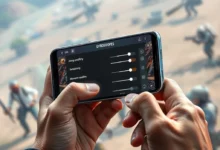
Once your DPI is set, the in-game sensitivity slider in Valorant determines the final multiplier that is applied to your movement. This is where you fine-tune your setup to match your personal preference. The slider ranges from 0.1 to 6.0, but the vast majority of competitive players use values between 0.3 and 0.6. This range provides a good balance between precision and speed, allowing for both flick shots and tracking. If you are new to Valorant, starting with a sensitivity of 0.4 is a safe bet that you can adjust later as you become more comfortable with the game.
It is important to note that changing your in-game sensitivity affects all aspects of your gameplay, including camera movement, recoil control, and crosshair placement. Therefore, making a change should be done with care, and you should give yourself time to adapt to the new settings before judging their effectiveness. Rushing to change settings after every bad game can prevent you from ever finding a stable baseline. Consistency is key to building muscle memory, so once you find a setting that works, stick with it for at least a few weeks.
💻 Calculating and Understanding eDPI
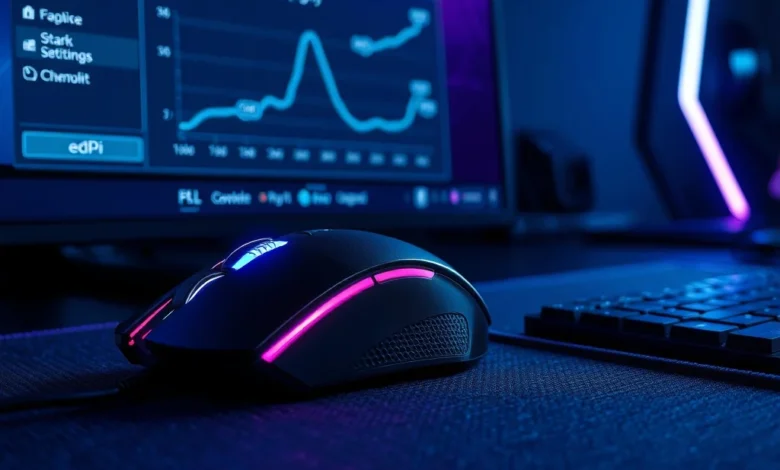
To truly understand your sensitivity, you must look beyond the individual settings and calculate your effective Dots Per Inch, or eDPI. The eDPI is the product of your mouse DPI and your in-game sensitivity value. It provides a single number that represents your total sensitivity across different hardware setups. This is crucial because it allows you to compare your settings with other players or pro players regardless of the mouse they are using. For example, if you use a DPI of 800 and an in-game sensitivity of 0.5, your eDPI is 400.
| Mouse DPI | In-Game Sensitivity | eDPI Value |
|---|---|---|
| 400 | 0.50 | 200 |
| 800 | 0.50 | 400 |
| 800 | 0.40 | 320 |
| 1600 | 0.30 | 480 |
| 800 | 0.60 | 480 |
As you can see from the table, different combinations of DPI and sensitivity can result in the same eDPI. This gives you flexibility in how you configure your mouse. For instance, if you prefer a higher DPI for more granular control, you can lower your in-game sensitivity to maintain the same eDPI. However, as mentioned earlier, sticking to a standard DPI like 800 is generally recommended to avoid potential driver issues or jitter. The eDPI is the true metric, so focus on getting this number right before worrying about the individual components.
🎯 Professional Player Standards
Looking at professional players can provide a good baseline for your own sensitivity settings. Most pros in Valorant operate with an eDPI between 200 and 800. The majority cluster around the 300 to 400 range. This low range is chosen because it allows for the highest level of precision. In a game where headshots are the primary method of elimination, the ability to make small, controlled movements is more valuable than the ability to spin around quickly. If you find that your eDPI is significantly higher than this range, you may be sacrificing accuracy for speed.
Conversely, if your eDPI is lower than 200, you might find it difficult to perform quick turns in close-quarters combat or to look up and down quickly to check for aerial threats. The sweet spot is the range between 300 and 500 eDPI for most players. This provides enough speed to react to threats while maintaining the stability needed for long-range engagements. Experimenting within this range will help you find your personal preference without deviating too far from competitive standards.
⚙️ Recommended Settings for Competitive Play
When setting up for competitive play, your goal should be consistency. This means choosing settings that allow you to replicate your movements accurately in every match. We recommend starting with a mouse DPI of 800 and an in-game sensitivity of 0.45. This combination results in an eDPI of 360, which is a very common setting among high-level players. It offers a balanced approach that is neither too fast nor too slow, making it ideal for players who are still refining their aim and mechanics.
From there, you should test this setting in the practice range. Focus on tracking moving targets and flicking to specific points. If you find that you are consistently overshooting your targets, lower your sensitivity by 0.05. If you find that you are too slow to react to fast-moving enemies, increase your sensitivity by 0.05. Make these changes incrementally to avoid disrupting your muscle memory too drastically. It is better to be slightly too slow than too fast, as speed can always be improved with practice.
🖥️ Mouse and Hardware Configuration
Ensuring your hardware is configured correctly is just as important as your in-game settings. You should disable mouse acceleration in your operating system settings. Mouse acceleration causes the cursor to move further depending on how fast you move your mouse, which makes muscle memory inconsistent. In Windows, this can be done by unchecking the Enhance Pointer Precision option in the Mouse settings. Similarly, ensure that your mouse software is set to the correct polling rate, typically 1000 Hz, to ensure the fastest possible response time.
| Setting | Recommended Value | Reason |
|---|---|---|
| Mouse Acceleration | Disabled | Ensures consistent muscle memory |
| Polling Rate | 1000 Hz | Minimizes latency |
| DPI | 800 | Standard for competitive play |
| In-Game Sensitivity | 0.40 – 0.50 | Optimal balance of speed and aim |
Additionally, make sure your mousepad is large enough to accommodate your sensitivity. If you use a low sensitivity, you will need a larger mousepad to allow for full arm movements. A standard gaming mousepad is usually sufficient, but if you find yourself constantly running out of space, consider upgrading to an XL mousepad. This will give you the freedom to move your mouse without interruption, which is crucial for maintaining flow during intense firefights.
⚡ In-Game Graphics Settings
Your graphics settings can also impact your sensitivity perception. If your frame rate is unstable, your movement will feel choppy, which can make your sensitivity feel inconsistent. To combat this, prioritize performance over visuals. Set your graphics to Low or Medium to ensure a high and stable frame rate. This will make your mouse movements feel smoother and more responsive. A consistent frame rate is essential for maintaining muscle memory, as variable framerates can introduce input lag and make aiming feel disconnected.
Furthermore, consider disabling VSync in your graphics settings. VSync can introduce additional input lag as it waits for the monitor to refresh before displaying the next frame. By disabling it, you ensure that your inputs are processed as quickly as possible. While this might introduce some screen tearing, the reduction in input lag is well worth it for competitive play. The goal is to create a system where your input translates to on-screen action with zero delay.
🔫 Weapon Spray Control and Sensitivity
While sensitivity is primarily about aiming, it also plays a crucial role in weapon spray control. In Valorant, weapons like the Vandal and Phantom have specific recoil patterns that you must learn to control. Your sensitivity affects how you manage this recoil because it determines how much you must pull your mouse down to counteract the upward kick of the gun. If your sensitivity is too high, you might overcompensate for the recoil, causing the bullets to spray in a downward arc. If it is too low, you might not pull down enough, resulting in the bullets flying over the enemy’s head.
To master spray control, you must practice with your chosen sensitivity settings. Use the practice range to spray at a wall and observe the pattern. Try to keep your crosshair on a single point by pulling down as you fire. This requires a steady hand and consistent sensitivity settings. Once you have memorized the pattern, you can apply it in real matches. Remember that spray control is not just about pulling down; it also involves micro-adjustments to the left and right to account for horizontal recoil.
It is also important to note that different weapons have different recoil patterns. The Vandal has a more predictable vertical pattern, while the Phantom has a more horizontal spread. Adjusting your sensitivity to account for these differences can help you maintain control over your spray. For example, if you find that you are having trouble controlling the horizontal recoil of the Phantom, you might lower your sensitivity slightly to allow for more precise micro-adjustments.
🕵️ Crosshair Placement and Movement
Crosshair placement is the most important aspect of aiming in Valorant, and your sensitivity settings directly influence how you place your crosshair. Good crosshair placement means keeping your crosshair at head level and pointing towards common angles where enemies might appear. Your sensitivity should allow you to make these adjustments quickly and accurately. If your sensitivity is too high, you might overshoot the angle and miss the enemy. If it is too low, you might be too slow to adjust your aim when an enemy peeks.
Movement also affects crosshair placement. When you are moving, your crosshair will be less accurate. Therefore, you should aim to stop before shooting to ensure your shots land where you intend. Your sensitivity should allow you to stop quickly and stabilize your aim. This is where the concept of friction and control comes in. You need a sensitivity that allows you to stop instantly without overshooting. This often requires a lower sensitivity setting that gives you more control over your mouse movement.
Practicing crosshair placement in the practice range is essential. Set up bots and try to keep your crosshair at head level while moving around the map. Focus on stopping and shooting without moving your crosshair off the target. This will help you develop the muscle memory needed to execute these movements in real matches. Over time, you will find that your sensitivity settings have a direct impact on how well you can maintain crosshair placement under pressure.
🎮 Common Mistakes to Avoid
Many players make mistakes when adjusting their sensitivity settings that can hinder their progress. One of the most common mistakes is changing sensitivity too frequently. Every time you change your settings, you reset your muscle memory. This forces you to relearn how to aim, which can lead to a decline in performance. To avoid this, commit to a sensitivity setting for at least a few weeks before making any changes. This will allow your brain and muscles to adapt to the new configuration.
Another common mistake is copying pro settings without understanding your own needs. While pro players have high skill levels, their sensitivity settings are tailored to their playstyle. What works for them might not work for you. Instead of copying, use their settings as a starting point and adjust them to fit your own preferences. Focus on finding a setting that feels comfortable and allows you to aim accurately. Your performance should be the metric for success, not how close your settings are to a professional’s.
📉 Ignoring Hardware Limitations
Sometimes, players struggle with their sensitivity because their hardware is not keeping up with their expectations. A low-quality mousepad or mouse can cause inconsistencies in movement that make sensitivity feel unpredictable. If you are struggling with your aim, check your hardware first. Ensure your mousepad is clean and that your mouse sensor is functioning correctly. Upgrading your peripherals can sometimes solve issues that seem to be related to sensitivity settings.
Additionally, do not ignore your monitor’s refresh rate. A higher refresh rate monitor can make your movements feel smoother and more responsive. If you are still on a 60Hz monitor, consider upgrading to a 144Hz or higher monitor. This will reduce input lag and make your sensitivity settings feel more accurate. The combination of a good mouse, mousepad, and monitor is essential for competitive play in Valorant.
🏆 Final Verdict and Conclusion
Finding the best sensitivity for competitive play in Valorant is a journey of experimentation and self-discovery. There is no magic number that guarantees success, but there are established standards and best practices that can guide you. By understanding the relationship between your DPI, in-game sensitivity, and eDPI, you can create a setup that feels natural and allows you to aim with precision. Remember to prioritize consistency over speed and to avoid making frequent changes to your settings.
The ultimate goal is to create a setup that allows you to focus on the game rather than your mechanics. When your sensitivity is correct, you will find that your aim becomes automatic, and you can direct your mental energy toward strategy and teamwork. Take the time to test your settings, analyze your performance, and make adjustments as needed. With patience and practice, you will find the perfect sensitivity that helps you dominate in competitive matches.
❓ Frequently Asked Questions
- Does Valorant support controller sensitivity?
No, Valorant does not support controller sensitivity settings natively. The game is designed for mouse and keyboard, and using a controller is not recommended for competitive play. - How often should I change my sensitivity?
You should only change your sensitivity when you feel it is significantly hindering your performance. Aim to stick with a setting for at least a few weeks to allow your muscle memory to adapt. - What is the ideal eDPI for Valorant?
The ideal eDPI for Valorant is generally between 300 and 500. This range provides a balance between precision and speed suitable for most players. - Can I use a high DPI mouse for Valorant?
Yes, you can use a high DPI mouse, but it is recommended to lower your in-game sensitivity to compensate. This ensures you maintain a low eDPI while using the hardware. - Does mouse acceleration affect aim?
Yes, mouse acceleration can negatively affect your aim by making your crosshair movement inconsistent based on how fast you move your mouse. It is best to disable it for competitive play. - What mousepad size is best for Valorant?
A medium or large mousepad is usually sufficient. However, if you use a low sensitivity, an XL mousepad can provide more space for your arm movements. - Should I use a higher sensitivity for close range?
Some players prefer a slightly higher sensitivity for close range, but it is generally better to maintain a consistent sensitivity across all ranges to avoid confusion. - Does frame rate affect sensitivity?
Frame rate does not change the sensitivity settings, but a low frame rate can make your movement feel choppy and inconsistent, which can affect your aim. - How do I test my new sensitivity?
You can test your new sensitivity in the practice range by shooting at bots and tracking their movement. This will give you a safe environment to adjust your settings before playing ranked matches. - Is it better to have high or low sensitivity?
Low sensitivity is generally better for competitive play as it allows for more precision. High sensitivity can be useful for quick turns but often sacrifices accuracy.