
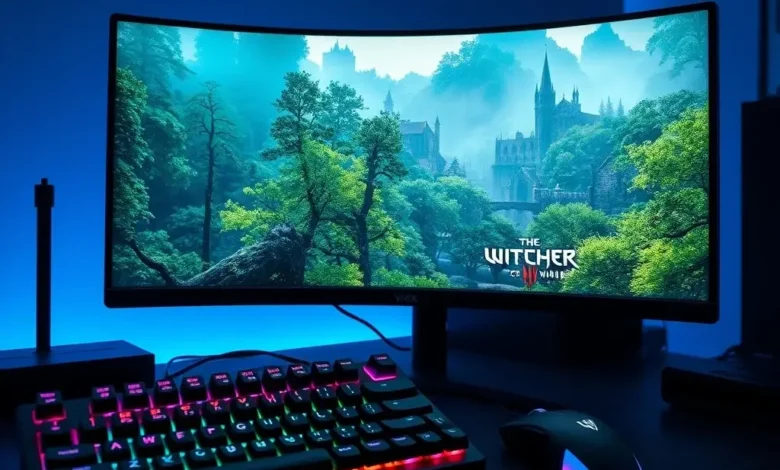
Optimizing your gameplay experience with the best settings for The Witcher 3 on PC is essential for achieving a balance between visual fidelity and smooth performance. This action role-playing game set in a vast open world demands significant hardware resources, yet it offers extensive customization options to suit various system configurations. Whether you possess a high-end gaming rig or a mid-range laptop, understanding how to tweak these parameters can transform your experience. The goal is to maintain high frame rates while preserving the immersive atmosphere that CD Projekt Red crafted in this masterpiece.
This comprehensive guide breaks down every critical setting within the game engine. We will explore graphics options, performance tweaks, and hardware-specific recommendations. By following these adjustments, you can ensure stable framerates during intense combat sequences and scenic exploration. The following sections will cover everything from texture quality to shadow rendering, ensuring you get the most out of your PC.
🚀 Article Overview and Optimization Goals
The Witcher 3 is a cornerstone of the open-world genre, offering a narrative depth rarely seen in modern gaming. However, the sheer scale of its world comes with technical demands. Proper configuration is not just about making the game run; it is about making it run well. This guide focuses on the PC platform, analyzing how different components interact with the game engine. We will aim for a stable 60 frames per second on most mid-range systems while pushing the boundaries on high-end hardware.
Key objectives for this configuration include:
- ✅ Maximized Performance: Ensuring smooth gameplay without stuttering.
- 🎯 Visual Fidelity: Retaining the art style and lighting quality.
- ⚠️ Stability: Preventing crashes and frame drops.
🎨 Graphics and Visual Quality Analysis
Visual settings are often the first place players look to improve their experience. The Witcher 3 features a robust rendering engine that supports DirectX 11 and DirectX 12. Choosing the right API can significantly impact performance. DirectX 11 is generally more stable for older systems, while DirectX 12 can offer better multi-core utilization and higher frame rates on modern hardware.
🖥️ Resolution and Scaling
Resolution is the most impactful setting on performance. Native resolution refers to the output resolution of your monitor. Scaling affects how the internal game resolution is calculated. For most players, running at native resolution is ideal if the frame rate allows it. However, if you experience lag, lowering the resolution or using dynamic scaling can help.
When adjusting resolution, consider your screen size. A 1080p monitor does not benefit from 4K rendering as much as a 1440p or 4K display does. If you have a powerful GPU, keep resolution native. If you have a weaker card, drop to 90% or 80% scaling. This reduces the pixel load while maintaining the aspect ratio.
🌍 Texture Quality Settings
Texture quality determines the detail of surfaces within the game world. This includes clothing, rocks, trees, and building materials. High texture settings require significant VRAM. If your graphics card has 4GB of VRAM or less, you may experience stuttering with Ultra settings. In this case, Medium or High is recommended.
For systems with 6GB or more VRAM, High or Ultra is safe. Textures are pre-baked, so they do not impact CPU performance, but they do consume memory bandwidth. If you notice stuttering when moving quickly, lower this setting to Medium. The visual difference between High and Ultra is often subtle in motion.
🔦 Lighting and Shadows
Lighting and shadows create depth and atmosphere. The game uses dynamic lighting to simulate time of day and weather. Shadow quality is one of the heaviest performance drains. High shadow quality generates complex lighting calculations for every object in the scene. For competitive play or lower-end hardware, setting shadows to Medium or Low can yield massive FPS gains.
However, shadows are crucial for immersion in a dark world like Northern Europe. If you have a mid-range GPU, try setting shadows to Medium. This provides a good balance. Do not set them to Low if you care about aesthetics, as it can make the world look flat. Screen Space Ambient Occlusion (SSAO) also affects shadows. Enabling it adds depth but costs performance. Test it with and without to see the difference.
⚔️ Gameplay Mechanics and Performance Systems
Optimization is not just about graphics; it is about how the game processes data. The physics engine and draw distance settings play a major role in performance during large battles or when traveling across the map. Understanding these mechanics helps you prioritize settings.


🚀 Physics and Draw Distance
Draw distance controls how far you can see objects before they appear. A higher draw distance means the engine has to render more geometry and textures at once. This is CPU intensive. If your CPU is older, reducing draw distance to Normal or Low can prevent frame drops in crowded towns.
Physics settings affect how objects react to Geralt’s movements. High physics settings allow for more realistic destruction and interaction. While fun, it adds processing overhead. For most players, Normal physics settings are sufficient. Only increase this if you have a high-end processor like an Intel Core i7 or AMD Ryzen 7.
🎯 Anti-Aliasing and Post-Processing
Anti-aliasing smooths jagged edges on objects. The game offers TAA (Temporal Anti-Aliasing) and FXAA (Fast Approximate Anti-Aliasing). TAA is generally better for quality but can cause blurriness. FXAA is faster but less effective. For a crisp image, TAA is recommended on powerful systems. On weaker systems, FXAA or off is better.
Post-processing effects like depth of field and film grain add cinematic flair but reduce performance. If you want the clearest view of enemies, turn these off. They are cosmetic and do not add gameplay value.
🛠️ Advanced Configuration Guide
For users who want to push their hardware further, advanced configuration files offer granular control. These settings are found in the game config folder and allow changes not exposed in the main menu.
🖥️ Config File Tweaks
Editing the config file can unlock hidden performance options. You can adjust the maximum number of particles and crowd density. Crowd density affects how many NPCs appear in cities. Reducing this can significantly improve FPS in areas like Novigrad or Oxenfurt.
Another tweak is adjusting the render resolution scale manually. This allows you to fine-tune the image quality beyond the menu options. Use a value of 0.8 or 0.9 for a slight boost. Be cautious, as this can introduce artifacts if set too low.
📊 Key Performance Metrics Table
To help you choose the right settings, refer to the following table. This summarizes recommended settings based on hardware tiers.
| Hardware Tier | Resolution | Textures | Shadows | Expected FPS |
|---|---|---|---|---|
| Low-End | 720p | Medium | Low | 30-40 |
| Mid-Range | 1080p | High | Medium | 60 |
| High-End | 1440p | Ultra | High | 60-80 |
| Ultra-End | 4K | Ultra | Ultra | 60+ |
These metrics are based on average performance during standard gameplay. Combat scenarios may lower these numbers due to increased particle effects and enemy AI calculations. Always test in a real-world scenario before finalizing your settings. The table serves as a baseline for stability.
💻 Hardware Recommendations and System Requirements
Understanding your hardware is key to optimization. The game has minimum and recommended specifications. Meeting the minimum ensures the game runs, but meeting recommended specs ensures it runs well. For the best experience in 2026, aim for hardware that exceeds the recommended specs.
🖥️ CPU and GPU Requirements
The CPU handles the AI and physics. A quad-core processor is the minimum, but a six-core or eight-core CPU provides better stability. The GPU handles the graphics. NVIDIA GTX 660 or AMD Radeon HD 7870 are the minimums. For 1080p gaming, GTX 1060 or RX 580 is ideal. For 1440p, look at RTX 2060 or RX 5700 XT.
RAM is also critical. 8GB is the minimum, but 16GB is recommended. Having 16GB prevents stuttering when loading assets in the open world. If you have 8GB, close background applications like browsers to free up memory.
🎯 Pros and Cons of Optimized Settings
Adjusting settings involves trade-offs. Understanding these trade-offs helps you make informed decisions.
✅ Advantages
Optimizing the game provides a smoother experience. You can enjoy the story without interruptions. Visuals remain crisp, and performance is consistent. This leads to better immersion and enjoyment.
- ✅ Consistent Framerates: No sudden drops during gameplay.
- 🎯 Reduced Input Lag: Better responsiveness in combat.
- ⚠️ Longer Battery Life: On laptops, optimized settings save power.
❌ Disadvantages
Lowering settings can reduce visual quality. Shadows may look flat, and textures may blur. Some players feel the game loses its cinematic feel at lower settings. Additionally, some features like ray tracing may be unavailable on older cards.
- ❌ Visual Compromise: You lose some graphical fidelity.
- 🎯 Feature Limitations: Some high-end effects are disabled.
- ⚠️ Learning Curve: Finding the perfect balance takes time.
🏁 Final Verdict and Conclusion
Configuring The Witcher 3 for PC is a journey of balancing beauty and performance. By following these guidelines, you can ensure a stable and enjoyable experience. The game is a masterpiece, and it deserves to run smoothly on your system. Whether you prioritize 4K resolution or 60 FPS stability, there is a setting combination that works for you.
We recommend starting with Default settings and adjusting based on your specific hardware. Test each change individually to see its impact. This methodical approach ensures you do not miss any performance gains. Enjoy your adventure in the Northern Kingdoms with a fully optimized setup.
❓ Frequently Asked Questions
- Does The Witcher 3 run on Windows 10?
- Does the game support controllers?
- Is internet required to play?
- Is it the full version?
- How much disk space is needed?
- Does it support 4K resolution?
- Can I use mods?
- Is V-Sync necessary?
- Does the game support ray tracing?
- Is the game optimized for laptops?
Yes, the game is fully compatible with Windows 10. It is also supported on Windows 11. Ensure you have the latest updates installed for the best experience.
Yes, The Witcher 3 supports various controllers including Xbox and PlayStation controllers. You can configure button mappings in the settings menu.
No, an internet connection is not required for single-player mode. You only need internet for multiplayer DLCs or if you want to launch through a launcher like Steam.
Yes, purchasing the game grants access to the base game and all DLCs including Hearts of Stone and Blood and Wine.
The game requires approximately 50 GB of free disk space. Ensure you have enough room before installation.
Yes, the game supports 4K resolution on compatible hardware. You may need to lower other settings to maintain performance.
Yes, the game has a robust modding community. Mods can improve graphics or add new content. Use them carefully to avoid conflicts.
V-Sync prevents screen tearing but can add input lag. If you have a high frame rate, turn it off. If you experience tearing, turn it on.
No, the base game does not support native ray tracing. However, mods can add some ray tracing effects.
Yes, the game runs on laptops. Adjust settings to match your laptop’s GPU capabilities to prevent overheating.