🚀 Hard Disk Sentinel: The Ultimate Guide to Monitoring, Checking, and Repairing Your Hard Drive
In the digital age, our lives are stored on spinning platters and flash memory chips. From irreplaceable family photos and sensitive financial documents to critical work projects, our hard drives and SSDs are the silent keepers of our existence. But what happens when the silence turns into a clicking sound, or worse, a total system failure? 😱 Data loss is one of the most stressful experiences a computer user can face. This is where Hard Disk Sentinel (HDSentinel) steps in as your drive’s personal physician, offering a comprehensive suite of tools to monitor, diagnose, and even repair storage issues before they turn into catastrophes. 🛡️
In this extensive guide, we will explore everything you need to know about the Hard Disk Sentinel app, how to download it, and how to use its powerful features to ensure your data remains safe and your hardware stays healthy.
🧐 What is Hard Disk Sentinel?
Hard Disk Sentinel is a multi-OS SSD and HDD monitoring and analysis software. Its primary goal is to find, test, diagnose, and repair hard disk drive problems, report and display SSD and HDD health, performance degradations, and failures. Unlike standard Windows tools that might only tell you a drive is “Working,” HDSentinel provides a detailed “Health” and “Performance” percentage, giving you a much more granular look at the state of your hardware. 📊
Whether you are using a traditional Hard Disk Drive (HDD), a Solid State Drive (SSD), or even external USB drives and RAID arrays, this software acts as an early warning system. It uses S.M.A.R.T. (Self-Monitoring, Analysis, and Reporting Technology) to predict failures by identifying even the smallest deviations in drive behavior. 🕵️♂️
🌟 Why You Need Hard Disk Sentinel Today
Many users believe that if a computer boots up, the hard drive is fine. Unfortunately, hardware failure is often a slow, invisible process. By the time Windows shows you an error message, it is usually too late to save your data. 📉
- Preventive Maintenance: HDSentinel works in the background, constantly checking temperatures and health status. If a drive starts overheating or develops “bad sectors,” you get an alert immediately. 🔔
- Detailed Reporting: It doesn’t just say “Good” or “Bad.” It tells you exactly how many days of estimated life are left and how many total hours the drive has been powered on. ⏳
- Comprehensive Compatibility: It supports almost all drive types, including SATA, NVMe, SCSI, SAS, and most external USB enclosures. 🔌
🛠️ Key Features of Hard Disk Sentinel
1. Real-Time S.M.A.R.T. Monitoring 🧠
The software reads all S.M.A.R.T. attributes from your disks. These attributes include things like “Seek Error Rate,” “Spin Up Time,” and “Reallocated Sectors Count.” If any of these numbers change in a way that suggests failure, HDSentinel alerts you.
2. Disk Surface Testing 🔍
One of the most powerful features is the Surface Test. This goes beyond simple file checks. It examines every single block on your drive to ensure data can be written and read correctly. This is the primary tool used for “repairing” drives by identifying and isolating weak or damaged areas. 🏗️
3. Temperature Tracking 🌡️
Heat is the number one enemy of hardware. HDSentinel keeps a log of the current, daily maximum, and average temperatures of your drives. It can even trigger an emergency shutdown if your drive reaches a dangerous temperature threshold, preventing physical burnout. 🔥
4. Detailed Health and Performance Benchmarking 🚀
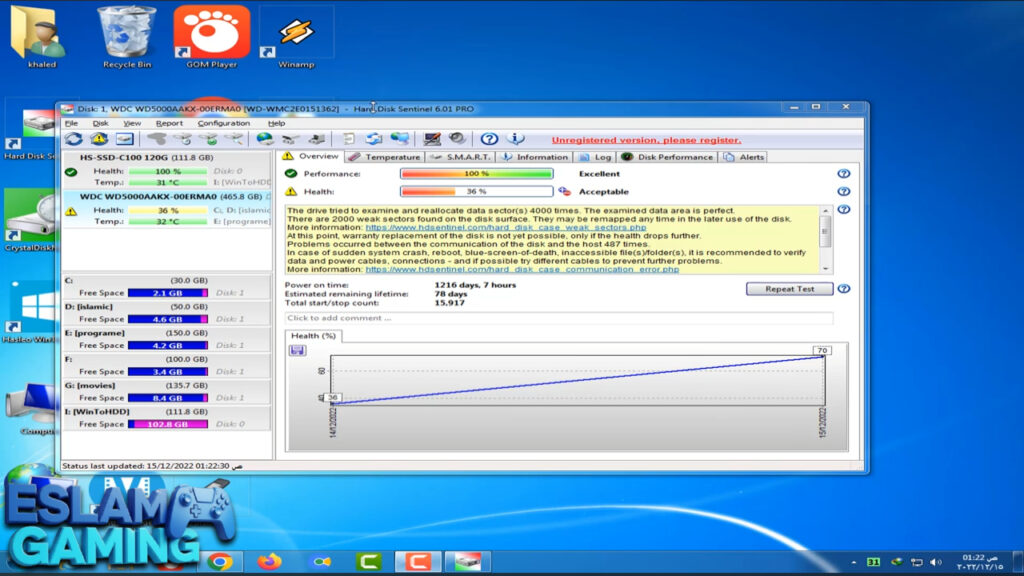
The app provides two main gauges: Health and Performance. If your health drops below 100%, it means the drive has started to age or has encountered minor errors. If it drops below 25%, it’s time to back up immediately and replace the drive.
🩺 How to Check and “Repair” Your Hard Drive
A common question is: Can software actually repair a physical hard drive? The answer is nuanced. While software cannot fix a broken needle or a scratched platter, it can repair logical errors and “remap” bad sectors. 🛠️
Step 1: Analyze the Overview Tab
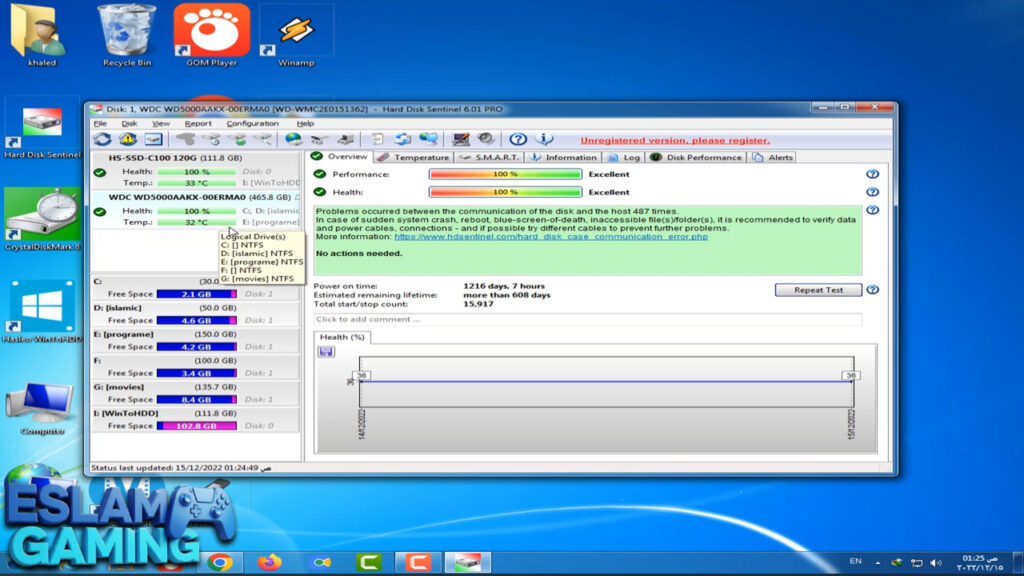
When you click on a drive, the Overview tab displays a text-based description of the drive’s health. If it says “The drive is perfect,” you have nothing to worry about. If it mentions “Bad Sectors,” pay close attention.
Step 2: Running a Surface Test
If you suspect your drive is failing (e.g., your PC is freezing or files are disappearing), go to the Disk menu and select Surface Test. 🧪


- Read Test: Safely checks if all data is readable.
- Reinitialize Disk Surface: This is the “Repair” powerhouse. It overwrites the disk surface to force the drive to redirect any “weak” sectors to a spare area. Warning: This specific test destroys data on the drive, so use it only after backing up! ⚠️
Step 3: Monitoring Temperature and Alerts
Set up the app to send you an email or play a sound if the health drops or the temperature spikes. This “set it and forget it” approach ensures you are never caught off guard. 📩
💾 SSD vs. HDD: How HDSentinel Handles Both
Hard Disk Sentinel is unique because it understands the fundamental differences between Hard Drives and Solid State Drives. 🔄
- For HDDs: It focuses on mechanical issues, such as motor spin-up and head positioning. It looks for “reallocated sectors,” which indicate physical wear on the platters.
- For SSDs: Since SSDs have no moving parts, HDSentinel focuses on Wear Leveling and Total Bytes Written (TBW). SSDs have a finite lifespan based on how much data is written to them. HDSentinel calculates exactly how much “life” your SSD has left based on its usage patterns. ⚡
📈 SEO Tips: Why Hard Disk Sentinel Ranks Top
If you are a tech enthusiast or a professional looking for the best disk utility, you’ll notice HDSentinel is always at the top of the list. This is because it provides Actionable Data. Unlike other tools that give you raw hex codes that only engineers understand, HDSentinel translates that data into human-readable advice, such as: “There are 4 bad sectors on the disk surface. At this point, warranty replacement is not yet possible, but monitoring is advised.” 📢
❓ Frequently Asked Questions (FAQ)
Is Hard Disk Sentinel free? 💸
There is a free trial version that allows you to see the health and temperature of your drives. However, the advanced repair functions and automated alerts require the Professional version. Given the cost of data recovery services (which can be thousands of dollars), the license fee is a tiny investment.
Can it fix a clicking hard drive? 🔊
No. A clicking sound usually indicates a mechanical failure of the read/write heads. In this case, HDSentinel will likely show 0% health. You should turn off the computer immediately and contact a data recovery professional.
Does it work with External USB Drives? 🔌
Yes! Hard Disk Sentinel is one of the few tools that can successfully read S.M.A.R.T. data through USB controllers, which many other programs fail to do.
📥 How to Install Hard Disk Sentinel
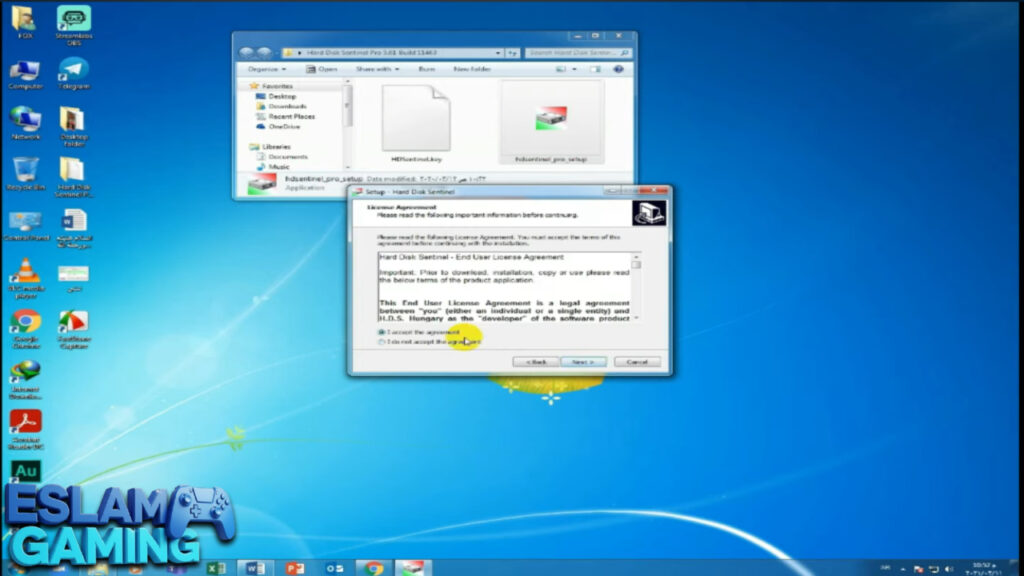
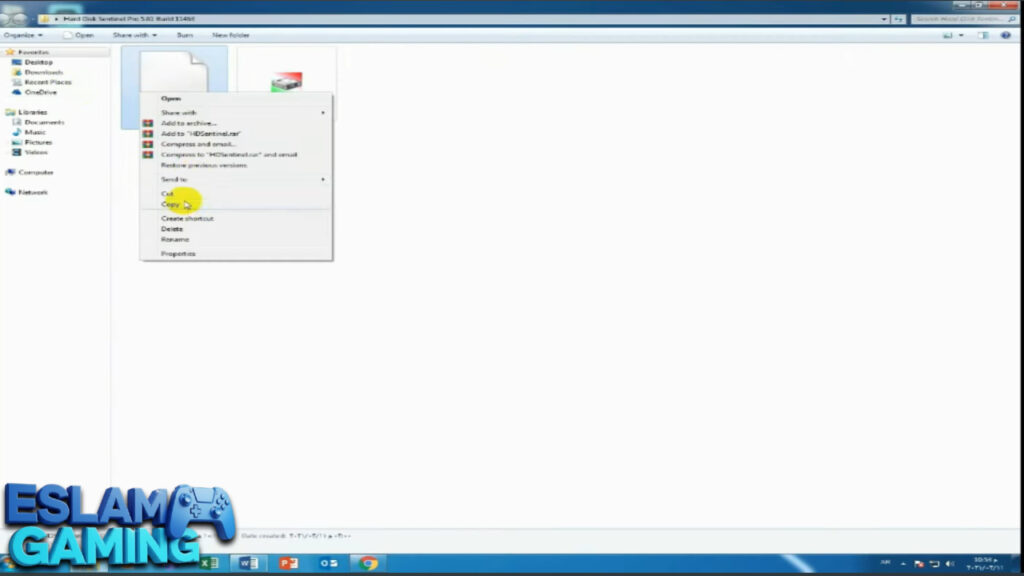
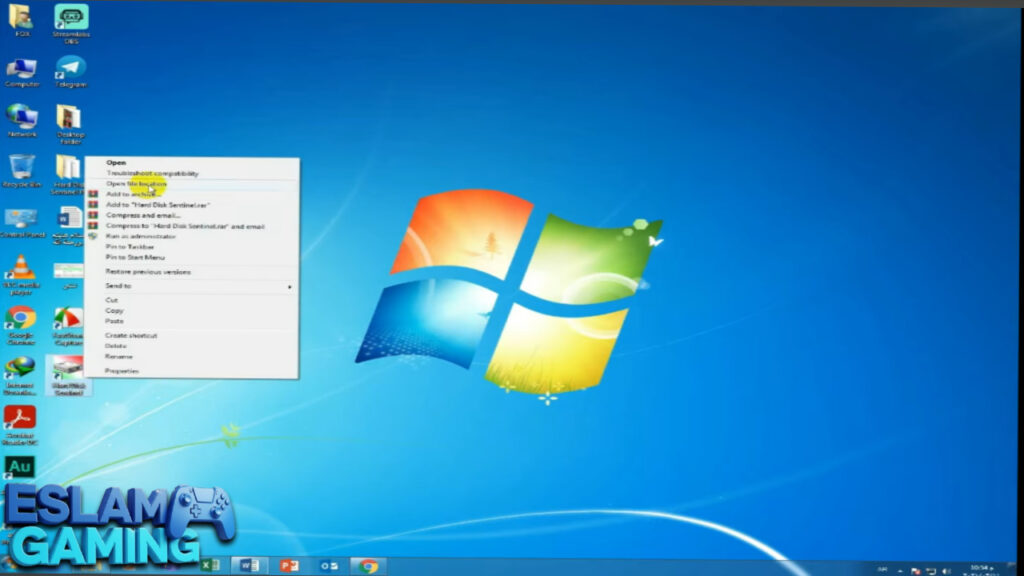
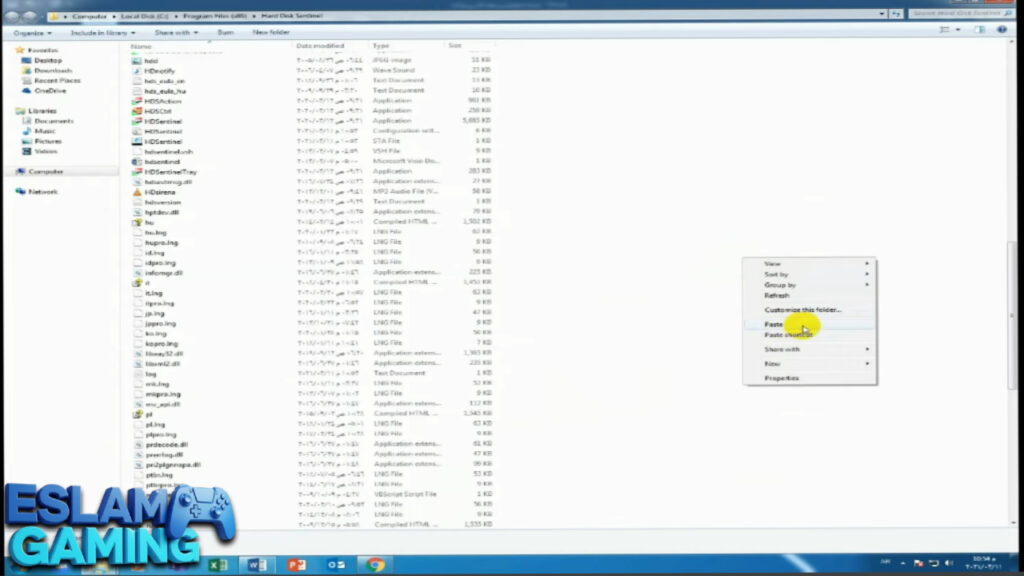
- Run the Installer: Once the setup file is downloaded, run it and follow the on-screen instructions. The installation is lightweight and won’t clutter your system. 💻
- First Launch: Upon opening, the app will perform an initial scan. Within seconds, you will see a dashboard showing all your connected drives and their current health status.
🏆 Conclusion: Your Data’s Best Friend
In conclusion, Hard Disk Sentinel is an essential tool for anyone who values their digital data. It provides a level of insight that the operating system simply cannot match. By downloading and installing this app, you are taking a proactive step toward hardware longevity and data security. 🛡️
Don’t wait for the “Blue Screen of Death” or a “Disk Boot Failure” message to appear. Download Hard Disk Sentinel today, run a health check, and gain the peace of mind that comes with knowing your hard drive is in peak condition. 🌟
Remember: Hardware is replaceable, but your memories and hard work are not. Keep them safe with the best monitoring tool in the industry! 💾✨