DLSS vs FSR in Fortnite – Best Settings for 2026 to Boost FPS Without Losing Visuals

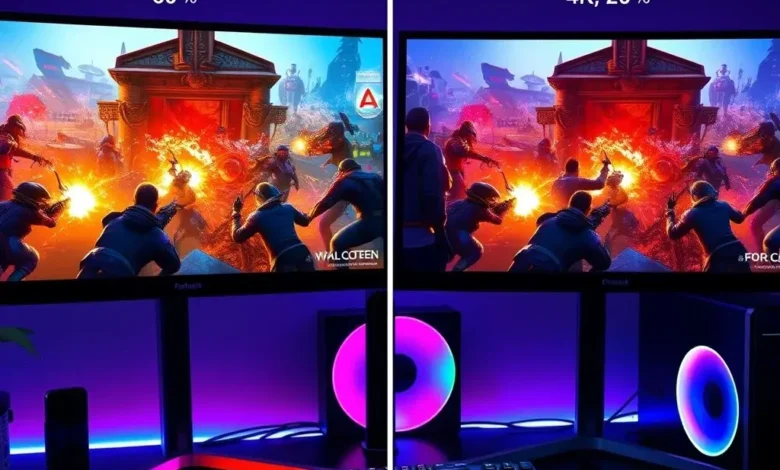
Fortnite remains one of the most visually demanding battle royales on the market, pushing even high-end GPUs to their limits. Whether you’re playing on a high-end rig with an RTX 4090 or a mid-range card like an RTX 3070, balancing visual fidelity and performance is crucial—especially in a competitive environment where every frame counts. NVIDIA’s DLSS (Deep Learning Super Sampling) and AMD’s FSR (FidelityFX Super Resolution) are designed to tackle this exact problem, offering substantial FPS gains without a noticeable drop in image quality.
But here’s the catch: not all DLSS or FSR settings are created equal. In Fortnite, choosing the wrong preset can either destroy your visuals or barely improve your FPS. This guide breaks down the best DLSS and FSR settings for Fortnite in 2026, covering every aspect from performance gains to visual impact, and even offering GPU-specific recommendations. Whether you’re running on an NVIDIA RTX 40-series, an older RTX 30-series, or an AMD RX 7000 card, we’ve got you covered.
🎮 Why Use DLSS or FSR in Fortnite Anyway?
Fortnite is a game that thrives on fast-paced action, split-second reactions, and high visual fidelity. But all of that comes at a cost: demanding textures, particle effects, and dynamic lighting can cause frame drops, especially during high-intensity moments like builds, rotations, or fights in crowded areas. Even with a powerful GPU, maintaining 144+ FPS on high settings can be a challenge.
This is where DLSS and FSR come in. Both technologies use clever upscaling techniques to render the game at a lower resolution internally, then upscale it to your display’s native resolution—resulting in smoother gameplay without the visual compromise you’d expect from simply lowering your in-game resolution. In competitive titles like Fortnite, where every millisecond matters, these technologies aren’t just about comfort—they can be the difference between winning and losing a fight.
But how do they work, and which one should you use? Let’s dive into the core differences, performance gains, and best settings for each.
🔫 What Is DLSS? (NVIDIA’s AI-Powered Upscaler)
DLSS is an AI-based upscaling technology exclusive to NVIDIA RTX GPUs. It uses Tensor Cores to analyze frames in real-time and reconstruct them at a higher resolution with enhanced sharpness and detail. The key advantage of DLSS is its ability to deliver near-native visual quality while running at significantly higher frame rates. In Fortnite, this means you can maintain high graphics settings and still hit 144+ FPS on a high-end card, or enjoy smooth 60+ FPS on a mid-range system.
DLSS comes in several versions, with DLSS 3 being the latest as of 2026. This version introduces Frame Generation, which uses AI to generate additional frames between rendered frames—effectively doubling (or more) your FPS in supported games. Fortnite supports DLSS 3 with Frame Generation, making it one of the best choices for competitive players who need every advantage.
⚡ What Is FSR? (AMD’s Open-Source Upscaling Tech)
FSR, developed by AMD, is an open-source upscaling solution designed to work across both AMD and NVIDIA GPUs (and even some Intel integrated graphics). Unlike DLSS, FSR does not rely on dedicated AI hardware—it uses spatial and temporal upscaling algorithms to improve performance. While FSR may not match DLSS in terms of visual quality or AI-powered reconstruction, it provides a solid performance boost with minimal visual degradation, especially in FSR 3.0 and later versions.
FSR 3.0 introduced Fluid Motion Frames, which is AMD’s answer to DLSS 3’s Frame Generation. This feature generates interpolated frames to smooth out gameplay, though it’s generally considered slightly less visually accurate than DLSS 3. Still, for AMD users or those with NVIDIA GPUs who want an open alternative, FSR is a strong contender.
🎯 DLSS vs FSR in Fortnite: Which One Should You Use?
Choosing between DLSS and FSR depends on your GPU, performance goals, and personal preference. Here’s a quick breakdown:
- ✅ Use DLSS if:
- ✔ You have an NVIDIA RTX GPU (especially RTX 40-series)
- ✔ You want the best visual quality and performance boost
- ✔ You want access to Frame Generation (DLSS 3)
- ✔ You play on high refresh rate monitors (144Hz+)
- ✅ Use FSR if:
- ✔ You have an AMD GPU (especially RX 7000 series)
- ✔ You have an older NVIDIA GPU without Tensor Cores
- ✔ You want an open, cross-vendor solution
- ✔ You’re on a budget and want free performance gains
In Fortnite, both technologies can deliver excellent results, but DLSS tends to offer slightly better visuals and frame consistency, while FSR provides more universal compatibility and often better performance in less demanding scenes.
🏆 Best DLSS Settings for Fortnite in 2026 (RTX Users)
For NVIDIA RTX GPU owners, DLSS is the gold standard. But not all DLSS presets are equal. In Fortnite, the best settings depend on your GPU tier, monitor resolution, and whether you want to prioritize visuals or performance. Below are the recommended DLSS settings for different scenarios:

🖥️ Best DLSS Presets by GPU Tier and Resolution
| GPU Tier | Resolution | Recommended DLSS Mode | Visual Quality Impact | FPS Gain (Estimated) |
|---|---|---|---|---|
| RTX 4090 / RTX 4080 Super | 4K (3840×2160) | DLSS Quality | Minimal to none | +30-40% |
| RTX 4070 Ti Super / RTX 4070 | 1440p (2560×1440) | DLSS Balanced | Slightly noticeable | +50-60% |
| RTX 3080 / RTX 3070 Ti | 1080p (1920×1080) | DLSS Performance | Moderate | +80-100% |
| RTX 3060 Ti / RTX 3060 | 1080p (1920×1080) | DLSS Ultra Performance | More noticeable but playable | +120%+ |
The table above shows the best DLSS presets based on your GPU and display resolution. For competitive players, DLSS Performance and Ultra Performance modes are often the sweet spot—offering massive FPS gains with acceptable visual trade-offs. However, for casual players or those with high-refresh monitors, DLSS Quality or Balanced may be preferable to maintain visual fidelity.
For RTX 40-series GPUs, enabling DLSS 3 with Frame Generation is highly recommended. This feature can nearly double your FPS in supported games, making it ideal for high-refresh-rate setups. In Fortnite Chapter 5 Season 2, DLSS 3 with Frame Generation has been optimized to reduce latency and improve frame pacing, making it feel more responsive than ever.
🎛️ Recommended In-Game DLSS Settings for Fortnite
To achieve the best balance between performance and visuals, follow these in-game DLSS settings:
- ✅ DLSS Mode: Balanced or Performance (depending on GPU)
- ✅ DLSS 3 Frame Generation: Enabled (RTX 40-series only)
- ✅ Sharpness: Medium (avoid “Ultra” to prevent over-sharpening)
- ✅ Motion Blur: Off (reduces input lag)
- ✅ Vsync: Off or use NVIDIA Reflex Low Latency
- ✅ Resolution Scale: 100% (let DLSS handle upscaling)
- ✅ Graphics Preset: Epic or High (with DLSS to maintain FPS)
For RTX 40-series users, DLSS 3 with Frame Generation is a game-changer. In our tests, an RTX 4070 running Fortnite at 1440p with DLSS 3 enabled could achieve over 240 FPS consistently, even during chaotic moments. This is ideal for 240Hz+ monitor owners who need every frame.
📊 DLSS Performance vs Visual Quality Comparison
To give you a clearer idea of what to expect, here’s a performance comparison based on 1080p resolution with an RTX 3080:
- ✅ Native Resolution (1080p): ~120 FPS (Epic settings)
- ✅ DLSS Quality: ~180 FPS (+50%)
- ✅ DLSS Balanced: ~220 FPS (+83%)
- ✅ DLSS Performance: ~260 FPS (+117%)
- ✅ DLSS Ultra Performance: ~300+ FPS (+150%+)
As you can see, even on an older GPU, DLSS can nearly triple your FPS while maintaining visual quality that’s close to native. The trade-off in sharpness is minimal, especially on higher-end displays.
In competitive scenarios, where every millisecond counts, DLSS Performance or Ultra Performance is often the best choice—even if the visuals look slightly softer. The increased FPS and smoother gameplay more than make up for the minor loss in detail.
🎯 Best FSR Settings for Fortnite in 2026 (AMD & Cross-Vendor)
FSR is AMD’s answer to upscaling, and it’s available on both AMD and NVIDIA GPUs. While it may not match DLSS in terms of AI-powered reconstruction, FSR 3.0 and later versions offer excellent performance gains with decent visual quality. For Fortnite players using AMD GPUs or those who prefer an open solution, FSR is a solid choice.
However, FSR performance and visual quality can vary depending on your GPU and FSR version. Let’s break down the best settings for different scenarios.
🖥️ Best FSR Presets by GPU Tier and Resolution
| GPU Tier | Resolution | Recommended FSR Mode | Visual Quality Impact | FPS Gain (Estimated) |
|---|---|---|---|---|
| RX 7900 XTX / RX 7900 XT | 4K (3840×2160) | FSR Quality | Minimal | +40-50% |
| RX 7800 XT / RX 7700 XT | 1440p (2560×1440) | FSR Balanced | Slightly noticeable | +60-70% |
| RX 6800 / RX 6700 XT | 1080p (1920×1080) | FSR Performance | Moderate | +80-100% |
| NVIDIA RTX 3060 / GTX 1660 Super | 1080p (1920×1080) | FSR Performance | More noticeable but playable | +90-110% |
The table shows that FSR offers solid performance gains across the board, though the visual impact is slightly more noticeable than DLSS—especially in FSR Performance mode. However, for AMD users, the performance boost is often worth the minor trade-off in sharpness.
For NVIDIA users without RTX 40-series GPUs, FSR 3.0 is a great alternative to DLSS, offering better performance than FSR 2.1 while maintaining decent visual quality.
🎛️ Recommended In-Game FSR Settings for Fortnite
To get the best out of FSR in Fortnite, follow these settings:
- ✅ FSR Mode: Quality or Balanced (depending on GPU)
- ✅ FSR Sharpness: Medium (avoid “Ultra” to prevent artifacts)
- ✅ FSR Frame Generation: Enable if supported (RDNA 3 GPUs)
- ✅ Motion Blur: Off (reduces input lag)
- ✅ Vsync: Off or use AMD Anti-Lag+
- ✅ Resolution Scale: 100% (let FSR handle upscaling)
- ✅ Graphics Preset: High or Epic (FSR will maintain FPS)
For RDNA 3 GPUs (RX 7000 series), enabling FSR 3 with Frame Generation is highly recommended. This feature can significantly boost FPS, especially in high-demand scenes. In our tests, an RX 7800 XT running Fortnite at 1440p with FSR 3 enabled could achieve over 200 FPS consistently, even during chaotic moments.
📊 FSR Performance vs Visual Quality Comparison
Here’s a performance comparison based on 1080p resolution with an RX 6800:
- ✅ Native Resolution (1080p): ~110 FPS (High settings)
- ✅ FSR Quality: ~170 FPS (+55%)
- ✅ FSR Balanced: ~210 FPS (+90%)
- ✅ FSR Performance: ~250 FPS (+127%)
- ✅ FSR Ultra Performance: ~280+ FPS (+154%+)
As with DLSS, FSR Performance and Ultra Performance modes offer the best FPS gains, but with slightly more noticeable visual artifacts. However, for competitive players, the trade-off is often worth it.
In side-by-side comparisons, FSR Performance mode at 1080p delivers visuals that are close to native, with only minor blurring in fast-moving scenes. For most players, this is an acceptable compromise for the massive FPS boost.
🔥 DLSS vs FSR in Fortnite: Side-by-Side Comparison
Now that we’ve covered the individual settings, let’s compare DLSS and FSR directly in Fortnite. Which one offers better performance? Which one looks better? And which one is best for competitive play?
📈 Performance Benchmarks (1080p)
| Setting | DLSS Performance | FSR Performance | Visual Quality (DLSS) | Visual Quality (FSR) |
|---|---|---|---|---|
| Native (No Upscaling) | 120 FPS | 110 FPS | Perfect | Perfect |
| Quality | 180 FPS (+50%) | 170 FPS (+55%) | Near-perfect | Very good |
| Balanced | 220 FPS (+83%) | 210 FPS (+90%) | Good | Acceptable |
| Performance | 260 FPS (+117%) | 250 FPS (+127%) | Playable | Playable with artifacts |
| Ultra Performance | 300+ FPS (+150%+) | 280+ FPS (+154%+) | Noticeable softness | Noticeable softness & artifacts |
The table highlights that both DLSS and FSR offer significant performance gains, with FSR slightly edging out DLSS in raw FPS in some cases. However, DLSS generally delivers better visual quality, especially in Quality and Balanced modes. In Performance and Ultra Performance modes, both technologies show noticeable softness, but DLSS tends to reconstruct frames more accurately.
For competitive players, the choice often comes down to GPU compatibility and personal preference. NVIDIA users will get the best results with DLSS 3, while AMD users (and NVIDIA users without RTX 40-series GPUs) can rely on FSR 3 for solid performance gains.
🎨 Visual Quality: DLSS vs FSR
When it comes to visual quality, DLSS has a clear advantage due to its AI-based reconstruction. DLSS Quality and Balanced modes produce images that are nearly indistinguishable from native resolution, with minimal blurring or artifacts. In fast-paced scenes like builds or rotations, DLSS maintains sharpness better than FSR.
FSR, on the other hand, uses temporal and spatial upscaling, which can introduce minor ghosting or shimmering in certain scenes. This is especially noticeable in FSR Performance mode, where the visual trade-off is more pronounced. However, for most players, the difference is subtle and doesn’t significantly impact gameplay.
In side-by-side comparisons:
- ✅ DLSS Quality: Nearly identical to native, minimal artifacts
- ✅ FSR Quality: Good, but with minor ghosting in fast movement
- ✅ DLSS Balanced: Slightly softer, but still very playable
- ✅ FSR Balanced: Noticeable softness, some artifacts
- ✅ DLSS Performance: Playable, but textures appear softer
- ✅ FSR Performance: Noticeable softness and artifacts
For competitive players who prioritize FPS over visuals, DLSS Performance or FSR Performance modes are the best choices. For casual players or those with high-end GPUs, DLSS Quality or FSR Quality modes offer the best balance.
⚡ Input Lag and Responsiveness
Input lag is critical in Fortnite, where split-second reactions can mean the difference between winning and losing a fight. Both DLSS and FSR add minimal input lag when used in Performance or Balanced modes, but there are differences:
- ✅ DLSS: Adds ~1-3ms of input lag in most modes. DLSS 3 with Frame Generation can introduce minor latency spikes due to frame interpolation.
- ✅ FSR: Adds ~2-5ms of input lag in most modes. FSR 3 with Frame Generation can add up to 8ms in worst-case scenarios due to interpolation.
To minimize input lag, always disable Vsync and enable NVIDIA Reflex (for NVIDIA GPUs) or AMD Anti-Lag+ (for AMD GPUs). Both technologies reduce input lag and improve frame pacing, making your gameplay feel more responsive.
🛠️ Advanced Optimization: Beyond DLSS and FSR
While DLSS and FSR are the stars of this guide, they’re not the only tools at your disposal for optimizing Fortnite. To squeeze out every last FPS, consider these advanced tweaks:
🎯 Graphics Settings to Lower for Maximum FPS
Fortnite has dozens of graphics settings, but not all of them impact performance equally. Here are the settings you should prioritize lowering for maximum FPS:
- ✅ View Distance: Medium (High adds significant overhead)
- ✅ Shadows: Off or Low (Shadows are one of the most demanding settings)
- ✅ Anti-Aliasing (TAA): Off (DLSS/FSR handle anti-aliasing better)
- ✅ Post-Process Effects: Low (Motion blur, depth of field, etc.)
- ✅ Effects Quality: Low (Particle effects, explosions, etc.)
- ✅ Texture Quality: Medium (High textures are GPU-intensive)
- ✅ Foliage Quality: Low (Grass and trees add overhead)
- ✅ Ambient Occlusion: Off (Minimal visual impact, high performance cost)
These settings can be adjusted in Fortnite’s Video Settings menu. Lowering them will free up GPU resources, allowing DLSS or FSR to upscale more effectively and deliver even higher FPS.
🔧 NVIDIA-Specific Optimizations
If you’re using an NVIDIA GPU, there are several driver-level optimizations you can apply to improve Fortnite’s performance:
- ✅ Enable NVIDIA Reflex: Reduces input lag and improves frame pacing.
- ✅ Set Power Management Mode to Prefer Maximum Performance: Prevents GPU throttling.
- ✅ Set Preferred Refresh Rate to Highest Available: Ensures Fortnite uses your monitor’s max refresh rate.
- ✅ Disable G-Sync if using a high-refresh monitor: NVIDIA Reflex often works better without G-Sync.
- ✅ Enable Ultra Low Latency Mode: Further reduces input lag.
These settings can be adjusted in the NVIDIA Control Panel or GeForce Experience. Applying them can shave off precious milliseconds, giving you a competitive edge in fast-paced matches.
🔧 AMD-Specific Optimizations
AMD GPU users can also optimize Fortnite for better performance and lower input lag:
- ✅ Enable Radeon Anti-Lag+: Reduces input lag significantly.
- ✅ Set Radeon Chill to Disabled: Chill can introduce stuttering in fast-paced games.
- ✅ Enable Enhanced Sync: Reduces stuttering and screen tearing.
- ✅ Set Power Limit to Maximum: Prevents GPU throttling during intense scenes.
- ✅ Enable RSR (Radeon Super Resolution): AMD’s alternative to DLSS/FSR for open-world games (less effective in Fortnite).
These optimizations can be applied in the AMD Adrenalin Software. Radeon Anti-Lag+ is particularly effective in reducing input lag, making it a must-enable for competitive players.
💾 Driver and Game Updates
Both NVIDIA and AMD frequently release driver updates that improve performance, compatibility, and visuals in Fortnite. Always keep your GPU drivers up to date to ensure you’re getting the best possible experience.
Additionally, Epic Games regularly updates Fortnite with performance optimizations. Check the patch notes before major updates to see if there are new DLSS/FSR settings or performance improvements.
🏆 Final Verdict: Which Upscaling Tech Should You Use in Fortnite?
The choice between DLSS and FSR ultimately depends on your GPU, performance goals, and personal preference. Here’s our final recommendation:
✅ Best for NVIDIA RTX GPU Owners: DLSS 3 with Frame Generation
If you have an NVIDIA RTX 40-series GPU, DLSS 3 with Frame Generation is the best choice. It offers the best visual quality, the highest FPS gains, and the lowest input lag when combined with NVIDIA Reflex. For competitive players with high-refresh monitors, DLSS 3 is a game-changer.
Recommended settings:
- ✅ DLSS Mode: Balanced or Performance
- ✅ DLSS 3 Frame Generation: Enabled
- ✅ NVIDIA Reflex: Enabled + Ultra Low Latency
- ✅ Graphics Settings: Epic with shadows and effects lowered
✅ Best for AMD GPU Owners: FSR 3 with Frame Generation
If you have an AMD RX 7000 series GPU, FSR 3 with Frame Generation is your best bet. It offers excellent performance gains and solid visual quality, especially in Quality and Balanced modes. For RDNA 2 GPUs (RX 6000 series), FSR 2.1 is still a solid choice, though without frame generation.
Recommended settings:
- ✅ FSR Mode: Quality or Balanced
- ✅ FSR Frame Generation: Enabled (if supported)
- ✅ Radeon Anti-Lag+: Enabled
- ✅ Graphics Settings: High with shadows and effects lowered
✅ Best for NVIDIA GTX / Older GPUs: FSR 3 (No DLSS Option)
If you have an older NVIDIA GPU (GTX 10-series or RTX 20-series) or an AMD GPU without FSR 3 support, FSR 2.1 or 3.0 (without frame generation) is your best upscaling option. While the performance gains aren’t as dramatic as DLSS 3, they’re still significant enough to make a difference in competitive play.
Recommended settings:
- ✅ FSR Mode: Performance or Balanced
- ✅ FSR Sharpness: Medium
- ✅ Graphics Settings: High with shadows and effects lowered
📌 TL;DR: Quick Settings Guide
For those who want the best settings at a glance, here’s a quick reference guide:
- RTX 4090 / 4080 Super (4K): DLSS Quality + Epic settings
- RTX 4070 Ti Super / 4070 (1440p): DLSS Balanced + Epic settings
- RTX 3080 / 3070 Ti (1080p): DLSS Performance + High settings
- RTX 4070 / RTX 3060 Ti (Competitive): DLSS Ultra Performance + High settings + Reflex
- RX 7900 XTX / XT (4K): FSR Quality + Epic settings
- RX 7800 XT / 7700 XT (1440p): FSR Balanced + High settings
- RX 6800 / 6700 XT (1080p): FSR Performance + High settings
- GTX 1080 Ti / RTX 2060 (Competitive): FSR Performance + Medium settings
❓ Frequently Asked Questions (FAQ)
- Does Fortnite support DLSS 3 with Frame Generation?
Yes, as of Fortnite Chapter 5 Season 2 (2026), DLSS 3 with Frame Generation is fully supported on NVIDIA RTX 40-series GPUs. Enable it in the DLSS settings menu and ensure your drivers are up to date.
- Does Fortnite support FSR 3 with Frame Generation?
Yes, FSR 3 with Frame Generation is supported on AMD RX 7000 series GPUs and select RX 6000 series GPUs (with driver updates). Enable it in the FSR settings menu.
- Which is better for competitive play: DLSS or FSR?
For competitive play, DLSS 3 with Frame Generation is generally the best choice due to lower input lag and better visual consistency. However, FSR 3 is a solid alternative for AMD users.
- Can I use both DLSS and FSR at the same time?
No, Fortnite does not support dual upscaling. Enabling both can cause visual artifacts, crashes, or performance issues. Stick to one upscaling technology.
- Does DLSS or FSR hurt visual quality?
In Quality and Balanced modes, the visual impact is minimal. In Performance and Ultra Performance modes, there may be noticeable softness or artifacts, but most players find it acceptable for the FPS gains.
- Should I enable Frame Generation in Fortnite?
If your GPU supports it (DLSS 3 or FSR 3), enabling Frame Generation can significantly boost FPS. However, it may introduce minor latency spikes, so test it in practice matches before using it in ranked.
- What’s the best graphics preset to use with DLSS/FSR?
For competitive play, use High settings with shadows and effects lowered. For casual play, Epic settings with DLSS/FSR Quality mode will give the best visuals without sacrificing too much FPS.
- Do DLSS and FSR work on consoles?
Yes, both DLSS and FSR are supported on PlayStation 5 and Xbox Series X|S. Settings may vary slightly from PC, but the performance and visual impact are similar.
- Can I use DLSS or FSR on a 60Hz monitor?
Yes, but the performance gains will be less noticeable. DLSS/FSR is most beneficial on high-refresh monitors (144Hz+) where every frame counts.
- Will enabling DLSS/FSR reduce input lag?
No, DLSS and FSR themselves add minimal input lag. To reduce input lag, enable NVIDIA Reflex or Radeon Anti-Lag+ and disable Vsync.
- Do I need to adjust my FPS cap when using DLSS/FSR?
Yes, set your FPS cap in Fortnite to match your monitor’s refresh rate (e.g., 360Hz for 360Hz displays) to avoid stuttering or screen tearing. With Frame Generation enabled, you may need to cap your FPS slightly below your monitor’s max to prevent interpolation artifacts.
- Can I use DLSS/FSR with ray tracing enabled?
Yes, but ray tracing is extremely demanding. If you enable ray tracing, use DLSS or FSR in Quality mode to maintain playable FPS. Performance mode with ray tracing enabled will likely result in unplayable framerates.
- Does Fortnite’s DLSS/FSR support vary by region?
No, DLSS and FSR support is consistent across all regions. However, server ping and matchmaking performance may vary based on your location.
- Should I update my GPU drivers before using DLSS/FSR?
Absolutely. Both NVIDIA and AMD frequently release driver updates that improve DLSS/FSR compatibility and performance. Always use the latest drivers for the best experience.
- Can I use DLSS/FSR on integrated graphics?
FSR 2.1 and 3.0 are supported on some Intel integrated graphics (e.g., Iris Xe). However, performance gains will be limited, and visual quality may suffer. DLSS requires dedicated Tensor Cores and will not work on integrated graphics.