How to Reduce Lag in Critical Ops – Ultimate Performance Guide for Smooth Gameplay

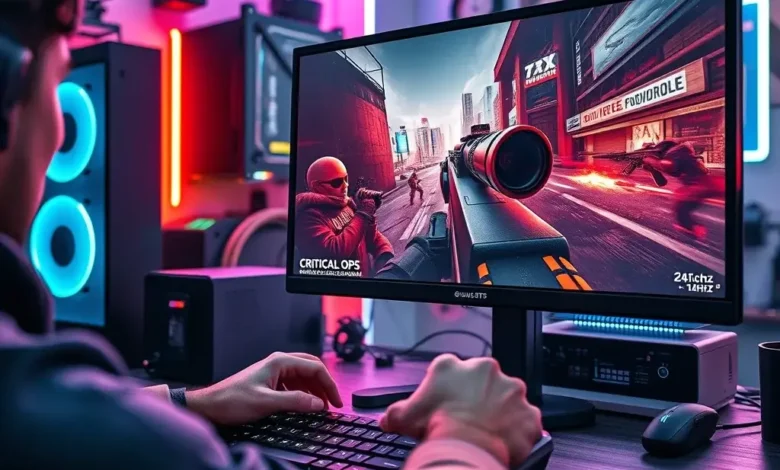
If you’re an avid Critical Ops player, you’ve likely encountered frustrating lag spikes during intense matches. Whether it’s rubber-banding, delayed reactions, or sudden disconnections, these issues can ruin your gaming experience and cost you matches. Lag in Critical Ops is often caused by a combination of network latency, hardware limitations, and background processes clogging your system. Fortunately, there are proven ways to minimize or even eliminate these problems. In this guide, we’ll break down the most effective methods to reduce lag in Critical Ops, ensuring you stay competitive and enjoy smooth gameplay every time you load the game.
🚀 Why Does Lag Happen in Critical Ops?
Critical Ops is a fast-paced tactical shooter that demands quick reflexes and precise timing. When lag occurs, it disrupts the game’s flow, making it harder to aim, move, and react. The primary causes of lag in Critical Ops include:
- ✅ High ping or unstable internet connection – This is the most common issue, especially if you’re playing on a crowded server or using a slow network.
- 🎯 Hardware bottlenecks – Your CPU, GPU, or RAM might not be powerful enough to run the game smoothly at your current settings.
- ⚠️ Background processes and applications – Other programs running on your device can consume resources, leading to FPS drops and input lag.
- 🔥 Outdated drivers or game files – Corrupted or unoptimized files can cause performance issues.
- 📶 Wi-Fi interference or weak signal – Wireless connections are more prone to latency and packet loss compared to wired connections.
🌍 Understanding Network Lag vs. Hardware Lag
Not all lag is created equal. Network lag (or latency) occurs when your connection to the game server is slow or unstable. You’ll notice this as delayed movements, shots registering late, or sudden rubber-banding. Hardware lag, on the other hand, happens when your device struggles to render the game smoothly, leading to low FPS, stuttering, or freezes. To effectively reduce lag, you need to identify which type of lag is affecting your gameplay.
Network lag is often beyond your control unless you switch ISPs or optimize your connection. However, hardware lag can usually be fixed with the right settings and optimizations. In this guide, we’ll focus on both types of lag, providing actionable solutions for each.
🔍 Diagnosing Your Lag Issue
Before applying fixes, determine whether your lag is network-based or hardware-based. Here’s how:
- Check your ping: Open the in-game menu and look at your ping value. If it’s consistently above 100ms, you’re experiencing network lag.
- Monitor your FPS: Enable the FPS counter in Critical Ops settings. If your FPS drops below 60 frequently, you’re dealing with hardware lag.
- Test on different servers: If lag persists across all servers, it’s likely a hardware issue. If it only happens on certain servers, network latency might be the culprit.
🛠️ Optimizing Your Internet Connection for Critical Ops
Since network lag is a major issue in online shooters like Critical Ops, optimizing your internet connection should be your first priority. Follow these steps to minimize latency and improve stability:
📡 Use a Wired Connection
Wi-Fi is convenient, but it’s also prone to interference, signal drops, and higher latency. For the best performance in Critical Ops, connect your device directly to your router using an Ethernet cable. This eliminates wireless interference and provides a more stable connection. If you must use Wi-Fi, ensure you’re close to the router and on a less congested channel.
🚫 Close Bandwidth-Hogging Applications
Background apps like streaming services, downloads, or cloud syncing can consume bandwidth and increase your ping. Before launching Critical Ops, close unnecessary applications to free up bandwidth. Here’s how:
- ✅ On PC: Use Task Manager (Ctrl + Shift + Esc) to end background processes.
- 🎮 On Mobile: Close apps running in the background or enable airplane mode temporarily.
- 📶 Pause downloads: If you’re downloading updates or large files, pause them while playing.
🔄 Optimize Your Router Settings
Your router plays a crucial role in your internet connection quality. Tweaking a few settings can significantly reduce lag in Critical Ops:
- Enable QoS (Quality of Service): QoS prioritizes gaming traffic over other data, reducing latency spikes.
- Use a static IP: Assigning a static IP to your device can prevent IP conflicts and improve connection stability.
- Change DNS servers: Switching to faster DNS servers like Google DNS (8.8.8.8) or Cloudflare (1.1.1.1) can improve response times.
- Update router firmware: Outdated firmware can cause performance issues. Check your router manufacturer’s website for updates.
🔄 Switch to a Better Server
Critical Ops offers multiple servers across different regions. If you’re experiencing high ping, try switching to a server closer to your location. Here’s how:
- ✅ PC: In the game lobby, click on the server name and select a region with lower ping.
- 🎮 Mobile: Tap the globe icon to view available servers and choose the one with the best connection.
⚙️ Optimizing Critical Ops Settings for Maximum Performance
If network optimizations don’t fully resolve your lag issues, hardware limitations might be to blame. Adjusting Critical Ops settings can help improve FPS and reduce stuttering. Here’s a step-by-step guide to optimizing the game for smooth performance:
🖥️ Graphics Settings for PC Players
For PC players, Critical Ops offers a range of graphical options that can be tweaked to balance visuals and performance. Follow these recommendations based on your hardware tier:


💻 Low-End PCs (Integrated Graphics, Older CPUs)
If you’re running the game on integrated graphics or an older CPU, prioritize performance over visuals. Use these settings:
- Resolution: Set to your monitor’s native resolution but lower the in-game resolution scale to 75% or 50%.
- Graphics Quality: Low or Medium.
- Texture Quality: Low.
- Shadows: Off or Low.
- Anti-Aliasing: Off.
- Effects Quality: Low.
- VSync: Off.
🎮 Mid-Range PCs (Dedicated GPU, Modern CPU)
For mid-range PCs, you can balance visuals and performance with these settings:
- Resolution: Native resolution with 90% or 100% resolution scale.
- Graphics Quality: Medium to High.
- Texture Quality: Medium to High.
- Shadows: Medium.
- Anti-Aliasing: FXAA or MSAA 2x.
- Effects Quality: Medium.
- VSync: Off (or use Adaptive Sync if supported).
🚀 High-End PCs (RTX GPUs, Latest CPUs)
If you have a high-end PC, you can max out most settings without worrying about performance drops. However, for competitive play, consider these adjustments:
- Resolution: Native resolution with 100% resolution scale.
- Graphics Quality: High to Ultra.
- Texture Quality: High to Ultra.
- Shadows: Medium to High.
- Anti-Aliasing: MSAA 4x or FXAA.
- Effects Quality: Medium to High.
- VSync: Off (use NVIDIA Reflex or Radeon Chill if available).
📱 Mobile Optimization for Android & iOS
For mobile players, performance is heavily dependent on your device’s specifications. Follow these tips to optimize Critical Ops on Android and iOS:
🔧 General Mobile Optimization Tips
- ✅ Lower graphics settings: Reduce texture quality, shadows, and effects to improve FPS.
- 🎯 Close background apps: Free up RAM by closing unused applications.
- ⚡ Enable battery saver mode: While this may reduce performance slightly, it prevents thermal throttling.
- 📶 Use a stable connection: Prefer 5GHz Wi-Fi or a strong 4G/5G signal over weak networks.
- 🔄 Update the game: Developers frequently release patches to improve performance and fix bugs.
📱 Android-Specific Optimizations
Android devices vary widely in hardware, so these settings may differ based on your phone:
- Graphics Preset: Start with Medium and lower settings if FPS drops.
- Resolution Scale: Set to 75% or lower if your phone struggles with high resolutions.
- Shadows & Effects: Disable or set to low.
- Frame Rate Limit: Cap FPS to 60 if your device supports it to prevent overheating.
- Developer Options: Enable Force GPU Rendering and Disable Hardware Overlays in Android settings to reduce input lag.
🍎 iOS-Specific Optimizations
iPhones and iPads generally handle games well, but you can still optimize performance:
- Graphics Settings: Start with Medium and adjust based on FPS.
- Disable Background App Refresh: Go to Settings > General > Background App Refresh and turn it off for all apps except Critical Ops.
- Low Power Mode: Avoid enabling this while gaming, as it throttles performance.
- Close unnecessary apps: Double-tap the home button (or swipe up and hold) to close background apps.
🔧 Advanced Optimization Techniques
If basic optimizations aren’t enough, try these advanced techniques to further reduce lag and improve performance in Critical Ops:
💾 Update Drivers and Game Files
Outdated drivers or corrupted game files can cause unexpected lag spikes. Here’s how to ensure everything is up to date:
🖥️ Updating GPU Drivers (PC)
- ✅ NVIDIA GPUs: Use GeForce Experience to check for updates or download drivers manually from NVIDIA’s website.
- 🎮 AMD GPUs: Use Radeon Software or download drivers from AMD’s support page.
- 💻 Intel Integrated Graphics: Update via Intel Driver & Support Assistant.
📱 Updating Mobile Device Drivers
For Android:
- ✅ Check for system updates: Go to Settings > System > Software Update.
- 🎯 Update GPU drivers: Some Android devices allow manual GPU driver updates via the manufacturer’s app store.
For iOS:
- 🍎 Update iOS: Go to Settings > General > Software Update.
- 🔄 Reinstall the game: Delete and reinstall Critical Ops to ensure all files are fresh.
🎛️ Adjust Critical Ops In-Game Settings for Competitive Play
Competitive players often tweak specific settings to gain an edge. Here are some advanced in-game optimizations for Critical Ops:
🎯 Sensivity and Control Settings
- Mouse Sensitivity: Adjust to a comfortable level that allows quick flicks without overshooting.
- Controller Settings: If using a gamepad, tweak dead zones and sensitivity for precise aiming.
- Keybindings: Customize controls to reduce input lag (e.g., disable unnecessary key presses).
🔥 Graphics and Performance Tweaks
- Disable Motion Blur: This effect adds unnecessary GPU load without improving gameplay.
- Reduce Particle Effects: Fewer explosions and smoke effects can improve FPS.
- Lower Draw Distance: Reduce the distance at which objects load to decrease GPU load.
- Disable HUD Elements: In competitive modes, you might not need all HUD elements, so disabling some can reduce clutter and improve focus.
🛡️ Use Third-Party Optimization Tools
Several third-party tools can help optimize your system for gaming. Here are some of the best options for reducing lag in Critical Ops:
🖥️ For PC: MSI Afterburner & RivaTuner
- MSI Afterburner: Monitor GPU temperature, FPS, and usage. You can also overclock your GPU for better performance.
- RivaTuner: Integrated with MSI Afterburner, it allows you to cap FPS to prevent overheating and reduce stuttering.
📱 For Mobile: Game Booster Apps
- Game Booster 4x: (Android) Optimizes CPU and RAM usage for smoother gameplay.
- LiquidSpeed: (Android) Boosts performance by freeing up RAM and CPU resources.
- NoxPlayer or LDPlayer: (For emulators) Provides built-in optimization tools for better FPS.
🌐 Reducing Lag in Multiplayer & Competitive Modes
In competitive modes like Bomb Mode, Hostage Rescue, or Team Deathmatch, even a slight lag spike can cost you the game. Here’s how to stay competitive:
🎮 Choose the Right Game Mode
Not all game modes require the same level of performance. For example:
- ✅ Team Deathmatch: Less demanding, so you can afford higher graphics settings.
- 🎯 Bomb Mode: More intense, so prioritize low ping and high FPS.
- 🔥 Hostage Rescue: Requires quick reflexes, so minimize latency and stuttering.
🏆 Play During Off-Peak Hours
Server load significantly impacts lag. Playing during off-peak hours (early morning or late at night in your region) ensures fewer players on the server, reducing ping and latency spikes.
🔄 Avoid Peak Times in Your Region
If you’re in a densely populated area (e.g., major cities), servers may get overcrowded during evening hours. Check local gaming trends and adjust your playtime accordingly.
🧪 Testing and Monitoring Your Performance
After applying optimizations, it’s essential to test whether your changes are effective. Here’s how to monitor your performance in Critical Ops:
📊 Enable In-Game FPS Counter
Critical Ops includes a built-in FPS counter. To enable it:
- ✅ PC: Go to Settings > Graphics and enable Show FPS Counter.
- 🎮 Mobile: Go to Settings > Advanced and toggle Show FPS Counter.
Monitor your FPS during matches. If it’s consistently above 60, you’re in good shape. If it dips below 30, further optimizations are needed.
🔍 Use Third-Party Benchmarking Tools
For a more detailed analysis, use benchmarking tools like:
- 📈 Fraps: Measures FPS and records gameplay clips.
- 🎚️ CapFrameX: Analyzes frame times and identifies stuttering.
- 📱 GameBench: (Mobile) Provides detailed performance metrics for Android devices.
🔄 Compare Before and After Optimizations
Before applying any changes, record your FPS and ping during a match. After optimizing, run another match and compare the results. If your FPS increased and ping decreased, your optimizations were successful.
🚫 Common Mistakes That Increase Lag
Some players unknowingly worsen their lag issues by making these common mistakes:
🚨 Running Too Many Background Apps
Even apps running in the background can consume CPU, RAM, and bandwidth. Always close unnecessary programs before launching Critical Ops.
🔄 Using Outdated or Corrupted Game Files
If the game files are corrupted, performance issues are inevitable. Always reinstall or repair the game if you suspect file corruption.
📶 Ignoring Your Internet Service Provider (ISP)
If your ISP throttles gaming traffic or provides unstable connections, no amount of in-game optimizations will fix lag. Consider switching to a more reliable ISP if lag persists.
🔥 Overclocking Without Proper Cooling
Overclocking your GPU or CPU can improve performance but may also cause overheating, leading to thermal throttling and lag. Ensure proper cooling before attempting overclocks.
🏁 Final Verdict: Can You Completely Eliminate Lag in Critical Ops?
While you can’t always eliminate lag entirely, following the steps in this guide will significantly reduce its impact on your gameplay. Network lag may persist depending on your ISP and server location, but hardware optimizations and in-game tweaks can make a world of difference. For the best results, combine these techniques:
- ✅ Optimize your internet connection (wired > Wi-Fi, QoS, static IP).
- 🎮 Adjust graphics and performance settings based on your hardware.
- 🔧 Update drivers and game files regularly.
- 🛠️ Use optimization tools like MSI Afterburner or Game Booster.
- 📊 Monitor performance with FPS counters and benchmarking tools.
If you’re still experiencing lag after trying everything, consider upgrading your hardware or switching to a more stable ISP. For most players, the solutions provided in this guide will be more than enough to enjoy smooth, lag-free gameplay in Critical Ops.
❓ Frequently Asked Questions About Reducing Lag in Critical Ops
-
Does using a VPN help reduce lag in Critical Ops?
While VPNs can sometimes reduce lag by routing traffic through optimized servers, they often introduce additional latency due to the extra hop. Only use a VPN if you’re trying to access a specific server region, and test your ping before committing to it.
-
Why does my FPS drop in Critical Ops even after lowering graphics settings?
If FPS drops persist even with low settings, your CPU might be the bottleneck. Critical Ops is heavily CPU-dependent, especially in crowded maps with many players. Upgrading your CPU or closing background processes can help.
-
What’s the ideal ping for playing Critical Ops competitively?
The ideal ping for competitive play is below 50ms. A ping between 50ms and 100ms is playable but may introduce slight delays. Anything above 100ms will cause noticeable lag, especially in fast-paced modes like Bomb Mode.
-
Does enabling VSync help reduce lag in Critical Ops?
VSync can reduce screen tearing but often increases input lag. For competitive shooters like Critical Ops, it’s best to disable VSync and rely on GPU drivers (NVIDIA Reflex, AMD Radeon Chill) to synchronize frames.
-
How do I check if my network is causing lag in Critical Ops?
Open the in-game menu and check your ping. If it’s consistently high (above 100ms), network latency is the issue. You can also run a speed test to check for packet loss or unstable connections.
-
Is it better to play Critical Ops on PC or mobile for lower lag?
On PC, you have more control over settings, drivers, and hardware, which can lead to lower lag if optimized properly. Mobile performance depends heavily on your device, but modern flagships can run the game smoothly with the right settings.
-
Does playing in fullscreen mode reduce lag compared to windowed mode?
Yes, fullscreen mode generally reduces input lag and improves performance because it allows direct access to GPU resources without window management overhead.
-
Can I reduce lag by changing my router’s MTU settings?
Yes, adjusting your router’s MTU (Maximum Transmission Unit) can help reduce latency and packet loss. The optimal MTU for gaming is usually 1400-1500. You can find guides online for changing MTU settings on your specific router model.
-
How often should I update my GPU drivers for Critical Ops?
It’s a good practice to check for GPU driver updates at least once a month, especially if you’re experiencing performance issues. NVIDIA and AMD frequently release optimizations for new games, including Critical Ops.
-
Does playing on a 2.4GHz Wi-Fi band cause more lag than 5GHz?
Yes, the 2.4GHz band is more prone to interference and congestion, leading to higher latency. If possible, use a 5GHz band or a wired connection for the best performance in Critical Ops.
By implementing the strategies in this guide, you’ll be well on your way to enjoying smooth, lag-free gameplay in Critical Ops. Whether you’re a casual player or a competitive pro, optimizing your connection and hardware will give you the edge you need to dominate the battlefield. Don’t let lag hold you back—take control of your gaming experience today!