
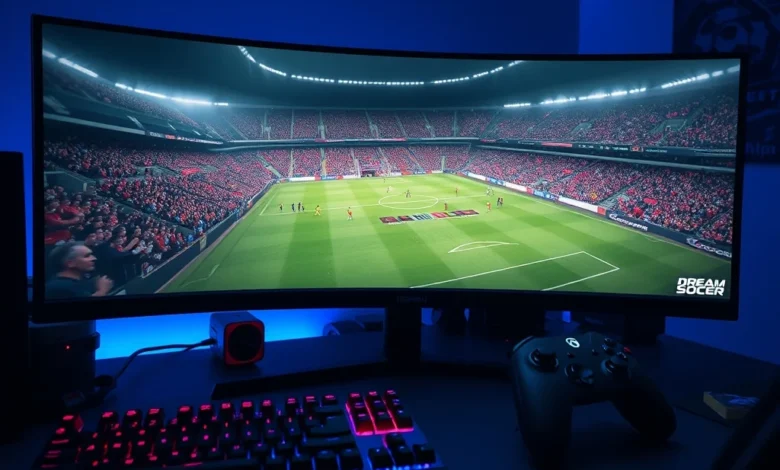
Unlocking the full potential of your favorite football simulation requires more than just skill on the pitch. It demands a finely tuned digital environment where performance meets visual fidelity. Dream League Soccer 2026 has become a staple for mobile football enthusiasts, and bringing this experience to a PC platform offers a distinct advantage. However, running a mobile-first title on a desktop operating system introduces specific technical challenges that must be addressed. Optimizing your Dream League Soccer 2026 on PC involves a multi-layered approach that covers emulator configuration, graphics rendering, and input control schemes. This comprehensive guide will walk you through every necessary step to ensure a smooth, lag-free, and visually stunning gaming session.
The transition from a mobile screen to a larger monitor changes the way you interact with the game. While the core mechanics remain the same, the physics engine and rendering pipeline respond differently to hardware resources. Many players struggle with stuttering or high input latency when they first attempt to play on a desktop via an emulator. This issue stems from default configuration settings that prioritize compatibility over performance. By adjusting these parameters correctly, you can achieve frame rates that exceed the standard mobile experience. The goal is to create a stable environment where your focus remains entirely on the match, not on technical glitches.
Before diving into specific settings, it is crucial to understand the underlying architecture of PC emulation. Emulators act as a bridge between the mobile operating system and the Windows environment. They translate mobile instructions into commands your computer can execute. This translation process consumes additional CPU and memory resources compared to running a native PC game. Therefore, resource allocation becomes the primary factor in optimization. We will explore how to allocate these resources efficiently, ensuring that your processor and graphics card are dedicated to rendering the game rather than managing the emulation layer.
🎮 Understanding PC Optimization for Dream League Soccer
Optimization is not a one-time task but an ongoing process that adapts to your hardware capabilities. Every computer is unique, with different combinations of processors, graphics cards, and memory modules. A setting that works perfectly on a high-end gaming rig might cause performance drops on a mid-range laptop. This section establishes the foundational knowledge required to tailor the experience to your specific machine. We will start by examining the emulator environment and then move on to internal game settings.
⚙️ The Emulator Environment
The choice of emulator is the most critical decision you will make. There are several reputable options available in the market, each with its own strengths and weaknesses. For Dream League Soccer 2026, you need an emulator that prioritizes stability and low latency. Some emulators are better suited for strategy games, while others excel at fast-paced action titles. Football simulations require precise timing for passes and shots, so input lag must be minimized. Look for an emulator that supports multi-instance operations and offers granular control over virtual hardware settings.
When configuring the emulator, you should prioritize performance mode over compatibility mode. This often involves disabling unnecessary visual effects within the emulator interface itself. Some emulators include overlays or recording features that can consume background resources. Turning these off before launching the game ensures that maximum system power is available for the football match. Additionally, enabling virtualization technology in your BIOS is essential. This allows the emulator to access hardware acceleration features that significantly improve rendering speed.
📱 Mobile Settings vs. PC Emulator Settings
Understanding the difference between mobile and PC settings is vital for troubleshooting. Mobile settings are designed to conserve battery life and manage heat, whereas PC emulators have access to unlimited power and better cooling systems. Consequently, you can push the graphics settings higher on a PC than on a smartphone. However, the game itself may still limit options based on its classification as a mobile title. This is where the emulator settings come into play to override or enhance these limitations.
For instance, mobile devices often cap the frame rate at thirty or sixty frames per second to prevent overheating. On a PC, you can often unlock this cap to sixty or even higher, depending on your monitor and graphics card. This results in much smoother motion, which is crucial for tracking the ball during fast breaks. You must also consider the resolution scaling. While mobile devices have fixed screen densities, PC emulators allow you to render the game at a higher resolution than the native mobile display. This sharpens the visuals but requires more processing power.
🚀 Graphics Configuration Guide
Visual quality is a major component of the immersion in Dream League Soccer 2026. High-quality textures and realistic lighting make the virtual stadium feel alive. However, pushing the visuals too high can lead to dropped frames and stuttering. The key is to find the sweet spot where the game looks beautiful without sacrificing responsiveness. This balance is achieved through careful adjustment of the graphics engine settings within your chosen emulator.
🖥️ Resolution and Scaling
Resolution is the first setting you should adjust. Start with the native resolution of your monitor. If you have a 1080p screen, set the emulator to render at 1920 by 1080 pixels. If you have a 4K monitor, you might need to test different scaling factors to see what your GPU can handle. Rendering at a resolution higher than your native monitor can sometimes cause issues with the rendering pipeline, so match your monitor specs whenever possible.
Scaling is another factor to consider. Some emulators offer an option to scale the UI independently of the game resolution. If the game interface looks too small on your large monitor, increase the UI scaling factor. This ensures that buttons and menus are easily clickable without making the actual gameplay graphics blurry. Always test this while in the main menu to ensure that text remains legible and touch targets are appropriately sized.
🎨 Visual Effects and Frame Rates
Visual effects such as shadows, anti-aliasing, and post-processing can significantly impact performance. In the emulator settings, you will often find options to toggle these features individually. For competitive play, it is generally recommended to keep these effects on a medium setting. High-quality shadows can look great, but they can also create performance bottlenecks during complex scenes like crowd interactions. Anti-aliasing smooths out jagged edges, but it consumes significant GPU resources.


Frame rate locking is perhaps the most important setting for a smooth experience. Unlocking the frame rate limit allows the game to run as fast as your hardware permits. This reduces input lag and makes the gameplay feel more fluid. However, if your frame rate fluctuates wildly, it is better to cap it at a stable sixty frames per second. Consistency is more important than peak performance in a simulation game. Monitor your frames per second using the built-in performance monitor in your emulator dashboard.
🎮 Control Schemes for Enhanced Gameplay
One of the biggest advantages of playing Dream League Soccer 2026 on PC is the potential for better control schemes. While mobile controls rely on touch gestures, PC platforms offer physical keyboards and game controllers. These input methods provide more precision and tactile feedback, which is essential for mastering passing timing and shooting power. Configuring these controls correctly is just as important as optimizing the graphics.
⌨️ Keyboard Mapping Setup
Keyboard mapping allows you to assign specific keys to in-game actions. You should map the most frequent actions to keys that are easily accessible. For example, the spacebar is often ideal for shooting, while the arrow keys or WASD are standard for movement. The challenge with keyboard controls is that they are not naturally designed for a football simulation. You may need to spend time customizing the sensitivity of the virtual joystick that appears on your screen.
Some players prefer to use a combination of keyboard and mouse. The mouse can be used for aiming shots, while the keyboard handles movement and passing. This hybrid approach can offer a level of precision that is difficult to achieve with a single input method. Experiment with different mappings to find a layout that feels natural to your hands. Avoid mapping too many critical functions to keys that are far apart, as this can lead to missed inputs during intense moments in a match.
🎮 Controller Support Options
Using a game controller can provide the most console-like experience on PC. Most modern controllers are compatible with PC emulators, but you may need to install specific drivers to ensure full functionality. Once connected, you should map the controller buttons to the emulator input actions. This usually involves a simple drag-and-drop process within the emulator configuration menu. A controller allows for analog movement, which gives you finer control over player speed and direction.
One significant advantage of controller support is the use of triggers for power control. The analog triggers on a controller can be mapped to the power meter for shots and passes. This allows you to apply a gradual amount of force, rather than the binary on-off nature of a keyboard key. This nuance is crucial for executing finesse shots or long-range passes accurately. If you choose this method, ensure that the controller sensitivity is calibrated correctly to match the game’s physics engine.
🔋 Performance and Battery Considerations
While PC gaming does not rely on battery life in the same way mobile gaming does, thermal management and power consumption are still relevant factors. Running an emulator for an extended period can generate significant heat, which may lead to thermal throttling. This is when the CPU or GPU reduces its clock speed to cool down, causing performance drops. Managing this heat is essential for maintaining consistent performance over a long gaming session.
🖥️ CPU and GPU Allocation
Emulators allow you to allocate specific CPU cores to the virtual machine. If you have a multi-core processor, you should assign enough cores to handle the emulation process without interfering with your operating system. Typically, allocating four cores is sufficient for most football games. However, if you experience stuttering, try increasing the allocation to five or six cores. Be careful not to allocate too many cores, as this can starve the operating system of resources.
GPU allocation is equally important. Most emulators can use multiple threads to process graphics. Enabling multi-threaded rendering can significantly boost performance. You should also ensure that your graphics driver is up to date. Outdated drivers can cause compatibility issues with newer emulators and games. Check the manufacturer’s website for the latest drivers and install them before optimizing your settings.
🌡️ Thermal Management
To prevent thermal throttling, ensure that your PC has adequate ventilation. If you are using a laptop, consider using a cooling pad to assist with heat dissipation. For desktops, check that your fans are spinning correctly and that dust buildup is minimal. Dust can accumulate in the heatsinks and block airflow, leading to higher temperatures. Regular maintenance of your cooling system will ensure that your hardware can maintain peak performance during long matches.
🛠️ Troubleshooting Common Issues
Even with perfect settings, you may encounter occasional issues. Knowing how to troubleshoot these problems can save you time and frustration. Common issues include lag, stuttering, network connectivity problems, and crashes. Each of these has a specific set of solutions that can be implemented within the game or emulator settings.
🐞 Lag and Stuttering Solutions
Lag is often caused by network latency rather than local performance. If your frame rate is high but the game feels slow, check your internet connection. A stable connection with low ping is essential for online multiplayer modes. If the lag is local, it is likely a performance issue. Lower your graphics settings or reduce the resolution to see if the frame rate stabilizes. Sometimes, simply closing other applications can free up enough memory to resolve the stutter.
📶 Network Stability
For online matches, a wired Ethernet connection is superior to Wi-Fi. Wi-Fi signals can fluctuate, leading to packet loss and disconnections. If you must use Wi-Fi, ensure that you are close to the router and that you are on a 5GHz band rather than 2.4GHz. This reduces interference and provides a more stable connection. Additionally, some emulators allow you to configure the network adapter to prioritize game traffic, which can help reduce latency.
⚡ Advanced Tips for Competitive Play
Once you have optimized the basic settings, you can take your gameplay to the next level. Competitive play requires consistency and precision. This involves fine-tuning your settings for specific scenarios, such as defensive matches or high-scoring offensive games. You may also want to explore hidden settings within the emulator that are not visible in the standard menu.
Some emulators offer a performance mode that disables certain background processes. Enabling this can provide a slight boost in frame rate. Additionally, you should configure your game notifications to be minimal. Pop-up notifications from other apps can distract you during a match and break your concentration. Use the Do Not Disturb mode on your PC to ensure that only critical alerts appear while you are playing.
✅ Advantages of PC Gaming
Playing Dream League Soccer 2026 on a PC offers several distinct benefits over mobile devices. The primary advantage is the larger screen real estate, which allows you to see the entire pitch more clearly. This visibility helps you anticipate opponent movements and make better tactical decisions. Additionally, the ability to use physical controls provides a level of precision that touchscreens cannot match.
Performance is another major advantage. PCs generally have more powerful hardware than mobile devices, allowing for higher frame rates and better visual fidelity. This results in a smoother and more responsive experience. Furthermore, PC gaming allows for easier multitasking. You can have a strategy guide open in a browser while playing, or record your gameplay without impacting performance.
❌ Disadvantages of PC Gaming
Despite the advantages, there are some downsides to consider. The initial setup can be time-consuming. Configuring an emulator and optimizing settings requires technical knowledge that some casual players may not possess. Additionally, the cost of building or buying a PC to run these emulators is higher than simply buying a smartphone. There is also the issue of compatibility. Not all mobile games run perfectly on all emulators, so you may need to experiment with different software to find the best fit.
- ✅ Higher frame rates compared to mobile devices
- ✅ Physical controls offer better precision
- ⚠️ Setup complexity requires technical knowledge
- ⚠️ Hardware cost is higher than mobile devices
❓ Frequently Asked Questions
- Does Dream League Soccer 2026 run on Windows 10?
- What is the best emulator for Dream League Soccer?
- How do I reduce lag in Dream League Soccer on PC?
- Can I use a controller with Dream League Soccer on PC?
- Does the game require an internet connection for offline mode?
- How much RAM do I need for optimal performance?
- Is Dream League Soccer 2026 available as a native PC game?
- How do I fix crashes when launching the game?
- Can I play online matches on a PC emulator?
- What are the recommended graphics settings for low-end PCs?
These questions cover the most common concerns players have when transitioning to PC. The answers generally depend on your specific hardware configuration and the emulator you choose. By following the optimization steps outlined in this guide, most of these issues can be resolved. Always refer to the official support forums for your emulator if you encounter specific technical errors that are not covered here.
🏁 Final Verdict
Optimizing Dream League Soccer 2026 on PC is a rewarding process that pays off in performance and enjoyment. By carefully configuring your emulator, graphics settings, and input controls, you can create a gaming experience that rivals native PC titles. The key is to balance visual quality with performance stability. Do not be afraid to experiment with different settings to find what works best for your specific hardware. With the right setup, you will enjoy a seamless football simulation that puts you in complete control of the virtual pitch.
We recommend starting with the basic settings and gradually increasing the complexity as you become more familiar with the system. Remember that stability is more important than maximum graphics settings. A game that runs smoothly at medium settings is far better than a game that looks beautiful but lags constantly. Follow the tips in this guide, and you will be ready to dominate the competition in Dream League Soccer 2026.