How to Reduce Lag in CS2: Network Optimization and Hardware Tweaks for Smoother Gameplay

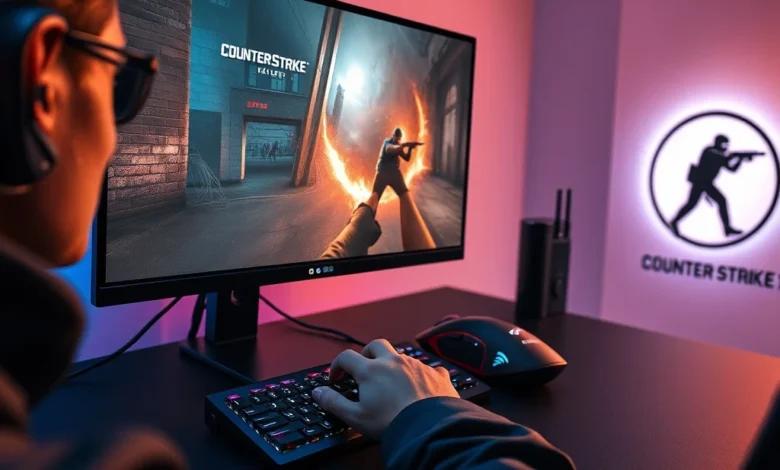
Counter-Strike 2 (CS2) is one of the most competitive and widely played first-person shooters in the world, but lag can ruin the experience, turning intense matches into frustrating sessions. Whether you’re a casual player or an aspiring pro, reducing lag in CS2 is essential for maintaining smooth gameplay, precise aiming, and overall enjoyment. Lag in CS2 typically manifests as delayed inputs, stuttering movement, rubber-banding, or sudden disconnections. These issues can stem from network problems, hardware limitations, or background processes consuming system resources. Fortunately, many of these problems can be mitigated with the right settings and optimizations. This guide will walk you through actionable steps to reduce lag in CS2, covering network configurations, in-game settings, and hardware adjustments tailored for both PC and console players.
🎮 Introduction to CS2 and the Impact of Lag
Counter-Strike 2 is Valve’s latest iteration of the legendary CS series, built on the Source 2 engine to deliver enhanced visuals, improved physics, and a more dynamic gameplay experience. Released in September 2023 as a free upgrade to CS:GO, CS2 has quickly become a staple in the esports and casual gaming communities. The game supports cross-platform play between Windows and macOS players, and it is widely accessible through Steam. CS2 features a variety of game modes, including the popular Competitive Mode, Casual Mode, Wingman, Danger Zone, and Deathmatch, each offering unique challenges and styles of play.
Lag in online multiplayer games like CS2 is a common issue that affects player performance and enjoyment. In competitive play, even a fraction of a second delay can mean the difference between a clutch victory and a loss. Lag can be caused by slow internet connections, high latency, packet loss, or server issues on Valve’s end. Additionally, hardware bottlenecks, background applications, and improper in-game settings can exacerbate lag. Understanding the root causes of lag is the first step toward fixing it. This article will provide a comprehensive breakdown of how to reduce lag in CS2, ensuring you can enjoy the game at its best.
- 🎯 Genre: Tactical First-Person Shooter / Competitive Multiplayer
- 📅 Release Date: September 2023
- 🏢 Developer and Publisher: Valve Corporation
- 🌍 Why the Game Gained Attention: As the successor to CS:GO, CS2 introduced Source 2 engine improvements, enhanced visuals, and refined gameplay mechanics, attracting both long-time fans and new players.
- 👥 Target Audience: Competitive gamers, esports enthusiasts, casual players, and tactical FPS lovers
- 📈 Market Impact: CS2 has become a major title in the esports scene, with active tournaments, professional leagues, and a thriving community driving its popularity.
🌐 Understanding Lag in CS2: Causes and Types
Lag in CS2 can be broadly categorized into two types: network-related lag and system-related lag. Network lag is directly tied to your internet connection and the game servers, while system lag arises from your hardware or software configuration. Understanding the difference is crucial because the solutions for each type vary significantly.
Network lag is often the more challenging issue to resolve because it depends on external factors such as your ISP, server location, and network congestion. This type of lag can manifest as high ping (latency), packet loss, or jitter (inconsistent latency). High ping is particularly problematic in competitive matches, as it increases the time it takes for your actions to reach the server and for the server’s response to reach you. This delay can make aiming and movement feel sluggish, giving opponents an unfair advantage. Packet loss occurs when data packets sent between your device and the server are lost or corrupted, leading to missing inputs, rubber-banding, or sudden teleportation of players. Jitter, on the other hand, refers to fluctuations in latency, which can cause erratic movement and unpredictable gameplay.
System lag, in contrast, is caused by insufficient hardware resources or poorly optimized software. This can result in frame rate drops (FPS lag), stuttering, or even crashes. Common causes include an outdated graphics card, insufficient RAM, or background applications consuming CPU and GPU resources. Additionally, improper in-game settings, such as high graphics options on a low-end PC, can overwhelm your system and lead to lag. Overheating can also cause performance throttling, where your hardware reduces its clock speed to prevent damage, leading to sudden drops in performance. Identifying whether your lag is network-related or system-related is the first step toward resolving it effectively.
🔍 Common Symptoms of Lag in CS2
- ⚠️ High Ping: Ping values above 100ms can make the game feel unresponsive, especially in competitive matches where quick reactions are essential.
- 📉 Packet Loss: If players suddenly freeze, teleport, or disappear, it’s often a sign of packet loss caused by unstable network connections.
- ⏱️ Input Delay: Delayed weapon firing, slow movement responses, or delayed reloads are classic signs of high latency or system bottlenecks.
- 🎮 FPS Drops: Stuttering, screen freezing, or sudden frame rate drops indicate system-related lag, often caused by hardware limitations or background processes.
- 🔄 Rubber-Banding: Players teleporting back and forth or snapping to different positions is a common symptom of server-side issues or high latency.
net_graph 1 in CS2 to display real-time network statistics, including ping, packet loss, and FPS. This tool provides immediate feedback on your connection quality and helps pinpoint whether the issue is network-related or system-related.🌍 Network Settings and Optimizations for CS2
When it comes to reducing lag in CS2, network optimizations are often the most impactful. Your internet connection and how it interacts with CS2’s servers play a critical role in determining your overall gaming experience. Below are the key network settings and adjustments you can make to improve your connection stability and reduce lag.
🔌 Wired vs. Wireless Connections
One of the most effective ways to reduce lag in CS2 is to use a wired Ethernet connection instead of a wireless Wi-Fi connection. Wi-Fi is convenient but prone to interference, signal drops, and latency spikes, especially if multiple devices are connected to the same network. Ethernet cables provide a stable, low-latency connection directly to your router, minimizing the risk of packet loss and jitter. If you must use Wi-Fi, ensure you’re on a 5GHz band (avoid 2.4GHz for gaming) and connect to a router with minimal interference. However, for competitive play, a wired connection is always recommended.
📡 Router and ISP Optimizations
Your router and internet service provider (ISP) can significantly impact your gaming experience. Here are some steps to optimize your router and ISP settings for CS2:
- ✅ Enable Quality of Service (QoS): QoS prioritizes gaming traffic over other types of internet usage (e.g., streaming, downloads). This ensures that CS2 packets are given priority, reducing latency and packet loss during matches.
- 📡 Use a 5GHz Wi-Fi Band: If you must use Wi-Fi, switch to the 5GHz band for faster speeds and lower latency. Avoid the 2.4GHz band, which is more susceptible to interference.
- 🔄 Restart Your Router Regularly: Routers can become overloaded with cached data or background processes. Restarting your router once a week can help maintain optimal performance.
- 📶 Check for ISP Throttling: Some ISPs throttle gaming traffic to manage bandwidth. Contact your ISP or use tools like
speedtest.netto check for inconsistent speeds during peak gaming hours. - 🔌 Use a Gaming VPN (Carefully): A VPN can help reduce latency by routing your connection through servers closer to CS2’s data centers. However, VPNs can sometimes increase ping if not configured properly. Test different VPN servers to find the one with the lowest latency.
🎮 In-Game Network Settings for CS2
CS2 offers several in-game network settings that can help reduce lag. These settings are accessible through the game’s launch options or console commands. Below are the most important network settings and how to configure them:
- ⚙️ Launch Options: Launch options are command-line arguments that modify how CS2 runs. To access them, right-click CS2 in your Steam library, select Properties, and add the following launch options in the Launch Options field:
-novid -nod3d9ex1 -high -threads 8 -nojoy -nocrashdialog
-novid: Disables the intro video, reducing load times and potential lag spikes during startup.-nod3d9ex1: Disables Direct3D 9 Ex extensions, which can improve compatibility on older systems.-high: Sets the game’s process priority to high, ensuring it receives more CPU resources.-threads 8: Forces the game to use 8 CPU threads, which can improve performance on multi-core processors.-nojoy: Disables joystick support, reducing background processes.-nocrashdialog: Prevents Windows from showing error dialogs if the game crashes, reducing downtime.
- 🎛️ Console Commands: CS2 supports various console commands that can further optimize network performance. To enable the console, go to Settings > Game > Enable Developer Console in the game menu. Press the
~key to open the console and enter the following commands:
cl_cmdrate 128
cl_updaterate 128
cl_interp 0
cl_interp_ratio 1
rate 128000
cl_cmdrate 128: Sets the rate at which your client sends commands to the server (128 is the maximum).cl_updaterate 128: Sets how often your client receives updates from the server (128 is ideal for high-refresh-rate monitors).cl_interp 0: Eliminates interpolation delay, reducing input lag.cl_interp_ratio 1: Ensures smooth movement by minimizing interpolation.rate 128000: Increases the bandwidth allocated to CS2, reducing packet loss.
rate value to 64000 or 32000 temporarily to see if it stabilizes your connection. However, this may slightly increase latency.🌐 Server Selection and Matchmaking
CS2’s matchmaking system automatically connects you to the nearest available server, but sometimes it’s beneficial to manually select a server with lower latency. Here’s how to optimize server selection:
- 🗺️ Use the Server Browser: Open the server browser in CS2 and filter for servers with low ping (<50ms). Avoid servers with high ping or player counts above 20, as they can increase latency and reduce match quality.
- 🔄 Disable Region Locking: By default, CS2 locks you to a specific region based on your IP. To disable this, go to Settings > Game > Matchmaking Region and select Any. This allows the game to find the server with the lowest ping globally.
- ⚡ Use Community Servers for Practice: Community servers often have lower latency and more stable connections than official Valve servers. Look for servers labeled “Empty” or “Low Pop” for the best performance.
- 📊 Monitor Server Performance: Use the
net_graph 1command to monitor your ping in real-time. If your ping fluctuates wildly, the server may be unstable, and you should try a different one.
🖥️ Hardware Optimizations for CS2
While network optimizations are critical, hardware limitations can also cause lag in CS2. Whether you’re playing on a high-end gaming PC or a modest laptop, there are several hardware tweaks and settings you can adjust to improve performance and reduce lag. Below are the key hardware optimizations for CS2.


🎮 Graphics Settings for Maximum FPS
CS2 is a demanding game, especially on high-end graphics settings. If your system struggles to maintain a consistent frame rate, lowering your graphics settings can significantly reduce lag caused by FPS drops. Below is a recommended graphics settings configuration for different hardware tiers:
| Graphics Setting | High-End PC | Mid-Range PC | Low-End PC |
|---|---|---|---|
| Resolution | 1920×1080 or 2560×1440 | 1920×1080 | 1280×720 or 1366×768 |
| Display Mode | Fullscreen | Fullscreen | Fullscreen |
| Global Shadow Quality | Medium | Low | Low |
| Model / Texture Detail | High | Medium | Low |
| Effect Detail | Low | Low | Low |
| Shader Detail | High | Medium | Low |
| Multicore Rendering | Enabled | Enabled | Disabled |
| Vertical Sync | Disabled | Disabled | Disabled |
| Motion Blur | Disabled | Disabled | Disabled |
| Bloom | Disabled | Disabled | Disabled |
These settings prioritize performance while maintaining visual clarity. For competitive play, disabling motion blur and bloom is especially important, as they can obscure critical visual information. Additionally, setting shader detail to High on mid-range PCs can provide a good balance between performance and visual quality. On low-end systems, disabling multicore rendering and lowering model/texture detail can help maintain stable FPS.
fps_max 0 command in the console to unlock your FPS cap and allow your system to push as many frames as possible. This is particularly useful for high-refresh-rate monitors, as it ensures you’re not capped at 60 FPS if your hardware can handle more.🔧 CPU and GPU Optimization
Your CPU and GPU are the backbone of your gaming performance in CS2. Ensuring they are running optimally can significantly reduce lag caused by bottlenecks. Below are some key optimizations for your CPU and GPU:
- 🖥️ Update GPU Drivers: Outdated GPU drivers can cause performance issues, stuttering, and crashes. Always keep your graphics drivers up to date by downloading the latest version from NVIDIA, AMD, or Intel’s official websites.
- ⚙️ Adjust Power Settings: On Windows, go to Control Panel > Power Options and select the High Performance power plan. This ensures your CPU and GPU run at maximum performance without throttling. Avoid using power-saving modes during gaming sessions.
- 🌡️ Monitor Temperatures: Overheating can cause your hardware to throttle, leading to performance drops. Use tools like MSI Afterburner or HWMonitor to monitor your CPU and GPU temperatures. Ensure your system is properly ventilated and consider reapplying thermal paste if temperatures exceed 85°C for the CPU or 80°C for the GPU under load.
- 🔄 Close Background Applications: Background processes like Discord, Chrome, or antivirus software can consume CPU and GPU resources, causing lag. Use the Task Manager to close unnecessary applications before launching CS2.
- 🎛️ Enable Game Mode in Windows: Windows 10 and 11 include a Game Mode feature that prioritizes gaming resources. Enable it by going to Settings > Gaming > Game Mode.
💾 RAM and Storage Optimizations
Adequate RAM and fast storage can also impact your CS2 performance. Here’s how to optimize them:
- 🧠 Increase RAM Allocation: CS2 recommends at least 8GB of RAM, but 16GB is ideal for smoother performance, especially when running multiple applications in the background. Check your RAM usage in the Task Manager and consider upgrading if you frequently hit 90%+ usage.
- 💽 Use an SSD: Loading times and level transitions are significantly faster on SSDs compared to HDDs. If your game is installed on an HDD, consider transferring it to an SSD for faster load times and reduced stuttering.
- 🧹 Enable RAM Disk for CS2: For advanced users, creating a RAM disk and storing critical game files on it can reduce load times and improve performance. However, this requires significant RAM capacity (at least 8GB allocated to the RAM disk).
- 🗄️ Disable Superfetch and Prefetch: Windows’ Superfetch and Prefetch features can sometimes interfere with gaming performance. Disable them by opening the Services menu (run
services.msc) and setting SysMain to Disabled.
⚡ Overclocking and Undervolting (Advanced Users)
For users comfortable with advanced tweaks, overclocking your GPU or undervolting your CPU can provide a performance boost or reduce heat output, respectively. However, these methods carry risks and can void warranties if done improperly. Below are some general guidelines:
- 📈 Overclocking the GPU: Use tools like MSI Afterburner to increase your GPU’s core clock and memory speed. Start with small increments (e.g., +50 MHz) and test for stability using benchmarks like FurMark or 3DMark. Monitor temperatures to ensure they don’t exceed safe limits.
- 🔋 Undervolting the CPU: Undervolting reduces power consumption and heat output without sacrificing performance. Use tools like ThrottleStop or BIOS settings to lower your CPU’s voltage while maintaining stability. This is particularly useful for laptops or systems prone to overheating.
- 🔧 BIOS Settings: For desktop users, tweaking BIOS settings like XMP/DOCP (for RAM) or CPU Core Ratio can improve performance. Enable XMP to run your RAM at its rated speed, and adjust the CPU multiplier for a mild overclock if your cooling solution allows it.
🎯 Advanced Optimization Techniques for CS2
For players seeking the ultimate performance boost, advanced optimizations can make a significant difference in reducing lag and improving responsiveness. These techniques go beyond basic settings adjustments and require a deeper understanding of your system and the game’s mechanics.
🔧 BIOS and Windows Tweaks
Your system’s BIOS and Windows settings can impact CS2 performance in subtle but significant ways. Below are some advanced tweaks to consider:
- 🔌 Disable C-States and Turbo Boost (Intel) / Precision Boost (AMD): These features allow your CPU to dynamically adjust its clock speed based on workload. While they save power, they can introduce micro-stuttering in games. Disable them in your BIOS if you experience inconsistent FPS.
- 🖥️ Enable Above 4G Decoding: For modern systems with PCIe 4.0/5.0 GPUs, enabling Above 4G Decoding in the BIOS can improve compatibility and performance with high-end graphics cards.
- ⚡ Disable Onboard Audio: If you’re using a dedicated sound card or USB audio interface, disable onboard audio in the BIOS to free up system resources.
- 🎚️ Adjust Windows Visual Effects: Go to Control Panel > System > Advanced System Settings > Performance Settings and select Adjust for best performance. This disables all visual effects, including animations and transparency, which can slightly improve performance.
- 🔖 Disable Fullscreen Optimizations: Right-click on the CS2 executable (or Steam shortcut), go to Properties > Compatibility, and enable Disable fullscreen optimizations. This can reduce input lag and improve performance in some cases.
🌐 Network-Level Optimizations
For players with consistent network issues, advanced network optimizations can help stabilize your connection. Below are some techniques to try:
- 🔄 Use a Static IP Address: Assigning a static IP to your gaming PC can reduce latency fluctuations caused by DHCP reassignments. Configure your router to assign a static IP to your PC’s MAC address.
- 🛡️ Enable Port Forwarding: Forward the following ports in your router settings to prioritize CS2 traffic:
- UDP 27005 to 27015 (Game client)
- UDP 27020 (Steam Client)
- UDP 4380 (Steam P2P)
- 🔌 Use a Gaming Router: Routers like the ASUS ROG Rapture GT-AX11000 or Netgear Nighthawk Pro Gaming XR500 are designed for low latency and high bandwidth prioritization. These routers often include features like Geo-Filter and Adaptive QoS to optimize gaming traffic.
- 📡 Switch to a Mesh Wi-Fi System: If you’re using an older Wi-Fi router, consider upgrading to a mesh system like Google Nest Wi-Fi or TP-Link Deco. These systems provide better coverage and lower latency for gaming.
- 🔊 Disable IPv6: IPv6 can sometimes cause connectivity issues with older games. Disable it in your network adapter settings if you experience frequent disconnections.
🎮 Advanced In-Game Settings
CS2 offers several advanced settings that can further optimize your experience. Below are some lesser-known tweaks to consider:
- 🎯 Disable Weapon Sway: Weapon sway can obscure your aim and introduce unnecessary visual noise. Disable it in the Game > Crosshair settings.
- ⚡ Reduce Post-Processing Effects: Post-processing effects like motion blur and depth of field can reduce FPS and introduce input lag. Disable them entirely for competitive play.
- 📊 Adjust FPS Limiters: If you’re using a high-refresh-rate monitor (144Hz+), set your FPS limiter to match your monitor’s refresh rate (e.g.,
fps_max 144). This prevents screen tearing and reduces unnecessary frame rendering. - 🎛️ Custom Crosshair Settings: A well-designed crosshair can improve your aim and reduce visual distractions. Use tools like CS2 Crosshair Generator to create a custom crosshair tailored to your preferences.
- 🔄 Disable Team Colors in Spectator Mode: If you’re spectating matches, disabling team colors can reduce visual clutter and improve clarity.
🚀 Final Verdict: Should You Optimize CS2 for Lag Reduction?
Reducing lag in CS2 is not just about tweaking a few settings—it’s about creating a stable, responsive, and enjoyable gaming environment. Whether you’re a casual player or a competitive esports athlete, the optimizations outlined in this guide can help you achieve smoother gameplay, faster reaction times, and a more immersive experience. The key takeaway is that lag in CS2 is often a combination of network and hardware issues, and addressing both is essential for the best results.
For players experiencing high ping or packet loss, focusing on network optimizations such as using a wired connection, enabling QoS, and selecting the right server will yield the most significant improvements. Hardware optimizations, including graphics settings adjustments, driver updates, and background process management, can further enhance performance and reduce stuttering. Advanced users can explore BIOS tweaks, overclocking, and network-level optimizations for an extra edge in competitive play.
Ultimately, CS2 is a game where every millisecond counts. By implementing the strategies in this guide, you’ll be well-equipped to minimize lag and maximize your performance. Remember that not every optimization will work for every system—experiment with different settings to find the perfect balance between performance and visual quality. With the right tweaks, you can transform CS2 from a frustrating experience into a seamless, high-octane gaming session that keeps you competitive and engaged.
Now that you’ve learned how to reduce lag in CS2, it’s time to put these tips into practice. Start by testing your current ping and FPS using the tools mentioned earlier, then gradually apply the optimizations that best suit your setup. Whether you’re grinding for rank or just playing for fun, smoother gameplay awaits!
❓ Frequently Asked Questions About Reducing Lag in CS2
- What is the ideal ping for competitive CS2 matches?
For competitive play, a ping below 50ms is ideal. Anything above 100ms can significantly impact your reaction time and aim. If your ping is consistently above 100ms, consider switching to a wired connection or using a VPN to route your traffic through a closer server.
- Does using a VPN help reduce lag in CS2?
A VPN can sometimes help by routing your connection through servers closer to CS2’s data centers, reducing latency. However, VPNs can also increase ping if not configured properly. Test different VPN servers to find the one with the lowest latency before committing.
- How do I check for packet loss in CS2?
Use the console command
net_graph 1to display real-time network statistics. Packet loss will appear as a percentage next to “PL” in the net graph. If you see consistent packet loss above 2-3%, it’s a sign of network instability that needs addressing. - Should I disable V-Sync in CS2?
Yes, V-Sync should be disabled in CS2. V-Sync synchronizes your frame rate with your monitor’s refresh rate, which can introduce input lag. Instead, use your graphics card’s built-in frame limiter (e.g., NVIDIA Reflex, AMD Chill) to cap your FPS without adding latency.
- What’s the best graphics preset for low-end PCs playing CS2?
For low-end PCs, set the resolution to 1280×720 or 1366×768, disable multicore rendering, and lower the model/texture detail to Low. Disable effects like motion blur, bloom, and shader detail. This configuration will help maintain stable FPS on older hardware.
- How can I reduce input lag in CS2?
To reduce input lag, enable NVIDIA Reflex Low Latency (if using an NVIDIA GPU) or AMD Radeon Anti-Lag (if using an AMD GPU). Additionally, use the console commands
cl_interp 0andcl_interp_ratio 1to eliminate interpolation delay. Ensure your monitor’s response time is below 5ms for the best results. - Does CS2 support cross-platform play?
Yes, CS2 supports cross-platform play between Windows and macOS players. However, console players (PlayStation, Xbox) are not part of the cross-platform ecosystem. If you’re experiencing lag in cross-platform matches, it’s likely due to differences in hardware or network conditions between platforms.
- How do I know if my lag is caused by my ISP?
Perform a speed test using
speedtest.netorfast.comto check your internet speed and consistency. If your speeds fluctuate significantly during peak hours or you experience frequent disconnections, your ISP may be throttling your connection. Contact your ISP or switch to a provider with better gaming support. - What are the best launch options for CS2 on a high-end PC?
For high-end PCs, use the following launch options:
-novid -nod3d9ex1 -high -threads 8 -nojoy -nocrashdialog +mat_queue_mode 2
The
+mat_queue_mode 2command enables multi-threaded material processing, which can improve performance on multi-core CPUs. - Can overheating cause lag in CS2?
Yes, overheating can cause your hardware to throttle, leading to sudden FPS drops and lag. Monitor your CPU and GPU temperatures using tools like HWMonitor or MSI Afterburner. Ensure your system is properly ventilated and consider reapplying thermal paste if temperatures exceed safe limits under load.
🎯 Conclusion: Mastering Lag Reduction in CS2
Lag in CS2 is a formidable opponent, but with the right knowledge and tools, it can be defeated. By understanding the root causes of lag—whether they’re network-related, hardware-related, or a combination of both—you can take targeted steps to optimize your setup and enjoy smoother, more responsive gameplay. This guide has provided a comprehensive roadmap to reducing lag, from basic network and in-game settings to advanced hardware tweaks and BIOS optimizations.
Remember that no two systems are identical, and what works for one player may not work for another. Experiment with different settings, monitor your performance using tools like net_graph 1, and don’t hesitate to revisit optimizations as your hardware or network conditions change. Whether you’re a beginner looking to improve your casual matches or a seasoned pro aiming for the top of the leaderboards, reducing lag in CS2 is an ongoing process that rewards patience and persistence.
Now, it’s time to take action. Start by testing your current setup, apply the optimizations that best suit your needs, and get ready to dominate in CS2. With smoother gameplay and reduced lag, you’ll be one step closer to achieving your goals in this legendary tactical shooter.