Best Competitive Settings for Valorant in 2026 – Pro-Level Configs for PC & Mobile

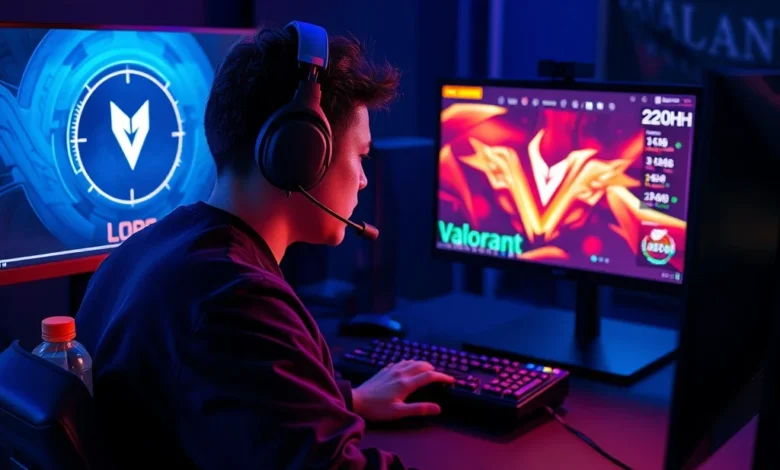
Valorant, Riot Games’ tactical first-person shooter, has taken the competitive gaming world by storm since its release. Whether you’re a seasoned pro or an aspiring player looking to climb the ranks, optimizing your settings can make a world of difference. In this guide, we’ll break down the best competitive settings for Valorant on both PC and Android, covering everything from mouse sensitivity to graphics configurations. These settings are designed to maximize your performance while maintaining comfort and precision in high-stakes matches.
🎮 Why Settings Matter in Competitive Valorant
Valorant is a game of milliseconds and precision. Every frame, every mouse movement, and every keybind can impact your gameplay. Competitive players understand that even the smallest tweaks can lead to better aim, faster reactions, and fewer distractions. The default settings in Valorant are a good starting point, but they aren’t optimized for competitive play. By customizing your mouse sensitivity, keybinds, graphics, and other settings, you can gain an edge over opponents who rely on default configurations.
In competitive play, consistency is key. Players who use settings tailored to their playstyle and hardware can react faster, aim more accurately, and maintain focus during long sessions. Additionally, proper settings can reduce eye strain and fatigue, allowing you to play longer without performance drops. Whether you’re grinding ranked matches or competing in tournaments, these optimized settings will help you perform at your best.
🔥 Key Areas to Optimize for Competitive Play
- ✅ Mouse Sensitivity and DPI – Ensures smooth and precise aim.
- 🎯 Keybinds and Controls – Custom layouts for faster execution.
- 🖥️ Graphics Settings – Balances performance and visual clarity.
- 🔊 Audio Settings – Enhances situational awareness.
- ⚡ Crosshair and Reticle Customization – Improves target tracking.
🕹️ Best Competitive Settings for Valorant on PC
PC players have the most flexibility when it comes to optimizing Valorant for competitive play. The game’s high system requirements mean that even mid-range PCs can run Valorant smoothly at competitive settings. Below, we’ll cover the best configurations for mouse, keyboard, graphics, and audio to help you dominate in ranked matches.
⚙️ Mouse Sensitivity and DPI
Mouse sensitivity is one of the most critical settings in Valorant. A well-tuned sensitivity ensures that your crosshair movement is smooth and predictable, which is essential for flick shots and tracking moving targets. The ideal sensitivity depends on your playstyle, but most pro players use a lower sensitivity with higher DPI settings to achieve fine control.
Here’s a recommended setup for competitive play:
- In-Game Mouse Sensitivity: Start with a sensitivity between 0.4 and 0.8. This range is commonly used by pros and offers a balance between speed and precision.
- Mouse DPI: Set your mouse DPI to 800. This is a sweet spot for most gaming mice, providing a good balance between tracking speed and accuracy.
- Windows Mouse Sensitivity: Set your Windows mouse sensitivity to 6/11 for consistency.
- eDPI (Effective DPI): Calculate your eDPI by multiplying in-game sensitivity by your DPI. For example, a 0.5 in-game sensitivity with 800 DPI results in an eDPI of 400.
sensitivity command in the Valorant console to fine-tune your sensitivity. The console can be enabled by adding -console to your Valorant launch options in Steam.If you’re new to Valorant, start with a sensitivity of 0.5 and adjust it based on your comfort level. Flick shooters often prefer lower sensitivities (0.3–0.5), while tracking players might opt for slightly higher values (0.6–0.8).
🎮 Keybinds and Controls
Valorant’s default keybinds are functional, but they aren’t optimized for competitive play. Custom keybinds can help you execute actions faster, improve recoil control, and reduce unnecessary movements. Here’s a recommended keybind setup for competitive Valorant:
- Movement:
- Jump: Space
- Crouch: C
- Walk: Alt
- Sprint: Shift
- Combat:
- Fire: Mouse1
- Alternate Fire: Mouse2
- Reload: R
- Ability 1: Q
- Ability 2: E
- Ultimate: X
- Drop Weapon: G
- Use: F
- Utility:
- Buy Menu: B
- Spray: T
- Team Chat: Y
- All Chat: Enter
For advanced players, you can also customize keybinds for specific actions like Vandal Burst Fire or Phantom First Shot to streamline your gameplay further.
🖥️ Graphics Settings for Competitive Play
Valorant is a visually demanding game, but competitive players often prioritize performance over graphics. Lowering your graphics settings can increase your FPS, reduce input lag, and improve overall smoothness. Here’s the best graphics configuration for competitive play:
- Display Mode: Fullscreen
- Resolution: Match your monitor’s native resolution (e.g., 1920×1080)
- Aspect Ratio: 16:9 (or 4:3 if preferred)
- Display Adapter: Your dedicated GPU (NVIDIA/AMD/Intel)
- Refresh Rate: Set to your monitor’s max refresh rate (e.g., 144Hz, 240Hz)
- V-Sync: Off (reduces input lag)
- Anti-Aliasing: None (improves performance)
- Texture Quality: Medium (balances performance and clarity)
- Detail Quality: Low
- UI Quality: Low
- Effect Quality: Low
- Visual Effects: Minimal (reduces distractions)
- Bloom: Off
- Distortion: Off
- Particle Quality: Low
- Motion Blur: Off
- Show Blood: Off (reduces visual clutter)
- Shadows: Off (improves FPS)
- Head Bob: Off (reduces motion sickness)
These settings prioritize performance while keeping the game visually clear enough to spot enemies. If you’re playing on a high-end PC, you can afford to bump up some settings (like texture quality) for better visuals without sacrificing too much FPS.
🔊 Audio Settings for Situational Awareness
Sound is a crucial component in Valorant, as it can give you a significant advantage in competitive play. Proper audio settings ensure that you can hear enemy footsteps, gunfire, and ability sounds clearly. Here’s the recommended audio configuration:


- Master Volume: 50-70% (adjust based on preference)
- Music Volume: 10-20% (reduces distractions)
- Effects Volume: 70-80%
- Voice Chat Volume: 50-60%
- Headphone Mode: On (enhances spatial audio)
- Voice Chat Input Device: Your microphone
- Voice Chat Output Device: Your headphones
Enabling Headphone Mode is especially important for competitive play, as it provides better positional audio. This allows you to pinpoint enemy locations based on sound cues, giving you a tactical advantage in gunfights.
⚡ Crosshair and Reticle Customization
Your crosshair is your best friend in Valorant. A well-designed crosshair can improve your aim, tracking, and overall accuracy. While Valorant offers several default crosshair styles, competitive players often customize theirs for better visibility and clarity. Here’s how to set up an optimal crosshair:
Open the Valorant settings (Settings > Crosshair) and configure the following:
- Crosshair Style: Static or Dynamic (Static is more common among pros)
- Outer Radius: 2–5 (smaller for precision)
- Inner Radius: 0–2 (for a clean look)
- Crosshair Width: 1–2 (thinner lines for better visibility)
- Crosshair Separation: 0–2 (for a single dot or thin lines)
- Crosshair Color: Green or Cyan (high contrast against backgrounds)
- Crosshair Outline: On (improves visibility)
- Crosshair Opacity: 100% (ensures visibility at all times)
- Center Dot: On (helps with recoil control)
Here’s an example of a popular competitive crosshair:
- Style: Static
- Color: Green
- Outer Radius: 3
- Inner Radius: 1
- Width: 1
- Separation: 2
- Outline: On
- Center Dot: On
🎯 Advanced Settings and Console Commands
For players looking to squeeze out every bit of performance, Valorant’s console commands can be a game-changer. Enabling the console and using specific commands can reduce input lag, improve FPS, and enhance your overall experience. Here’s how to enable the console and some useful commands:
Enabling the Console:
- Right-click Valorant in your Steam library and select Properties.
- In the Launch Options field, add
-console. - Launch Valorant and press the ` key (tilde) to open the console.
Useful Console Commands:
mat_monitorgamma 1.6– Adjusts gamma for better visibility.mat_picmip 2– Reduces texture quality for better FPS.fps_max 0– Unlocks FPS cap (set a cap in GPU settings to avoid overheating).cl_showfps 1– Displays FPS in-game.cl_showpos 1– Shows your current position in the game world.voice_enable 1– Ensures voice chat is enabled.rate 128000– Optimizes network connection for smoother gameplay.
mat_monitorgamma command to adjust brightness and contrast for better visibility in dark areas of the map.These commands can significantly improve your performance, especially on mid-range or low-end PCs. Be sure to test them in a custom game before applying them to competitive matches.
📱 Best Competitive Settings for Valorant on Android
While Valorant is primarily a PC-exclusive game, Riot has released a mobile version optimized for Android devices. Playing Valorant on Android requires a different approach to settings, as mobile hardware varies widely. Below, we’ll cover the best configurations for Android to ensure smooth gameplay and competitive performance.
🔧 Mobile Graphics and Performance Settings
Valorant on Android is designed to run on a wide range of devices, from mid-range smartphones to flagship models. To optimize your settings for competitive play, focus on balancing performance and visual clarity. Here’s the recommended configuration:
- Graphics Quality: Low or Medium (depends on device)
- Texture Quality: Medium
- Shadow Quality: Low
- Effects Quality: Low
- FPS Cap: 60 FPS (or match your device’s refresh rate)
- Resolution: 1280×720 or 1920×1080 (depends on device)
- Anti-Aliasing: Off
- V-Sync: Off (if your device supports it)
- FPS Boost: On (if available)
For devices with weaker hardware (e.g., Snapdragon 600 series or older), set the graphics quality to Low to maintain a stable 60 FPS. On mid-range or flagship devices (e.g., Snapdragon 800 series or newer), you can bump the graphics quality to Medium for better visuals without sacrificing performance.
🎮 Mobile Controls and Keybinds
Valorant on Android uses touch controls by default, but competitive players often customize their layouts for better precision and responsiveness. Here’s how to optimize your mobile controls:
- Sensitivity: Set to 50–70% for a balance between speed and control.
- DPI: Adjust based on your playstyle (higher DPI for faster movements).
- Touch Size: Medium (adjust based on finger size).
- Custom Layouts: Enable Advanced Controls in settings for custom keybinds.
- Button Layout: Place movement buttons (WASD) on the left side and action buttons (fire, reload, abilities) on the right.
For players who prefer a more traditional setup, you can enable Controller Support if your device supports it. This allows you to use a Bluetooth controller for more precise aim and movement.
🔊 Mobile Audio Settings
Sound is just as important on mobile as it is on PC. Proper audio settings ensure that you can hear enemy footsteps, gunfire, and ability sounds clearly. Here’s the recommended configuration:
- Master Volume: 70–80%
- Music Volume: 20–30% (reduces distractions)
- Effects Volume: 80–90%
- Voice Chat Volume: 50–60%
- Spatial Audio: On (if supported by your device)
Enabling Spatial Audio (if available) can significantly improve your situational awareness, allowing you to pinpoint enemy locations based on sound cues. This is especially useful in fast-paced mobile matches.
⚡ Mobile Crosshair Customization
Valorant on Android allows you to customize your crosshair, just like on PC. A well-designed crosshair can improve your aim and tracking on a touchscreen. Here’s how to set it up:
- Crosshair Style: Static or Dynamic (Static is more common)
- Color: High-contrast (e.g., green or cyan)
- Size: Medium (adjust based on preference)
- Opacity: 100%
- Center Dot: On (helps with recoil control)
Since touchscreen controls can be less precise than a mouse, a larger crosshair with a center dot can help you track moving targets more effectively.
📱 Additional Mobile Optimization Tips
Playing Valorant on Android requires some additional optimizations to ensure smooth gameplay. Here are a few tips to improve your experience:
- Close Background Apps: Free up RAM and CPU by closing unnecessary apps before launching Valorant.
- Enable Performance Mode: If your device supports it, enable Performance Mode in your settings to prioritize gaming performance.
- Use a Gaming Phone: Devices like the Asus ROG Phone, RedMagic 9S Pro, or Black Shark 5 are optimized for gaming and offer better performance.
- Enable Battery Saver Mode: If you’re playing on a device with limited battery, enable Battery Saver Mode to extend playtime.
- Use a Cooling Pad: Gaming on mobile can generate a lot of heat. Use a cooling pad to prevent thermal throttling.
By following these tips, you can ensure that Valorant runs smoothly on your Android device, even during intense competitive matches.
🏆 Final Verdict: Are These Settings Worth It?
Optimizing your settings for competitive Valorant can give you a significant advantage over players who rely on default configurations. Whether you’re playing on PC or Android, the right mouse sensitivity, keybinds, graphics settings, and audio configurations can improve your aim, reaction time, and situational awareness. These settings are designed to maximize your performance while keeping the game visually clear and comfortable to play.
For PC players, the biggest gains come from tweaking mouse sensitivity, keybinds, and graphics settings. Reducing input lag and improving FPS can make a world of difference in high-stakes matches. On Android, optimizing graphics quality, controls, and audio settings ensures smooth gameplay even on mid-range devices. While mobile Valorant may not be as precise as the PC version, these optimizations can help you compete at a higher level.
Ultimately, the best settings for Valorant depend on your hardware, playstyle, and personal preferences. Experiment with these configurations, test them in custom games, and adjust them to suit your needs. The key to success in Valorant is consistency, and having settings tailored to your playstyle can help you achieve that.
If you’re serious about climbing the ranked ladder or competing in tournaments, take the time to optimize your settings. It might seem like a small change, but it can make all the difference in your gameplay.
❓ Frequently Asked Questions About Valorant Settings
-
What is the best mouse sensitivity for Valorant?
Most competitive players use an in-game sensitivity between 0.4 and 0.8, combined with an 800 DPI setting. This range provides a balance between speed and precision. However, the ideal sensitivity depends on your playstyle—flick shooters often prefer lower sensitivities (0.3–0.5), while tracking players might opt for slightly higher values (0.6–0.8).
-
Should I enable V-Sync in Valorant?
No, V-Sync should be disabled in Valorant to reduce input lag. Instead, use Triple Buffering in your GPU control panel to further minimize latency. If you experience screen tearing, consider lowering your graphics settings or upgrading your hardware.
-
What are the best graphics settings for competitive Valorant?
The best graphics settings for competitive play prioritize performance over visuals. Set your graphics quality to Low or Medium, disable Anti-Aliasing, Bloom, and Shadows, and set your texture quality to Medium. This configuration ensures smooth FPS and minimal distractions.
-
How do I enable the console in Valorant?
To enable the console, right-click Valorant in your Steam library, select Properties, and add
-consoleto the Launch Options. Launch Valorant and press the ` key (tilde) to open the console. -
What is the best crosshair style for Valorant?
The best crosshair style depends on your preference, but most competitive players use a Static crosshair with a Green or Cyan color. A crosshair with a small outer radius (2–5), thin lines (1–2), and a center dot is popular among pros. Experiment in the Crosshair Practice Range to find what works best for you.
-
How can I improve my aim in Valorant?
Improving your aim in Valorant requires practice and the right settings. Focus on optimizing your mouse sensitivity, crosshair, and keybinds. Use the Aim Trainers in the Range to practice flick shots and tracking. Additionally, watch pro players and analyze their movements to learn advanced techniques.
-
What are the best keybinds for Valorant?
There’s no one-size-fits-all answer, but most competitive players customize their keybinds for faster execution. Recommended keybinds include:
- Reload: Mouse4 or Mouse5
- Jump: Space
- Crouch: C
- Ability 1: Q
- Ultimate: X
Experiment with different layouts to find what works best for your playstyle.
-
How do I optimize Valorant for low-end PCs?
If you’re playing on a low-end PC, focus on maximizing FPS by lowering your graphics settings. Set Anti-Aliasing, Bloom, and Shadows to Off, and reduce your texture quality to Low. Disable V-Sync and use console commands like
cl_showfps 1to monitor performance. -
Can I play Valorant on a 60Hz monitor competitively?
Yes, you can play Valorant competitively on a 60Hz monitor, but you may experience slight input lag compared to higher refresh rates. To minimize this, ensure V-Sync is off, use Triple Buffering, and cap your FPS to 60. Focus on optimizing your sensitivity and crosshair for consistency.
-
What is the best way to reduce input lag in Valorant?
To reduce input lag, disable V-Sync, enable Triple Buffering in your GPU control panel, and use console commands like
fps_max 0(then set a cap in your GPU settings). Additionally, use a high-DPI mouse (800–1600 DPI) and lower your in-game sensitivity for smoother aim.
🎯 Conclusion: Optimize, Practice, Dominate
Valorant is a game of precision, strategy, and split-second decisions. While your skill and game sense are the most important factors in your success, optimizing your settings can give you the edge you need to outplay your opponents. Whether you’re playing on PC or Android, the configurations outlined in this guide will help you achieve the best possible performance in competitive matches.
Remember, the best settings are the ones that work for YOU. Don’t be afraid to experiment, test different configurations, and adjust them based on your playstyle and hardware. The key to mastery is consistency, and having settings tailored to your preferences will help you maintain that consistency in every match.
Now that you’ve optimized your Valorant settings, it’s time to hit the Range, grind ranked matches, and climb the leaderboard. Good luck, and may your crosshair always be on target!