How to fix lag and latency issues in Fortnite 2026 caused by a weak internet connection, even on a low-spec device.

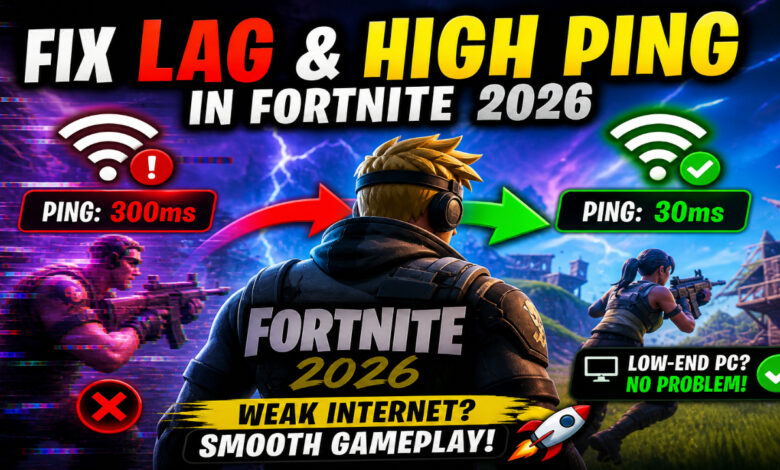
How to Fix Lag and High Ping Issues in Fortnite (2026 Guide) 🎮
We’ve all been there. You are in the final circle of a high-stakes Fortnite match in 2026. Your builds are perfect, your aim is locked in, and suddenly—everything freezes. You teleport backward, your shots don’t register, and you end up back in the lobby. Lag is the ultimate “boss” that no player wants to face.
As Fortnite continues to evolve with more complex mechanics and high-fidelity graphics, the demand on your internet connection has skyrocketed. Even if you have a low-spec device, network instability can make the game unplayable. If you are wondering how to fix lag and high ping issues in fortnite, you are in the right place. In this guide, we will explore why your game stutters and how the GearUp Booster app can be your secret weapon for a smooth, lag-free experience. 🚀
“High ping doesn’t just mean a delay; it means your skill doesn’t matter. You can’t outplay a bad connection.” — Every Fortnite Pro Ever.
Understanding the Enemy: Ping, Lag, and Packet Loss 🌐
Before we jump into the solutions, we need to understand what we are fighting. Many players use the word “lag” for everything, but knowing the difference helps you fix the problem faster.
- Ping (Latency): This is the time (in milliseconds) it takes for your data to travel to the Fortnite server and back. Lower is always better. Anything over 60ms starts to feel slow; over 100ms is unplayable for competitive players.
- Packet Loss: This happens when bits of data “get lost” during the trip. This causes the “teleporting” effect where you see players jumping from one spot to another.
- Jitter: This is when your ping jumps up and down constantly. A stable 50ms ping is much better than a ping that bounces between 20ms and 120ms.
In 2026, Fortnite’s servers handle more data than ever before. If your internet path is crowded or “weak,” you will suffer from these issues. This is especially true on low-spec PCs or older consoles like the PS4 and Xbox One.
Why GearUp Booster is a Game-Changer for Fortnite ⚡
If you’ve searched for how to fix ping lag in fortnite, you’ve probably seen advice like “reboot your router.” While that helps, it doesn’t solve the core problem: the “pathway” your data takes.
Most home internet connections send data through a “public” route. Think of it like a busy highway during rush hour. GearUp Booster acts like a private express lane for your game data. It uses a global network of dedicated servers to find the shortest, most stable route to Epic Games’ servers.
Key Benefits of GearUp Booster:
- Adaptive Routing: It constantly looks for the fastest path. If one server gets crowded, it switches instantly without dropping your connection.
- Supports All Platforms: Whether you need to fix high ping fortnite pc or you’re playing on a mobile phone, GearUp has a solution.
- Low Resource Usage: It is designed to run in the background without eating up your CPU. This is vital if you are on a low-spec device.
- One-Tap Optimization: You don’t need to be a tech genius. One click and the app does the heavy lifting.
How to Fix High Ping in Fortnite PC Using GearUp 🖥️
PC players often face the most lag because background apps and Windows updates fight for bandwidth. Here is the ultimate step-by-step guide to fix high ping in fortnite pc.
Step 1: Download and Install GearUp
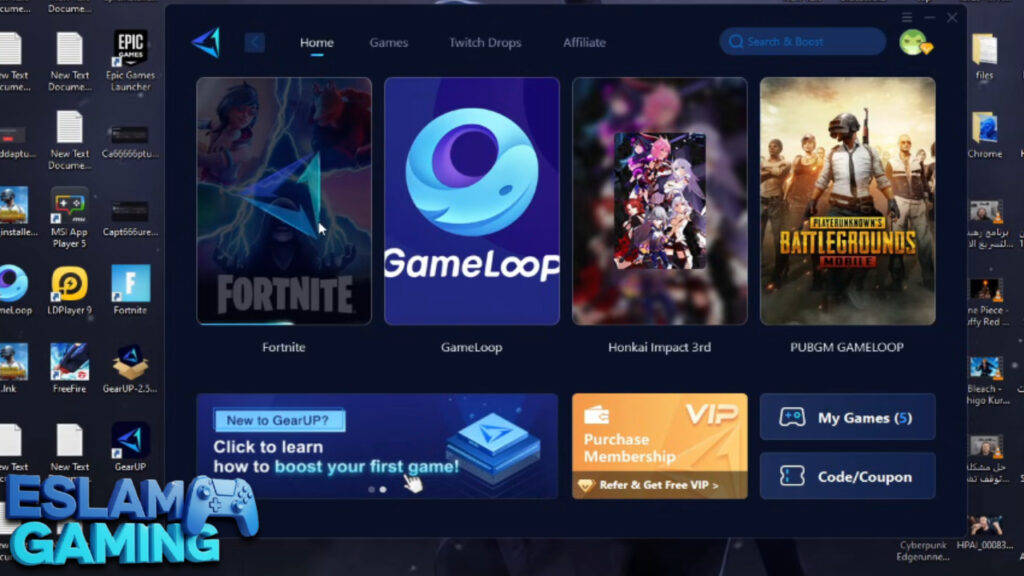
Go to the official GearUp website and download the Windows version. The installation is quick and doesn’t include any bloatware.
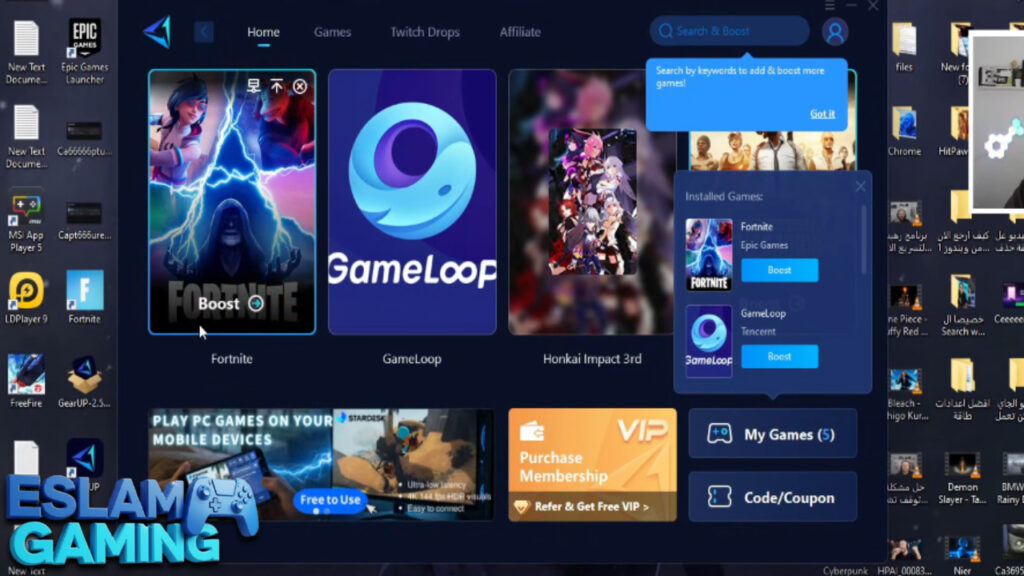
Step 2: Search for Fortnite
Once the app is open, type “Fortnite” in the search bar. You will see different versions. Choose the standard Fortnite version.
Step 3: Select the Best Server
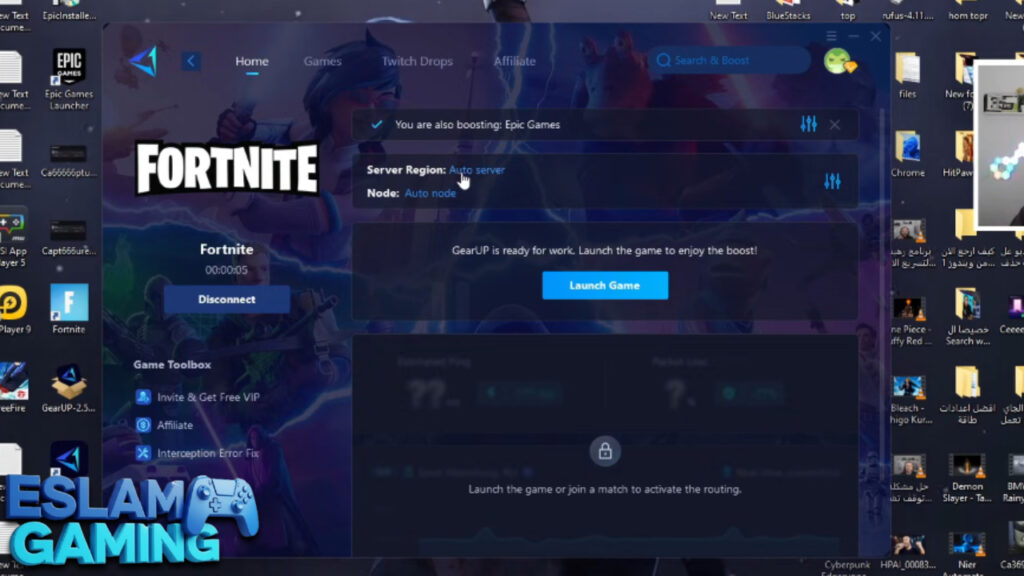
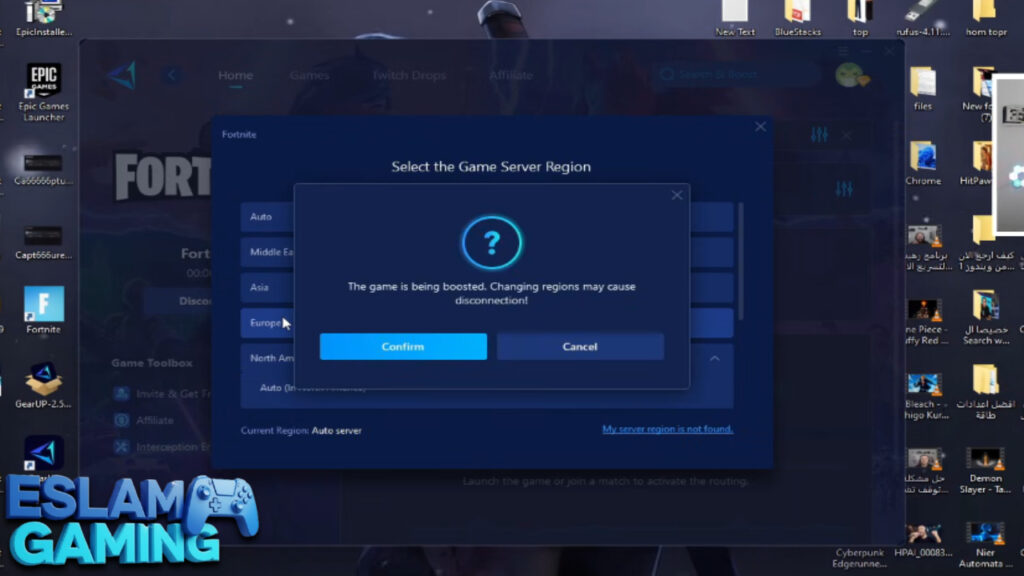
GearUp will show you a list of regions (NA East, Europe, Asia, etc.). Don’t just pick your local region—look for the one with the lowest “Current Ping” and “Packet Loss” indicators within the app.
Step 4: Click “Boost”
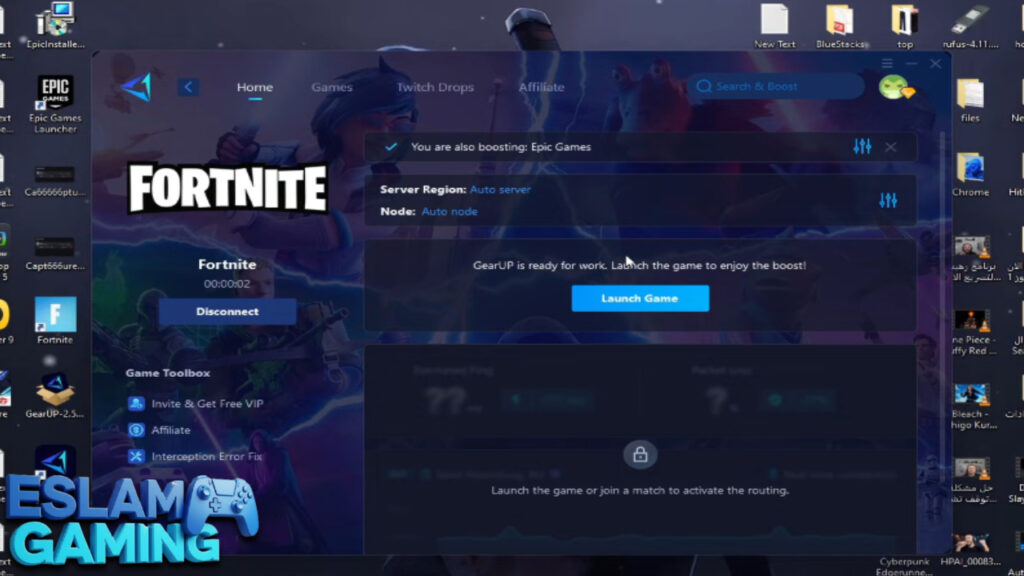
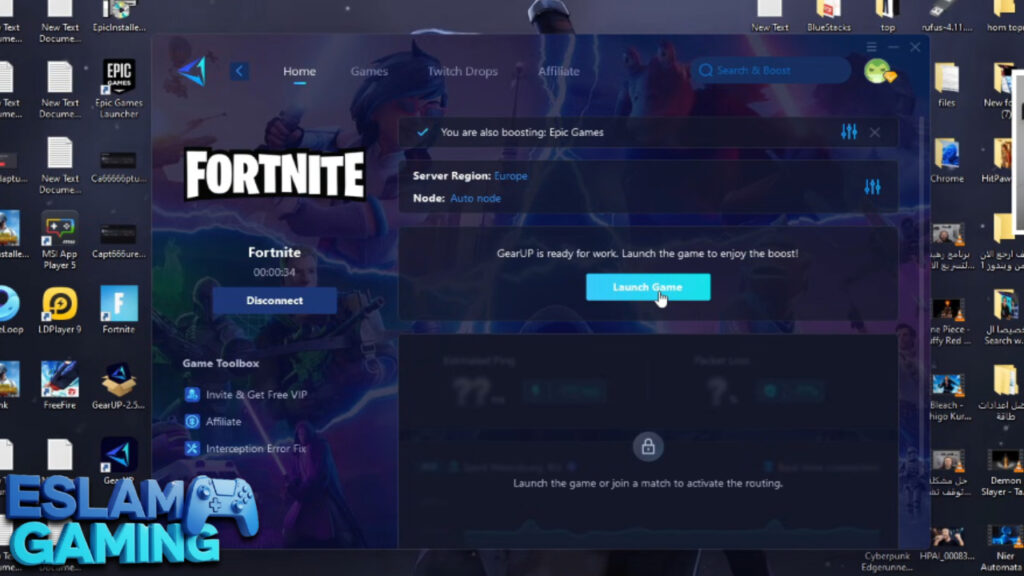
Click the boost button. The app will establish a secure, fast tunnel. You can now launch Fortnite through the Epic Games Launcher. You will notice an immediate drop in your in-game ping.
Fixing High Ping in Fortnite Xbox, PS4, and PS5 🎮
Console players often wonder how to fix high ping in fortnite xbox or how to fix high ping in fortnite ps5 because they can’t install many apps directly on the console. GearUp has a clever solution for this.


You can use the GearUp HYPEREV (a hardware plug-in) or the GearUp Booster mobile app to boost your console connection via your network settings.
How to boost consoles via the mobile app:
- Download the GearUp Booster app on your phone (Android or iOS).
- Connect your phone and your console to the same Wi-Fi network.
- Search for “Fortnite” in the mobile app and select your console (PS4, PS5, Xbox, or Switch).
- Boost the game on your phone.
- The app will give you specific DNS and Proxy settings.
- Go to your Console Network Settings, choose “Manual Setup,” and enter the numbers provided by GearUp.
- Save and Test! This effectively routes your console traffic through GearUp’s high-speed servers.
This is the most effective way to fix high ping in fortnite ps4 without needing a high-end PC.
Comparison: Standard Connection vs. GearUp Booster 📊
| Feature | Standard Connection | GearUp Booster |
|---|---|---|
| Data Route | Public (Crowded) | Private (Express) |
| Average Ping Reduction | 0% | 30% – 60% |
| Packet Loss Fix | No | Yes (Adaptive Routing) |
| Connection Stability | Unpredictable | Very Stable |
| Ease of Use | N/A | One-click solution |
Extra Tips to Fix High Ping and Packet Loss on PC 🛠️
While GearUp solves the routing problem, you should also ensure your hardware isn’t holding you back. If you want to fix high ping fortnite pc, follow these pro-level tips:
1. Use an Ethernet Cable (Always!)
Wi-Fi is convenient, but it is unstable. Walls, microwaves, and other devices interfere with the signal. If you want to fix ping problems in fortnite, plug your device directly into the router. It is the single best hardware upgrade you can make.
2. Optimize Your DNS Settings
Sometimes your ISP’s default DNS is slow. You can manually change your DNS to Google (8.8.8.8 / 8.8.4.4) or Cloudflare (1.1.1.1). However, if you are using GearUp, the app often optimizes this for you automatically.
3. Disable Background “Bandwidth Hogs”
Before launching Fortnite, check your Task Manager. Programs like Chrome, Discord (streaming), and Windows Update can kill your ping.
- Press Ctrl + Shift + Esc.
- Sort by “Network.”
- Right-click and “End Task” on anything using more than 0.1 Mbps.
4. In-Game Settings for 2026
Fortnite 2026 has advanced graphics. Even if your internet is fast, “input lag” from low FPS can feel like network lag.
- Rendering Mode: Performance Mode (Beta) is still the king for low-spec devices.
- Nvidia Reflex Low Latency: Set to “On + Boost.”
- Download High Resolution Textures: Turn this OFF in the Epic Games Launcher settings to prevent random background downloads.
How to Fix the “Ping Glitch” in Fortnite 🧐
Sometimes players experience a ping glitch in fortnite where the game shows 0ms ping, but they are clearly lagging, or it shows 500ms for no reason.
To fix ping glitch in fortnite:
- Go to Settings > Game UI.
- Turn “Net Debug Stats” to OFF and then back to ON.
- Check your “Matchmaking Region” in settings. Ensure it is set to a specific region (like NA-West) rather than “Auto.” “Auto” often glitches and puts you on a server halfway across the world.
Addressing Lag on Low-Spec Devices 📱
If you are playing on a budget laptop or an older Android phone in 2026, you might be asking how to fix lag problem in fortnite pc when your hardware is weak.
Hardware lag (low FPS) and Network lag (high ping) often work together to ruin your game. When your CPU is at 100% load, it struggles to process network packets. This is why GearUp is so helpful—it handles the complex routing externally so your CPU can focus on rendering the game.
Quick Low-Spec Checklist:
- Lower Resolution: Try 1600×900 instead of 1920×1080.
- 3D Resolution: Drop this to 75%. The game looks slightly blurrier, but your FPS and packet processing will stabilize.
- Window Mode: Always use “Full Screen.” Windowed mode increases input delay and can cause stuttering.
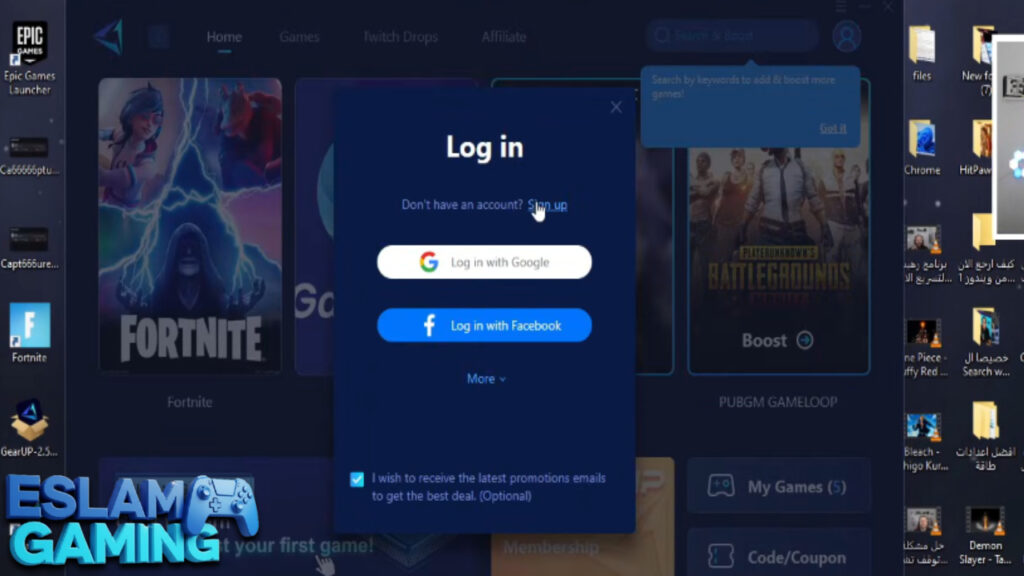
IMAGES FROM INSIDE THE APP:
Frequently Asked Questions (FAQ) ❓
Is GearUp Booster free?
GearUp offers a free trial for new users to test the service. After that, it requires a subscription. However, compared to the cost of a better ISP or a new gaming PC, it is a very affordable way to fix high ping in fortnite.
Will this fix lag in Fortnite Chapter 4 or 5?
Yes! These methods are designed to work across all chapters, including the latest 2026 updates. Whether you need to how to fix high ping in fortnite chapter 4 or the newest season, the logic of better routing remains the same.
Can I get banned for using a game booster?
No. GearUp Booster is not a cheat or a hack. It does not modify game files. It simply optimizes your network path. Pro players and streamers use network optimizers all the time to ensure they stay at 0-10 ping.
Why is my ping high even with good internet?
Good download speed (like 1000 Mbps) doesn’t mean low ping. Download speed is like the width of a pipe, but ping is the speed at which water travels through it. If your ISP has bad routing to Epic Games, your “pipe” is huge, but the water is moving very slowly.
Final Verdict: The Best Way to Fix Ping Problems 🏆
Lag doesn’t have to be a part of your Fortnite experience. By combining hardware best practices (Ethernet) with software optimization (GearUp Booster), you can compete at the highest level—even on a low-spec device.
To summarize how to fix lag and high ping issues in fortnite:
- Plug in: Switch from Wi-Fi to Ethernet.
- Optimize: Use GearUp Booster to bypass crowded public internet routes.
- Clean up: Close background apps and set Fortnite to Performance Mode.
- Select: Manually choose your closest server region.
Don’t let high ping hold you back from getting that Victory Royale. Download GearUp, follow the steps above, and enjoy the smooth, responsive gameplay you deserve. See you on the Island! 🏝️🔥
Ready to play? Let’s go! 🎮💪